# Pytorch

basato sulla documentazione https://www.learnpytorch.io/

# Introduzione

Iniziamo con una domanda semplice, cos'è il Machine Learning? Beh... iniziamo dicendo come può essere utilizzata:

[![Screenshot 2023-03-26 175207.png](https://cms.marcocucchi.it/uploads/images/gallery/2023-03/scaled-1680-/vQebqHZclccTN3r4-screenshot-2023-03-26-175207.png)](https://cms.marcocucchi.it/uploads/images/gallery/2023-03/vQebqHZclccTN3r4-screenshot-2023-03-26-175207.png)

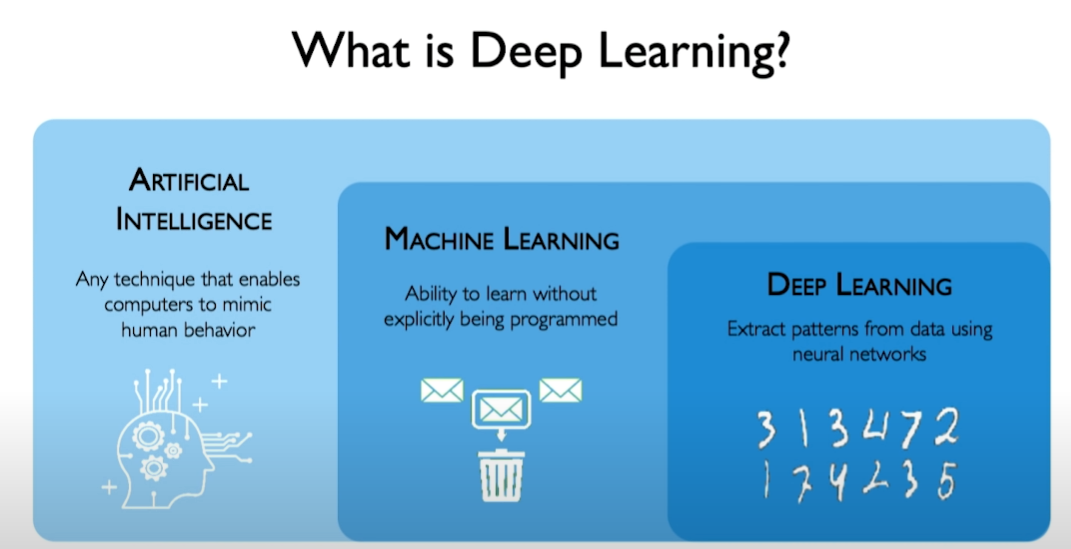
Deep Learning

Cerchiamo innanzitutto di capire cosa è il deep learning e come si relaziona con il machine learning e l'AI.

[![Screenshot 2023-05-13 152324.png](https://cms.marcocucchi.it/uploads/images/gallery/2023-05/scaled-1680-/3senXtHhgrfwcYsw-screenshot-2023-05-13-152324.png)](https://cms.marcocucchi.it/uploads/images/gallery/2023-05/3senXtHhgrfwcYsw-screenshot-2023-05-13-152324.png)
Inferenza

L'inferenza è il processo durante il quale viene sottoposto un nuovo set di dati ad un modello che è stato "trainato" precedente.

# Pytorch for dummy

[![image.png](https://cms.marcocucchi.it/uploads/images/gallery/2025-12/scaled-1680-/5JInQJzhU0nP5wRP-image.png)](https://cms.marcocucchi.it/uploads/images/gallery/2025-12/5JInQJzhU0nP5wRP-image.png)
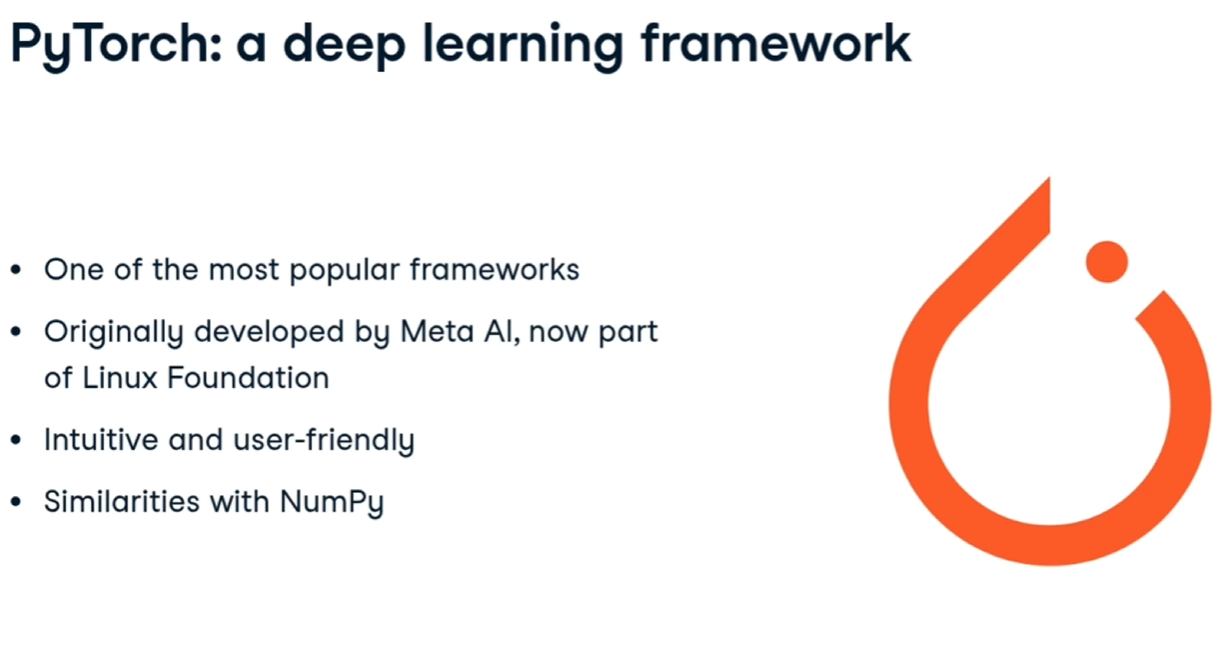
Originariamente impletato da META ora fa parte della Linux foundation

La base di tutto è il tensore, che non è altro che una matrice (o un array) sulla quale PT consente tutta una serie di operazioni, un po' come numpy, es:

[![image.png](https://cms.marcocucchi.it/uploads/images/gallery/2025-12/scaled-1680-/2Wy98ryNFWIMKs54-image.png)](https://cms.marcocucchi.it/uploads/images/gallery/2025-12/2Wy98ryNFWIMKs54-image.png)
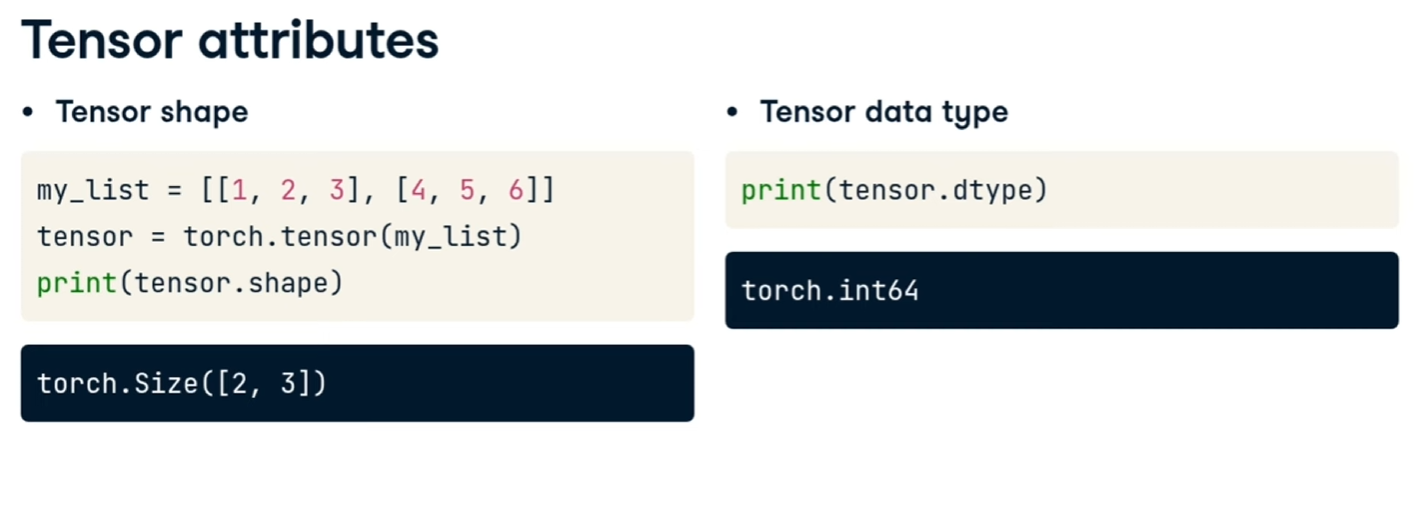
es:

[![image.png](https://cms.marcocucchi.it/uploads/images/gallery/2025-12/scaled-1680-/33x62opLJgWKlLc7-image.png)](https://cms.marcocucchi.it/uploads/images/gallery/2025-12/33x62opLJgWKlLc7-image.png)
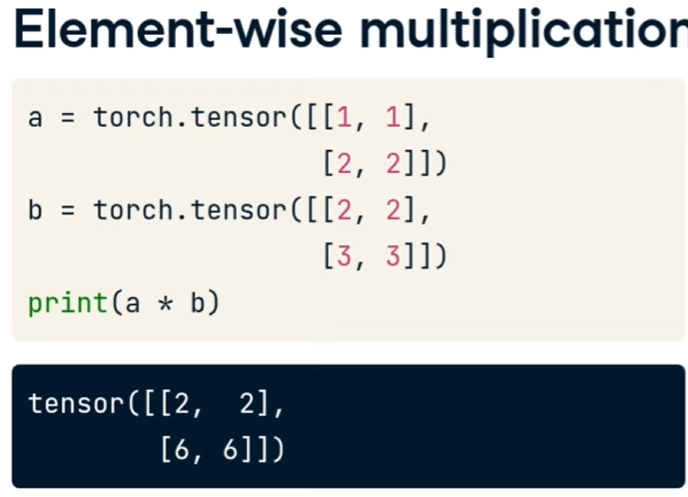
##### Layer della rete neurale

[![image.png](https://cms.marcocucchi.it/uploads/images/gallery/2025-12/scaled-1680-/GpK546stIUrHPhB4-image.png)](https://cms.marcocucchi.it/uploads/images/gallery/2025-12/GpK546stIUrHPhB4-image.png)
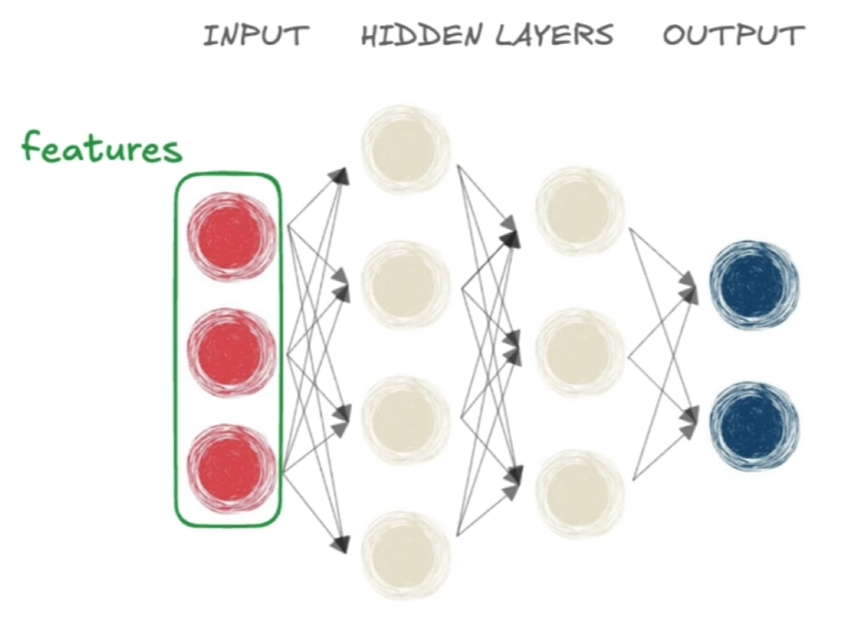
la parte in rosso sono gli input della rete, detta "features", la parte in grigio sono i layer "nascosi", mentra la parte di blu è l'output layer ovvero l'output desiderato.

##### Classificatori

[![image.png](https://cms.marcocucchi.it/uploads/images/gallery/2025-12/scaled-1680-/r2OjVZ9CllxyQQcQ-image.png)](https://cms.marcocucchi.it/uploads/images/gallery/2025-12/r2OjVZ9CllxyQQcQ-image.png)
Le funzioni possono essere:

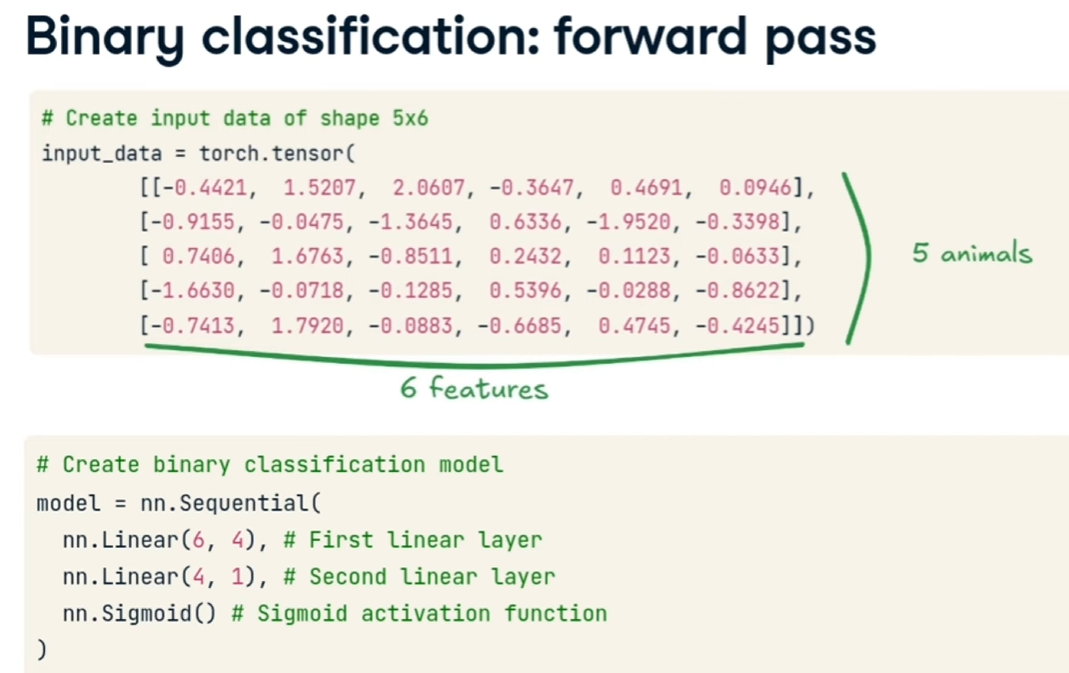
- <span style="color:rgb(22,145,121);">**Sigmoid** </span>per la classificazione binaria (un unico output con un valore compreso tra 0 e 1)[![image.png](https://cms.marcocucchi.it/uploads/images/gallery/2025-12/scaled-1680-/Uv23PqcWloLiMdRr-image.png)](https://cms.marcocucchi.it/uploads/images/gallery/2025-12/Uv23PqcWloLiMdRr-image.png)
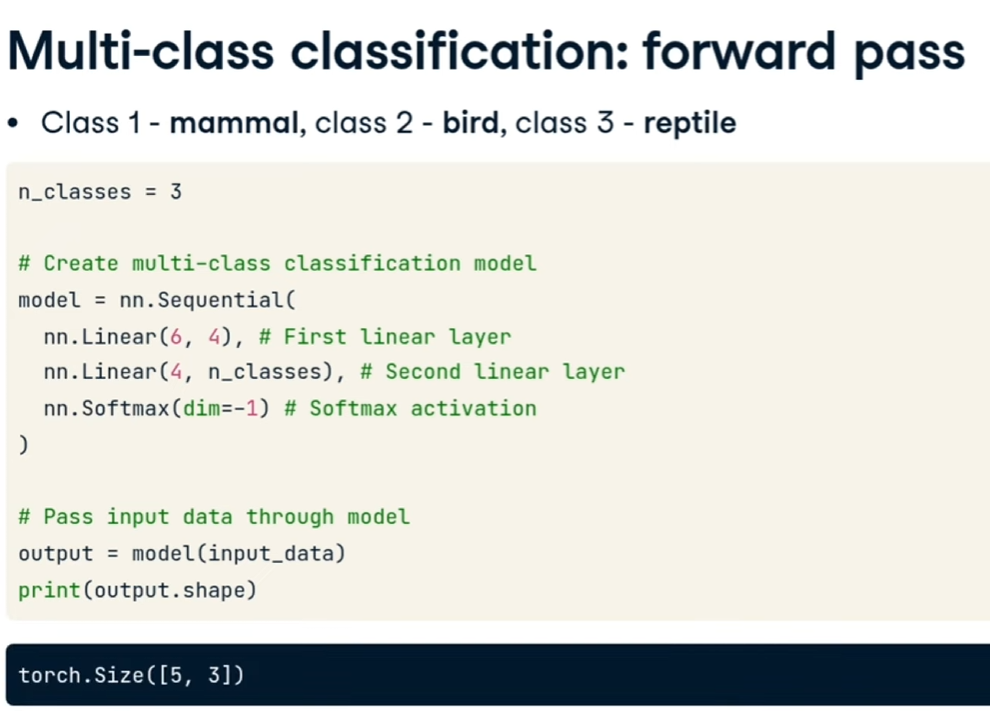
- <span style="color:rgb(22,145,121);">**Softmax** </span>per la multi classificazione, va messo come ultimi layer della rete neurale. (dove l'ultimo livelo di neurino definice il numero di valori da classificre)[![image.png](https://cms.marcocucchi.it/uploads/images/gallery/2025-12/scaled-1680-/zu9mewmoDwJTDmmI-image.png)](https://cms.marcocucchi.it/uploads/images/gallery/2025-12/zu9mewmoDwJTDmmI-image.png)
- yy per la regressione, ovvero per predirre un flusso continuo di valori numerici, in questo caso non verrò inserita nessuna funzione di attivazione

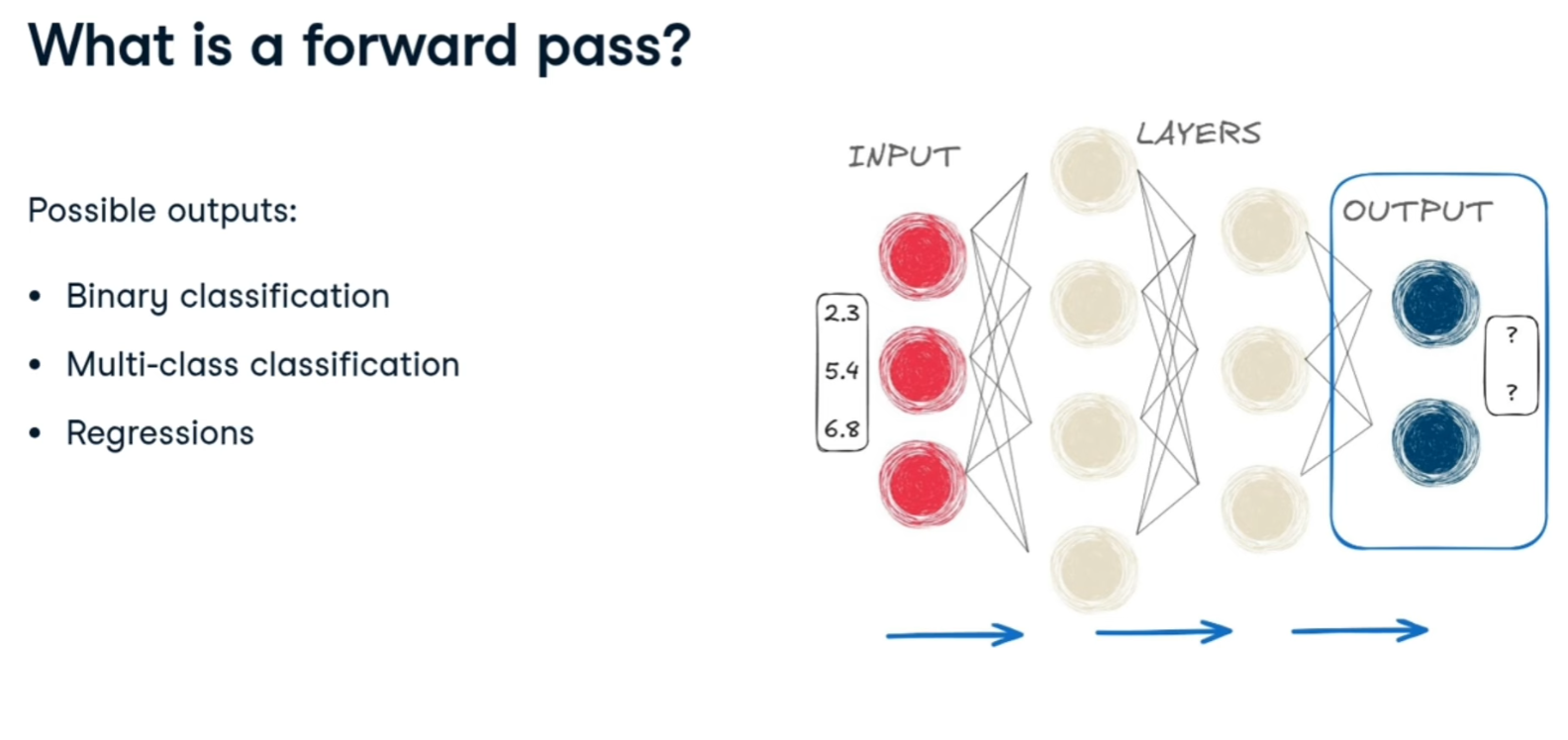
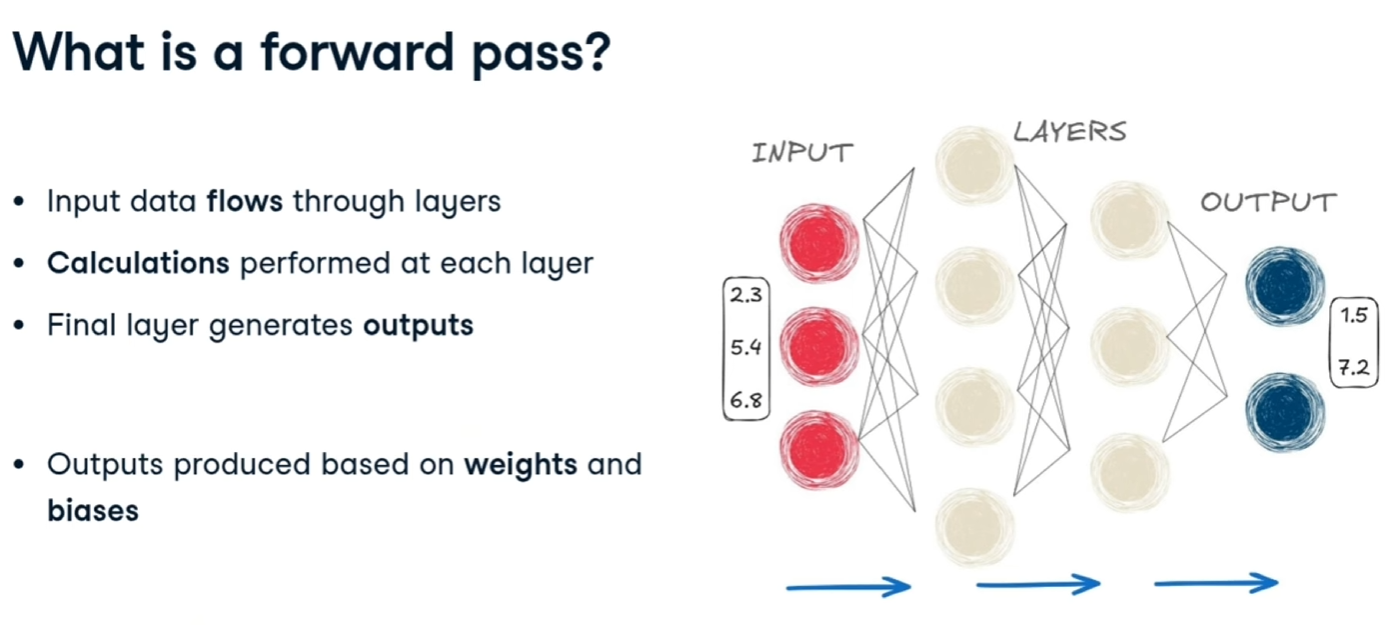
##### Forward pass

è l'operazione di passaggio dei pesi e del bias da un layer della rete a quello successivo

[![image.png](https://cms.marcocucchi.it/uploads/images/gallery/2025-12/scaled-1680-/6Y4LDw7Kmim4FZhM-image.png)](https://cms.marcocucchi.it/uploads/images/gallery/2025-12/6Y4LDw7Kmim4FZhM-image.png)
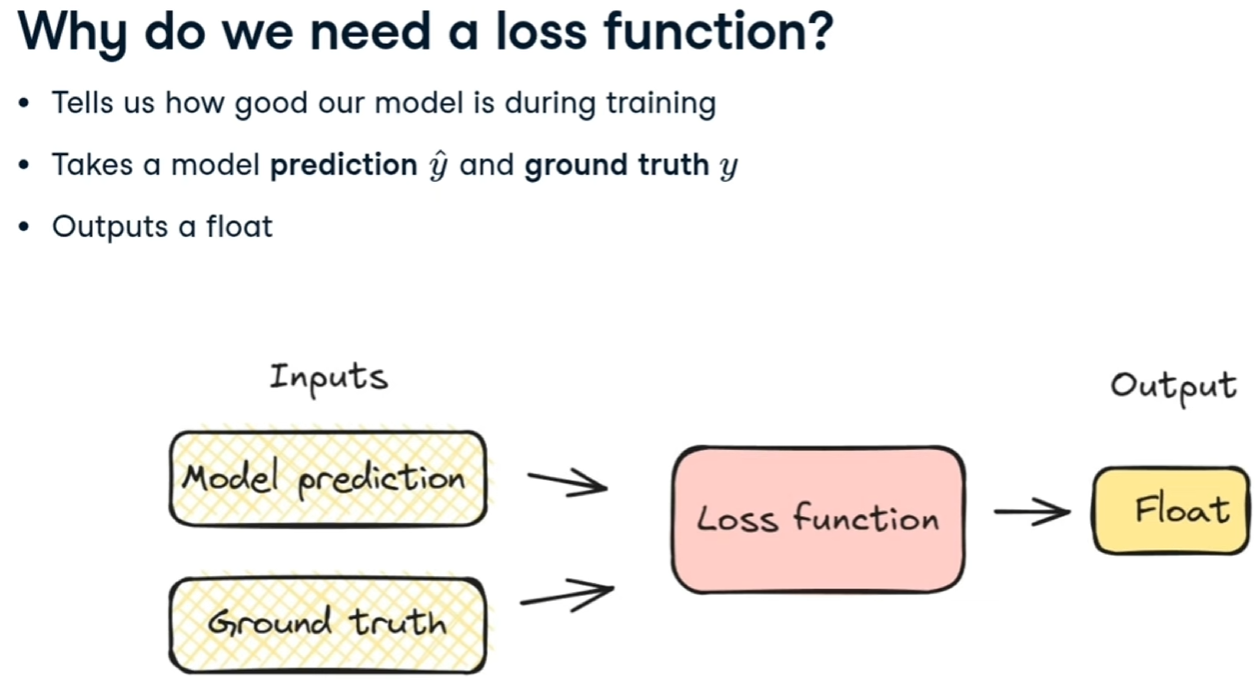
##### Loss function

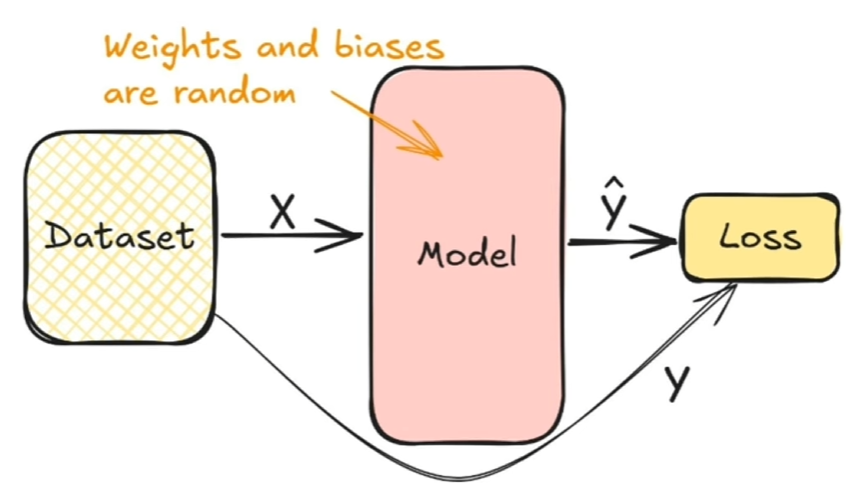
La LF indica quanto il modello è <span style="text-decoration:underline;">efficace </span>nel predirre i valori <span style="text-decoration:underline;">durante la fase di training</span>.

[![image.png](https://cms.marcocucchi.it/uploads/images/gallery/2025-12/scaled-1680-/o97ucS9Qpsjfrtwc-image.png)](https://cms.marcocucchi.it/uploads/images/gallery/2025-12/o97ucS9Qpsjfrtwc-image.png)

La funzione di "loss" indicata come F, riceve in input i valori corretti associati alle features utilizzate durante il training e quelli generati dal modello -&gt; F(y,**<span style="color:rgb(186,55,42);">y</span><span style="color:rgb(186,55,42);">'</span>**)

L'outuput è un valore numerico

[![image.png](https://cms.marcocucchi.it/uploads/images/gallery/2025-12/scaled-1680-/TXrs8UtxFNwq4hIk-image.png)](https://cms.marcocucchi.it/uploads/images/gallery/2025-12/TXrs8UtxFNwq4hIk-image.png)

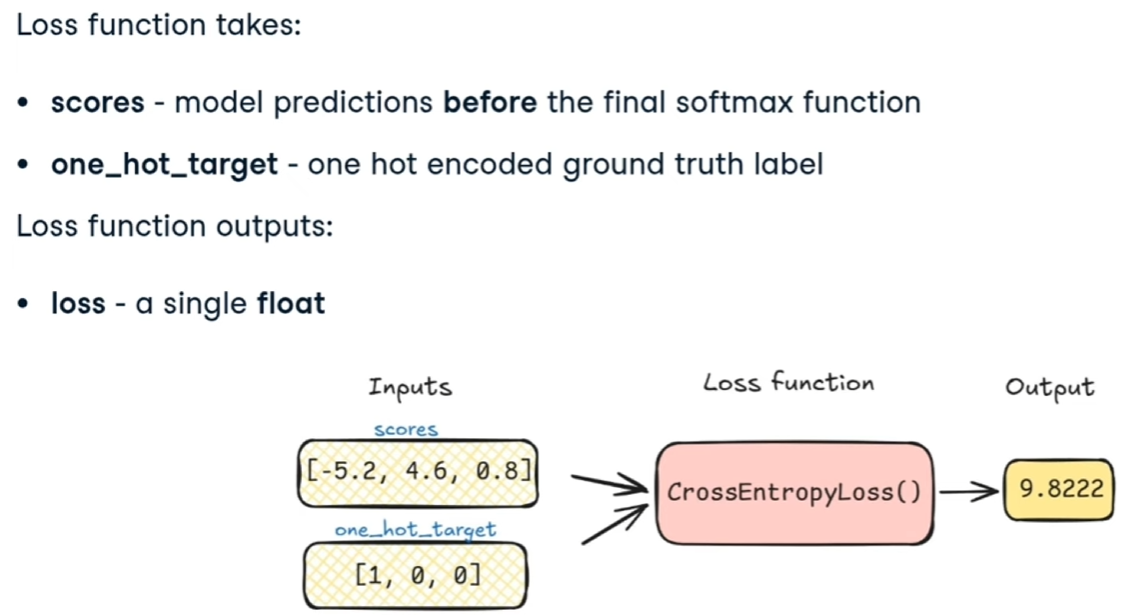
Una delle funzioni di loss function è la *CrossEntropyLoss* che vuole in i<span style="text-decoration:underline;">nput i valori calcolati dalla rete</span> <span style="text-decoration:underline;">e le label </span>che rappresentano il valore "<span style="text-decoration:underline;">vero</span>". L'ouput è il valore di "<span style="text-decoration:underline;">**loss**</span>" vero e proprio che, attraverso la<span style="text-decoration:underline;"> backpropagation bisogna minimizzare</span>.

[![image.png](https://cms.marcocucchi.it/uploads/images/gallery/2025-12/scaled-1680-/hsdvDCYStMh7n3EW-image.png)](https://cms.marcocucchi.it/uploads/images/gallery/2025-12/hsdvDCYStMh7n3EW-image.png)

#####  

[![image.png](https://cms.marcocucchi.it/uploads/images/gallery/2025-12/scaled-1680-/AJwKIZ8go1FVysvq-image.png)](https://cms.marcocucchi.it/uploads/images/gallery/2025-12/AJwKIZ8go1FVysvq-image.png)
##### La Backpropagation

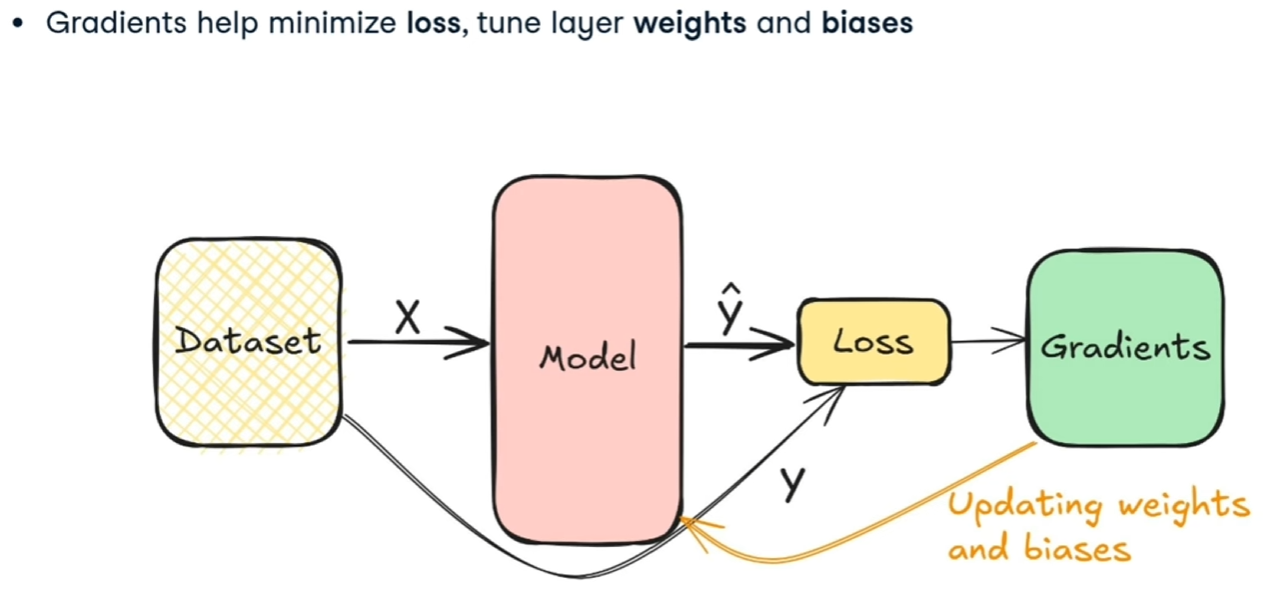
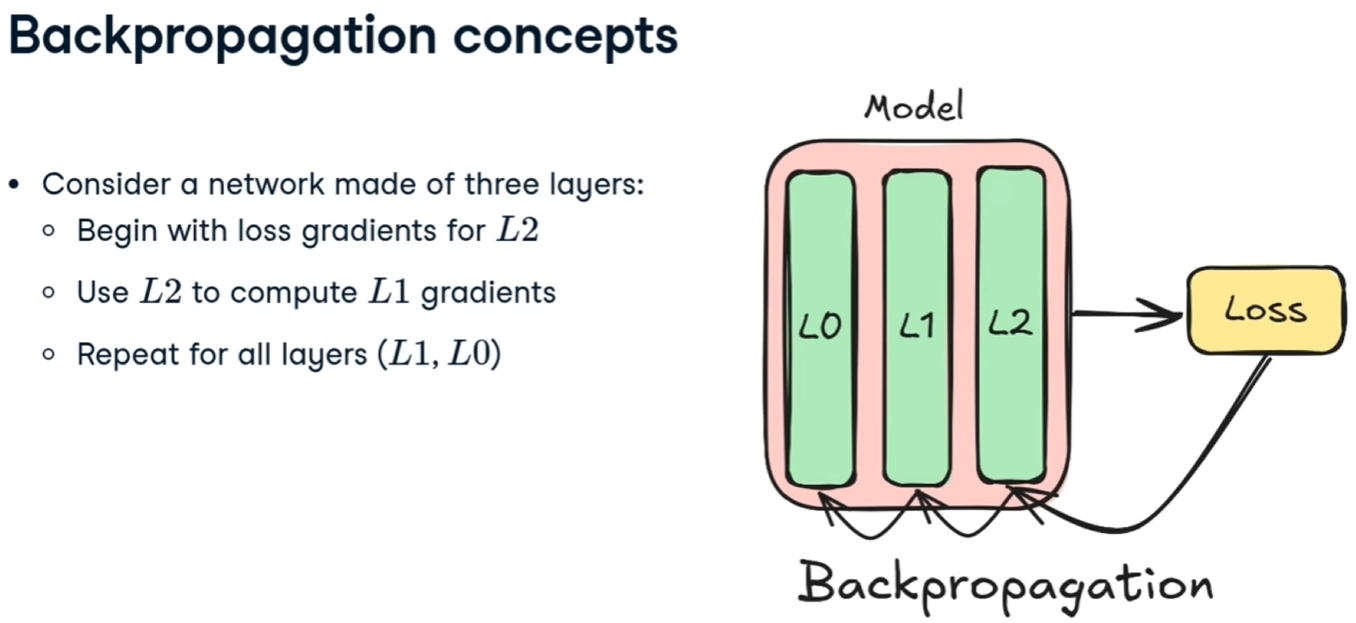
Una volta calcolati i pesi e i bias della rete neurale, si prende il valore generato y' e si effettua un'operazione di backpropagation che, attraverso il calcolo della discesa del gradiente va a ricalcolare i pesi e i bias a ritroso per ciascun layar, al fine dir minimizzare l'errore.

[![image.png](https://cms.marcocucchi.it/uploads/images/gallery/2025-12/scaled-1680-/xYcjFK4yvuWEseUM-image.png)](https://cms.marcocucchi.it/uploads/images/gallery/2025-12/xYcjFK4yvuWEseUM-image.png)
[![image.png](https://cms.marcocucchi.it/uploads/images/gallery/2025-12/scaled-1680-/vPGF3X9HkRE0FCeM-image.png)](https://cms.marcocucchi.it/uploads/images/gallery/2025-12/vPGF3X9HkRE0FCeM-image.png)
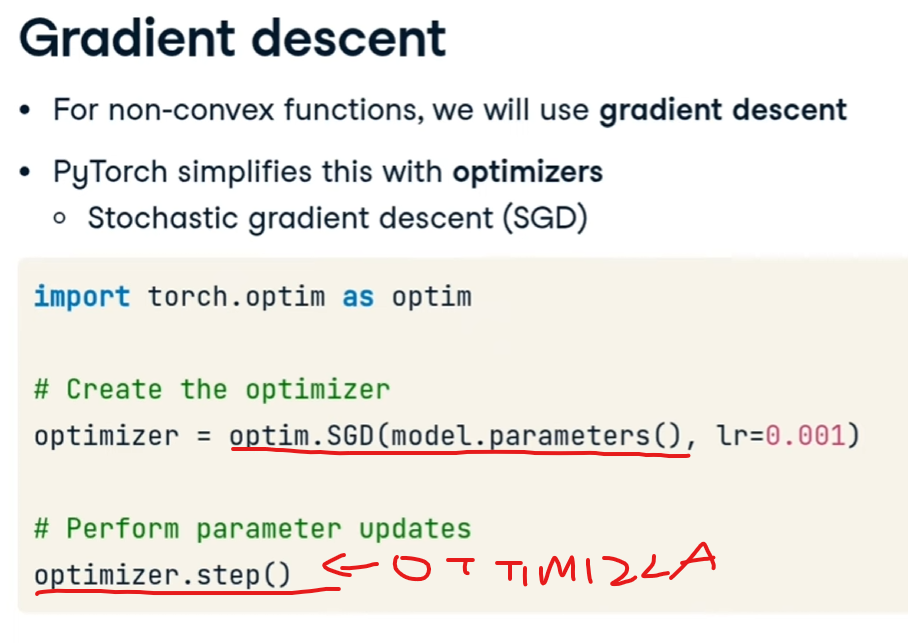
vediamolo in PT:

[![image.png](https://cms.marcocucchi.it/uploads/images/gallery/2025-12/scaled-1680-/GK1IO9UagprJCqVp-image.png)](https://cms.marcocucchi.it/uploads/images/gallery/2025-12/GK1IO9UagprJCqVp-image.png)
##### Preparazione dei dati per il training

Ci sono 4 passi fondamentali prima di "allenare" la rete neurale, ovvero:

prendiamo per esempio un dataset di animali dove le prime colonne (esclusa la zero che è puramente decrittiva) rappresentano le "features" mentre l'ultima indica il tipo di animale:

[![image.png](https://cms.marcocucchi.it/uploads/images/gallery/2025-12/scaled-1680-/QTiG2tdyTBJIUXIi-image.png)](https://cms.marcocucchi.it/uploads/images/gallery/2025-12/QTiG2tdyTBJIUXIi-image.png)
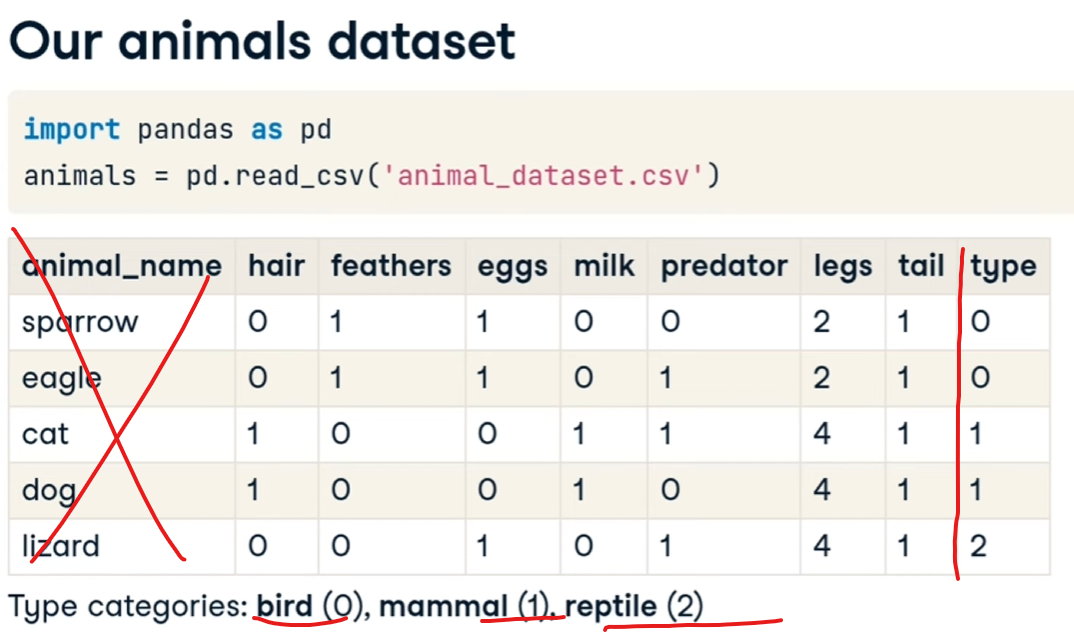
selezioniamo le fetures:

[![image.png](https://cms.marcocucchi.it/uploads/images/gallery/2025-12/scaled-1680-/AKgS39O4CBVDEKH5-image.png)](https://cms.marcocucchi.it/uploads/images/gallery/2025-12/AKgS39O4CBVDEKH5-image.png)
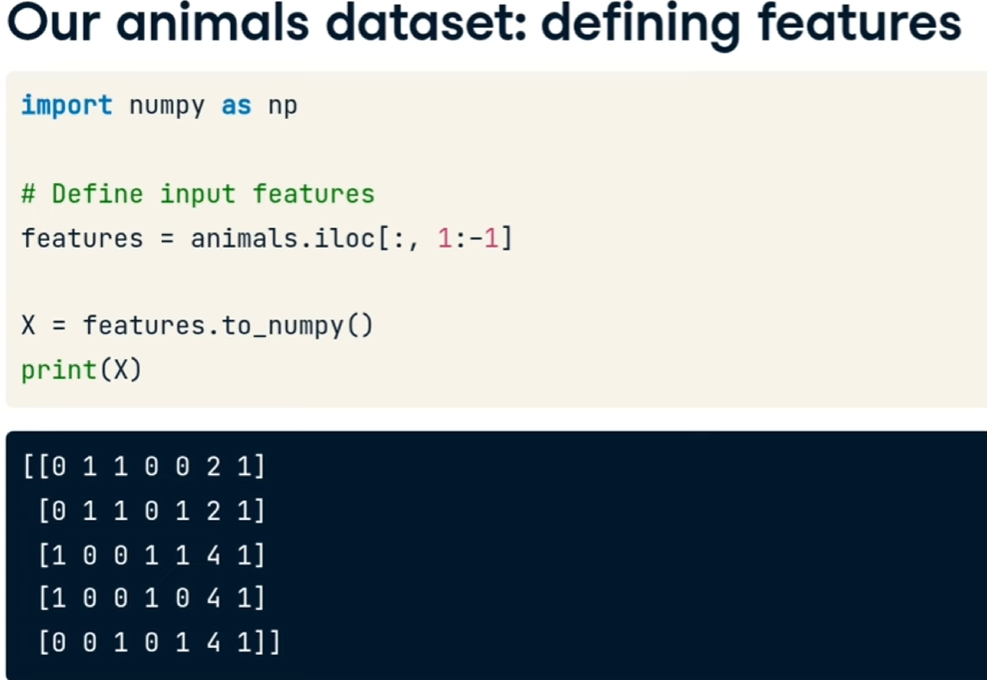
ora le labels

[![image.png](https://cms.marcocucchi.it/uploads/images/gallery/2025-12/scaled-1680-/HGmzTqnF98qIwZvJ-image.png)](https://cms.marcocucchi.it/uploads/images/gallery/2025-12/HGmzTqnF98qIwZvJ-image.png)
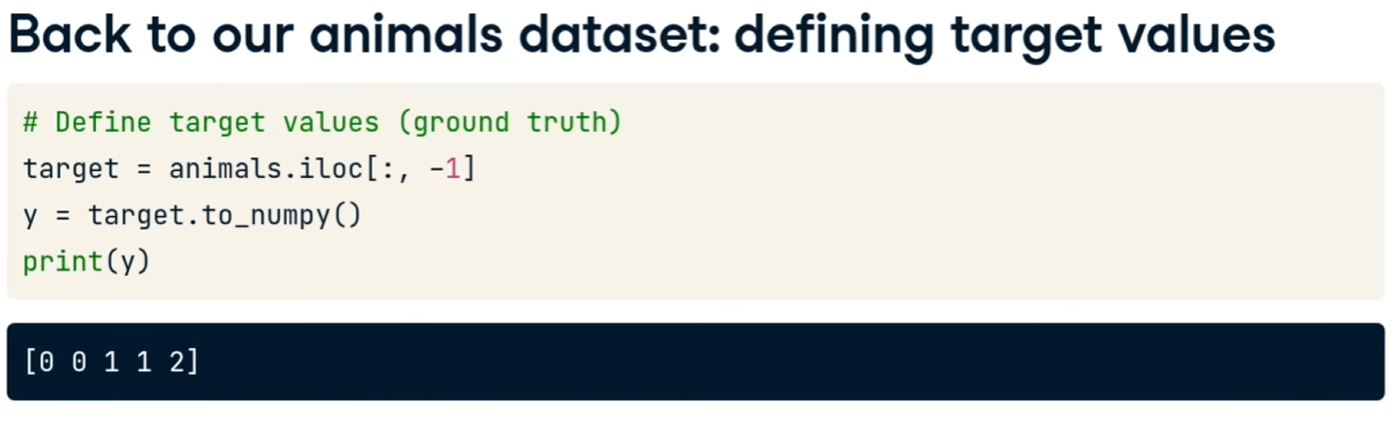
Ora utilizziamo l'oggetto TensorDataset per caricare le x e le y:

[![image.png](https://cms.marcocucchi.it/uploads/images/gallery/2025-12/scaled-1680-/VrGMWIQdANcPflta-image.png)](https://cms.marcocucchi.it/uploads/images/gallery/2025-12/VrGMWIQdANcPflta-image.png)
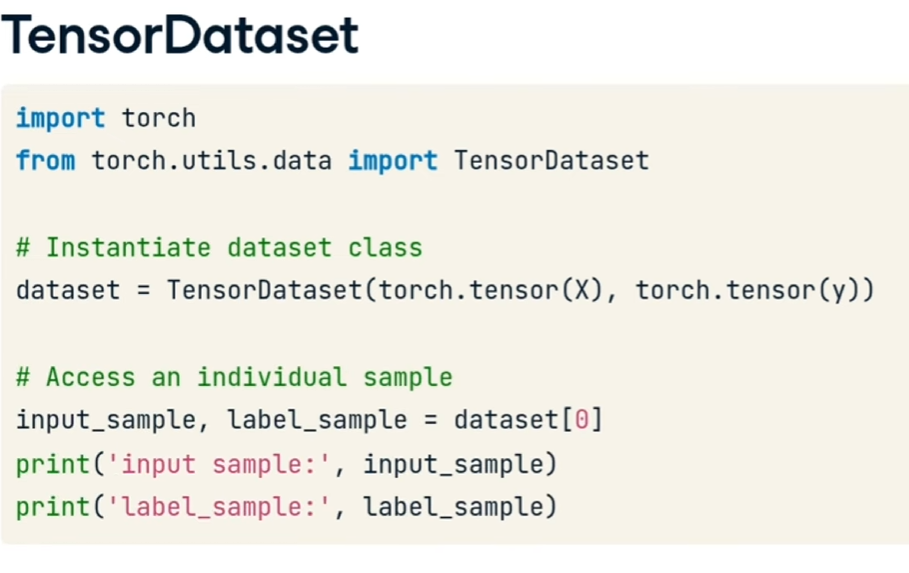
ora creiamo il dataloader per gestire il carico dei dati efficacemente durante il training

[![image.png](https://cms.marcocucchi.it/uploads/images/gallery/2025-12/scaled-1680-/Guz5Igol1Y9amfR2-image.png)](https://cms.marcocucchi.it/uploads/images/gallery/2025-12/Guz5Igol1Y9amfR2-image.png)
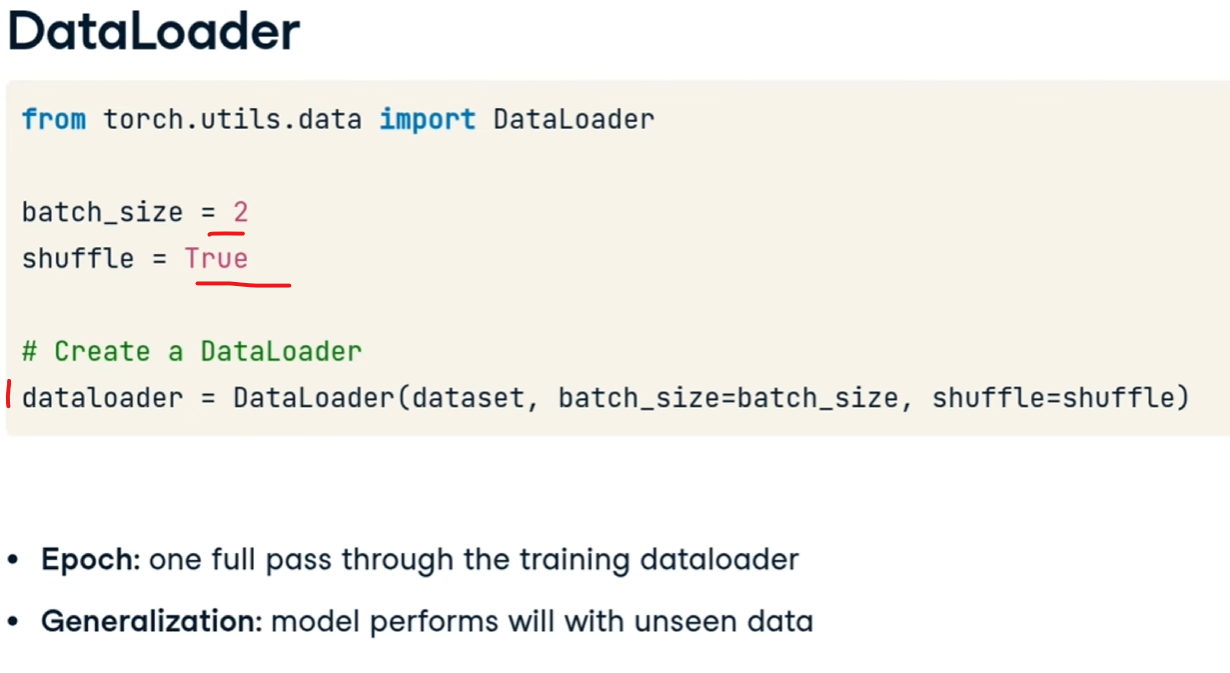
avendo setto il batch size a 2 ad ogni iterazione del dataloader estrarrò solo un bach di due elementi (in questo 2 carratteristiche di animali e il tipo), come sotto riportato:

[![image.png](https://cms.marcocucchi.it/uploads/images/gallery/2025-12/scaled-1680-/5AW7N3Uczgje0T3m-image.png)](https://cms.marcocucchi.it/uploads/images/gallery/2025-12/5AW7N3Uczgje0T3m-image.png)
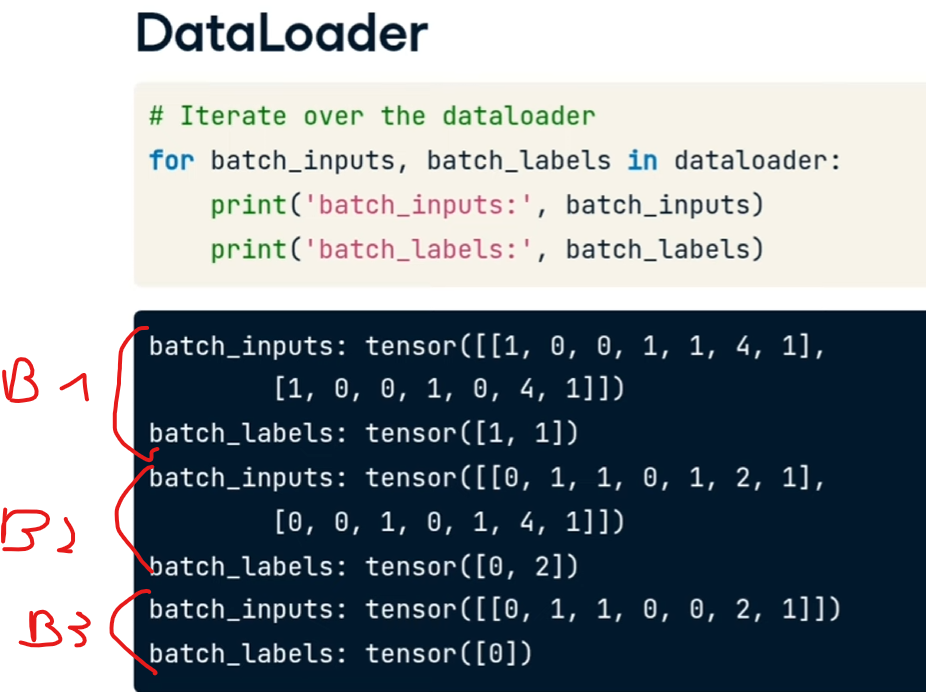
essemdo solo 5 animali si può notarer come l'ultimo batch contenga un solo animale.

**Quindi il cliclo for fa passare tutto il dataset.**

##### Training

ora possiamo procedere con il training, che consiste in:

[![image.png](https://cms.marcocucchi.it/uploads/images/gallery/2025-12/scaled-1680-/Eh6m7MKLaLRpBso9-image.png)](https://cms.marcocucchi.it/uploads/images/gallery/2025-12/Eh6m7MKLaLRpBso9-image.png)
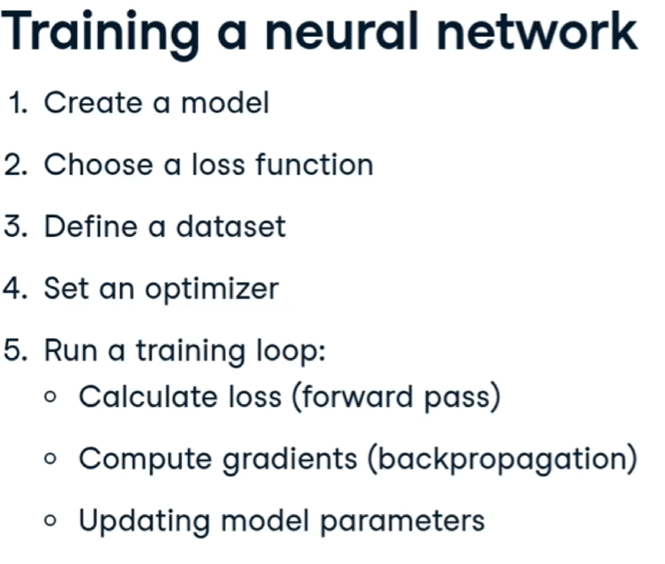
Il training è molto importante perchè consenti di minimizzare la loss e di appore delle modifiche al training stesso.

##### Regressione

La regressione consente di avere un valore lineare come output.

Per la regressione so utilizza in genere la funzione di loss MSE (mean square error)

[![image.png](https://cms.marcocucchi.it/uploads/images/gallery/2025-12/scaled-1680-/0HVVwCmCm9JndKAx-image.png)](https://cms.marcocucchi.it/uploads/images/gallery/2025-12/0HVVwCmCm9JndKAx-image.png)
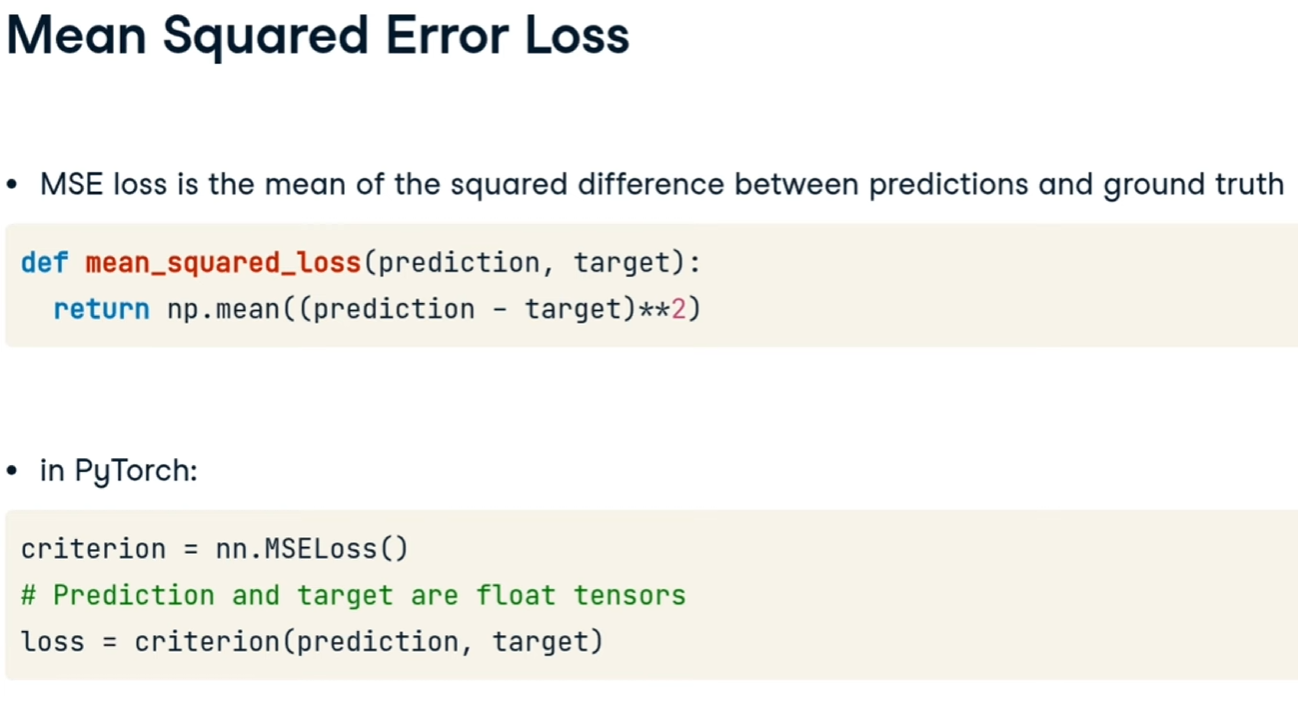
facciamo un esempio di regression i gli stipendi dei data scientist:

[![image.png](https://cms.marcocucchi.it/uploads/images/gallery/2025-12/scaled-1680-/utNvjH8uVVlTeSX3-image.png)](https://cms.marcocucchi.it/uploads/images/gallery/2025-12/utNvjH8uVVlTeSX3-image.png)
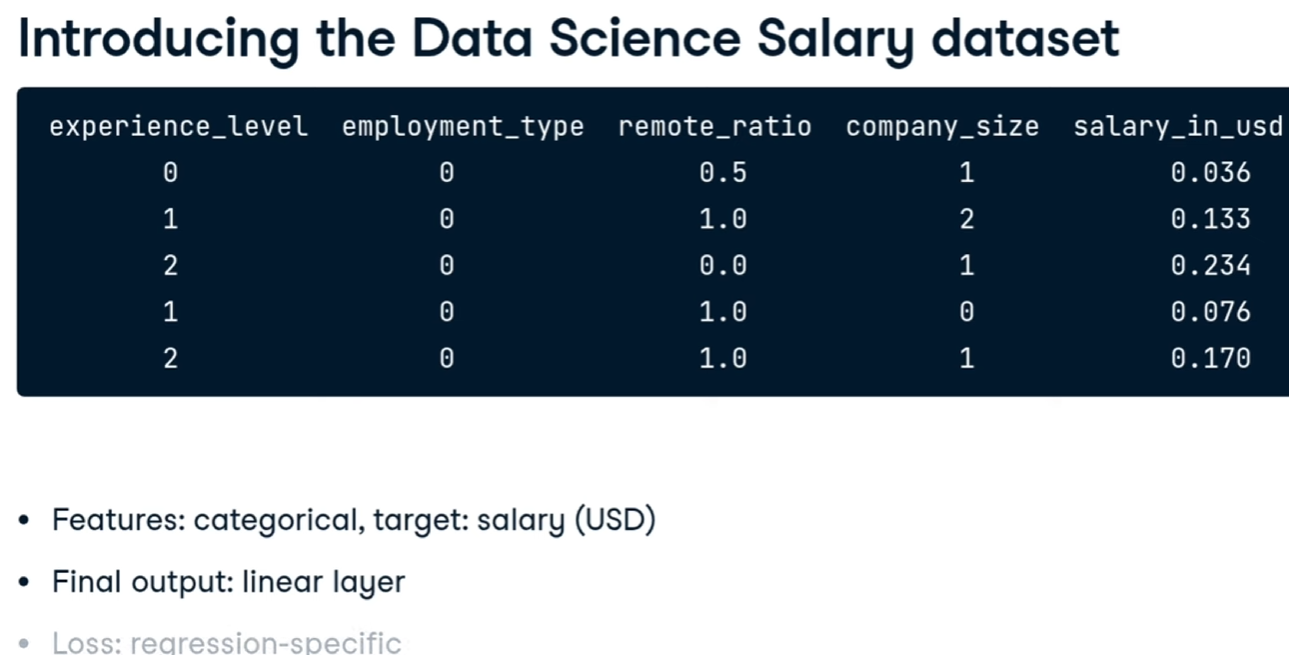
creiamo la rete neurale

[![image.png](https://cms.marcocucchi.it/uploads/images/gallery/2025-12/scaled-1680-/PnwueCqqq9gXnyND-image.png)](https://cms.marcocucchi.it/uploads/images/gallery/2025-12/PnwueCqqq9gXnyND-image.png)
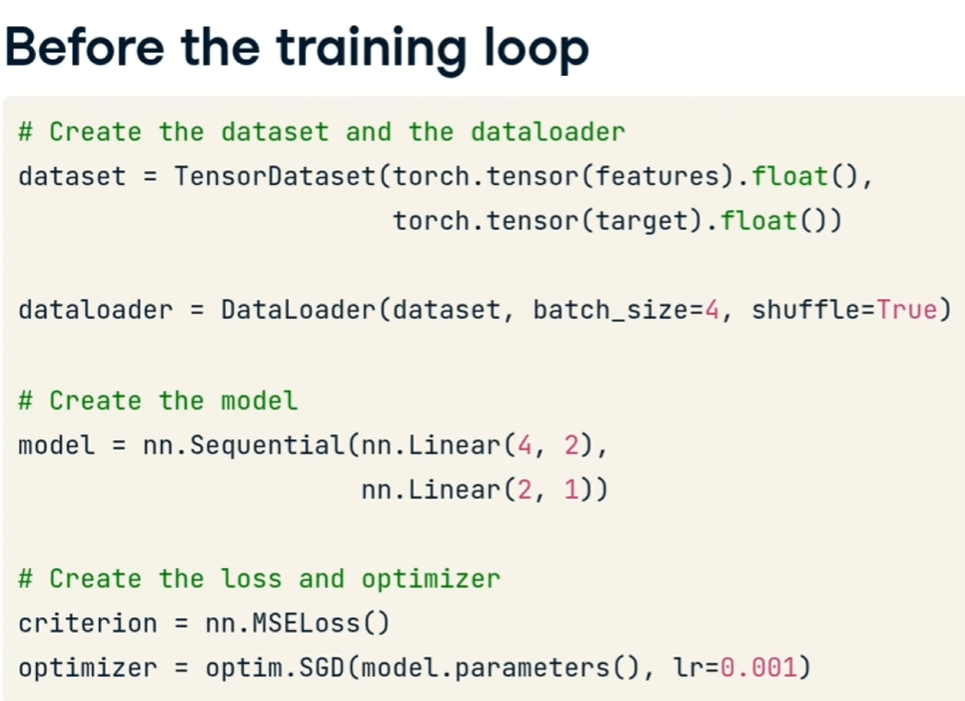
adesso loppiamo su tutto il dataset

```python
# The training loop
for epoch in range(num_epochs):
  for data in dataloader:
    # va azzerato ad ogni epoca
    optimizer.zero_grad()
    
    # Get feature and target from the data loader
    feature, target = data
    
    # Run a forward pass
    pred = model(feature)
    
    # Compute loss and gradients
    loss = criterion(pred, target)
    loss.backward()
    
    # Update the parameters
    optimizer.step()
```

##### Utilizzo Softmax vs ReLU.

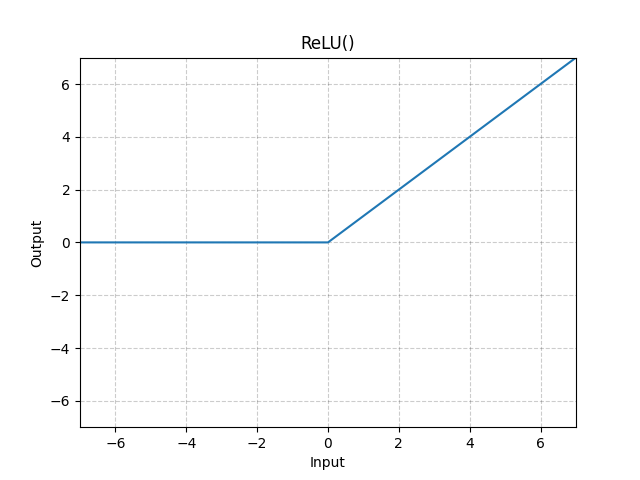
E' emerso che per gli hidden layer è meglio utilizzare la <span style="color:rgb(186,55,42);">**funzione di attivazione**</span> ReLU, mentre per l'output layer si può utilizzare anche la Softmax.

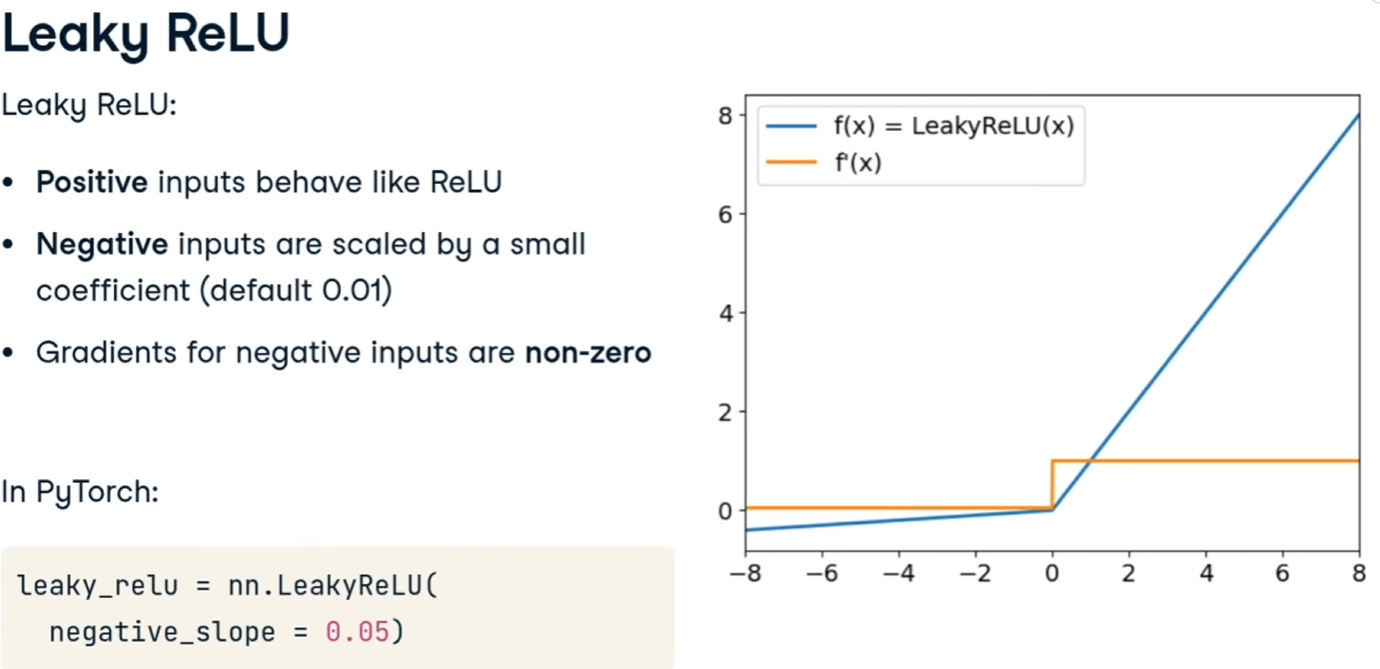
##### Leaky ReLU

Migliora la ReLU moltiplicando i valori di input per un coefficiente che evita i casi di disattivazione totale del neurone che causa lo stop dell'apprendimento.

[![image.png](https://cms.marcocucchi.it/uploads/images/gallery/2025-12/scaled-1680-/xGDkPzkRsuMfHqIC-image.png)](https://cms.marcocucchi.it/uploads/images/gallery/2025-12/xGDkPzkRsuMfHqIC-image.png)
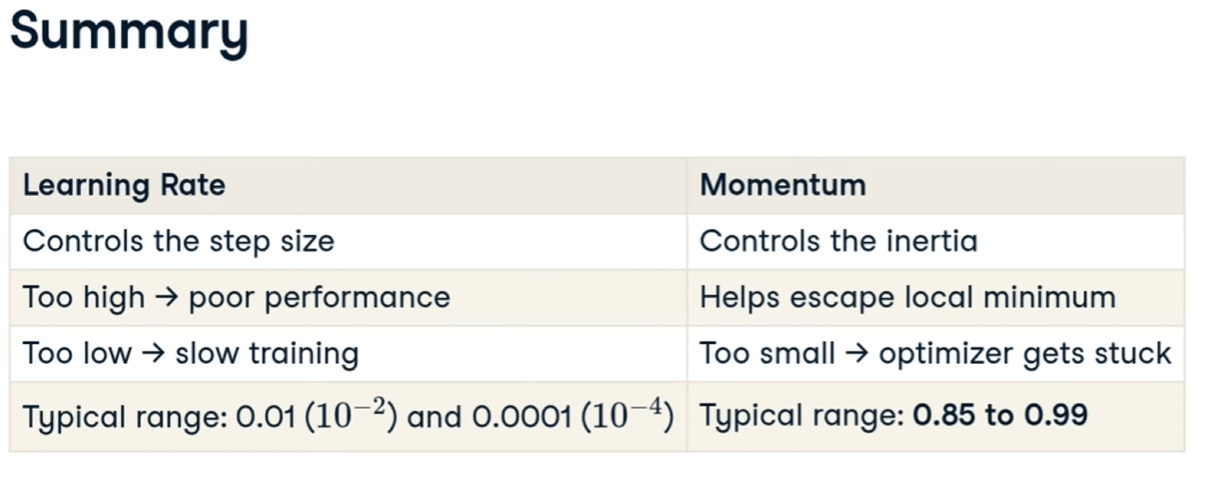
##### Learing rate e momentum

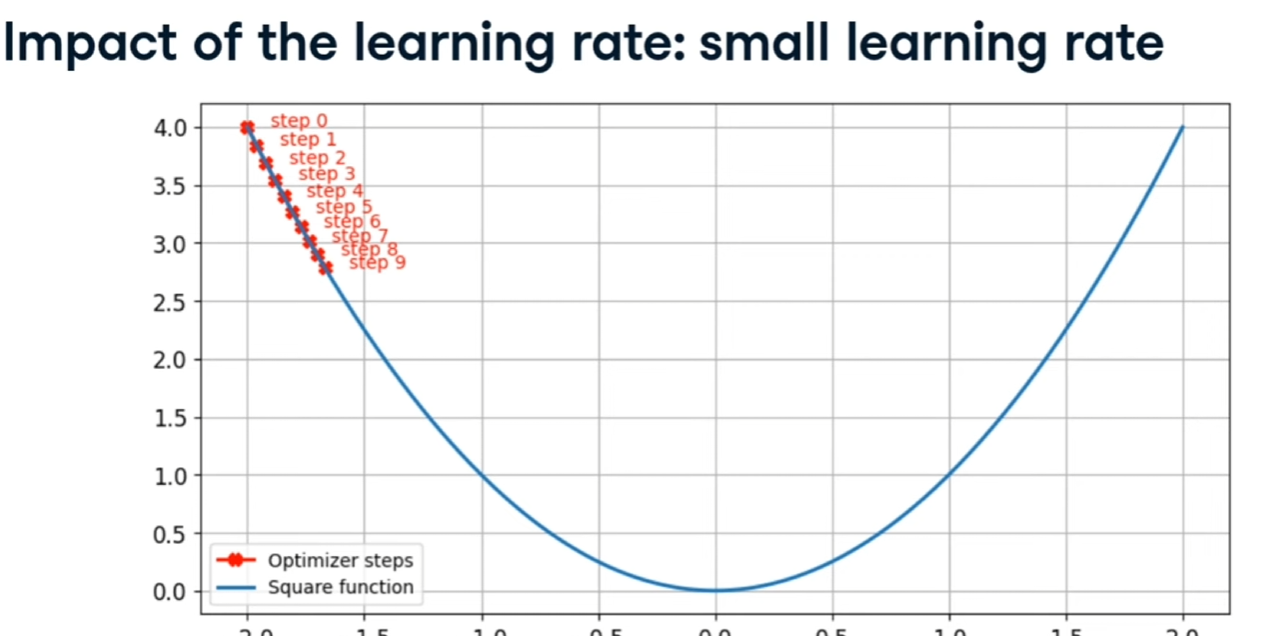
Il LR è il passo utilizzato per arrivare al mimimo durante la fase della discesa del gradiente, se è troppo piccolo non arrivieremo al minimo, come qui:

[![image.png](https://cms.marcocucchi.it/uploads/images/gallery/2025-12/scaled-1680-/OFYUV1WRvZI3PCoL-image.png)](https://cms.marcocucchi.it/uploads/images/gallery/2025-12/OFYUV1WRvZI3PCoL-image.png)
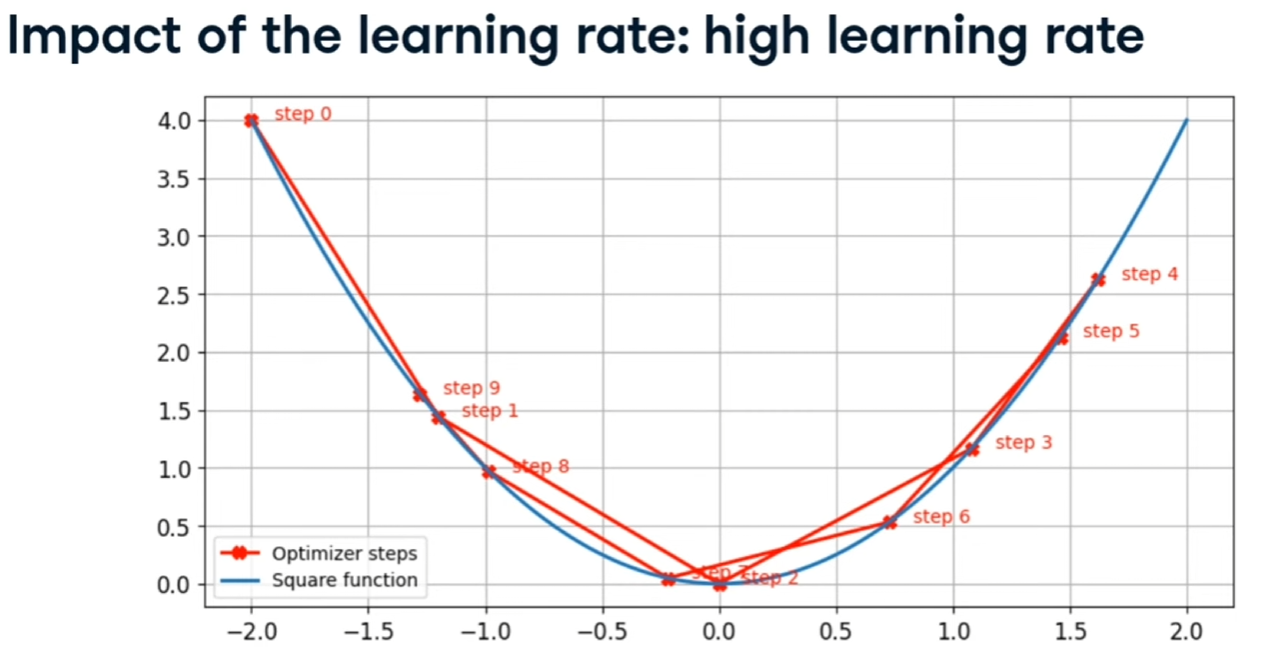
se è troppo grande, continua a rimbalzare senza trovare cmq il minimo, come qui:

[![image.png](https://cms.marcocucchi.it/uploads/images/gallery/2025-12/scaled-1680-/JVJouDcm27ScueSC-image.png)](https://cms.marcocucchi.it/uploads/images/gallery/2025-12/JVJouDcm27ScueSC-image.png)
Il "momento" invece rappresenta l'inzeria con la quale si effettuano i passi, serve per evitare di fermarsi ad un "minimo locale", in sintesi:

[![image.png](https://cms.marcocucchi.it/uploads/images/gallery/2025-12/scaled-1680-/UuSxqfXQ6EjVQZwL-image.png)](https://cms.marcocucchi.it/uploads/images/gallery/2025-12/UuSxqfXQ6EjVQZwL-image.png)
Valutazione del modello

https://www.youtube.com/watch?v=IFsVsXAqPto

<span class="yt-core-attributed-string--link-inherit-color" dir="auto">[47:37](https://www.youtube.com/watch?v=IFsVsXAqPto&t=2857s)</span><span class="yt-core-attributed-string--link-inherit-color" dir="auto"> Evaluating Models with Training and Validation Data </span>

# Tensore

#### Cosa è un tensore?

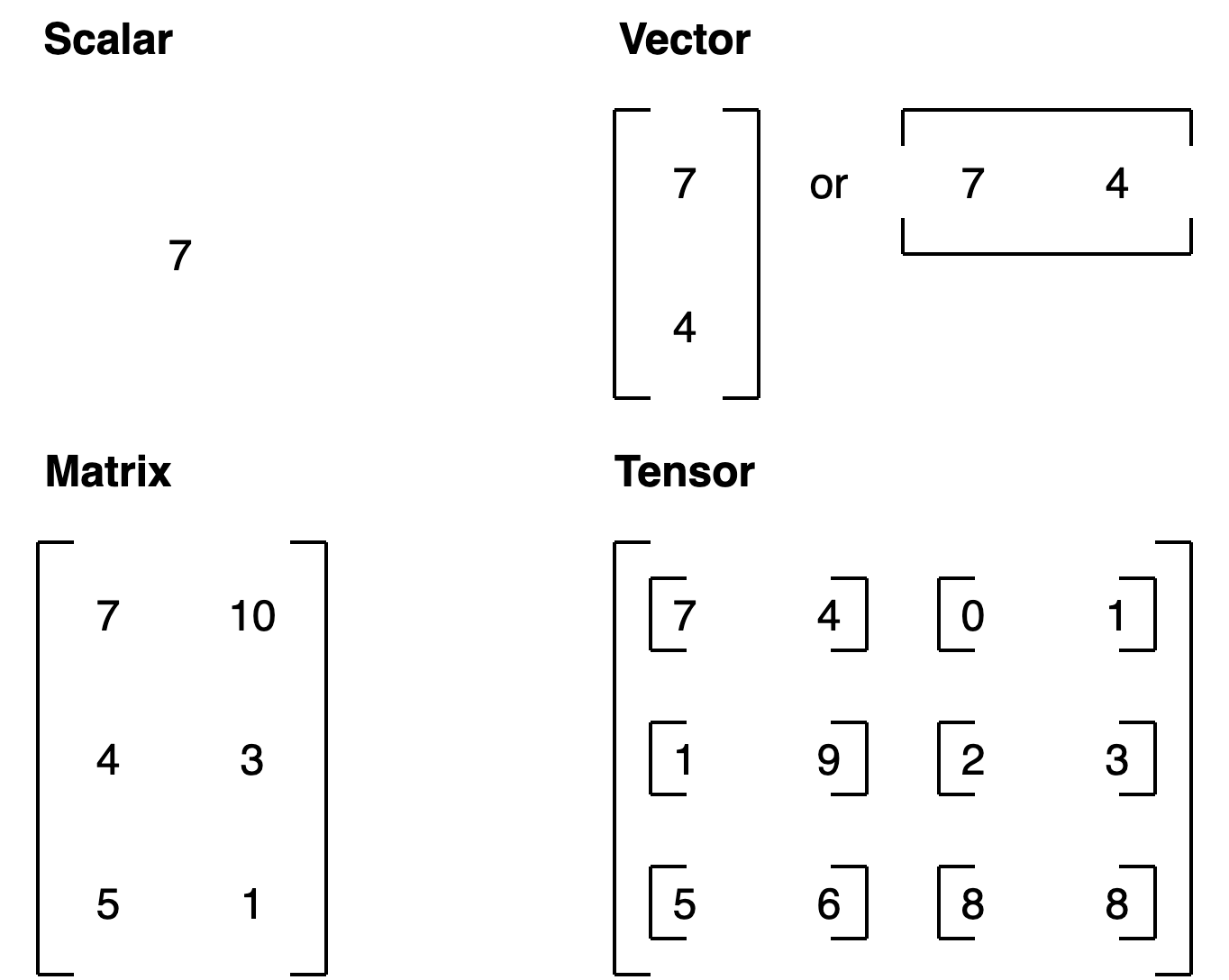
Il tensore è uno scalare (valore singolo), un vettore o una matrice multidimensionale, nella quale vengono storati i valori utilizzati da pytorch.

Nella pratica un tensore è la rappresntazione numerica in forma di array/matrici di un qualsiasi fenomeno esterno, sia esso per es. un'immagine, un suono o un range di valori numerici.

 es:

```python
# Scalar
cuda0 = torch.device('cuda:0')
scalar = torch.tensor(7, device=cuda0)
scalar

```

In questo caso istanzio uno scalare contenete il valore 7, da notere che, avendo un GPU vado a storare questo valore nella ram del GPU e non della cpu.

Di seguito un esempio di matrice

```python
MATRIX = torch.tensor([[7, 8], 
                       [9, 10]], device=cuda0)
MATRIX

```

[![00-scalar-vector-matrix-tensor.png](https://cms.marcocucchi.it/uploads/images/gallery/2022-12/scaled-1680-/vURm1G8iHvSJKpvI-00-scalar-vector-matrix-tensor.png)](https://cms.marcocucchi.it/uploads/images/gallery/2022-12/vURm1G8iHvSJKpvI-00-scalar-vector-matrix-tensor.png)
##### Le dimensioni del tensore

[![00-pytorch-different-tensor-dimensions.png](https://cms.marcocucchi.it/uploads/images/gallery/2023-01/scaled-1680-/axGhsOdefd0umYN4-00-pytorch-different-tensor-dimensions.png)](https://cms.marcocucchi.it/uploads/images/gallery/2023-01/axGhsOdefd0umYN4-00-pytorch-different-tensor-dimensions.png)
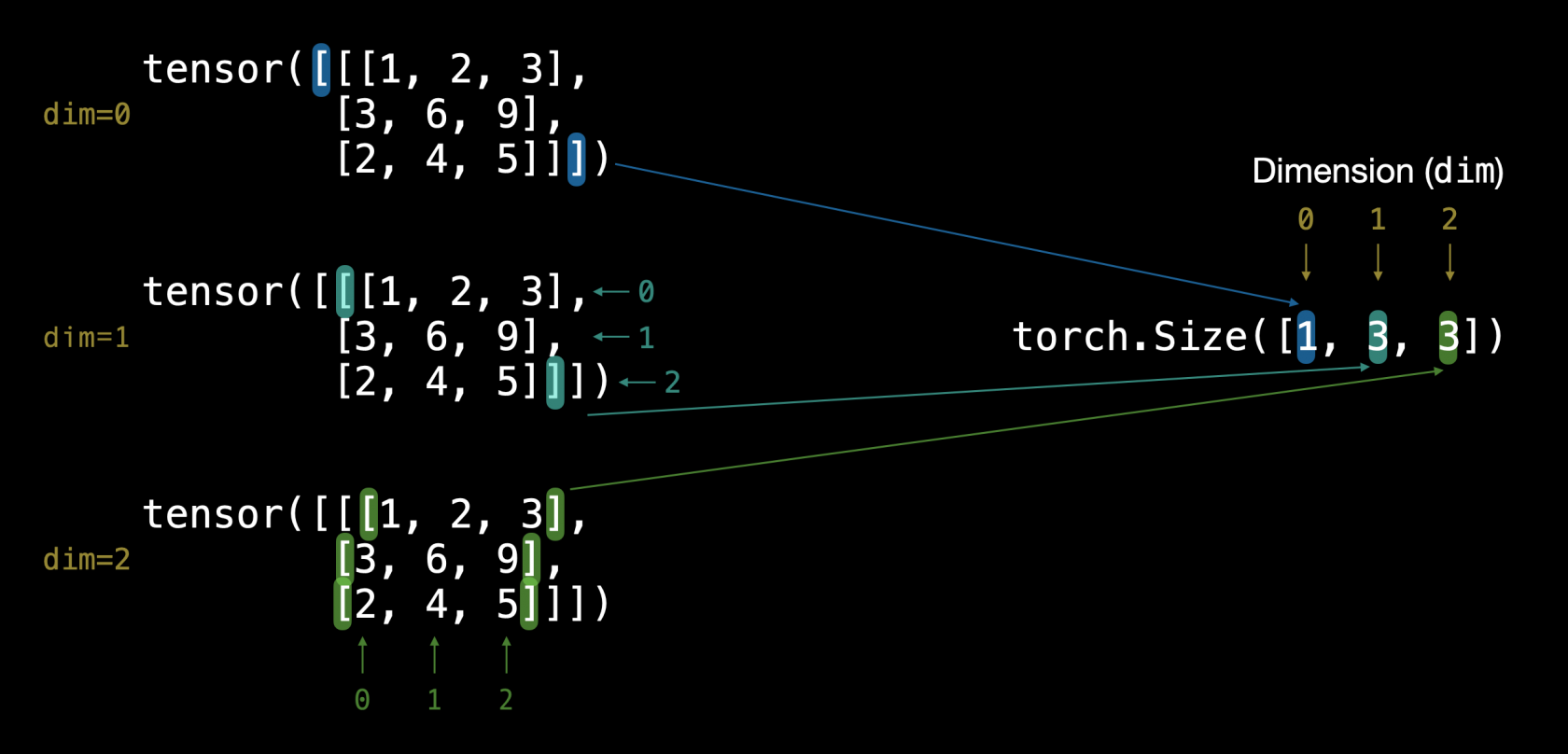
<span style="color:rgb(224,62,45);">**NB**</span>: cerchiamo di capire bene la differenza tra la dimention e la size. La dimension indica quanti livelli "innestati" sono definiti all'interno della matrice, mentre la size indica il numero totali di righe-colonne presenti nella matrice.

##### Tensori randomici

Sono molto utili nelle fasi iniziali del training , di seguito un esempio per la creazione:

```python
random_tensor = torch.rand(3,4)


tensor([[0.1207, 0.8136, 0.9750, 0.5804],
        [0.4229, 0.6942, 0.4774, 0.5260],
        [0.2809, 0.1866, 0.8354, 0.7496]])

# oppure altro esempio:
  
import torch

cuda0 = torch.device('cuda:0')
random_tensor = torch.rand(2,3,4, device=cuda0)
print (random_tensor)

tensor([[[0.2652, 0.6430, 0.7058, 0.3049],
         [0.3983, 0.4169, 0.6228, 0.6622],
         [0.6239, 0.7246, 0.1134, 0.9273]],
        
        [[0.5454, 0.9085, 0.2009, 0.7056],
         [0.5211, 0.6397, 0.9299, 0.1871],
         [0.8542, 0.1733, 0.4378, 0.3836]]], device='cuda:0')

# dove si evince il tensore è di 2 righe ciascuna delle quali è composta
# a sua volta da  una matri di 3 righe per 4 colonne
```

se invce si vuole crare un tensore di zeroes.

zeros = torch.zeros(size=(3, 4))

##### Range di tesori

```python
 Use torch.arange(), torch.range() is deprecated 
zero_to_ten_deprecated = torch.range(0, 10) # Note: this may return an error in the future

# Create a range of values 0 to 10
zero_to_ten = torch.arange(start=0, end=10, step=1)
print(zero_to_ten)
> tensor([0, 1, 2, 3, 4, 5, 6, 7, 8, 9])

```

se vuole creare un tensore che la le stesse dimensioni di un altro

```python
ten_zeros = torch.zeros_like(input=zero_to_ten) # will have same shape
print(ten_zeros)

```

##### DTypes

è il datatype che definisce i dati contenuto nel tensore

per vedere i tipi di datatypes: [https://pytorch.org/docs/stable/tensors.html#data-types](https://pytorch.org/docs/stable/tensors.html#data-types)

```python
# Default datatype for tensors is float32
float_32_tensor = torch.tensor([3.0, 6.0, 9.0],
                               dtype=None, # defaults to None, which is torch.float32 or whatever datatype is passed
                               device=None, # defaults to None, which uses the default tensor type
                               requires_grad=False) # if True, operations perfromed on the tensor are recorded 

float_32_tensor.shape, float_32_tensor.dtype, float_32_tensor.device

# Create a tensor
some_tensor = torch.rand(3, 4)

# Find out details about it
print(some_tensor)
print(f"Shape of tensor: {some_tensor.shape}")
print(f"Datatype of tensor: {some_tensor.dtype}")
print(f"Device tensor is stored on: {some_tensor.device}") # will default to CPU

tensor([[0.2423, 0.6624, 0.3201, 0.3021],
        [0.7961, 0.9539, 0.0791, 0.8537],
        [0.3491, 0.6429, 0.8308, 0.4690]])
Shape of tensor: torch.Size([3, 4])
Datatype of tensor: torch.float32
Device tensor is stored on: cpu


```

***Forzare i tipi***

Ovviamente è possibile cambiare il dtype per quei casi in cui le operazioni generano degli errori per es.

<div id="bkmrk-x-%3D-torch.arange%280%2C1">x = torch.arange(0,100,10)  
print (x, x.dtype)  
&gt; tensor([ 0, 10, 20, 30, 40, 50, 60, 70, 80, 90]) torch.int64</div><div id="bkmrk--2"></div><div id="bkmrk-ma-la-funzione-media">ma la funzione media non accetta un tipo "long" per cui dovremmo formare il vettore a float come sotto riportato:</div><div id="bkmrk-y%3D-torch.mean%28x.type">  
y= torch.mean(x.type(torch.float32))</div><div id="bkmrk-print%28y%29">print(y)</div><div id="bkmrk-oppure">oppure</div><div id="bkmrk-print%28-x.type%28torch."><div>print( x.type(torch.float32).mean() )</div>  
</div><div id="bkmrk-%3Etensor%2845.%29">&gt;tensor(45.)</div><div id="bkmrk--3"></div>##### Operazioni con i tensori

NB: nelle operazioni con i tensori, es. le moltiplicazioni, posso effettuarle tra tipi diversi. (es. int16 x float32)

Le operazioni basi sono le classiche: +,-,\*,/ e moltiplicazione tra matrici:

```python
# Create a tensor of values and add a number to it
tensor = torch.tensor([1, 2, 3])
tensor + 10
tensor([11, 12, 13])

# Multiply it by 10
tensor * 10
tensor([10, 20, 30])
#Notice how the tensor values above didn't end up being tensor([110, 120, 130]), this is because the values inside the tensor don't 
#change unless they're reassigned.

# Tensors don't change unless reassigned
tensor
tensor([1, 2, 3])
#Let's subtract a number and this time we'll reassign the tensor variable.

# Subtract and reassign
tensor = tensor - 10
tensor
tensor([-9, -8, -7])

# Add and reassign
tensor = tensor + 10
tensor
tensor([1, 2, 3])
PyTorch also has a bunch of built-in functions like torch.mul() (short for multiplcation) and torch.add() to perform basic operations.

# Can also use torch functions
torch.multiply(tensor, 10)
tensor([10, 20, 30])
# Original tensor is still unchanged 
tensor
tensor([1, 2, 3])
#However, it's more common to use the operator symbols like * instead of torch.mul()
# Element-wise multiplication (each element multiplies its equivalent, index 0->0, 1->1, 2->2)
print(tensor, "*", tensor)
print("Equals:", tensor * tensor)

tensor([1, 2, 3]) * tensor([1, 2, 3])
Equals: tensor([1, 4, 9])


```

Moltiplicazione tra matrici

One of the most common operations in machine learning and deep learning algorithms (like neural networks) is [matrix multiplication](https://www.mathsisfun.com/algebra/matrix-multiplying.html).

PyTorch implements matrix multiplication functionality in the [`torch.matmul()`](https://pytorch.org/docs/stable/generated/torch.matmul.html) method.

**<span style="color:rgb(224,62,45);">Regole della moltiplicaazione di matrici</span>**

***Regola della dimensione interna***

La dimensione **interna DEV**E essere la stessa, ovvero, se abbiamo una matrice (3,2) e un'altra matrice di (3,2)

la moltiplicazione genererà un errore in quanto le dimensioni interne non coincidono.

Per dimensione interna si intende (3,**<span style="color:rgb(224,62,45);">2</span>**) x (**<span style="color:rgb(224,62,45);">2</span>**,3) in questo caso il 2, dove nella prima matricie sono le colonne mentre nella secondo le righe. (nel primo esempio erano invece diverse e quindi non è possibile effettuare la moltiplicazione.

***Regola della matrice risultante***

La shape della matrice risultante è **pari alle dimensini esterne** delle due matrici.

Ovvero nel caso di matrici (2,3) x (3,2) che quindi soffisfano la regola della dimensione interna, la risultante sarà una matrice la cui dimensione sarà la dimensione esterna, quindi (2,2)

***Come moltiplicare due matrici***

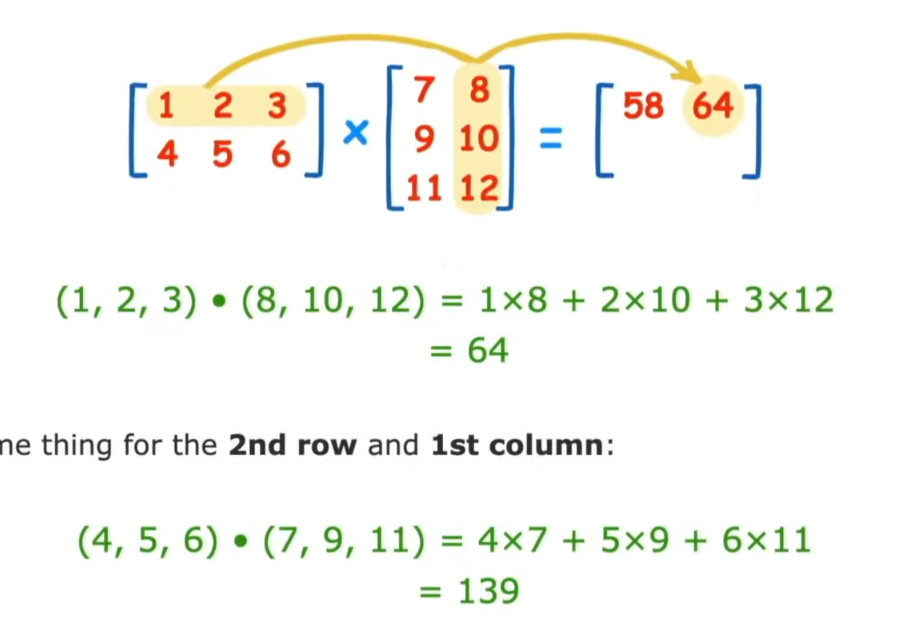
Di seguito viene mostrato graficamente come moltiplicare due matrici:

[![Screenshot 2023-01-01 111502.png](https://cms.marcocucchi.it/uploads/images/gallery/2023-01/scaled-1680-/wdTNBXvtvF7EWb8g-screenshot-2023-01-01-111502.png)](https://cms.marcocucchi.it/uploads/images/gallery/2023-01/wdTNBXvtvF7EWb8g-screenshot-2023-01-01-111502.png)
....

[![Screenshot 2023-01-01 111502.png](https://cms.marcocucchi.it/uploads/images/gallery/2023-01/scaled-1680-/A4DZGsuDHknbV6tG-screenshot-2023-01-01-111502.png)](https://cms.marcocucchi.it/uploads/images/gallery/2023-01/A4DZGsuDHknbV6tG-screenshot-2023-01-01-111502.png)
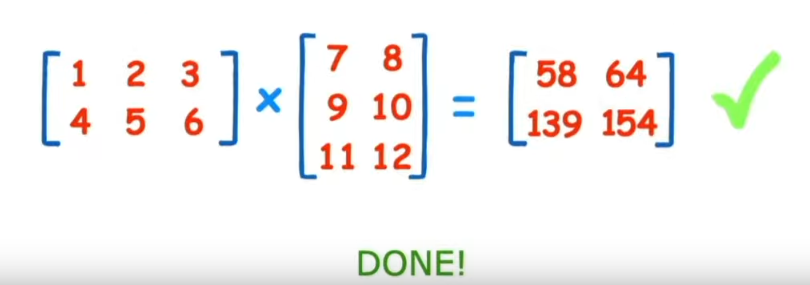
Differenza tra "**Element-wise multiplication"** e "**Matrix multiplication"**.

Element wise moltiplication moltiplica ogni elemento mentre invece matrix multiplication effettua il totale delle moltiplicatione delle matrici.

`tensor` variable with values `[1, 2, 3]`:

<table id="bkmrk-operation-calculatio"><thead><tr><th>Operation</th><th>Calculation</th><th>Code</th></tr></thead><tbody><tr><td>\*\*Element-wise multiplication\*\*</td><td>`\[1\*1, 2\*2, 3\*3\]` = `\[1, 4, 9\]`</td><td>`tensor \* tensor`</td></tr><tr><td>\*\*Matrix multiplication\*\*</td><td>`\[1\*1 + 2\*2 + 3\*3\]` = `\[14\]`</td><td>`tensor.matmul(tensor)`</td></tr></tbody></table>

```python
# Element-wise matrix multiplication
tensor * tensor
>tensor([1, 4, 9])

# Matrix multiplication
torch.matmul(tensor, tensor)
> tensor(14)

# Can also use the "@" symbol for matrix multiplication, though not recommended
tensor @ tensor
>tensor(14)

```

#### Manipolazione dello shape

Coonsideriamo il caso

```python

tensor_A = torch.tensor([[1, 2],
                         [3, 4],
                         [5, 6]], dtype=torch.float32)

tensor_B = torch.tensor([[7, 10],
                         [8, 11], 
                         [9, 12],
                         [13,14]], dtype=torch.float32)

```

se eftettuiamo la motiplicazione dei due, per le due regole sopra citate, verrà generato un errore in quanto la dimensione interna non matcha:

<span style="color:rgb(224,62,45);">errore -&gt; </span>torch.matmul(tensor\_A, tensor\_B) in quanto abbiamo una moltiplicare di (3,2) x (4,2) che non coincidono internamente.

ma allora che fare? ebbene in questo caso possiamo far coincidere le dimensioni interne di uno dei due tensori utilizzando la funzione "transpose", come di seguito

torch.matmul(tensor\_A, tensor\_B<span style="color:rgb(224,62,45);">**.T**</span>) dove il metodo .T effettua la traspose del tensore B rendendolo compatibile con A, ovvero:

```
tensor([[ 7.,  8.,  9., 13.],
        [10., 11., 12., 14.]])

```

che traspone la (4,2) in (2,4) e quindi l'output della moltiplicare sarà:

```
# effetto la moltiplicazione ora con la transposizione è diventato -> torch.Size([3, 2]) * torch.Size([2, 4])
torch.mm(tensor_A*tensor_A.T)

Output:

tensor([[ 27.,  30.,  33.,  41.],
        [ 61.,  68.,  75.,  95.],
        [ 95., 106., 117., 149.]])

Output shape: torch.Size([3, 4])

```

che soddispafa la <span style="text-decoration:underline;">prima </span>regola (dimensione interna) e la <span style="text-decoration:underline;">seconda </span>regola (dimensione tensore risultate pari alla dimensione esterna)

NOTA: per fare delle prove andare sul sito [http://matrixmultiplication.xyz/](http://matrixmultiplication.xyz/)

##### Aggregazione del tensore

Oltre alla moltiplicazione abbiamo altri tipi di operazioni comuni che possono essere effettuate sui tensori ovvero:

min, max, mean, sum, ed altro... che nella pratica si tratta di invocare il metodo dell'oggetto "torch" es. torch.mean(tensore)

**NOTA**: Può essere che questi metodi diano degli errori sui tipi, es il metodo mean non accetta un dtype long, per questo motivo il tipo può essere convertito "al volo" tramite il metodo type, es. torch.mean ( X.type(torch.float32) ) -&gt; che lo casta a floating 32.

##### Posizionamento del min e del max

Se vogliamo sapere l'indice del valore minimo o massimo all'iterno del tensore allora toch ci mette a disposizione il metodo argmin es.

```python
#Create a tensor
tensor = torch.arange(10, 100, 10)
print(f"Tensor: {tensor}")

# Returns index of max and min values
print(f"Index where max value occurs: {tensor.argmax()}")
print(f"Index where min value occurs: {tensor.argmin()}")

Tensor: tensor([10, 20, 30, 40, 50, 60, 70, 80, 90])
Index where max value occurs: 8
Index where min value occurs: 0

```

#### Reshaping, stacking, squeezing e un squeezing

Lo scopo di questi metodi è manipolare il tensore in modo da modificarne lo "<span style="text-decoration:underline;">shape</span>" o la <span style="text-decoration:underline;">dimensione</span>. Di seguito viene riportata una breve descrizione dei metodi.

<table id="bkmrk-method-one-line-desc" style="width:100%;"><thead><tr><th style="width:31.5069%;">Metodo</th><th style="width:68.4725%;">Descrizione (online)</th></tr></thead><tbody><tr><td style="width:31.5069%;">[torch.reshape(input, shape)](https://pytorch.org/docs/stable/generated/torch.reshape.html#torch.reshape)</td><td style="width:68.4725%;">Reshapes `input` to `shape` (if compatible), can also use `torch.Tensor.reshape()`.</td></tr><tr><td style="width:31.5069%;">[torch.Tensor.view(shape)](https://cms.marcocucchi.it/(https:/pytorch.org/docs/stable/generated/torch.Tensor.view.html)</td><td style="width:68.4725%;">Returns a view of the original tensor in a different `shape` but <span style="text-decoration:underline;">shares the same data</span> as the original tensor.</td></tr><tr><td style="width:31.5069%;">[torch.stack(tensors, dim=0)](https://pytorch.org/docs/1.9.1/generated/torch.stack.html)</td><td style="width:68.4725%;">\*\*Concatenates\*\* a sequence of `tensors` along a new dimension (`dim`), all `tensors` must be same size.</td></tr><tr><td style="width:31.5069%;">[torch.squeeze(input)](https://pytorch.org/docs/stable/generated/torch.squeeze.html)</td><td style="width:68.4725%;">Squeezes `input` to \*\*remove\*\* all the dimenions with value `1`.</td></tr><tr><td style="width:31.5069%;">[torch.unsqueeze(input, dim)](https://pytorch.org/docs/1.9.1/generated/torch.unsqueeze.html)</td><td style="width:68.4725%;">Returns `input` with a dimension value of `1` \*\*added\*\* at `dim`.</td></tr><tr><td style="width:31.5069%;">[torch.permute(input, dims)](https://pytorch.org/docs/stable/generated/torch.permute.html)</td><td style="width:68.4725%;">Returns a \*view\* of the original `input` with its dimensions permuted (rearranged) to `dims`.</td></tr></tbody></table>

creiamo un vettore con 9 valori:

```
# creo un vettore semplice
import torch
x = torch.arange(1., 10.)
x, x.shape


tensor([1., 2., 3., 4., 5., 6., 7., 8., 9.])

shape -> torch.Size([9])

```

##### Reshape

Nell'esempsio voglio convertire il tensore in una matrice di una riga per nove colonne, visto che il numero di elementi è compatibile con l'operazione.

**ATTENZIONE** che reshape <span style="text-decoration:underline;">deve essere compatibil</span>e con la dimensione.

Quindi:

y = x.reshape(9,1)

y varrà:

```
tensor([[1.],
         [2.],
         [3.],
         [4.],
         [5.],
         [6.],
         [7.],
         [8.],
         [9.]])

shape -> torch.Size([9, 1])

```

se inceve volessimo creare un tensore multidimensionale di una riga per nove colonne:

y = x.reshape(1,9)

<div class="output" id="bkmrk--7"><div class="output_area">  
</div></div>``` tensor(\[\[1., 2., 3., 4., 5., 6., 7., 8., 9.\]\])

shape -&gt; torch.Size(\[1, 9\])

```

##### View

La view è simile a reshape solo che l'output condivide la stessa area di memoria, in pratica modificando uno si modifica anche l'altro, es.

z = x.view(1,9)

\# questo comando modifica la colonna zero di tutte le righe (vale anche se abbiamo una sola riga)

z \[:,0\] = 5

a questo punto sia z che x puntano allo stesso valore (5) nella colonna zero

##### Stack

Concatena due o più tensori purchè abbiano la stessa dimensione e che siano in una lista. (es.

```python
tensor_one = torch.tensor([[1,2,3],[4,5,6]])
print(tensor_one)
tensor([[1, 2, 3],
        [4, 5, 6]])

tensor_two = torch.tensor([[7,8,9],[10,11,12]])
tensor_tre = torch.tensor([[13,14,15],[16,17,18]])

#NB devono essere in una lista es. tensor_list = [tensor_one, tensor_two, tensor_tre] o direttamente come sotto
staked_tensor = torch.stack([tensor_one,tensor_two,tensor_tre])
print(staked_tensor.shape)
torch.Size([3, 2, 3])

print(staked_tensor)
tensor([[[ 1,  2,  3],
         [ 4,  5,  6]],

        [[ 7,  8,  9],
         [10, 11, 12]],

        [[13, 14, 15],
         [16, 17, 18]]])


```

##### Squeeze e UnSqueeze

Lo squeeze rimuove tutte le dimensioni "singole" dal tensore, es:

```python
import torch 

# creo un array a (dimensione 0)
xx = torch.arange(1., 10.)
print (xx)
>tensor([1., 2., 3., 4., 5., 6., 7., 8., 9.])


# aggiungo una dimensione (dimensione 1)
xx = xx.reshape(1,9)
print (xx)
>tensor([[1., 2., 3., 4., 5., 6., 7., 8., 9.]])


#tolgo la dimensione che ho aggiunto (solo se dim 1)
print(xx.squeeze())
print (xx)
>tensor([1., 2., 3., 4., 5., 6., 7., 8., 9.])

#Con l'unsqueeze si aggiunga una singola dimensione
print(staked_tensor.squeeze())
>tensor([[[1., 2., 3., 4., 5., 6., 7., 8., 9.]]])

```

##### Permute

L'operazione permute permette di "switchare" una dimensione con l'altra, ovvero:

```python
# creiamo un tensore di dimensione 3 di 224 x 224 x 3, che btw potrebbe
# rappresentare un'immagine dove le prime due dimensione sono i pixel mentre la terza il valore RGB
x_original = torch.rand(size=(224, 224, 3))

# la permute lavora per indici, nel caso specifico swppiamo il secondo indice ( è zero based) e lo
# mettimao al primo posto (zero) e così via
x_permuted = x_original.permute(2, 0, 1) # shifts axis 0->1, 1->2, 2->0

print(f"Previous shape: {x_original.shape}")
Previous shape: torch.Size([224, 224, 3])

print(f"New shape: {x_permuted.shape}")
New shape: torch.Size([3, 224, 224])

si noti quindi i valori delle dimensioni vengono "swappati" tra di loro secondo l'ordine definito dal medoto "permute"
ricordarsi inoltre che anche la permute lavora su una vista dei valori originali, con tutto ciò che comporta l'uso di una vista in torch

```

##### Indexing

L'indexing è utilizzato per estrapolare, navigare, i dati di un tensore, con pytorch è simile a quello di numpy.

es.

\# Creo un tensore

```python
import torch
x = torch.arange(1, 10).reshape(1, 3, 3)
x, x.shape

>tensor([[[1, 2, 3],
          [4, 5, 6],
          [7, 8, 9]]]
        
 >torch.Size([1, 3, 3])
        
# target su primo elemento della matrice tridimensionale
x[0]
>tensor([[1, 2, 3],
        [4, 5, 6],
        [7, 8, 9]])

# target su primo elemento della matrice tridimensionale e di questo elemento il primo
x[0][0]        
>tensor([1, 2, 3])

# target su primo elemento della matrice tridimensionale e di questo elemento il primo e del restante il primo
x[0][0][0]
>1        

```

##### Selezionare tutti gli elementi di una dimensione

Per selezionare tutti gli elementi di una dimensione bisogna utilizzare il carattere ":"

Per selezionare un'altra dimensione bisogna utilizzare il carattere "<span style="color:rgb(224,62,45);">**,**</span>"

Ovviamente sono in ordine di dimensione, la prima virgola sarà quella della dimensione zero, la seconda della prima, la terza della seconda e così via.

\- per esempio voglio estrarre tutti i valori da tutte le dimensioni zero, il primo valore della dimensione uno.

```python
import torch
x = torch.arange(1, 10).reshape(1, 3, 3)
x, x.shape

>tensor([[[1, 2, 3],
         [4, 5, 6],
         [7, 8, 9]]]) torch.Size([1, 3, 3])
        
        
x[: , 0]

> tensor([[1, 2, 3]])

```

\- tutte le dimensini zero, e uno ma solo gli indice uno della seconda

```python
x[:,:,1]

>tensor([[2, 5, 8]])

```

\- tutti i valori della prima dimensione, ma solo il primo indice della prima e della seconda dimensione

```python
x[:,1,1]

> tensor([5])

```

\- l'indice zero della dimensione zero e delle dimensione uno, e tutti i valori della seconda dimensione

```
x[0, 0, :] # same as x[0][0]

> tensor([1, 2, 3])

```

\- ritornare il valore '9'

```
tensor([[1, 2, 3],
        [4, 5, 6],
        [7, 8, 9]])

x[0,2,2]

```

\- ritornare i valori 3,6,9

```
tensor([[1, 2, 3],
        [4, 5, 6],
        [7, 8, 9]])

x[0,:,2]

oopure

x[:,:,2]
```

```python
# Create a tensor 
import torch
x = torch.arange(1, 28).reshape(3, 3, 3)
# x, x.shape
print(x)
>tensor([[[ 1,  2,  3],
         [ 4,  5,  6],
         [ 7,  8,  9]],

        [[10, 11, 12],
         [13, 14, 15],
         [16, 17, 18]],

        [[19, 20, 21],
         [22, 23, 24],
         [25, 26, 27]]])
         
print(x[:,0,2])
>tensor([ 3, 12, 21])

```

##### Pytorch tensors e Numpy

Numpy è molto utilizzato per elaborare i dati velocemente, accade però che questi dati debbano essere caricati in pytorch per essere dati in pasto alla rete neurale di turno, sia essa nella ram "tradizionale" che quella della GPU.

Un metodo utilizzabile è **torch.from\_numpy (mdarray)** o vice versa **torch.Tensor.numpy()** es:

<div class="output" id="bkmrk--9"><div class="output_area">  
</div></div>```python
``` # da Numpy a tensor

import torch
import numpy as np

array = np.arange (1.0, 8,0) 
tensor = torch.from_numpy (array) 
print (array,tensor)
```

> array(\[1., 2., 3., 4., 5., 6., 7.\]) tensor(\[1., 2., 3., 4., 5., 6., 7.\], dtype=torch.float64)

Attenzione torch converte di defaut in dtype=torch.float64, se invece vogliamo forzare ad un altro tipo es. float32 allora dobbiamo utilizzare il metodo types es: tensor = torch.from\_numpy (array).type(torch.float32)

```


```python
# da Tesor a Numpy
tensor = torch.ones(7)
numpy_tensor = tensor.numpy()

print (array,tensor)

>tensor([1., 1., 1., 1., 1., 1., 1.]),
>array([1., 1., 1., 1., 1., 1., 1.], dtype=float32))

```

Attenzione in questo caso passiamo da float64 di Torch a float32 di numpy, quindi con possibile perdita di informazioni.

#####  

##### Riproducibilità

Una rete neurale in genere si sviluppa iniziando con valori casuali, poi effettua sempre più operazioni sui tensori che andranno ad aggiornare i numeri, prima casuali, affinandone i volori a quelli utili per lo scopo previsto.

Se desideriamo generare dei numeri "random" che siano sempre gli stessi :) possiamo utilizzare una modalità "random seed" in modo che il caso possa essere riprodotto con gli stessi valori "random" più volte.

```python
import torch
import random

# # Set the random seed
RANDOM_SEED=42 # try changing this to different values and see what happens to the numbers below
torch.manual_seed(seed=RANDOM_SEED) 
random_tensor_C = torch.rand(3, 4)

# Have to reset the seed every time a new rand() is called 
# Without this, tensor_D would be different to tensor_C 
torch.random.manual_seed(seed=RANDOM_SEED) # try commenting this line out and seeing what happens
random_tensor_D = torch.rand(3, 4)

print(f"Tensor C:\n{random_tensor_C}\n")
print(f"Tensor D:\n{random_tensor_D}\n")
print(f"Does Tensor C equal Tensor D? (anywhere)")
print (random_tensor_C == random_tensor_D)

> tensor([[True, True, True, True],
          [True, True, True, True],
          [True, True, True, True]])

```

##### Torch on GPU

I tensori e gli oggetti pytorch possono essere eseguiti sia dalla CPU che nella GPU grazie per es. ai CUDA di NVidia.

Per verificare se la GPU è visibile da Torch eseguire il comando:

```python
# Check for GPU
import torch
torch.cuda.is_available()

```

&gt; true

a questo punto possiamo configurare torch in mode giri nella GPU o nella CPU tramite il comando:

```python
# Set device type
device = "cuda" if torch.cuda.is_available() else "cpu"
some_tensor = some_tensor.to(device)

```

e vediamo le due possibili casistiche:

```python
# Create tensor (default on CPU)
tensor = torch.tensor([1, 2, 3])

# Tensor not on GPU
print(tensor, tensor.device)
>tensor([1, 2, 3]) cpu

# Move tensor to GPU (if available)
tensor_on_gpu = tensor.to(device)
print (tensor_on_gpu,tensor_on_gpu, tensor_on_gpu.device)
>tensor([1, 2, 3], device='cuda:0') cuda:0

```

oppure

```python
# creo due tensori random nella GPU
tensor_A = torch.rand(size=(2,3)).to(device)
tensor_B = torch.rand(size=(2,3)).to(device)
tensor_A, tensor_B

```

se poi vogliamo portare i valori dalla GPU alla GPU dobbiamo fare attenzione in quanto non possiamo semplicemente:

<div class="output_subarea output_text output_error" dir="auto" id="bkmrk--11"><div class="output_subarea output_text output_error" dir="auto">  
</div></div>``` # If tensor is on GPU, can't transform it to NumPy (this will error) tensor\_on\_gpu.numpy()

---

TypeError Traceback (most recent call last) Cell In\[13\], line 2 1 # If tensor is on GPU, can't transform it to NumPy (this will error) ----&gt; 2 tensor\_on\_gpu.numpy()

TypeError: can't convert cuda:0 device type tensor to numpy. Use Tensor.cpu() to copy the tensor to host memory first.

```

dobbiamo invece:


```

Instead, copy the tensor back to cpu

tensor\_back\_on\_cpu = tensor\_on\_gpu.cpu().numpy() print (tensor\_back\_on\_cpu)

> array(\[1, 2, 3\], dtype=int64)

```

##### Esercizi

All of the exercises are focused on practicing the code above.

You should be able to complete them by referencing each section or by following the resource(s) linked.

**Resources:**

- [Exercise template notebook for 00](https://github.com/mrdbourke/pytorch-deep-learning/blob/main/extras/exercises/00_pytorch_fundamentals_exercises.ipynb).
- [Example solutions notebook for 00](https://github.com/mrdbourke/pytorch-deep-learning/blob/main/extras/solutions/00_pytorch_fundamentals_exercise_solutions.ipynb) (try the exercises *before* looking at this).

1. Documentation reading - A big part of deep learning (and learning to code in general) is getting familiar with the documentation of a certain framework you're using. We'll be using the PyTorch documentation a lot throughout the rest of this course. So I'd recommend spending 10-minutes reading the following (it's okay if you don't get some things for now, the focus is not yet full understanding, it's awareness). See the documentation on [`torch.Tensor`](https://pytorch.org/docs/stable/tensors.html#torch-tensor) and for [`torch.cuda`](https://pytorch.org/docs/master/notes/cuda.html#cuda-semantics).
2. Create a random tensor with shape `(7, 7)`.
3. Perform a matrix multiplication on the tensor from 2 with another random tensor with shape `(1, 7)` (hint: you may have to transpose the second tensor).
4. Set the random seed to `0` and do exercises 2 &amp; 3 over again.
5. Speaking of random seeds, we saw how to set it with `torch.manual_seed()` but is there a GPU equivalent? (hint: you'll need to look into the documentation for `torch.cuda` for this one). If there is, set the GPU random seed to `1234`.
6. Create two random tensors of shape `(2, 3)` and send them both to the GPU (you'll need access to a GPU for this). Set `torch.manual_seed(1234)` when creating the tensors (this doesn't have to be the GPU random seed).
7. Perform a matrix multiplication on the tensors you created in 6 (again, you may have to adjust the shapes of one of the tensors).
8. Find the maximum and minimum values of the output of 7.
9. Find the maximum and minimum index values of the output of 7.
10. Make a random tensor with shape `(1, 1, 1, 10)` and then create a new tensor with all the `1` dimensions removed to be left with a tensor of shape `(10)`. Set the seed to `7` when you create it and print out the first te

**Extra-curriculum**

<div class="cell text_cell rendered selected" id="bkmrk-spend-1-hour-going-t" tabindex="2"><div class="inner_cell"><div class="text_cell_render rendered_html" dir="ltr" tabindex="-1">- Spend 1-hour going through the [PyTorch basics tutorial](https://pytorch.org/tutorials/beginner/basics/intro.html) (I'd recommend the [Quickstart](https://pytorch.org/tutorials/beginner/basics/quickstart_tutorial.html) and [Tensors](https://pytorch.org/tutorials/beginner/basics/tensorqs_tutorial.html) sections).
- To learn more on how a tensor can represent data, see this video: [What's a tensor?](https://youtu.be/f5liqUk0ZTw)

</div></div></div>

```

# Workflow + regressione lineare

##### Introduzione

Iniziamo a trattare la regressione che nella pratica risulta essere la predizione di un numero a differenza per es. della classificazione che tratta la previsione di un "tipo", es. cats vs dogs.

In questa lezione vedremo un tipo "torch workflow" in salsa "vanilla", basico ma utile per comprendere gli step logici. Di seguito una rappresentazione grafica del flow:

[![Screenshot 2023-01-07 140948.png](https://cms.marcocucchi.it/uploads/images/gallery/2023-01/QYUTuZ6fptzG0ztE-screenshot-2023-01-07-140948.png)](https://cms.marcocucchi.it/uploads/images/gallery/2023-01/a3JbRO4WnyMvnhmU-01-a-pytorch-workflow.png)

<table id="bkmrk-topic-contents-1.-ge"><thead><tr><th>\*\*Topic\*\*</th><th>\*\*Contents\*\*</th></tr></thead><tbody><tr><td>**1** Getting data ready\*\*</td><td>Data can be almost anything but to get started we're going to create a simple straight line</td></tr><tr><td>**2** Building a model\*\*</td><td>Here we'll create a model to learn patterns in the data, we'll also choose a \*\*loss function\*\*, \*\*optimizer\*\* and build a \*\*training loop\*\*.</td></tr><tr><td>**3** Fitting the model to data (training)\*\*</td><td>We've got data and a model, now let's let the model (try to) find patterns in the (\*\*training\*\*) data.</td></tr><tr><td>**4** Making predictions and evaluating a model (inference)\*\*</td><td>Our model's found patterns in the data, let's compare its findings to the actual (\*\*testing\*\*) data.</td></tr><tr><td>**5** Saving and loading a model\*\*</td><td>You may want to use your model elsewhere, or come back to it later, here we'll cover that.</td></tr><tr><td>**6** Putting it all together\*\*</td><td>Let's take all of the above and combine it.</td></tr></tbody></table>

##### Torch.NN

Per costruire una rete neurale possiamo iniziare da torch.NN dove per .nn si vuole indicare Neural Network

##### Preparazione dei dati

La fase iniziare e una delle più importanti nel ML è la preparazione dei dati, es:

[![01-machine-learning-a-game-of-two-parts.png](https://cms.marcocucchi.it/uploads/images/gallery/2023-01/scaled-1680-/eKSPYTW36ZPG48ZQ-01-machine-learning-a-game-of-two-parts.png)](https://cms.marcocucchi.it/uploads/images/gallery/2023-01/eKSPYTW36ZPG48ZQ-01-machine-learning-a-game-of-two-parts.png)
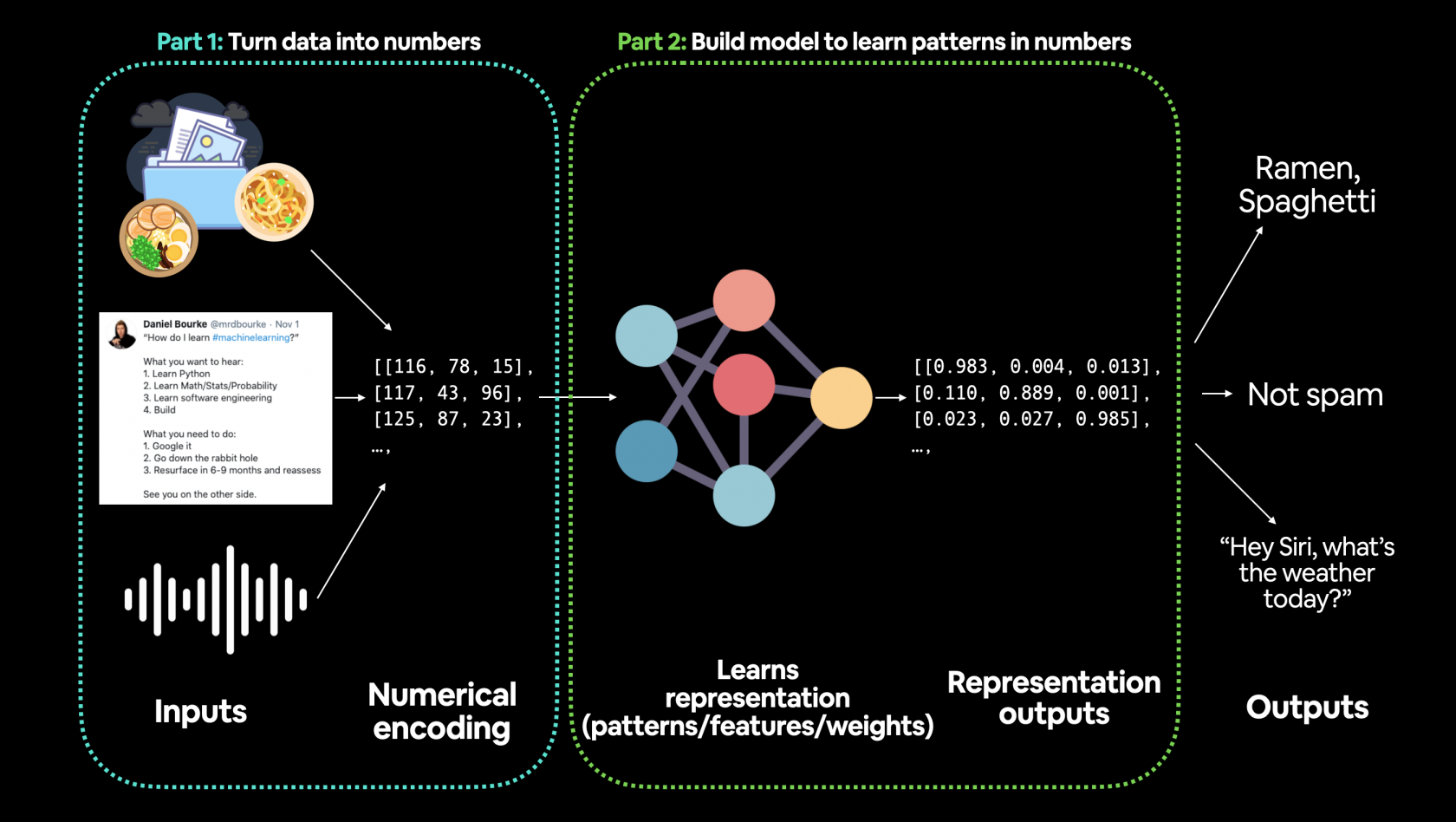
Gli step principali nella preparazione dei dati sono:

1. trasforare i dati in una rappresentazione numerica
2. costruire un modello che impari o scopra dei "pattern" nella rappresentazione numerica definita per il modello che vogliamo analizzare

Inziamo utilizzando la classica regressione lineare utilizzando la formula base y = wx + b, dove b sono i bias (detta intercetta) e w i pesi o coefficiente angolare. Per un approfondimento sulla regressione lineare vedi corso [https://cms.marcocucchi.it/books/machine-learing/page/regressione-lineare](https://cms.marcocucchi.it/books/machine-learing/page/regressione-lineare)

Ma andiamo al codice

```python
# settiamo in parametri dell'equazione
weight = 0.7
bias = 0.3

# creiamo i dati 
start = 0
end = 1
step = 0.02
# agigungo una dimensione extra tramite l'unsqueeze
X = torch.arange(start, end, step).unsqueeze(dim=1)
y = weight * X + bias

X.shape, X[:10], y[:10]

>(torch.Size([50, 1]),
(tensor([[0.0000],
         [0.0200],
         [0.0400],
         [0.0600],
         [0.0800],
         [0.1000],
         [0.1200],
         [0.1400],
         [0.1600],
         [0.1800]]),
 tensor([[0.3000],
         [0.3140],
         [0.3280],
         [0.3420],
         [0.3560],
         [0.3700],
         [0.3840],
         [0.3980],
         [0.4120],
         [0.4260]]))

```

Nell'esempio sopra riportato andremo a creare i dati relativi ad una semplice equazione lineare che verranno inviati alla rete neurale per identificare il pattern che più si avvicina all'equazione Y= vw + b che li ha originati

##### Training, Validation e Test sets

Uno dei concetti più importanti nel ML è la suddivisione dei dati in tre grupi:

<table id="bkmrk-split-purpose-amount" style="width:104.568%;"><thead><tr><th style="width:15.3219%;">Split</th><th style="width:52.6493%;">Purpose</th><th style="width:10.5046%;">Amount of total data</th><th style="width:21.5036%;">How often is it used?</th></tr></thead><tbody><tr><td style="width:15.3219%;">\*\*Training set\*\*</td><td style="width:52.6493%;">sono i dati sui quali il Pytoch si "allena" per trovare il modello</td><td style="width:10.5046%;">~60-80%</td><td style="width:21.5036%;">Always</td></tr><tr><td style="width:15.3219%;">\*\*Validation set\*\*</td><td style="width:52.6493%;">Non sempre utilizzato, nella pratica serve per effettuare una validazione interna del training. Da notare che questi non vengono utilizzati nella fase di training, servono solo per una validazione del modello in fase di training.</td><td style="width:10.5046%;">~10-20%</td><td style="width:21.5036%;">Often but not always</td></tr><tr><td style="width:15.3219%;">\*\*Testing set\*\*</td><td style="width:52.6493%;">Validazione finare del modello.</td><td style="width:10.5046%;">~10-20%</td><td style="width:21.5036%;">Always</td></tr></tbody></table>

Come splittare i dati i dati in training e testing:

```python
# Create train/test split
train_split = int(0.8 * len(X)) # 80% of data used for training set, 20% for testing 
X_train, y_train = X[:train_split], y[:train_split]
X_test, y_test = X[train_split:], y[train_split:]

len(X_train), len(y_train), len(X_test), len(y_test)

```

in questo modo dividiamo i dati dove l'80% sono dedicati al training e il restante 20% per la fase di test

Visualizziamo ora i dati:

```python
def plot_predictions(train_data=X_train, 
                     train_labels=y_train, 
                     test_data=X_test, 
                     test_labels=y_test, 
                     predictions=None):
  """
  Plots training data, test data and compares predictions.
  """
  plt.figure(figsize=(10, 7))

  # Plot training data in blue
  plt.scatter(train_data, train_labels, c="b", s=4, label="Training data")
  
  # Plot test data in green
  plt.scatter(test_data, test_labels, c="g", s=4, label="Testing data")

  if predictions is not None:
    # Plot the predictions in red (predictions were made on the test data)
    plt.scatter(test_data, predictions, c="r", s=4, label="Predictions")

  # Show the legend
  plt.legend(prop={"size": 14});
  
plot_predictions();  

```

e l'output risulta:

[![index.png](https://cms.marcocucchi.it/uploads/images/gallery/2023-01/scaled-1680-/lwHSIApmXe31WaJn-index.png)](https://cms.marcocucchi.it/uploads/images/gallery/2023-01/lwHSIApmXe31WaJn-index.png)
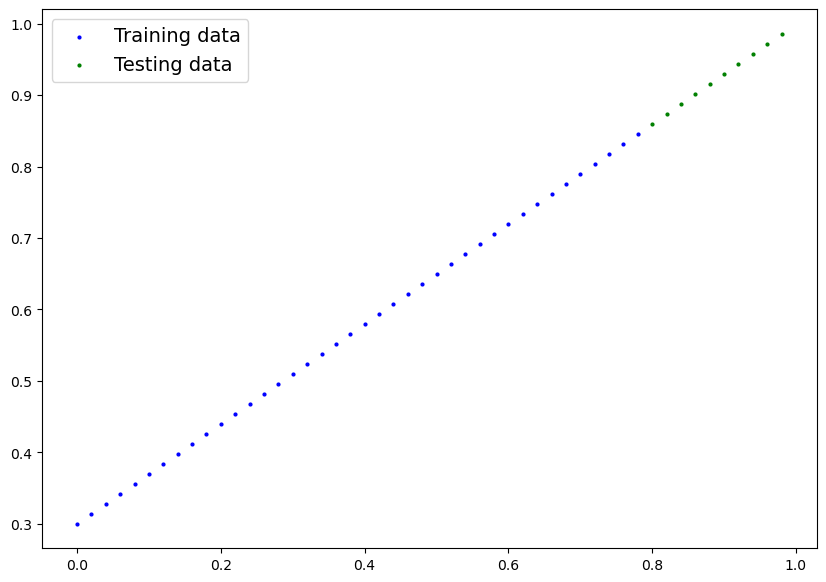
in blu i dati di traing, mentre in verde quelli di test.

Ora creiamo il modello:

```python

# Creiamo un classe di regressione lineare che eredita da nn.Module
class LinearRegressionModel(nn.Module): 
  
    # inizializzazione delle rete neurale
    def __init__(self):
        super().__init__() 
        
        # normalmente le w e b sono più complesso di questo caso... 
        # il nome di questo tipo di variabili è arbitrario
        self.weights = nn.Parameter(torch.randn(1, # generiamo un (1) tensore con un valore randomico
                                              dtype=torch.float), # <- PyTorch preferisce utilizzare float32 by default
                                             requires_grad=True) # pytoch aggiornerà il parametro tramite il backpropagation e discesa del gradiente

        # il nome di questo tipo di variabili è arbitrario
        self.bias = nn.Parameter(torch.randn(1, # generiamo un (1) tensore con un valore randomico
                                            dtype=torch.float), # <- PyTorch preferisce utilizzare float32 by default
                                            requires_grad=True)  # pytoch aggiornerà il parametro tramite il backpropagation e discesa del gradiente

        
    # propagazione di tipo "forward"
    def forward(self, x: torch.Tensor) -> torch.Tensor: # <- "x"  input data (training/testing features)
        return self.weights * x + self.bias # <- questa è la formula della regressione lineare (y = m*x + b)

```

La classe torch.NN è la base per la creazione dei "grafi di neuroni", questa classe effettua due macro tipologie di operazioni, ovvero:

1. <span style="color:rgb(224,62,45);">**la discesa del gradiente**</span>
2. <span style="color:rgb(224,62,45);">**la Backpropagation**</span>

tenendo traccia della variazione dei pesi e dei bias.

Il metodo "<span class="sig-prename descclassname"><span class="pre">torch.</span></span><span class="sig-name descname"><span class="pre">randn" può generare un tensore il cui shape è passato in input es. </span></span>

```
torch.randn(2, 3)

```

##### PyTorch model building essentials

Le componenti princiali (più o meno) per creare una rete neurale in Pytorch sono:

[`torch.nn`](https://pytorch.org/docs/stable/nn.html), [`torch.optim`](https://pytorch.org/docs/stable/optim.html), [`torch.utils.data.Dataset`](https://pytorch.org/docs/stable/data.html#torch.utils.data.Dataset) and [`torch.utils.data.DataLoader`](https://pytorch.org/docs/stable/data.html). For now, we'll focus on the first two and get to the other two later (though you may be able to guess what they do).

<table id="bkmrk-pytorch-module-what-" style="width:100%;"><thead><tr><th style="width:20.2627%;">PyTorch module</th><th style="width:79.7167%;">What does it do?</th></tr></thead><tbody><tr><td style="width:20.2627%;">[torch.nn](https://pytorch.org/docs/stable/nn.html)</td><td style="width:79.7167%;">Contains all of the building blocks for computational graphs (essentially a series of computations executed in a particular way).</td></tr><tr><td style="width:20.2627%;">[torch.nn.Parameter](https://pytorch.org/docs/stable/generated/torch.nn.parameter.Parameter.html#parameter)</td><td style="width:79.7167%;">Stores tensors that can be used with `nn.Module`. If `requires\_grad=True` gradients (used for updating model parameters via \[\*\*gradient descent\*\*\](https://ml-cheatsheet.readthedocs.io/en/latest/gradient\_descent.html)) are calculated automatically, this is often referred to as "autograd".</td></tr><tr><td style="width:20.2627%;">[torch.nn.Module](https://pytorch.org/docs/stable/generated/torch.nn.Module.html#torch.nn.Module)</td><td style="width:79.7167%;">The base class for all neural network modules, all the building blocks for neural networks are subclasses. If you're building a neural network in PyTorch, your models should subclass `nn.Module`. Requires a `forward()` method be implemented.</td></tr><tr><td style="width:20.2627%;">[torch.optim](https://pytorch.org/docs/stable/optim.html)</td><td style="width:79.7167%;">Contains various optimization algorithms (these tell the model parameters stored in `nn.Parameter` how to best change to improve gradient descent and in turn reduce the loss).</td></tr><tr><td style="width:20.2627%;">def forward()</td><td style="width:79.7167%;">All `nn.Module` subclasses require a `forward()` method, this defines the computation that will take place on the data passed to the particular `nn.Module` (e.g. the linear regression formula above). Questa classe in genere va sempre implementata

</td></tr></tbody></table>

If the above sounds complex, think of like this, almost everything in a PyTorch neural network comes from `torch.nn`,

- `nn.Module` contains the larger building blocks (layers)
- `nn.Parameter` contains the smaller parameters like weights and biases (put these together to make `nn.Module`(s))
- `forward()` tells the larger blocks how to make calculations on inputs (tensors full of data) within `nn.Module`(s)
- `torch.optim` contains optimization methods on how to improve the parameters within `nn.Parameter` to better represent input data

[![01-pytorch-linear-model-annotated.png](https://cms.marcocucchi.it/uploads/images/gallery/2023-01/scaled-1680-/fzZsSItdDbK57dHe-01-pytorch-linear-model-annotated.png)](https://cms.marcocucchi.it/uploads/images/gallery/2023-01/fzZsSItdDbK57dHe-01-pytorch-linear-model-annotated.png)
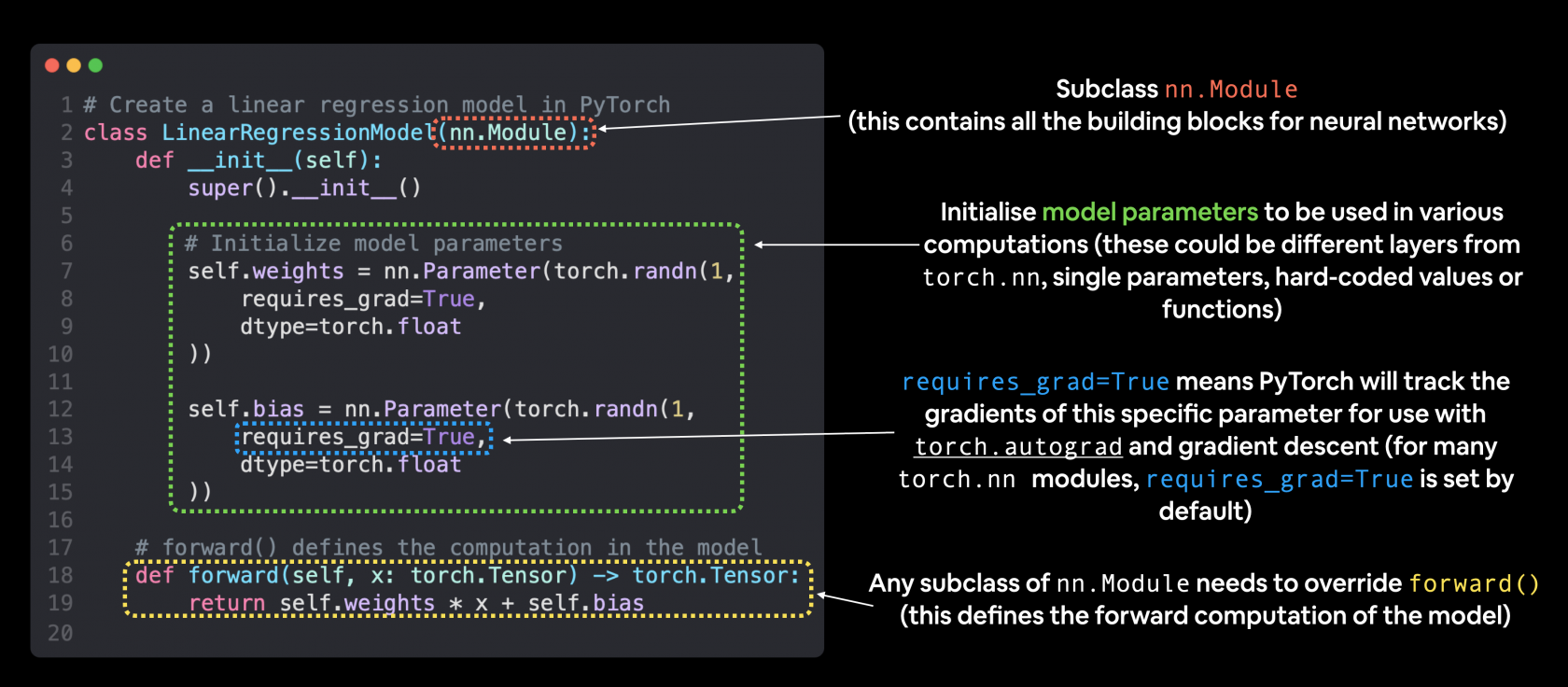
Visualizziamo i valori w e b prima dell'elaboraizone:

```python
# Set manual seed since nn.Parameter are randomly initialzied
torch.manual_seed(42)

# Create an instance of the model (this is a subclass of nn.Module that contains nn.Parameter(s))
model_0 = LinearRegressionModel()

# Check the nn.Parameter(s) within the nn.Module subclass we created
list(model_0.parameters())

>[Parameter containing:
 tensor([0.3367], requires_grad=True),

# vediamo la lista dei parametri
model_0.state_dict()
>OrderedDict([('weights', tensor([0.3367])), ('bias', tensor([0.1288]))])  

```

proviamo a fare delle predizioni senza aver fatto il training giusto per vedere come si comporta il modello.

Per fare delle predizioni si utilizza il medoto .inference\_mode():

```python
# Make predictions with model
# con torch.inference_mode() facciamo in modo non si salvi i parametri che normalmente vengono
# utilizzati nella fase di training, cosa inutile durante la predizione in quanto il training
# dovrebbe essere già stato effettuato. In soldoni migliori performace durante la fare predittiva
with torch.inference_mode(): 
    y_preds = model_0(X_test)

# Check the predictions
print(f"Number of testing samples: {len(X_test)}") 
print(f"Number of predictions made: {len(y_preds)}")
print(f"Predicted values:\n{y_preds}")

Number of testing samples: 10
Number of predictions made: 10
Predicted values:
tensor([[0.3982],
        [0.4049],
        [0.4116],
        [0.4184],
        [0.4251],
        [0.4318],
        [0.4386],
        [0.4453],
        [0.4520],
        [0.4588]])

# proviamo a visualizzare i valori della previsione
plot_predictions(predictions=y_preds)    

```

[![index.png](https://cms.marcocucchi.it/uploads/images/gallery/2023-01/scaled-1680-/fYUwpnvw7QlpcL6U-index.png)](https://cms.marcocucchi.it/uploads/images/gallery/2023-01/fYUwpnvw7QlpcL6U-index.png)
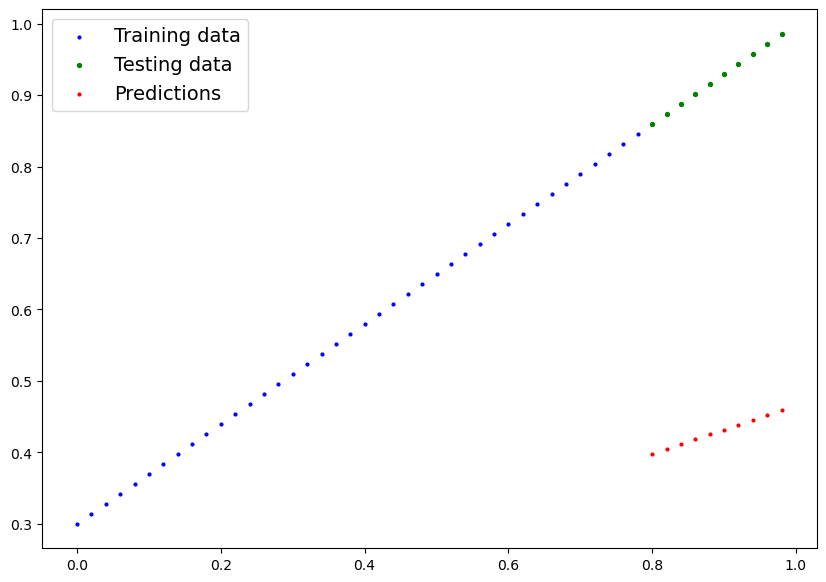
e come si bene notare i valori predetti (rosso) "poco ci azzeccano" con i valori originali... quindi le predizioni sono praticamente random.

##### Training

**Loss function**

Prima di trattare il training per se vediamo di capire come misura quanto il modello si avvicina ai valori attesi o ideali, per effettuare questo controllo viene utilizzata la "loss function" o "cost function". (vedo [https://pytorch.org/docs/stable/nn.html#loss-functions](https://pytorch.org/docs/stable/nn.html#loss-functions))

Nella pratica uno dei metodi più basici è misurare la distanza tra gli attesi e i predetti.

**Optimizer**

L'optimizer serve per ottimizzare i valori predetti in modo che si avvicinino sempre di più ai valori ideali, quindi per migliorare la loss function. (i cui delta vengono ritornati dalla "loss function", in modo che la loss function stessa indichi un miglioramento della predizione)

Nello specifico per pytorch servirà un <span style="text-decoration:underline;">training loop</span> e un <span style="text-decoration:underline;">test loop</span>.

##### Creare una loss function e un optimizer

<table id="bkmrk-function-what-does-i" style="width:100%;"><thead><tr><th style="width:14.9537%;">Function</th><th style="width:28.0536%;">What does it do?</th><th style="width:21.625%;">Where does it live in PyTorch?</th><th style="width:35.3472%;">Common values</th></tr></thead><tbody><tr><td style="width:14.9537%;">\*\*Loss function\*\*</td><td style="width:28.0536%;">Measures how wrong your models predictions (e.g. `y\_preds`) are compared to the truth labels (e.g. `y\_test`). Lower the better. vedi tabella delle loss functions:

[loss-functions](https://pytorch.org/docs/stable/nn.html#loss-functions)

</td><td style="width:21.625%;">PyTorch has plenty of built-in loss functions in \[`torch.nn`\](https://pytorch.org/docs/stable/nn.html#loss-functions).</td><td style="width:35.3472%;">Mean absolute error (MAE) for regression problems (\[`torch.nn.L1Loss()`\](https://pytorch.org/docs/stable/generated/torch.nn.L1Loss.html)). Binary cross entropy for binary classification problems (\[`torch.nn.BCELoss()`\](https://pytorch.org/docs/stable/generated/torch.nn.BCELoss.html)).</td></tr><tr><td style="width:14.9537%;">\*\*Optimizer\*\*</td><td style="width:28.0536%;">Tells your model how to update its internal parameters to best lower the loss. vedi lista degli optimizers

[opimizers](https://pytorch.org/docs/stable/optim.html?highlight=optimizer#torch.optim.Optimizer)

</td><td style="width:21.625%;">You can find various optimization function implementations in \[`torch.optim`\](https://pytorch.org/docs/stable/optim.html).</td><td style="width:35.3472%;">Stochastic gradient descent (\[`torch.optim.SGD()`\](https://pytorch.org/docs/stable/generated/torch.optim.SGD.html#torch.optim.SGD)). Adam optimizer (\[`torch.optim.Adam()`\](https://pytorch.org/docs/stable/generated/torch.optim.Adam.html#torch.optim.Adam)).</td></tr></tbody></table>

Esistono varie famiglie di "<span style="color:rgb(224,62,45);">**loss function**</span>" a seconda del tipo di elaborazione, per la predizioni di valori numerici è possibile utilizzare la *Mean absolute error (MAE, in PyTorch: `torch.nn.L1Loss`)* che miura la differenze in valori assoluti tra due punti che nel nostro caso sono le "prediction" e le "label" (che sono i valori attesi) per poi calcolarne il valore medio.

Di seguito una rappresentazione grafica dello MAE, dove si evidenzia il calcolo medio della differenza in valore assoulto tra valori attesi e valori predetti.

[![01-mae-loss-annotated.png](https://cms.marcocucchi.it/uploads/images/gallery/2023-01/scaled-1680-/xf6Ml7xJBjXbiRcJ-01-mae-loss-annotated.png)](https://cms.marcocucchi.it/uploads/images/gallery/2023-01/xf6Ml7xJBjXbiRcJ-01-mae-loss-annotated.png)
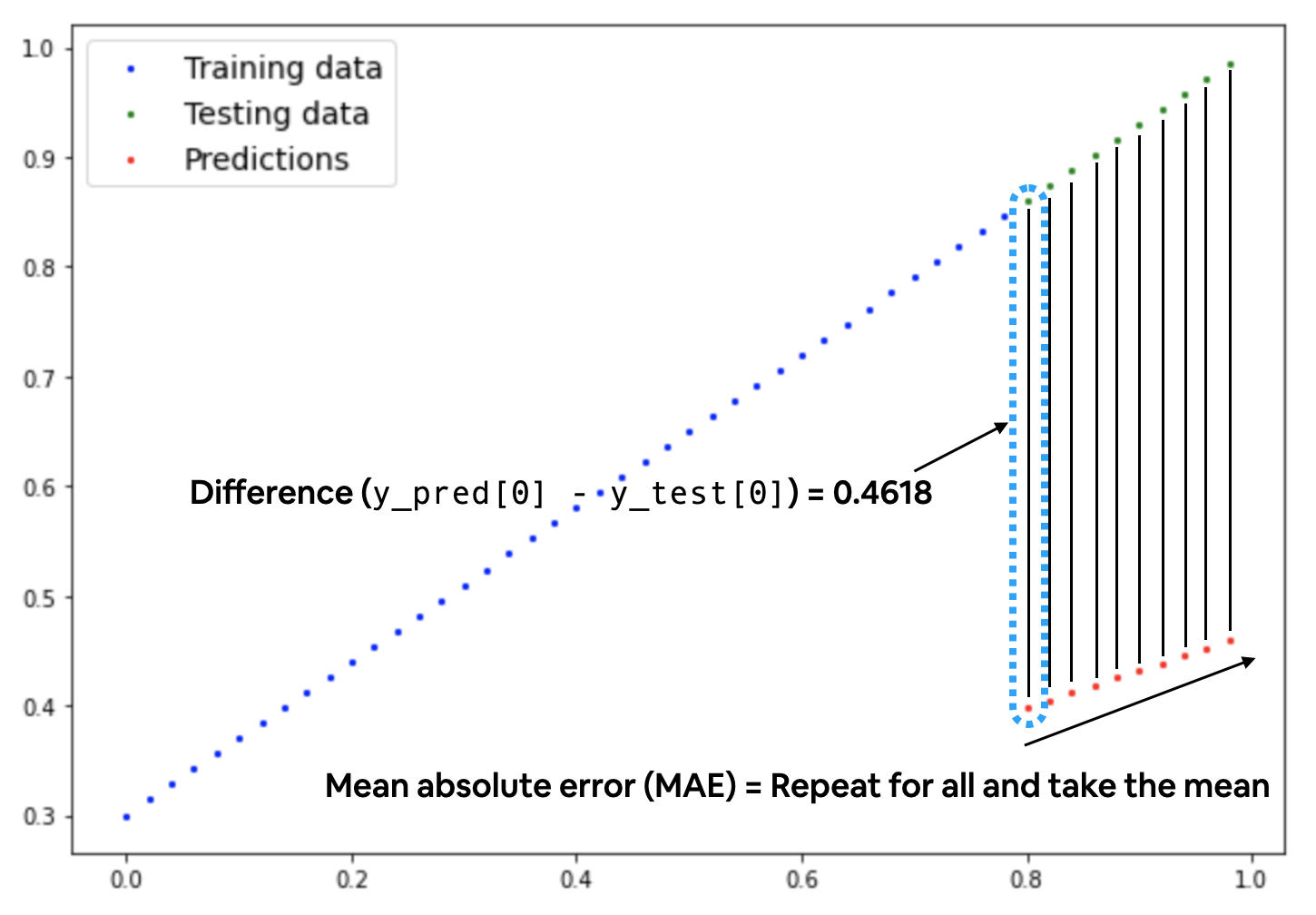
quindi:

```python
# creiamo una loss function
loss_fn = nn.L1Loss() # MAE

# creiamo un optimizer, scegliamo il classico Stocastic Gradient Descent
optimizer = torch.optim.SGD(params=model_0.parameters(), # passiamo i parametri da ottimizzare (in questo caso "w" e "b"
                            lr=0.01) # settiamo il passo per il calcolo del gradiente, più piccolo = più tempo

```

di seguito gli step logici della fare si training:

### PyTorch training loop

For the training loop, we'll build the following steps:

<table id="bkmrk-number-step-name-wha" style="width:100%;"><thead><tr><th style="width:9.2688%;">Number</th><th style="width:17.3002%;">Step name</th><th style="width:50.5474%;">What does it do?</th><th style="width:22.863%;">Code example</th></tr></thead><tbody><tr><td style="width:9.2688%;">1</td><td style="width:17.3002%;">Forward pass</td><td style="width:50.5474%;">The model goes through all of the training data once, performing its `forward()` function calculations.</td><td style="width:22.863%;">*`model(x\_train)`*</td></tr><tr><td style="width:9.2688%;">2</td><td style="width:17.3002%;">Calculate the loss</td><td style="width:50.5474%;">The model's outputs (predictions) are compared to the ground truth and evaluated to see how wrong they are.</td><td style="width:22.863%;">*`loss = loss\_fn(y\_pred, y\_train)`*</td></tr><tr><td style="width:9.2688%;">3</td><td style="width:17.3002%;">Zero gradients</td><td style="width:50.5474%;">The optimizers gradients are set to zero (they are accumulated by default) so they can be recalculated for the specific training step.</td><td style="width:22.863%;">*`optimizer.zero\_grad()`*</td></tr><tr><td style="width:9.2688%;">4</td><td style="width:17.3002%;">Perform backpropagation on the loss</td><td style="width:50.5474%;">Computes the gradient of the loss with respect for every model parameter to be updated (each parameter with `requires\_grad=True`). This is known as \*\*backpropagation\*\*, hence "backwards".</td><td style="width:22.863%;">*`loss.backward()`*</td></tr><tr><td style="width:9.2688%;">5</td><td style="width:17.3002%;">Update the optimizer (\*\*gradient descent\*\*)</td><td style="width:50.5474%;">Update the parameters with `requires\_grad=True` with respect to the loss gradients in order to improve them.</td><td style="width:22.863%;">*`optimizer.step()`*</td></tr></tbody></table>

l'algoritmo quindi si può delineare come:

[![01-pytorch-training-loop-annotated.png](https://cms.marcocucchi.it/uploads/images/gallery/2023-01/scaled-1680-/VyAGEjCWFcQmVkpD-01-pytorch-training-loop-annotated.png)](https://cms.marcocucchi.it/uploads/images/gallery/2023-01/VyAGEjCWFcQmVkpD-01-pytorch-training-loop-annotated.png)
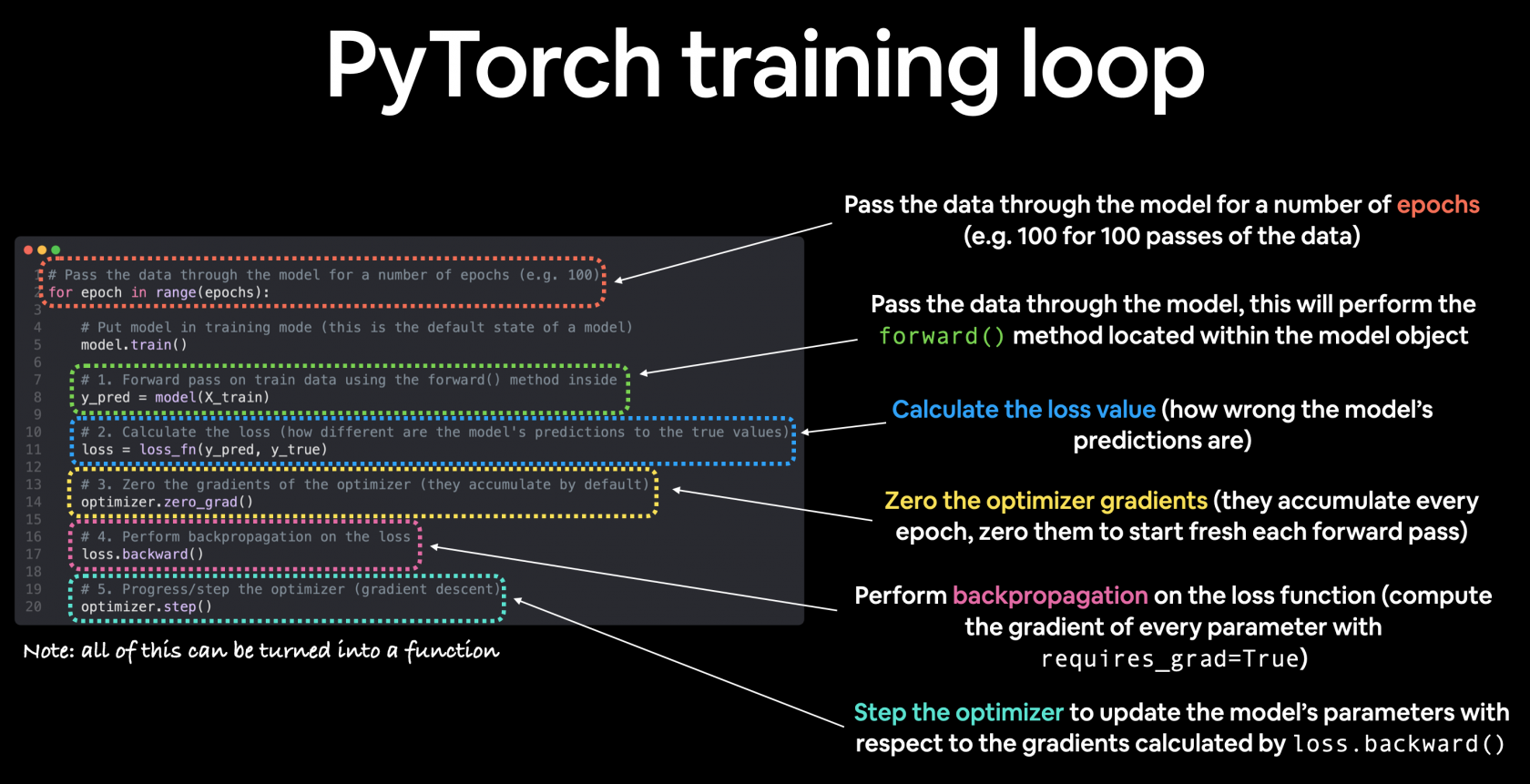
di seguito l'algoritmo:

```python
# forzo il seed per ottenere risultati identici al 
torch.manual_seed(42)

# setto le epoche, ogni epoca è un passaggio in "foward propagation" dei pesi attraverso la rete neurale 
# dall'input layer all'ouout.
epochs = 100

# creo delle liste che conterranno i valori di loss per tenerne traccia durante le varie epche
train_loss_values = []
test_loss_values = []
epoch_count = []

for epoch in range(epochs):
    ### Training

    # 0. imposto la modalità in Training (da fare ad ogni epoca)
    model_0.train()

    # 1. passo i dati di training al modello il quale internamente invocherè il metoto forward() definito
    #    quanto è stata implementata la classe che estende pytorch. Ottengo i dati che andranno poi comprati
    #    dalla loss per ottenerne in valore medio assoluto.
    y_pred = model_0(X_train)
    # print(y_pred)

    # 2. calcolo la loss utilizzando la funzione definita precedentemmente.
    loss = loss_fn(y_pred, y_train)

    # 3. reinizializzo l'optimizer in quanto tende ad accumulare i valori 
    optimizer.zero_grad()

    # 4. effettua la back propagation, nella pratica Pytorch tiene traccia dei valori associati alla discesa del gradiente
    #    Quindi calcola la derivata parziale per determinare il minimo della curva dei delta tra valori predetti e valori di test
    loss.backward()

    # 5. ottimizza i parametri (una sola volta) e in base al valore "lr".
    #  NB: cambia quindi i valori dei tensori per cercare di farli avvicinare ai valori ottimali
    optimizer.step()

    ### Testing

    # indico a Pytrch che la fase di training è terminata e che ora devo valutare i parametri e paragonarli con i valori attesi
    model_0.eval()

    # predico i valori in 
    with torch.inference_mode():
      # 1. Forward pass on test data
      test_pred = model_0(X_test)

      # 2. Caculate loss on test data
      test_loss = loss_fn(test_pred, y_test.type(torch.float)) # predictions come in torch.float datatype, so comparisons need to be done with tensors of the same type

      # Print out what's happening
      if epoch % 10 == 0:
            epoch_count.append(epoch)
          	# i valori vengono convertiti in numpy in quanto sono dei tensori pytorch
            train_loss_values.append(loss.numpy())
            test_loss_values.append(test_loss.numpy())
            print(f"Epoch: {epoch} | MAE Train Loss: {loss} | MAE Test Loss: {test_loss} ")
            

```

e l'output sarà:

```python
print (list(model_0.parameters()),model_0.state_dict())            

Epoch: 0 | MAE Train Loss: 0.31288138031959534 | MAE Test Loss: 0.48106518387794495 delta: 0.1681838035583496
Epoch: 10 | MAE Train Loss: 0.1976713240146637 | MAE Test Loss: 0.3463551998138428 delta: 0.14868387579917908
Epoch: 20 | MAE Train Loss: 0.08908725529909134 | MAE Test Loss: 0.21729660034179688 delta: 0.12820935249328613
Epoch: 30 | MAE Train Loss: 0.053148526698350906 | MAE Test Loss: 0.14464017748832703 delta: 0.09149165451526642
Epoch: 40 | MAE Train Loss: 0.04543796554207802 | MAE Test Loss: 0.11360953003168106 delta: 0.06817156076431274
Epoch: 50 | MAE Train Loss: 0.04167863354086876 | MAE Test Loss: 0.09919948130846024 delta: 0.057520847767591476
Epoch: 60 | MAE Train Loss: 0.03818932920694351 | MAE Test Loss: 0.08886633068323135 delta: 0.05067700147628784
Epoch: 70 | MAE Train Loss: 0.03476089984178543 | MAE Test Loss: 0.0805937647819519 delta: 0.04583286494016647
Epoch: 80 | MAE Train Loss: 0.03132382780313492 | MAE Test Loss: 0.07232122868299484 delta: 0.040997400879859924
Epoch: 90 | MAE Train Loss: 0.02788739837706089 | MAE Test Loss: 0.06473556160926819 delta: 0.03684816509485245
Epoch: 100 | MAE Train Loss: 0.024458957836031914 | MAE Test Loss: 0.05646304413676262 delta: 0.032004088163375854
Epoch: 110 | MAE Train Loss: 0.021020207554101944 | MAE Test Loss: 0.04819049686193466 delta: 0.027170289307832718
Epoch: 120 | MAE Train Loss: 0.01758546568453312 | MAE Test Loss: 0.04060482233762741 delta: 0.02301935665309429
Epoch: 130 | MAE Train Loss: 0.014155393466353416 | MAE Test Loss: 0.03233227878808975 delta: 0.018176885321736336
Epoch: 140 | MAE Train Loss: 0.010716589167714119 | MAE Test Loss: 0.024059748277068138 delta: 0.01334315910935402
Epoch: 150 | MAE Train Loss: 0.0072835334576666355 | MAE Test Loss: 0.016474086791276932 delta: 0.009190553799271584
Epoch: 160 | MAE Train Loss: 0.0038517764769494534 | MAE Test Loss: 0.008201557211577892 delta: 0.004349780734628439
Epoch: 170 | MAE Train Loss: 0.008932482451200485 | MAE Test Loss: 0.005023092031478882 delta: -0.003909390419721603
Epoch: 180 | MAE Train Loss: 0.008932482451200485 | MAE Test Loss: 0.005023092031478882 delta: -0.003909390419721603
[Parameter containing:
tensor([0.6990], requires_grad=True), Parameter containing:
tensor([0.3093], requires_grad=True)] OrderedDict([('weights', tensor([0.6990])), ('bias', tensor([0.3093]))])

```

Mostriamo il grafico dei loss sul training e sui dati di testing

```python
# Plot the loss curves
plt.plot(epoch_count, train_loss_values, label="Train loss")
plt.plot(epoch_count, test_loss_values, label="Test loss")
plt.title("Training and test loss curves")
plt.ylabel("Loss")
plt.xlabel("Epochs")
plt.legend();

```

[![index.png](https://cms.marcocucchi.it/uploads/images/gallery/2023-01/scaled-1680-/lNMAzYCCjf0rFLQu-index.png)](https://cms.marcocucchi.it/uploads/images/gallery/2023-01/lNMAzYCCjf0rFLQu-index.png)
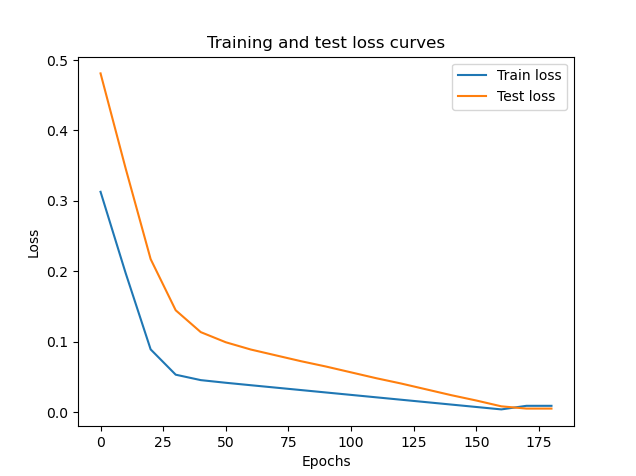
e vediamo il grafico dei valori predetti vs i valori utilizzati per il traing

[![index.png](https://cms.marcocucchi.it/uploads/images/gallery/2023-01/scaled-1680-/yLbnyiosgd5nR2ZZ-index.png)](https://cms.marcocucchi.it/uploads/images/gallery/2023-01/yLbnyiosgd5nR2ZZ-index.png)
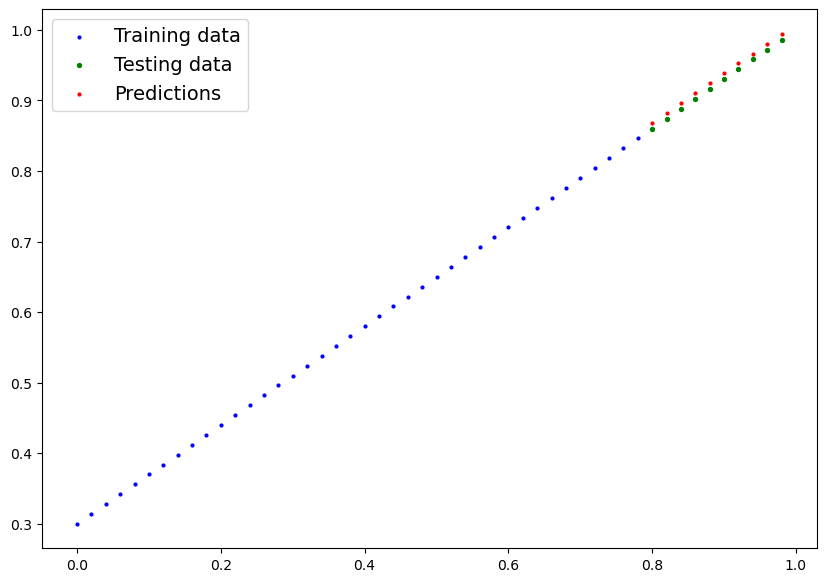
si può notare che dopo 180 epoche di training il modello riesce a predirre valori molto simili a quelli utilizzati per il training.

##### Salvare e caricare i parametri del modello

Dopo avere trovato i valori che meglio rappresentano il modello che vogliamo riprodurre vogliamo salvare i valori della rete neurale in modo da poterli ricaricare in un secondo momento senza dover riallenare la rete. Pytorch mette a disposizioni i metodo save e load per salvare su file system i parametri.

<table id="bkmrk-pytorch-method-what-" style="width:100%;"><thead><tr><th style="width:33.4858%;">PyTorch method</th><th style="width:66.4936%;">What does it do?</th></tr></thead><tbody><tr><td style="width:33.4858%;">[torch.save](https://pytorch.org/docs/stable/torch.html?highlight=save#torch.save)</td><td style="width:66.4936%;">Saves a serialzed object to disk using Python's \[`pickle`\](https://docs.python.org/3/library/pickle.html) utility. Models, tensors and various other Python objects like dictionaries can be saved using `torch.save`.</td></tr><tr><td style="width:33.4858%;">[torch.load](https://pytorch.org/docs/stable/torch.html?highlight=torch%20load#torch.load))</td><td style="width:66.4936%;">Uses `pickle`'s unpickling features to deserialize and load pickled Python object files (like models, tensors or dictionaries) into memory. You can also set which device to load the object to (CPU, GPU etc).</td></tr><tr><td style="width:33.4858%;">[torch.nn.Module.load\_state\_dict](https://pytorch.org/docs/stable/generated/torch.nn.Module.html?highlight=load_state_dict#torch.nn.Module.load_state_dict)</td><td style="width:66.4936%;">Loads a model's parameter dictionary (`model.state\_dict()`) using a saved `state\_dict()` object</td></tr></tbody></table>

```python
from pathlib import Path

# 1. Create models directory 
MODEL_PATH = Path("C:/Users/userxx/Desktop")

MODEL_PATH.mkdir(parents=True, exist_ok=True)

# 2. Create model save path 
MODEL_NAME = "01_pytorch_workflow_model_0.pth"
MODEL_SAVE_PATH = MODEL_PATH / MODEL_NAME

# 3. Save the model state dict 
print(f"Saving model to: {MODEL_SAVE_PATH}")
torch.save(obj=model_0.state_dict(), # only saving the state_dict() only saves the models learned parameters
           f=MODEL_SAVE_PATH) 

```

verrà quindi creato un file con i bias e i weights, per caricare il modello invce:

```python
# Instantiate a new instance of our model (this will be instantiated with random weights)
loaded_model_0 = LinearRegressionModel()

# Load the state_dict of our saved model (this will update the new instance of our model with trained weights)
loaded_model_0.load_state_dict(torch.load(f=MODEL_SAVE_PATH))

```

e provare il modello caricato:

```python
# 1. Put the loaded model into evaluation mode
loaded_model_0.eval()

# 2. Use the inference mode context manager to make predictions
with torch.inference_mode():
    loaded_model_preds = loaded_model_0(X_test) # perform a forward pass on the test data with the loaded model

```

##### Evoluzione del modello/uso della GPU

Creiamo ora un modello in grado di gestire un numero significativamente maggiore di layers e nuroni configurandoli più facilmente:

```python
# Subclass nn.Module to make our model
class LinearRegressionModelV2(nn.Module):
    def __init__(self):
        super().__init__()
        
        # utilizziamo un layer di quelli predefiniti da pytorch
        # questa volta definiamo una semplice rete neurale fatta di un input layer e un output layer
        # il modello libeare si basa sulla classica formula y = w*x + b
        self.linear_layer = nn.Linear(in_features=1, 
                                      out_features=1)
    
    # Definiamo la "forward computation" dove i valori i input "scorrono" attraverso
    # la rete neurale defininta nel costruttore della classe
    def forward(self, x: torch.Tensor) -> torch.Tensor:
        return self.linear_layer(x)

# setto il seed per facilitare il check dei paramertri
torch.manual_seed(42)
model_1 = LinearRegressionModelV2()

print( model_1)
>LinearRegressionModelV2( (linear_layer): Linear(in_features=1, out_features=1, bias=True) )

print( model_1.state_dict())
>OrderedDict([('linear_layer.weight', tensor([[0.7645]])), ('linear_layer.bias', tensor([0.8300]))])

```

vediamo di forzare l'uso della GPU, se presente:

```python
# Setup device agnostic code
device = "cuda" if torch.cuda.is_available() else "cpu"
print(f"Using device: {device}")
> Using device: cuda

# Check model device
next(model_1.parameters()).device
>device(type='cpu')

```

si evince che di default viene la utilizzata la CPU, il nostro intente invece è <span style="text-decoration:underline;">utilizzare la GPU se presente</span> e creare un sistema "agnostico" in grado di sfruttare le risorse al meglio, per cui settiamo il decice migliore:

```python
# Set model to GPU if it's availalble, otherwise it'll default to CPU
model_1.to(device) # the device variable was set above to be "cuda" if available or "cpu" if not
next(model_1.parameters()).device

# ora utilizza la GPU
>device(type='cuda', index=0)

```

ripetiamo il training con il nuovo modello:

```python
# Create loss function
loss_fn = nn.L1Loss()

# Create optimizer
optimizer = torch.optim.SGD(params=model_1.parameters(), # optimize newly created model's parameters
                            lr=0.01)

torch.manual_seed(42)

# Set the number of epochs 
epochs = 1000 

# !!!!!!!!!!!!!
# Put data on the available device
# Without this, error will happen (not all model/data on device)
# !!!!!!!!!!!!!
X_train = X_train.to(device)
X_test = X_test.to(device)
y_train = y_train.to(device)
y_test = y_test.to(device)

for epoch in range(epochs):
    ### Training
    model_1.train() # train mode is on by default after construction

    # 1. Forward pass
    y_pred = model_1(X_train)

    # 2. Calculate loss
    loss = loss_fn(y_pred, y_train)

    # 3. Zero grad optimizer
    optimizer.zero_grad()

    # 4. Loss backward
    loss.backward()

    # 5. Step the optimizer
    optimizer.step()

    ### Testing
    model_1.eval() # put the model in evaluation mode for testing (inference)
    # 1. Forward pass
    with torch.inference_mode():
        test_pred = model_1(X_test)
    
        # 2. Calculate the loss
        test_loss = loss_fn(test_pred, y_test)

    if epoch % 100 == 0:
        print(f"Epoch: {epoch} | Train loss: {loss} | Test loss: {test_loss}")

```

e l'output:

```python
# Find our model's learned parameters
from pprint import pprint # pprint = pretty print, see: https://docs.python.org/3/library/pprint.html 
print("The model learned the following values for weights and bias:")
pprint(model_1.state_dict())
print("\nAnd the original values for weights and bias are:")
print(f"weights: {weight}, bias: {bias}")

The model learned the following values for weights and bias:
OrderedDict([('linear_layer.weight', tensor([[0.6968]], device='cuda:0')),
             ('linear_layer.bias', tensor([0.3025], device='cuda:0'))])

And the original values for weights and bias are:
weights: 0.7, bias: 0.3

```

Fare delle previsioni

```python
# Turn model into evaluation mode
model_1.eval()

# Make predictions on the test data
with torch.inference_mode():
    y_preds = model_1(X_test)

print(y_preds)
tensor([[0.8600],
        [0.8739],
        [0.8878],
        [0.9018],
        [0.9157],
        [0.9296],
        [0.9436],
        [0.9575],
        [0.9714],
        [0.9854]], device='cuda:0')

```

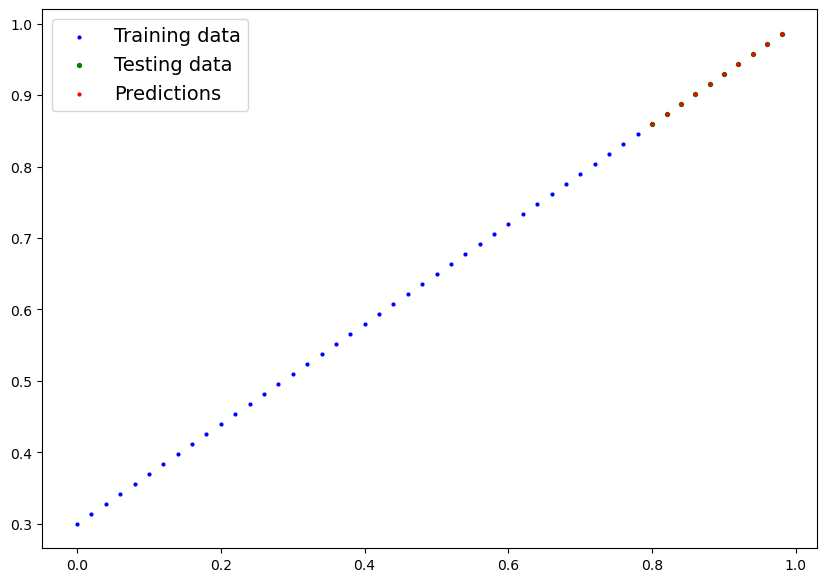
Facciamo il plot ma attenzione che i tensori sono nella GPU mentre la funzione di plot lavora con la CPU (numpy), bisognerà quindi trasferire i valori in numpy primna di plottarli.

```python
plot_predictions(predictions=y_preds) # -> non funziona in quanto i dati sono nella GPU
>TypeError: can't convert cuda:0 device type tensor to numpy. Use Tensor.cpu() to copy the tensor to host memory first.

# Put data on the CPU and plot it
plot_predictions(predictions=y_preds.cpu())

```

[![index.png](https://cms.marcocucchi.it/uploads/images/gallery/2023-01/scaled-1680-/OPH6hQ4vOY4asm2s-index.png)](https://cms.marcocucchi.it/uploads/images/gallery/2023-01/OPH6hQ4vOY4asm2s-index.png)
##### Salvare il modello

```python
from pathlib import Path

# 1. Create models directory 
MODEL_PATH = Path("path alla directoty dei modelli")
MODEL_PATH.mkdir(parents=True, exist_ok=True)

# 2. Create model save path 
MODEL_NAME = "01_pytorch_workflow_model_1.pth"
MODEL_SAVE_PATH = MODEL_PATH / MODEL_NAME

# 3. Save the model state dict 
print(f"Saving model to: {MODEL_SAVE_PATH}")
torch.save(obj=model_1.state_dict(), # only saving the state_dict() only saves the models learned parameters
           f=MODEL_SAVE_PATH) 

```

##### Caricare il modello

```python
# Instantiate a fresh instance of LinearRegressionModelV2
loaded_model_1 = LinearRegressionModelV2()

# Load model state dict 
loaded_model_1.load_state_dict(torch.load(MODEL_SAVE_PATH))

# Put model to target device (if your data is on GPU, model will have to be on GPU to make predictions)
loaded_model_1.to(device)

print(f"Loaded model:\n{loaded_model_1}")
print(f"Model on device:\n{next(loaded_model_1.parameters()).device}")

```

testare il modello caricato

```python
# Evaluate loaded model
loaded_model_1.eval()
with torch.inference_mode():
    loaded_model_1_preds = loaded_model_1(X_test)
y_preds == loaded_model_1_preds

>tensor([[True],
        [True],
        [True],
        [True],
        [True],
        [True],
        [True],
        [True],
        [True],
        [True]], device='cuda:0')

```

# Classificazione (binary classification)

#### Introduzione

In questa lezione andremo a vedere la classificazione in base a delle tipolgie di dati, differisce quindi dalla regressione che si basa sulla predizione di un valore numero.

La classificazione può essere "binaria" es. cats vs dogs, oppure multiclass classification se abbiamo più di due tipologie da classificare.

Di seguito alcuni esempi di classificazione:

[![02-different-classification-problems.png](https://cms.marcocucchi.it/uploads/images/gallery/2023-01/scaled-1680-/U8lnMNeLbjbNnrEQ-02-different-classification-problems.png)](https://cms.marcocucchi.it/uploads/images/gallery/2023-01/U8lnMNeLbjbNnrEQ-02-different-classification-problems.png)
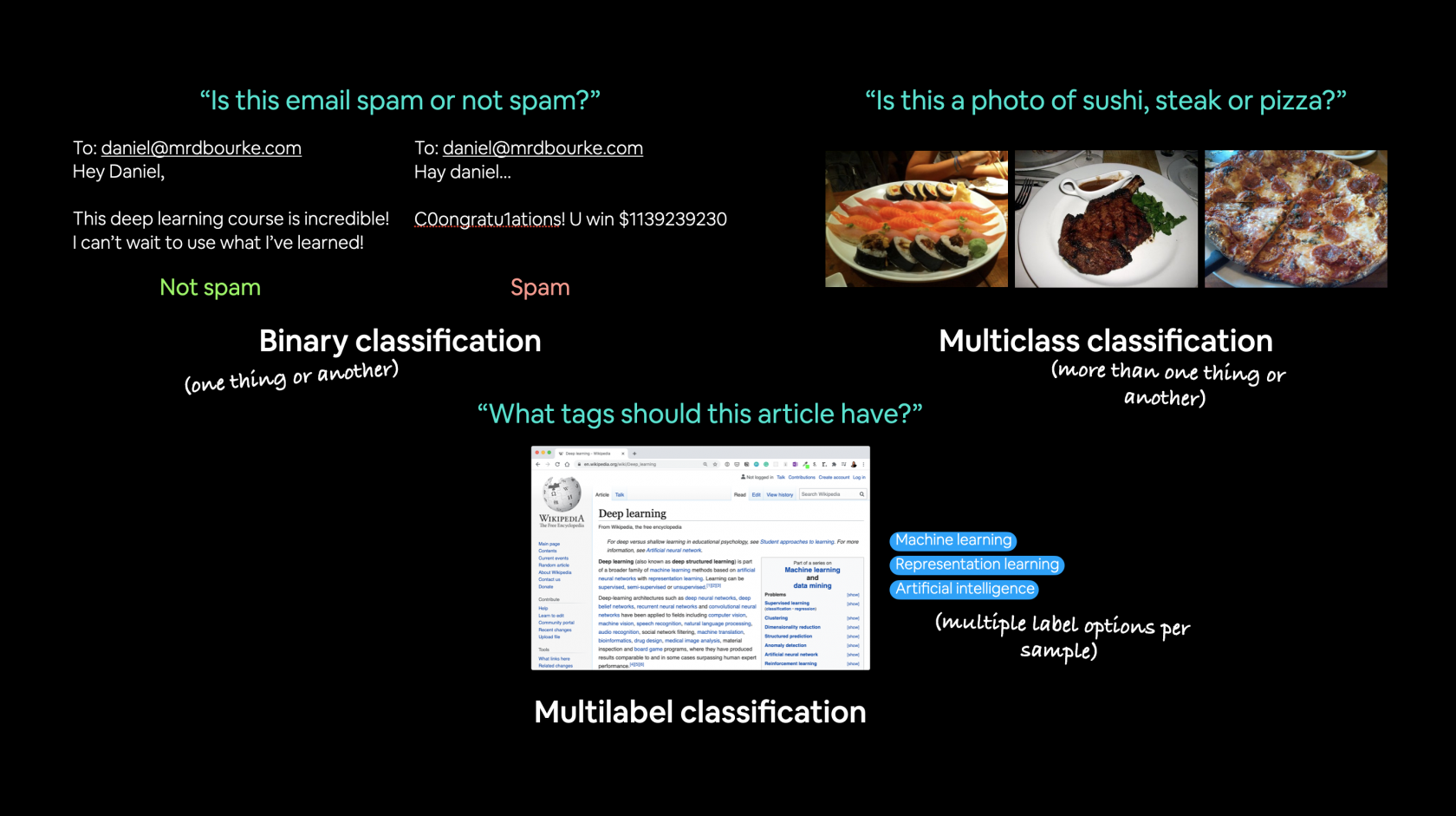
Cosa andreamo a trattare nel coso:

[![01_a_pytorch_workflow.png](https://cms.marcocucchi.it/uploads/images/gallery/2023-01/scaled-1680-/wi3ZzDJT7iEBNtLl-01-a-pytorch-workflow.png)](https://cms.marcocucchi.it/uploads/images/gallery/2023-01/wi3ZzDJT7iEBNtLl-01-a-pytorch-workflow.png)
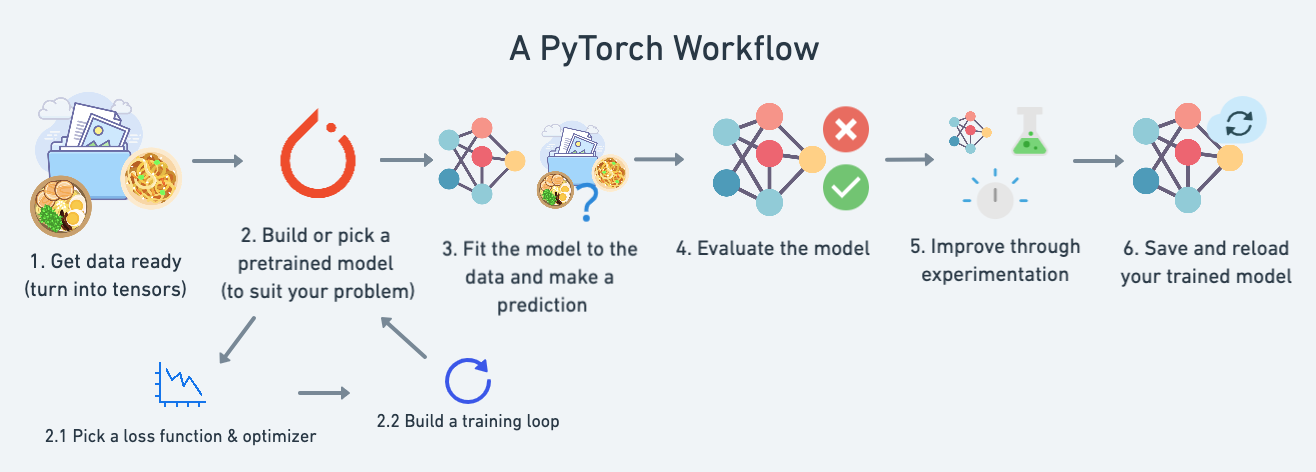
<table id="bkmrk-topic-contents-0.-ar" style="border-collapse:collapse;width:100%;border-width:1px;"><thead><tr><th style="width:34.7312%;border-width:1px;">\*\*Topic\*\*</th><th style="width:65.3718%;border-width:1px;">\*\*Contents\*\*</th></tr></thead><tbody><tr><td style="width:34.7312%;border-width:1px;">\*\*0. Architecture of a classification neural network\*\*</td><td style="width:65.3718%;border-width:1px;">Neural networks can come in almost any shape or size, but they typically follow a similar floor plan.</td></tr><tr><td style="width:34.7312%;border-width:1px;">\*\*1. Getting binary classification data ready\*\*</td><td style="width:65.3718%;border-width:1px;">Data can be almost anything but to get started we're going to create a simple binary classification dataset.</td></tr><tr><td style="width:34.7312%;border-width:1px;">\*\*2. Building a PyTorch classification model\*\*</td><td style="width:65.3718%;border-width:1px;">Here we'll create a model to learn patterns in the data, we'll also choose a \*\*loss function\*\*, \*\*optimizer\*\* and build a \*\*training loop\*\* specific to classification.</td></tr><tr><td style="width:34.7312%;border-width:1px;">\*\*3. Fitting the model to data (training)\*\*</td><td style="width:65.3718%;border-width:1px;">We've got data and a model, now let's let the model (try to) find patterns in the (\*\*training\*\*) data.</td></tr><tr><td style="width:34.7312%;border-width:1px;">\*\*4. Making predictions and evaluating a model (inference)\*\*</td><td style="width:65.3718%;border-width:1px;">Our model's found patterns in the data, let's compare its findings to the actual (\*\*testing\*\*) data.</td></tr><tr><td style="width:34.7312%;border-width:1px;">\*\*5. Improving a model (from a model perspective)\*\*</td><td style="width:65.3718%;border-width:1px;">We've trained an evaluated a model but it's not working, let's try a few things to improve it.</td></tr><tr><td style="width:34.7312%;border-width:1px;">\*\*6. Non-linearity\*\*</td><td style="width:65.3718%;border-width:1px;">So far our model has only had the ability to model straight lines, what about non-linear (non-straight) lines?</td></tr><tr><td style="width:34.7312%;border-width:1px;">\*\*7. Replicating non-linear functions\*\*</td><td style="width:65.3718%;border-width:1px;">We used \*\*non-linear functions\*\* to help model non-linear data, but what do these look like?</td></tr><tr><td style="width:34.7312%;border-width:1px;">\*\*8. Putting it all together with multi-class classification\*\*</td><td style="width:65.3718%;border-width:1px;">Let's put everything we've done so far for binary classification together with a multi-class classification problem.</td></tr></tbody></table>

Partiamo con un esempio di classificazione basato su due serie di cerchi che si annidano tra di loro. Utilizziamo sklearn per ottenere questo set di dati:

```python
from sklearn.datasets import make_circles


```

##### Make 1000 samples

n\_samples = 1000

```python
X, y = make_circles(n_samples,
					noise=0.03, # a little bit of noise to the dots                    
                    random_state=42) # keep random state so we get the same values
```

##### Create circles

proviamo a vedere cosa contengono le X e le y.

```python
print(f"First 5 X features:\n{X[:5]}")
print(f"\nFirst 5 y labels:\n{y[:5]}")


```

First 5 X features: \[\[ 0.75424625 0.23148074\] \[-0.75615888 0.15325888\] \[-0.81539193 0.17328203\] \[-0.39373073 0.69288277\] \[ 0.44220765 -0.89672343\]\]

`First 5 y labels:[1 1 1 1 0]`

quindi le X contengono delle coordinate metre le y si suddividono in valori zero e uno. Quindi siamo di fronte ad una classificazione binaria, ma vediamola graficamente:

```python

import matplotlib.pyplot as plt
plt.scatter(x=X[:, 0],
            y=X[:, 1],
            c=y,
            cmap=plt.cm.RdYlBu);

```

[![index.png](https://cms.marcocucchi.it/uploads/images/gallery/2023-01/scaled-1680-/pPZeN9JFyW8WNLG9-index.png)](https://cms.marcocucchi.it/uploads/images/gallery/2023-01/pPZeN9JFyW8WNLG9-index.png)
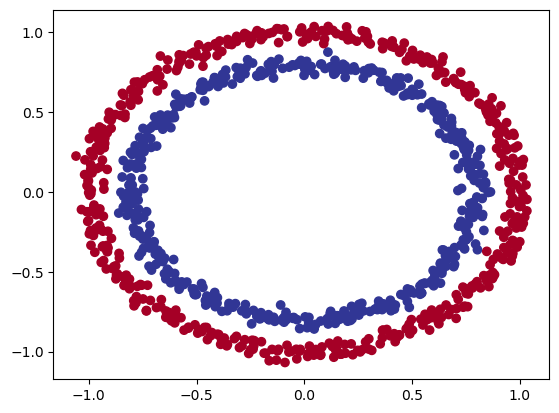
Quindi riassimento le X contengo le coordinate del cerchio, mentre le y il colore. Dalla figura si vede che i cerchi sono suffidivisi in due macrogruppi posizionati uno all'interno dell'altro.

Vediamo le shape:

```python
# Check the shapes of our features and labels
X.shape, y.shape


```

`((1000, 2), (1000,))`

**X ha una shape di due, mentre le y non ha uno shape in quanto è uno scalare di un valore.**

Ora converiamo da numpy a tensori

```python
# Turn data into tensors
# Otherwise this causes issues with computations later on
import torch
X = torch.from_numpy(X).type(torch.float)
y = torch.from_numpy(y).type(torch.float)


```

#### View the first five samples

print (X\[:5\], y\[:5\])

`(tensor([[ 0.7542,  0.2315],[-0.7562,  0.1533],[-0.8154,  0.1733],[-0.3937,  0.6929],[ 0.4422, -0.8967]]),tensor([1., 1., 1., 1., 0.]))`

lo converiamo in float32 (float) perchè numpy è in float64

splittiamo i dati in training e test

```python
# Split data into train and test sets
from sklearn.model_selection import train_test_split

X_train, X_test, y_train, y_test = train_test_split(X, y, test_size=0.2, random_state=42) # make the random split
```

La funziona "**train\_test\_split**" splitta le featurues e le label per noi. :)

Bene, ora costruiamo il modello:

```python
# Standard PyTorch imports
import torch
from torch import nn

# Make device agnostic code
device = "cuda" if torch.cuda.is_available() else "cpu" device
```

#### Construct a model class that subclasses nn.Module

```python
class CircleModelV0(nn.Module): 
  def init(self): 
    super().init() 
    	# 2. Create 2 nn.Linear layers capable of handling X and y input and output shapes 
    	self.layer_1 = nn.Linear(in_features=2, out_features=5) 
        
        # takes in 2 features (X), produces 5 features 
        self.layer_2 = nn.Linear(in_features=5, out_features=1) # takes in 5 features, produces 1 feature (y)

	# 3. Define a forward method containing the forward pass computation
	def forward(self, x):
    	# Return the output of layer_2, a single feature, the same shape as y
    	return self.layer_2(self.layer_1(x)) # computation goes through layer_1 first then the output of layer_1 goes through layer_2


```

#### Create an instance of the model and send it to target device

`model_0 = CircleModelV0().to(device)model_0`

**NB**: <span style="text-decoration:underline;">una regola per settare il numero di feautres in **input** è fallo coincidere con le features del dataset. Idem per le features di **output**.</span>

esiste inoltre un altro modo per rappresentare il modello in stile "Tensorflow", es:

```python
# costruisco il modello
model_0 = nn.Sequential(
    nn.Linear(in_features=2, out_features=6),
    nn.Linear(in_features=6, out_features=2),
    nn.Linear(in_features=2, out_features=1)
).to(device)
```

`model_0`

Questo tipo di definizione del modello è "limitato" dal fatto che è sequenziale e quindi meno flessibile rispetto a reti più articolate.

Il modello può essere rappresentato graficamente come sotto riportato:

[![Screenshot 2023-01-14 172821.png](https://cms.marcocucchi.it/uploads/images/gallery/2023-01/scaled-1680-/KRZcalfDnJyr2Edj-screenshot-2023-01-14-172821.png)](https://cms.marcocucchi.it/uploads/images/gallery/2023-01/KRZcalfDnJyr2Edj-screenshot-2023-01-14-172821.png)
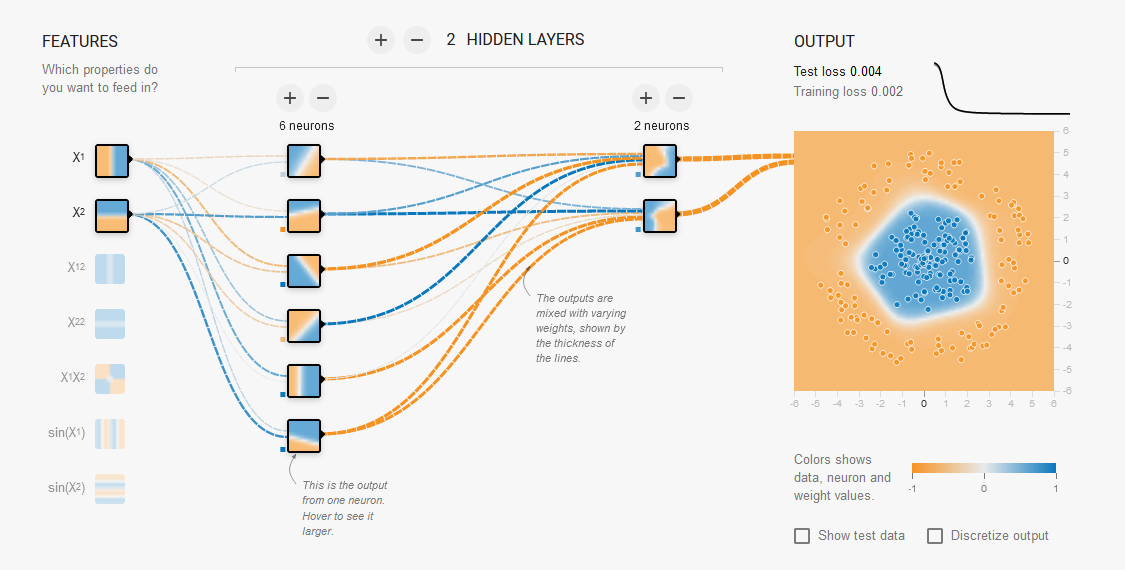
[playground.tensorflow.org](https://playground.tensorflow.org)

ora, prima di fare il training del modello proviamo a passare i dati di test per vedere che output viene generato. (ovviamente essendo un modello non "allenato" saranno dati casuali)

```python
# Make predictions with the model
with torch.inference_mode():
	untrained_preds = model_0(X_test.to(device))
	print(f"Length of predictions: {len(untrained_preds)}, Shape: {untrained_preds.shape}")
	print(f"Length of test samples: {len(y_test)}, Shape: {y_test.shape}")
	print(f"\nFirst 10 predictions:\n{untrained_preds[:10]}")
	print(f"\nFirst 10 test labels:\n{y_test[:10]}")


```

Length of predictions: 200, Shape: torch.Size(\[200, 1\]) Length of test samples: 200, Shape: torch.Size(\[200\])

First 10 predictions: tensor(\[\[-0.7534\], \[-0.6841\], \[-0.7949\], \[-0.7423\], \[-0.5721\], \[-0.5315\], \[-0.5128\], \[-0.4765\], \[-0.8042\], \[-0.6770\]\], device='cuda:0', grad\_fn=&lt;SliceBackward0&gt;)

`First 10 test labels:tensor([1., 0., 1., 0., 1., 1., 0., 0., 1., 0.])`

Possiamo notare che che l'output non è zero oppure uno come invce sono le labels... come mai? lo vedremo più avanti...

Prima di fare il training settiamo la "<span style="background-color:rgb(255,255,255);color:rgb(224,62,45);">loss function</span>" e "<span style="color:rgb(224,62,45);">l'optimizer</span>".

##### Setup loss function and optimizer

La domanda che ci si pone di sempre quale loss function e optimizer utilzzare?

Per la classfificazione in genere si utilizza la binary cross entropy, vedi tabella esempio sotto ripotata:

<table id="bkmrk-loss-function%2Foptimi" style="width:100%;height:277.433px;"><thead><tr style="height:29.6333px;"><th style="width:32.5026%;height:29.6333px;">Loss function/Optimizer</th><th style="width:38.8061%;height:29.6333px;">Problem type</th><th style="width:28.6707%;height:29.6333px;">PyTorch Code</th></tr></thead><tbody><tr style="height:49.2333px;"><td style="width:32.5026%;height:49.2333px;">Stochastic Gradient Descent (SGD) <span style="color:rgb(224,62,45);">optimizer</span></td><td style="width:38.8061%;height:49.2333px;">Classification, regression, many others.</td><td style="width:28.6707%;height:49.2333px;">torch.optim.SGD()(https://pytorch.org/docs/stable/generated/torch.optim.SGD.html)</td></tr><tr style="height:35.2333px;"><td style="width:32.5026%;height:35.2333px;">Adam <span style="color:rgb(224,62,45);">Optimizer</span></td><td style="width:38.8061%;height:35.2333px;">Classification, regression, many others.</td><td style="width:28.6707%;height:35.2333px;">torch.optim.Adam()

`https://pytorch.org/docs/stable/generated/torch.optim.Adam.html)

</td></tr><tr style="height:57.6333px;"><td style="width:32.5026%;height:57.6333px;">Binary cross entropy <span style="color:rgb(224,62,45);">loss</span></td><td style="width:38.8061%;height:57.6333px;">Binary classification</td><td style="width:28.6707%;height:57.6333px;">torch.nn.BCELossWithLogits(

https://pytorch.org/docs/stable/generated/torch.nn.BCEWithLogitsLoss.html) or \[`torch.nn.BCELoss`\](https://pytorch.org/docs/stable/generated/torch.nn.BCELoss.html)

</td></tr><tr style="height:35.2333px;"><td style="width:32.5026%;height:35.2333px;">Cross entropy <span style="color:rgb(224,62,45);">loss</span></td><td style="width:38.8061%;height:35.2333px;">Mutli-class classification</td><td style="width:28.6707%;height:35.2333px;">\[`torch.nn.CrossEntropyLoss`\](https://pytorch.org/docs/stable/generated/torch.nn.CrossEntropyLoss.html)</td></tr><tr style="height:35.2333px;"><td style="width:32.5026%;height:35.2333px;">Mean absolute error (MAE) or L1 <span style="color:rgb(224,62,45);">Loss</span></td><td style="width:38.8061%;height:35.2333px;">Regression</td><td style="width:28.6707%;height:35.2333px;">\[`torch.nn.L1Loss`\](https://pytorch.org/docs/stable/generated/torch.nn.L1Loss.html)</td></tr><tr style="height:35.2333px;"><td style="width:32.5026%;height:35.2333px;">Mean squared error (MSE) or L2 <span style="color:rgb(224,62,45);">Loss</span></td><td style="width:38.8061%;height:35.2333px;">Regression</td><td style="width:28.6707%;height:35.2333px;">\[`torch.nn.MSELoss`\](https://pytorch.org/docs/stable/generated/torch.nn.MSELoss.html#torch.nn.MSELoss)</td></tr></tbody></table>

<p class="callout info"><span style="color:rgb(224,62,45);">Riassumento la **loss function misura** quanto il modello si distanzia dai valori attesi.</span></p>

<p class="callout info"><span style="color:rgb(224,62,45);">Mentre per gli **optimizer** servono per migliorare il modello che poi attraverso la loss funzion verrà valutato. </span></p>

In genere si utilizza **SGD** o **Adam**..

Ok creiamo la loss e l'optimizer:

```python
# Create a loss function
# loss_fn = nn.BCELoss() # BCELoss = no sigmoid built-in
loss_fn = nn.BCEWithLogitsLoss() # BCEWithLogitsLoss = sigmoid built-in


```

##### Create an optimizer

`optimizer = torch.optim.SGD(params=model_0.parameters(),  lr=0.1)`

##### Accuracy e Loss function

<p class="callout info">Definiamo anche il concetto di "**<span style="color:rgb(224,62,45);">accuracy</span>**".</p>

La loss functuon misura quanto le preduzioni si allontanano dai valori desierati, mentre la <span style="color:rgb(224,62,45);">**Accuracy** </span>indica la **<span style="color:rgb(224,62,45);">percentuale </span>**con la quale il modello fa delle previsioni corrette. La differenza è sottile, e in questo momento non mi è chiara, credo che l'accuracy dipenda dalla loss e che indichi con una percentuale quello che la loss esprime in valori numerici specifici per il modello. Ad ogni modo vengono utilizzate entramb le misure per verificare la buona qualità del modello.

Implementiamo la accuracy

```python
# Calculate accuracy (a classification metric)
def accuracy_fn(y_true, y_pred):
    correct = torch.eq(y_true, y_pred).sum().item() # torch.eq() calculates where two tensors are equal
    acc = (correct / len(y_pred)) * 100 
    return acc

```

##### Logits

I logits rappresentano l'output "grezzo" del modello. I logits devono essere convertiti nella previsione probabilistica passandoli ad una "funzione di attivazione". (es. sigmoid per la "binari cross entropy", softmax per la multiclass classificazion) Per noi essere "discretizzati" (i valori probabilistici) mediante l'uso di funzioni come "round".

Vediamo quindi come rivedere la fase di training in funzione dei logits. NB per capire la rappresentazione dei logits vedi il commento nel training loop.

```python

for epoch in range(epochs):
    ### Training

    # 0. imposto la modalità in Training (da fare ad ogni epoca)
    model_0.train()

    # 1. calcolo l'output con i parametri del modello, NB devo gare la "squeeze" percheè va ritdotta di una dimensione
    # quanto l'output del modello ne aggiunge una.
    # I logits sono i valori "grezzi" che, nella caso delle classificazioni BINARIE, NON possono essere comparati
    # con i valori discreti 0/1 delle t_test.
    # I logits quindive dobranno essere convertiti attraverso le funzioni come per la esempio la sigmoing, che
    # non fa altro che ricondurli a valori compresi tra zero e uno che, poi andranno "discretizzati" a 0/1 atttraverso
    # l'uso di funzioni di arrotondamento come per es. la round.
    y_logits = model_0(X_train).squeeze() #

    # pred. logits -> pred. probabilities -> labels 0/1
    y_pred = torch.round(torch.sigmoid(y_logits))

    # 2. calculate loss/accuracy
    # calcolo la loss, da nota che viene utilizzata come loss function la "BCEWithLogitsLoss" che vuole in input
    # dirattamente i logits anzichè i valori predetti, in quanto gli applica la sigmoid e la round in automatico
    # per poi paragonli con le y_train "discrete".
    loss = loss_fn(y_logits, y_train) # nn.BCEWithLogitsLoss()

    # calcololiamo anche la percentuale di accuratezza.
    acc = accuracy_fn(y_true=y_train, y_pred=y_pred)

    # 3. reinizializzo l'optimizer in quanto tende ad accumulare i valori
    optimizer.zero_grad()

    # 4. effettua la back propagation, nella pratica Pytorch tiene traccia dei valori associati alla discesa del gradiente
    #    Quindi calcola la derivata parziale per determinare il minimo della curva dei delta tra valori predetti e valori di test
    loss.backward()

    # 5. ottimizza i parametri (una sola volta) e in base al valore "lr".
    #  NB: cambia quindi i valori dei tensori per cercare di farli avvicinare ai valori ottimali
    optimizer.step()

    ### Testing (in questa fase vengono passati i valori non trainati di test)

    # indico a Pytrch che la fase di training è terminata e che ora devo valutare i parametri e paragonarli con i valori attesi
    model_0.eval()
    with torch.inference_mode(): # disabilito la fase di training

        test_logits = model_0(X_test).squeeze()  #

        # pred. logits -> pred. probabilities -> labels 0/1
        test_pred = torch.round(torch.sigmoid(test_logits))

        # per poi paragonli con le y_train "discrete".
        test_loss = loss_fn(test_logits, y_test)  # nn.BCEWithLogitsLoss()

        # calcololiamo anche la percentuale di accuratezza.
        test_acc = accuracy_fn(y_true=y_test, y_pred=test_pred)

        # Print out what's happening
        if epoch % 10 == 0:
            print(f"Epoch: {epoch} | Train -> Loss: {loss:.5f} , Acc: {acc:.2f}% | Test -> Loss: {test_loss:.5f}%. Acc: {test_acc:.2f}% ")
```

L'output della funzione sarà:

```bash
Python 3.10.8 | packaged by conda-forge | (main, Nov 24 2022, 14:07:00) [MSC v.1916 64 bit (AMD64)]
Type 'copyright', 'credits' or 'license' for more information
IPython 8.7.0 -- An enhanced Interactive Python. Type '?' for help.
PyDev console: using IPython 8.7.0
Python 3.10.8 | packaged by conda-forge | (main, Nov 24 2022, 14:07:00) [MSC v.1916 64 bit (AMD64)] on win32
runfile('C:\\lavori\\formazione_py\\src\\formazione\\DanielBourkePytorch\\02_classification.py', wdir='C:\\lavori\\formazione_py\\src\\formazione\\DanielBourkePytorch')
Epoch: 0 | Train -> Loss: 0.70155 , Acc: 50.00% | Test -> Loss: 0.70146%. Acc: 50.00% 
Epoch: 10 | Train -> Loss: 0.69617 , Acc: 57.50% | Test -> Loss: 0.69654%. Acc: 55.50% 
Epoch: 20 | Train -> Loss: 0.69453 , Acc: 51.75% | Test -> Loss: 0.69501%. Acc: 54.50% 
Epoch: 30 | Train -> Loss: 0.69395 , Acc: 50.38% | Test -> Loss: 0.69448%. Acc: 53.50% 
Epoch: 40 | Train -> Loss: 0.69370 , Acc: 49.50% | Test -> Loss: 0.69427%. Acc: 53.50% 
Epoch: 50 | Train -> Loss: 0.69358 , Acc: 49.50% | Test -> Loss: 0.69417%. Acc: 53.00% 
Epoch: 60 | Train -> Loss: 0.69349 , Acc: 49.88% | Test -> Loss: 0.69412%. Acc: 52.00% 
Epoch: 70 | Train -> Loss: 0.69343 , Acc: 49.62% | Test -> Loss: 0.69409%. Acc: 51.50% 
Epoch: 80 | Train -> Loss: 0.69337 , Acc: 49.25% | Test -> Loss: 0.69408%. Acc: 51.50% 
Epoch: 90 | Train -> Loss: 0.69333 , Acc: 49.62% | Test -> Loss: 0.69407%. Acc: 51.50% 
Backend MacOSX is interactive backend. Turning interactive mode on.
```

che è pessimo in quanto il modello utilizza un "linear model" che sostanzialmente rappresenta una linea che negli assi cartesiani ha un'intercetta e una direzione e quindi non riscurà mai a rappresentare i dati.

[![download.png](https://cms.marcocucchi.it/uploads/images/gallery/2023-05/scaled-1680-/biYPP4eEHzxwKlYC-download.png)](https://cms.marcocucchi.it/uploads/images/gallery/2023-05/biYPP4eEHzxwKlYC-download.png)
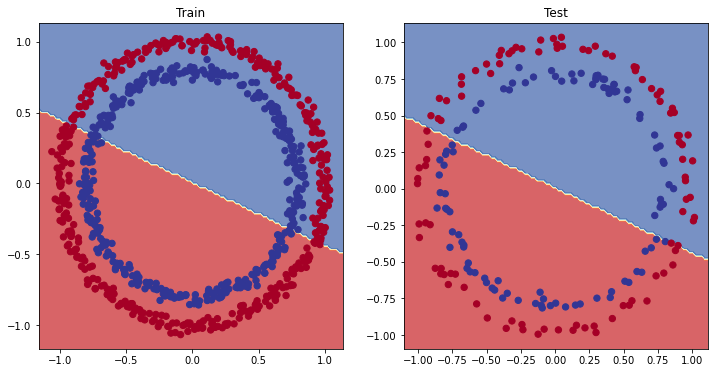
Bisoga quindi cambiare modello.

In particolare bisogna introdurre una funziona <span style="color:rgb(224,62,45);">**non lineare** <span style="color:rgb(0,0,0);">come per es. la ReLU che nella prarica ritorna zero se i valori sono &lt;=0 oppure il valore stesso se &gt;0.</span></span>

<span style="color:rgb(224,62,45);"><span style="color:rgb(0,0,0);">Di seguito il grafico della funzione non lineare ReLU.</span></span>

[![ReLU.png](https://cms.marcocucchi.it/uploads/images/gallery/2023-05/scaled-1680-/QYo3IsNHqQ2QMxYG-relu.png)](https://cms.marcocucchi.it/uploads/images/gallery/2023-05/QYo3IsNHqQ2QMxYG-relu.png)

<span style="color:rgb(224,62,45);"><span style="color:rgb(0,0,0);">Modifichiamo quindi il modello aggiungendo dopo l'hidden layer la funzione di attivazione non lineare come nell'esempio di seguito:</span></span>

```python
# costruisco il modello
model_0 = nn.Sequential( 
                        
                      nn.Linear(in_features=2, out_features=10),                        
                      nn.ReLU(),
                      nn.Linear(in_features=10, out_features=10),
                      nn.ReLU(),
                      nn.Linear(in_features=10, out_features=1))
```

che produce risultati decisamente migliori:

<details id="bkmrk-epoch%3A-0-%7C-train--%3E-"><summary></summary>

Epoch: 0 | Train -&gt; Loss: 0.69656 , Acc: 47.38% | Test -&gt; Loss: 0.69921%. Acc: 46.00%   
Epoch: 10 | Train -&gt; Loss: 0.69417 , Acc: 46.00% | Test -&gt; Loss: 0.69735%. Acc: 43.00%   
Epoch: 20 | Train -&gt; Loss: 0.69257 , Acc: 49.62% | Test -&gt; Loss: 0.69603%. Acc: 49.50%   
Epoch: 30 | Train -&gt; Loss: 0.69123 , Acc: 50.38% | Test -&gt; Loss: 0.69486%. Acc: 48.50%   
Epoch: 40 | Train -&gt; Loss: 0.69000 , Acc: 51.00% | Test -&gt; Loss: 0.69374%. Acc: 49.50%   
Epoch: 50 | Train -&gt; Loss: 0.68884 , Acc: 51.50% | Test -&gt; Loss: 0.69266%. Acc: 49.50%   
Epoch: 60 | Train -&gt; Loss: 0.68772 , Acc: 52.62% | Test -&gt; Loss: 0.69162%. Acc: 48.50%   
Epoch: 70 | Train -&gt; Loss: 0.68663 , Acc: 53.00% | Test -&gt; Loss: 0.69060%. Acc: 49.00%   
Epoch: 80 | Train -&gt; Loss: 0.68557 , Acc: 53.25% | Test -&gt; Loss: 0.68960%. Acc: 48.50%   
Epoch: 90 | Train -&gt; Loss: 0.68453 , Acc: 53.25% | Test -&gt; Loss: 0.68862%. Acc: 48.50%   
Epoch: 100 | Train -&gt; Loss: 0.68349 , Acc: 54.12% | Test -&gt; Loss: 0.68765%. Acc: 49.00%   
Epoch: 110 | Train -&gt; Loss: 0.68246 , Acc: 54.37% | Test -&gt; Loss: 0.68670%. Acc: 48.50%   
Epoch: 120 | Train -&gt; Loss: 0.68143 , Acc: 54.87% | Test -&gt; Loss: 0.68574%. Acc: 49.00%   
Epoch: 130 | Train -&gt; Loss: 0.68039 , Acc: 54.75% | Test -&gt; Loss: 0.68478%. Acc: 49.00%   
Epoch: 140 | Train -&gt; Loss: 0.67935 , Acc: 55.50% | Test -&gt; Loss: 0.68382%. Acc: 50.00%   
Epoch: 150 | Train -&gt; Loss: 0.67829 , Acc: 55.62% | Test -&gt; Loss: 0.68285%. Acc: 50.50%   
Epoch: 160 | Train -&gt; Loss: 0.67722 , Acc: 57.25% | Test -&gt; Loss: 0.68188%. Acc: 53.50%   
Epoch: 170 | Train -&gt; Loss: 0.67614 , Acc: 59.62% | Test -&gt; Loss: 0.68090%. Acc: 57.50%   
Epoch: 180 | Train -&gt; Loss: 0.67504 , Acc: 61.62% | Test -&gt; Loss: 0.67991%. Acc: 59.00%   
Epoch: 190 | Train -&gt; Loss: 0.67390 , Acc: 63.75% | Test -&gt; Loss: 0.67891%. Acc: 59.50%   
Epoch: 200 | Train -&gt; Loss: 0.67275 , Acc: 65.50% | Test -&gt; Loss: 0.67789%. Acc: 60.50%   
Epoch: 210 | Train -&gt; Loss: 0.67156 , Acc: 66.50% | Test -&gt; Loss: 0.67686%. Acc: 60.50%   
Epoch: 220 | Train -&gt; Loss: 0.67036 , Acc: 68.62% | Test -&gt; Loss: 0.67580%. Acc: 63.50%   
Epoch: 230 | Train -&gt; Loss: 0.66912 , Acc: 70.75% | Test -&gt; Loss: 0.67473%. Acc: 64.50%   
Epoch: 240 | Train -&gt; Loss: 0.66787 , Acc: 72.00% | Test -&gt; Loss: 0.67363%. Acc: 66.00%   
Epoch: 250 | Train -&gt; Loss: 0.66658 , Acc: 73.75% | Test -&gt; Loss: 0.67252%. Acc: 67.50%   
Epoch: 260 | Train -&gt; Loss: 0.66526 , Acc: 74.88% | Test -&gt; Loss: 0.67139%. Acc: 69.00%   
Epoch: 270 | Train -&gt; Loss: 0.66392 , Acc: 75.75% | Test -&gt; Loss: 0.67025%. Acc: 69.50%   
Epoch: 280 | Train -&gt; Loss: 0.66256 , Acc: 77.62% | Test -&gt; Loss: 0.66909%. Acc: 72.00%   
Epoch: 290 | Train -&gt; Loss: 0.66118 , Acc: 78.75% | Test -&gt; Loss: 0.66791%. Acc: 72.50%   
Epoch: 300 | Train -&gt; Loss: 0.65978 , Acc: 79.75% | Test -&gt; Loss: 0.66672%. Acc: 75.50%   
Epoch: 310 | Train -&gt; Loss: 0.65835 , Acc: 80.75% | Test -&gt; Loss: 0.66552%. Acc: 76.00%   
Epoch: 320 | Train -&gt; Loss: 0.65689 , Acc: 81.88% | Test -&gt; Loss: 0.66431%. Acc: 77.00%   
Epoch: 330 | Train -&gt; Loss: 0.65540 , Acc: 82.75% | Test -&gt; Loss: 0.66309%. Acc: 77.50%   
Epoch: 340 | Train -&gt; Loss: 0.65390 , Acc: 84.38% | Test -&gt; Loss: 0.66183%. Acc: 78.50%   
Epoch: 350 | Train -&gt; Loss: 0.65237 , Acc: 85.12% | Test -&gt; Loss: 0.66056%. Acc: 78.50%   
Epoch: 360 | Train -&gt; Loss: 0.65083 , Acc: 85.25% | Test -&gt; Loss: 0.65927%. Acc: 81.00%   
Epoch: 370 | Train -&gt; Loss: 0.64925 , Acc: 85.88% | Test -&gt; Loss: 0.65797%. Acc: 81.50%   
Epoch: 380 | Train -&gt; Loss: 0.64763 , Acc: 86.38% | Test -&gt; Loss: 0.65664%. Acc: 83.00%   
Epoch: 390 | Train -&gt; Loss: 0.64599 , Acc: 87.00% | Test -&gt; Loss: 0.65530%. Acc: 83.50%   
Epoch: 400 | Train -&gt; Loss: 0.64430 , Acc: 87.38% | Test -&gt; Loss: 0.65394%. Acc: 84.50%   
Epoch: 410 | Train -&gt; Loss: 0.64258 , Acc: 88.75% | Test -&gt; Loss: 0.65256%. Acc: 85.00%   
Epoch: 420 | Train -&gt; Loss: 0.64083 , Acc: 89.50% | Test -&gt; Loss: 0.65115%. Acc: 86.00%   
Epoch: 430 | Train -&gt; Loss: 0.63904 , Acc: 89.62% | Test -&gt; Loss: 0.64971%. Acc: 86.50%   
Epoch: 440 | Train -&gt; Loss: 0.63723 , Acc: 90.75% | Test -&gt; Loss: 0.64825%. Acc: 87.00%   
Epoch: 450 | Train -&gt; Loss: 0.63540 , Acc: 91.38% | Test -&gt; Loss: 0.64678%. Acc: 87.00%   
Epoch: 460 | Train -&gt; Loss: 0.63354 , Acc: 92.38% | Test -&gt; Loss: 0.64529%. Acc: 87.00%   
Epoch: 470 | Train -&gt; Loss: 0.63165 , Acc: 93.00% | Test -&gt; Loss: 0.64377%. Acc: 88.00%   
Epoch: 480 | Train -&gt; Loss: 0.62974 , Acc: 93.38% | Test -&gt; Loss: 0.64222%. Acc: 89.00%   
Epoch: 490 | Train -&gt; Loss: 0.62780 , Acc: 93.50% | Test -&gt; Loss: 0.64065%. Acc: 91.00%   
Epoch: 500 | Train -&gt; Loss: 0.62585 , Acc: 94.38% | Test -&gt; Loss: 0.63905%. Acc: 91.50%   
Epoch: 510 | Train -&gt; Loss: 0.62386 , Acc: 94.75% | Test -&gt; Loss: 0.63746%. Acc: 92.50%   
Epoch: 520 | Train -&gt; Loss: 0.62183 , Acc: 95.25% | Test -&gt; Loss: 0.63584%. Acc: 92.50%   
Epoch: 530 | Train -&gt; Loss: 0.61979 , Acc: 95.50% | Test -&gt; Loss: 0.63421%. Acc: 92.50%   
Epoch: 540 | Train -&gt; Loss: 0.61773 , Acc: 95.75% | Test -&gt; Loss: 0.63255%. Acc: 92.50%   
Epoch: 550 | Train -&gt; Loss: 0.61564 , Acc: 95.62% | Test -&gt; Loss: 0.63088%. Acc: 93.00%   
Epoch: 560 | Train -&gt; Loss: 0.61351 , Acc: 96.00% | Test -&gt; Loss: 0.62917%. Acc: 93.50%   
Epoch: 570 | Train -&gt; Loss: 0.61136 , Acc: 96.00% | Test -&gt; Loss: 0.62742%. Acc: 94.00%   
Epoch: 580 | Train -&gt; Loss: 0.60919 , Acc: 96.12% | Test -&gt; Loss: 0.62565%. Acc: 94.50%   
Epoch: 590 | Train -&gt; Loss: 0.60699 , Acc: 96.00% | Test -&gt; Loss: 0.62385%. Acc: 94.50%   
Epoch: 600 | Train -&gt; Loss: 0.60477 , Acc: 96.50% | Test -&gt; Loss: 0.62203%. Acc: 94.50%   
Epoch: 610 | Train -&gt; Loss: 0.60253 , Acc: 96.50% | Test -&gt; Loss: 0.62020%. Acc: 94.00%   
Epoch: 620 | Train -&gt; Loss: 0.60026 , Acc: 96.75% | Test -&gt; Loss: 0.61833%. Acc: 94.00%   
Epoch: 630 | Train -&gt; Loss: 0.59796 , Acc: 97.00% | Test -&gt; Loss: 0.61643%. Acc: 94.50%   
Epoch: 640 | Train -&gt; Loss: 0.59563 , Acc: 97.25% | Test -&gt; Loss: 0.61449%. Acc: 94.50%   
Epoch: 650 | Train -&gt; Loss: 0.59327 , Acc: 97.38% | Test -&gt; Loss: 0.61253%. Acc: 94.50%   
Epoch: 660 | Train -&gt; Loss: 0.59086 , Acc: 97.62% | Test -&gt; Loss: 0.61053%. Acc: 94.50%   
Epoch: 670 | Train -&gt; Loss: 0.58843 , Acc: 97.62% | Test -&gt; Loss: 0.60850%. Acc: 94.00%   
Epoch: 680 | Train -&gt; Loss: 0.58595 , Acc: 97.88% | Test -&gt; Loss: 0.60642%. Acc: 95.00%   
Epoch: 690 | Train -&gt; Loss: 0.58343 , Acc: 97.88% | Test -&gt; Loss: 0.60429%. Acc: 95.50%   
Epoch: 700 | Train -&gt; Loss: 0.58088 , Acc: 97.88% | Test -&gt; Loss: 0.60211%. Acc: 95.50%   
Epoch: 710 | Train -&gt; Loss: 0.57830 , Acc: 98.00% | Test -&gt; Loss: 0.59991%. Acc: 96.00%   
Epoch: 720 | Train -&gt; Loss: 0.57569 , Acc: 98.25% | Test -&gt; Loss: 0.59767%. Acc: 96.50%   
Epoch: 730 | Train -&gt; Loss: 0.57305 , Acc: 98.38% | Test -&gt; Loss: 0.59541%. Acc: 96.50%   
Epoch: 740 | Train -&gt; Loss: 0.57037 , Acc: 98.50% | Test -&gt; Loss: 0.59309%. Acc: 96.50%   
Epoch: 750 | Train -&gt; Loss: 0.56766 , Acc: 98.50% | Test -&gt; Loss: 0.59073%. Acc: 96.50%   
Epoch: 760 | Train -&gt; Loss: 0.56493 , Acc: 98.62% | Test -&gt; Loss: 0.58835%. Acc: 97.00%   
Epoch: 770 | Train -&gt; Loss: 0.56216 , Acc: 98.62% | Test -&gt; Loss: 0.58594%. Acc: 97.00%   
Epoch: 780 | Train -&gt; Loss: 0.55935 , Acc: 98.62% | Test -&gt; Loss: 0.58352%. Acc: 97.00%   
Epoch: 790 | Train -&gt; Loss: 0.55652 , Acc: 98.88% | Test -&gt; Loss: 0.58106%. Acc: 97.00%   
Epoch: 800 | Train -&gt; Loss: 0.55365 , Acc: 98.88% | Test -&gt; Loss: 0.57855%. Acc: 97.00%   
Epoch: 810 | Train -&gt; Loss: 0.55075 , Acc: 98.88% | Test -&gt; Loss: 0.57604%. Acc: 97.00%   
Epoch: 820 | Train -&gt; Loss: 0.54782 , Acc: 98.88% | Test -&gt; Loss: 0.57351%. Acc: 97.00%   
Epoch: 830 | Train -&gt; Loss: 0.54485 , Acc: 99.00% | Test -&gt; Loss: 0.57095%. Acc: 97.00%   
Epoch: 840 | Train -&gt; Loss: 0.54185 , Acc: 99.00% | Test -&gt; Loss: 0.56836%. Acc: 97.00%   
Epoch: 850 | Train -&gt; Loss: 0.53884 , Acc: 99.00% | Test -&gt; Loss: 0.56572%. Acc: 97.50%   
Epoch: 860 | Train -&gt; Loss: 0.53580 , Acc: 99.00% | Test -&gt; Loss: 0.56307%. Acc: 97.50%   
Epoch: 870 | Train -&gt; Loss: 0.53274 , Acc: 99.00% | Test -&gt; Loss: 0.56040%. Acc: 97.50%   
Epoch: 880 | Train -&gt; Loss: 0.52964 , Acc: 99.00% | Test -&gt; Loss: 0.55773%. Acc: 97.50%   
Epoch: 890 | Train -&gt; Loss: 0.52652 , Acc: 99.12% | Test -&gt; Loss: 0.55503%. Acc: 97.50%   
Epoch: 900 | Train -&gt; Loss: 0.52337 , Acc: 99.25% | Test -&gt; Loss: 0.55228%. Acc: 97.50%   
Epoch: 910 | Train -&gt; Loss: 0.52019 , Acc: 99.25% | Test -&gt; Loss: 0.54952%. Acc: 97.50%   
Epoch: 920 | Train -&gt; Loss: 0.51700 , Acc: 99.25% | Test -&gt; Loss: 0.54673%. Acc: 97.00%   
Epoch: 930 | Train -&gt; Loss: 0.51378 , Acc: 99.25% | Test -&gt; Loss: 0.54393%. Acc: 97.00%   
Epoch: 940 | Train -&gt; Loss: 0.51053 , Acc: 99.25% | Test -&gt; Loss: 0.54110%. Acc: 97.50%   
Epoch: 950 | Train -&gt; Loss: 0.50726 , Acc: 99.25% | Test -&gt; Loss: 0.53826%. Acc: 97.50%   
Epoch: 960 | Train -&gt; Loss: 0.50398 , Acc: 99.25% | Test -&gt; Loss: 0.53538%. Acc: 97.50%   
Epoch: 970 | Train -&gt; Loss: 0.50067 , Acc: 99.38% | Test -&gt; Loss: 0.53248%. Acc: 97.50%   
Epoch: 980 | Train -&gt; Loss: 0.49734 , Acc: 99.38% | Test -&gt; Loss: 0.52956%. Acc: 98.00%   
Epoch: 990 | Train -&gt; Loss: 0.49399 , Acc: 99.38% | Test -&gt; Loss: 0.52664%. Acc: 98.00% 3

</details>[![Figure_1.png](https://cms.marcocucchi.it/uploads/images/gallery/2023-05/scaled-1680-/DXhihCsMu0t5gQQN-figure-1.png)](https://cms.marcocucchi.it/uploads/images/gallery/2023-05/DXhihCsMu0t5gQQN-figure-1.png)

(vedi sorgente completo in attachement a questa pagina 02\_classification.py)

# Multiclass classification

Nella classificazione multipla, a differenza della classificazione binaria possono essere identificate più di due categorie. Importante è comprendere l'utulizzo delle activation functions. Per la multiclass possiamo utilizzare la ReLU o la Sigmoid.

Per esempio voglio classificare 4 classi di "blobs" :) lol come nell'immagine sotto riportata, utilizzando il pacchetto sklearn:

```python
from sklearn.datasets import make_blobs
```

<div id="bkmrk-"></div>[![download.png](https://cms.marcocucchi.it/uploads/images/gallery/2023-05/scaled-1680-/FWdxz4U9YYyUbqXn-download.png)](https://cms.marcocucchi.it/uploads/images/gallery/2023-05/FWdxz4U9YYyUbqXn-download.png)

##### Il modello

costruisco il modello per la gestione della classificazione multipla:

```python
class BlobModel(nn.Module): # la nn.Module è la superclasse da derivare per costruire un modello

# customizzo gli input al costruttore
def __init__(self, input_features, output_features, hidden_units=8):
"""Initializes all required hyperparameters for a multi-class classification model.

Args:
input_features (int): Number of input features to the model.
out_features (int): Number of output features of the model
(how many classes there are).
hidden_units (int): Number of hidden units between layers, default 8.
"""
super().__init__()

# definisco i layers e il numero di neuroni che li compongnono.
# NB: i layer sono lineari e quindi rispondono all'equazione y = xw+b

self.linear_layer_stack = nn.Sequential(
  nn.Linear(in_features=input_features, out_features=hidden_units),
  nn.ReLU(), # <- does our dataset require non-linear layers? (try uncommenting and see if the results change)
  nn.Linear(in_features=hidden_units, out_features=hidden_units),
  nn.ReLU(), # <- does our dataset require non-linear layers? (try uncommenting and see if the results change)
  nn.Linear(in_features=hidden_units, out_features=output_features), # how many classes are there?
)

def forward(self, x):
  return self.linear_layer_stack(x)
```

<p class="callout warning">Da notare che l'ultimo livello della rete neurale, (l'output level) è composto da tanti neuroni quante sono le classi da classificare. Ciascun neurone di output è associato ad una classe e ne rappresenta la probabilità che l'intput appartenga ad a Niesima classe.</p>

<p class="callout info"><span class="mjx-texatom"><span class="mjx-mrow"><span class="mjx-mi"><span class="mjx-char MJXc-TeX-main-B">**NB**: ricordo che i livelli sono "lineari", il che significa che corrispondono all'equazione </span></span></span></span><span style="color:rgb(224,62,45);"><span class="mjx-texatom" id="bkmrk-y"><span class="mjx-mrow" id="bkmrk-y-1"><span class="mjx-mi" id="bkmrk-y-2"><span class="mjx-char MJXc-TeX-main-B">y</span></span></span></span><span class="mjx-mo MJXc-space3" id="bkmrk-%3D"><span class="mjx-char MJXc-TeX-main-R">=</span></span><span class="mjx-mi MJXc-space3" id="bkmrk-x"><span class="mjx-char MJXc-TeX-math-I">x</span></span><span class="mjx-mo MJXc-space2" id="bkmrk-%E2%8B%85"><span class="mjx-char MJXc-TeX-main-R">⋅</span></span><span class="mjx-msubsup MJXc-space2" id="bkmrk-weightst"><span class="mjx-base"><span class="mjx-texatom" id="bkmrk-weights"><span class="mjx-mrow" id="bkmrk-weights-1"><span class="mjx-mi" id="bkmrk-w"><span class="mjx-char MJXc-TeX-main-B">W</span></span><span class="mjx-mi" id="bkmrk-e"><span class="mjx-char MJXc-TeX-main-B">e</span></span><span class="mjx-mi" id="bkmrk-i"><span class="mjx-char MJXc-TeX-main-B">i</span></span><span class="mjx-mi" id="bkmrk-g"><span class="mjx-char MJXc-TeX-main-B">g</span></span><span class="mjx-mi" id="bkmrk-h"><span class="mjx-char MJXc-TeX-main-B">h</span></span><span class="mjx-mi" id="bkmrk-t"><span class="mjx-char MJXc-TeX-main-B">t</span></span><span class="mjx-mi" id="bkmrk-s"><span class="mjx-char MJXc-TeX-main-B">s</span></span></span></span></span><span class="mjx-sup"><span class="mjx-mi" id="bkmrk-t-1"><span class="mjx-char MJXc-TeX-math-I">T</span></span></span></span><span class="mjx-mo MJXc-space2" id="bkmrk-%2B"><span class="mjx-char MJXc-TeX-main-R">+</span></span></span><span class="mjx-texatom MJXc-space2" id="bkmrk-bias%C2%A0-il-che-signifi"><span class="mjx-mrow" id="bkmrk-bias%C2%A0-il-che-signifi-1"><span style="color:rgb(224,62,45);"><span class="mjx-mi" id="bkmrk-b"><span class="mjx-char MJXc-TeX-main-B">b</span></span><span class="mjx-mi" id="bkmrk-i-1"><span class="mjx-char MJXc-TeX-main-B">i</span></span><span class="mjx-mi" id="bkmrk-a"><span class="mjx-char MJXc-TeX-main-B">a</span></span></span><span class="mjx-mi" id="bkmrk-s%C2%A0-il-che-significa-"><span class="mjx-char MJXc-TeX-main-B"><span style="color:rgb(224,62,45);">s</span> il che significa bisogna aggiungere delle funzioni <span style="color:rgb(224,62,45);">non lineari</span> in grado di "spezzare" le equazioni lineari. Potremmo inserire, tra un livello lineare e l'altro una funzion non lineare come la ReLU.</span></span></span></span></p>

<span class="mjx-texatom MJXc-space2"><span class="mjx-mrow"><span class="mjx-mi"><span class="mjx-char MJXc-TeX-main-B">Ovvimante se i dati sono nettamente separati e quindi una linea retta li può "dividere" allora potremmo evitare di inserire le funzioni di attivazione non lineare. Nell'esempio sopra visabile i 4 gruppi di "blobs" possono essere appunto separati da linee rette, il modello potrà quindi anche (opzionale) non utilizzare le ReLU non lineari.</span></span></span></span>

<span class="mjx-texatom MJXc-space2"><span class="mjx-mrow"><span class="mjx-mi"><span class="mjx-char MJXc-TeX-main-B">Per le funzioni di attivazione non lienari vedi:</span></span></span></span>

[Activation func](https://pytorch.org/docs/stable/nn.html#non-linear-activations-weighted-sum-nonlinearity)

##### <span class="mjx-texatom MJXc-space2"><span class="mjx-mrow"><span class="mjx-mi"><span class="mjx-char MJXc-TeX-main-B">La loss function</span></span></span></span>

<span class="mjx-texatom MJXc-space2"><span class="mjx-mrow"><span class="mjx-mi"><span class="mjx-char MJXc-TeX-main-B">Per la classificazione multiclasse andiamo a vedere cosa pytorch offre nella pagina [Loss functions](https://pytorch.org/docs/stable/nn.html#non-linear-activations-weighted-sum-nonlinearity)</span></span></span></span>

<span class="mjx-texatom MJXc-space2"><span class="mjx-mrow"><span class="mjx-mi"><span class="mjx-char MJXc-TeX-main-B">Per la binary classification in genere si usa la [`<span class="pre">nn.BCEWithLogitsLoss</span>`](https://pytorch.org/docs/stable/generated/torch.nn.BCEWithLogitsLoss.html#torch.nn.BCEWithLogitsLoss "torch.nn.BCEWithLogitsLoss") mentre per la multiclassification si usa la [`<span class="pre">nn.CrossEntropyLoss</span>`](https://pytorch.org/docs/stable/generated/torch.nn.CrossEntropyLoss.html#torch.nn.CrossEntropyLoss "torch.nn.CrossEntropyLoss")</span></span></span></span>

TIP: Per la CrossEntropy fare attenzione al parametro "**weight** " da valorizzare nel caso i cui il numero di elementi delle classi sono diversi tra di loro, es. i gialli sono 100 metre i versi sono 20...

```python
loss_fn = nn.CrossEntropyLoss()
```

##### L'Optimizer

Come ottimizer possiamo utilizzare quelli generici come l'Adam o il pià classico SGD, vedi pagina [optimezers](https://pytorch.org/docs/stable/optim.html).

```python
optimizer = torch.optim.SGD(model_4.parameters(), lr=0.1)
```

##### Il training loop

```python
# Fit the model
torch.manual_seed(42)

# Set number of epochs
epochs = 100

# looppo..
for epoch in range(epochs):
  ### Training
  model_4.train()
  
  # 1. Forward pass
  y_logits = model_4(X_blob_train) # model outputs raw logits
  y_pred = torch.softmax(y_logits, dim=1).argmax(dim=1) # go from logits -> prediction probabilities -> prediction labels
  # print(y_logits)
  
  # 2. Calculate loss and accuracy
  loss = loss_fn(y_logits, y_blob_train)
  acc = accuracy_fn(y_true=y_blob_train,
  y_pred=y_pred)
  
  # 3. Optimizer zero grad
  optimizer.zero_grad()
  
  # 4. Loss backwards
  loss.backward()
  
  # 5. Optimizer step
  optimizer.step()
  
  ### Testing
  model_4.eval()
  with torch.inference_mode():
    # 1. Forward pass
    test_logits = model_4(X_blob_test)

    # NB: i logits vengono passati alla funzione softmax che restituisce la probabilità
    #     che un valore del vettori si verifichi... (un po' forzato ma spero renda l'idea)
    test_pred = torch.softmax(test_logits, dim=1).argmax(dim=1)
    
    # 2. Calculate test loss and accuracy
    test_loss = loss_fn(test_logits, y_blob_test)
    test_acc = accuracy_fn(y_true=y_blob_test,
    y_pred=test_pred)
    
    # Print out what's happening
    if epoch % 10 == 0:
      print(f"Epoch: {epoch} | Loss: {loss:.5f}, Acc: {acc:.2f}% | Test Loss: {test_loss:.5f}, Test Acc: {test_acc:.2f}%")
```

Importante capire il funzionamento della softmax alla quale verranno passati i logits. Per comprendere meglio la [softmax](https://machinelearningmastery.com/introduction-to-softmax-classifier-in-pytorch/) vedi link.

La classe completa:

```python
# Import dependencies
import torch
import matplotlib.pyplot as plt
from sklearn.datasets import make_blobs
from sklearn.model_selection import train_test_split
from torch import nn
import numpy as np

# Set the hyperparameters for data creation
NUM_CLASSES = 4
NUM_FEATURES = 2
RANDOM_SEED = 42

# 1. Create multi-class data
X_blob, y_blob = make_blobs(n_samples=1000,
                            n_features=NUM_FEATURES, # X features
                            centers=NUM_CLASSES, # y labels
                            cluster_std=1.5, # give the clusters a little shake up (try changing this to 1.0, the default)
                            random_state=RANDOM_SEED
                            )

# 2. Turn data into tensors
X_blob = torch.from_numpy(X_blob).type(torch.float)
y_blob = torch.from_numpy(y_blob).type(torch.LongTensor)
print(X_blob[:5], y_blob[:5])

# 3. Split into train and test sets
X_blob_train, X_blob_test, y_blob_train, y_blob_test = train_test_split(X_blob,
                                                                        y_blob,
                                                                        test_size=0.2,
                                                                        random_state=RANDOM_SEED
                                                                    )

# 4. Plot data
# plt.figure(figsize=(10, 7))
# plt.scatter(X_blob[:, 0], X_blob[:, 1], c=y_blob, cmap=plt.cm.RdYlBu);

# Calculate accuracy (a classification metric)
def accuracy_fn(y_true, y_pred):
    correct = torch.eq(y_true, y_pred).sum().item()  # torch.eq() calculates where two tensors are equal
    acc = (correct / len(y_pred)) * 100
    return acc

def plot_decision_boundary(model: torch.nn.Module, X: torch.Tensor, y: torch.Tensor):
    """Plots decision boundaries of model predicting on X in comparison to y.
    Source - https://madewithml.com/courses/foundations/neural-networks/ (with modifications)
    """
    # Put everything to CPU (works better with NumPy + Matplotlib)
    model.to("cpu")
    X, y = X.to("cpu"), y.to("cpu")

    # Setup prediction boundaries and grid
    x_min, x_max = X[:, 0].min() - 0.1, X[:, 0].max() + 0.1
    y_min, y_max = X[:, 1].min() - 0.1, X[:, 1].max() + 0.1
    xx, yy = np.meshgrid(np.linspace(x_min, x_max, 101), np.linspace(y_min, y_max, 101))

    # Make features
    X_to_pred_on = torch.from_numpy(np.column_stack((xx.ravel(), yy.ravel()))).float()

    # Make predictions
    model.eval()
    with torch.inference_mode():
        y_logits = model(X_to_pred_on)

    # Test for multi-class or binary and adjust logits to prediction labels
    if len(torch.unique(y)) > 2:
        y_pred = torch.softmax(y_logits, dim=1).argmax(dim=1)  # mutli-class
    else:
        y_pred = torch.round(torch.sigmoid(y_logits))  # binary

    # Reshape preds and plot
    y_pred = y_pred.reshape(xx.shape).detach().numpy()
    plt.contourf(xx, yy, y_pred, cmap=plt.cm.RdYlBu, alpha=0.7)
    plt.scatter(X[:, 0], X[:, 1], c=y, s=40, cmap=plt.cm.RdYlBu)
    plt.xlim(xx.min(), xx.max())
    plt.ylim(yy.min(), yy.max())

# creiamo il modello
class BlobModel(nn.Module):  # la nn.Module è la superclasse da derivare per costruire un modello

    # customizzo gli input al costruttore
    def __init__(self, input_features, output_features, hidden_units=8):
        """Initializes all required hyperparameters for a multi-class classification model.

        Args:
            input_features (int): Number of input features to the model.
            out_features (int): Number of output features of the model
              (how many classes there are).
            hidden_units (int): Number of hidden units between layers, default 8.
        """
        super().__init__()

        # definisco i layers e il numero di neuroni che li compongnono.
        # NB: i layer sono lineari e quindi rispondono all'equazione y = xw+b

        self.linear_layer_stack = nn.Sequential(
            nn.Linear(in_features=input_features, out_features=hidden_units),
            # nn.ReLU(), # <- does our dataset require non-linear layers? (try uncommenting and see if the results change)
            nn.Linear(in_features=hidden_units, out_features=hidden_units),
            # nn.ReLU(), # <- does our dataset require non-linear layers? (try uncommenting and see if the results change)
            nn.Linear(in_features=hidden_units, out_features=output_features),  # how many classes are there?
        )

    def forward(self, x):
        return self.linear_layer_stack(x)

    # Create an instance of BlobModel and send it to the target device


model_4 = BlobModel(input_features=NUM_FEATURES,
                    output_features=NUM_CLASSES,
                    hidden_units=8)

# Create loss and optimizer
loss_fn = nn.CrossEntropyLoss()

optimizer = torch.optim.SGD(model_4.parameters(),
                            lr=0.1) # exercise: try changing the learning rate here and seeing what happens to the model's performance


# Fit the model
torch.manual_seed(42)

# Set number of epochs
epochs = 100

# Put data to target device

for epoch in range(epochs):
    ### Training
    model_4.train()

    # 1. Forward pass
    y_logits = model_4(X_blob_train) # model outputs raw logits
    y_pred = torch.softmax(y_logits, dim=1).argmax(dim=1) # go from logits -> prediction probabilities -> prediction labels
    # print(y_logits)
    # 2. Calculate loss and accuracy
    loss = loss_fn(y_logits, y_blob_train)
    acc = accuracy_fn(y_true=y_blob_train,
                      y_pred=y_pred)

    # 3. Optimizer zero grad
    optimizer.zero_grad()

    # 4. Loss backwards
    loss.backward()

    # 5. Optimizer step
    optimizer.step()

    ### Testing
    model_4.eval()

    # setto l'inference il che sta a indicare che voglio testare il modello per fare delle previsioni
    with torch.inference_mode():
      # 1. Forward pass
      test_logits = model_4(X_blob_test)
      test_pred = torch.softmax(test_logits, dim=1).argmax(dim=1)
      # 2. Calculate test loss and accuracy
      test_loss = loss_fn(test_logits, y_blob_test)
      test_acc = accuracy_fn(y_true=y_blob_test,
                             y_pred=test_pred)

    # Print out what's happening
    if epoch % 10 == 0:
        print(f"Epoch: {epoch} | Loss: {loss:.5f}, Acc: {acc:.2f}% | Test Loss: {test_loss:.5f}, Test Acc: {test_acc:.2f}%")

plt.figure(figsize=(12, 6))
plt.subplot(1, 2, 1)
plt.title("Train")
plot_decision_boundary(model_4, X_blob_train, y_blob_train)
plt.subplot(1, 2, 2)
plt.title("Test")
plot_decision_boundary(model_4, X_blob_test, y_blob_test)
```

Il cui output sarà:

[![Figure_1.png](https://cms.marcocucchi.it/uploads/images/gallery/2023-05/scaled-1680-/z8VAEL4Of22W6a1s-figure-1.png)](https://cms.marcocucchi.it/uploads/images/gallery/2023-05/z8VAEL4Of22W6a1s-figure-1.png)
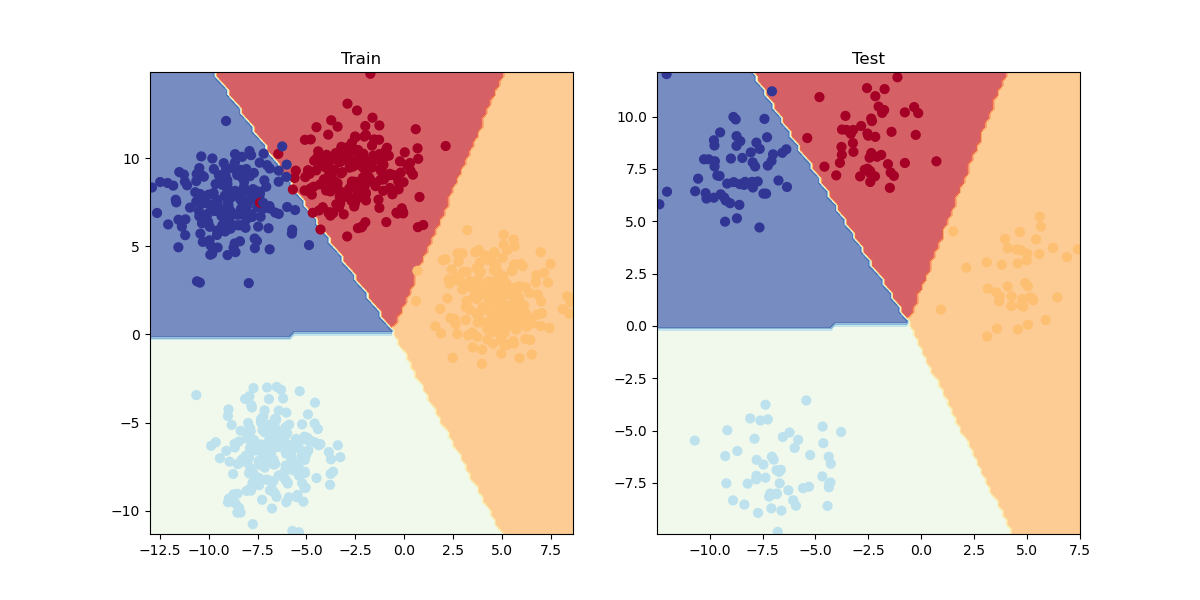
da notare che vista la distribuzioni dei "blobs" non è necessario utilizzare funzioni non lineare come la ReLU, questo perchè i dati dei blobs sono "**<span style="color:rgb(224,62,45);">separabili linearmente</span>**", il che significa che i dati dei blobs non si michiano in maniera non lineare come per es. nel caso di due cerchi concentrici di blobs.

Il cui output è:

```bash
Python 3.10.8 | packaged by conda-forge | (main, Nov 24 2022, 14:07:00) [MSC v.1916 64 bit (AMD64)]
Type 'copyright', 'credits' or 'license' for more information
IPython 8.7.0 -- An enhanced Interactive Python. Type '?' for help.
PyDev console: using IPython 8.7.0
Python 3.10.8 | packaged by conda-forge | (main, Nov 24 2022, 14:07:00) [MSC v.1916 64 bit (AMD64)] on win32
runfile('C:\\lavori\\formazione_py\\src\\formazione\\DanielBourkePytorch\\03_multiclass_classification.py', wdir='C:\\lavori\\formazione_py\\src\\formazione\\DanielBourkePytorch')
tensor([[-8.4134,  6.9352],
        [-5.7665, -6.4312],
        [-6.0421, -6.7661],
        [ 3.9508,  0.6984],
        [ 4.2505, -0.2815]]) tensor([3, 2, 2, 1, 1])
Epoch: 0 | Loss: 1.42610, Acc: 24.12% | Test Loss: 1.14118, Test Acc: 55.00%
Epoch: 10 | Loss: 0.69430, Acc: 71.25% | Test Loss: 0.59211, Test Acc: 78.00%
Epoch: 20 | Loss: 0.54481, Acc: 72.88% | Test Loss: 0.45338, Test Acc: 79.50%
Epoch: 30 | Loss: 0.46979, Acc: 73.12% | Test Loss: 0.38420, Test Acc: 79.00%
Epoch: 40 | Loss: 0.43818, Acc: 73.12% | Test Loss: 0.35307, Test Acc: 79.00%
Epoch: 50 | Loss: 0.42259, Acc: 77.38% | Test Loss: 0.33220, Test Acc: 93.00%
Epoch: 60 | Loss: 0.12337, Acc: 99.00% | Test Loss: 0.09245, Test Acc: 99.50%
Epoch: 70 | Loss: 0.06762, Acc: 99.00% | Test Loss: 0.05245, Test Acc: 99.50%
Epoch: 80 | Loss: 0.05137, Acc: 99.00% | Test Loss: 0.03963, Test Acc: 99.50%
Epoch: 90 | Loss: 0.04380, Acc: 99.12% | Test Loss: 0.03331, Test Acc: 99.50%
Backend MacOSX is interactive backend. Turning interactive mode on.
```

# Computer vision e CNN

In questo capitolo tratteremo la computer vision e le reti convoluzionali.

In generale in Pytorch per scaricare le immagini si utilizzata la libreria "torchvision" le cui specifiche sono dettagliate nella pagina di documentazione [datasets](https://pytorch.org/vision/stable/datasets.html)

Inizieremo ad utilizzare Fashion-MNIST che contiene immagini di vestiti vedi [fashion-ds](https://github.com/zalandoresearch/fashion-mnist)

Per caricare il dataset di immagini basterà utilizzare la specifiica libreria utilizzato il metodo che ne porta il nome come sotto riportato:

```python
train_data = datasets.FashionMNIST(root='data', # dove scaricare le immagini
                                   train=True, # si vogliono anche le immagini di training
                                   download=True, #si vogliono scaricare
                                   transform=torchvision.transforms.ToTensor(), # tvogliamo trasformare le immagini in tensori
                                   target_transform=None # le immagini di test non verranno convertite in tensori
                                   )

```

dopo aver carico le immgini di training vediamone una:

<div id="bkmrk-image%2C-label-%3D-train">image, label = train_data[0]</div><div id="bkmrk-"></div><div id="bkmrk-e-otterremo%3A">e otterremo:</div><div id="bkmrk--1"></div>[![03-computer-vision-input-and-output-shapes.png](https://cms.marcocucchi.it/uploads/images/gallery/2023-05/scaled-1680-/5VcgpfIEYJBaRBMC-03-computer-vision-input-and-output-shapes.png)](https://cms.marcocucchi.it/uploads/images/gallery/2023-05/5VcgpfIEYJBaRBMC-03-computer-vision-input-and-output-shapes.png)

Di seguito un esempio di modello lineare:

```python
@get_time
def training_model_0(device):

    # creiamo il modello
    class FashionMNISTModelV0(nn.Module):
        def __init__(self, input_shape: int, hidden_units: int, output_shape: int):
            super().__init__()
            self.layer_stack = nn.Sequential(
                nn.Flatten(),  # neural networks like their inputs in vector form
                nn.Linear(in_features=input_shape, out_features=hidden_units),
                nn.ReLU(),
                # in_features = number of features in a data sample (784 pixels)
                nn.Linear(in_features=hidden_units, out_features=output_shape),
                nn.ReLU(),
            )

        def forward(self, x):
            return self.layer_stack(x)

    # Need to setup model with input parameters
    model_0 = FashionMNISTModelV0(input_shape=28 * 28,  # one for every pixel (28x28)
                                  hidden_units=10,  # how many units in the hiden layer
                                  output_shape=len(class_names)  # one for every class
                                  )
    model_0.to(device)  # keep model on CPU to begin with

    # Setup loss function and optimizer
    loss_fn = nn.CrossEntropyLoss()  # this is also called "criterion"/"cost function" in some places
    optimizer = torch.optim.SGD(params=model_0.parameters(), lr=0.1)

    # Set the number of epochs (we'll keep this small for faster training times)
    epochs = 3

    # Create training and testing loop
    for epoch in tqdm(range(epochs)):
        print(f"Epoch: {epoch}\n-------")
        ### Training
        train_loss = 0
        # Add a loop to loop through training batches
        for batch, (X, y) in enumerate(train_dataloader):
            model_0.train()

            y = y.to(device)
            X = X.to(device)

            # 1. Forward pass
            y_pred = model_0(X)

            # 2. Calculate loss (per batch)
            loss = loss_fn(y_pred, y)
            train_loss += loss  # accumulatively add up the loss per epoch

            # 3. Optimizer zero grad
            optimizer.zero_grad()

            # 4. Loss backward
            loss.backward()

            # 5. Optimizer step
            optimizer.step()

            # Print out how many samples have been seen
            if batch % 400 == 0:
                print(f"Looked at {batch * len(X)}/{len(train_dataloader.dataset)} samples")

        # Divide total train loss by length of train dataloader (average loss per batch per epoch)
        train_loss /= len(train_dataloader)

        ### Testing
        # Setup variables for accumulatively adding up loss and accuracy
        test_loss, test_acc = 0, 0
        model_0.eval()
        with torch.inference_mode():
            for X, y in test_dataloader:
                y = y.to(device)
                X = X.to(device)

                # 1. Forward pass
                test_pred = model_0(X)

                # 2. Calculate loss (accumatively)
                test_loss += loss_fn(test_pred, y)  # accumulatively add up the loss per epoch

                # 3. Calculate accuracy (preds need to be same as y_true)
                test_acc += accuracy_fn(y_true=y, y_pred=test_pred.argmax(dim=1))

            # Calculations on test metrics need to happen inside torch.inference_mode()
            # Divide total test loss by length of test dataloader (per batch)
            test_loss /= len(test_dataloader)

            # Divide total accuracy by length of test dataloader (per batch)
            test_acc /= len(test_dataloader)

        ## Print out what's happening
        print(f"\nTrain loss: {train_loss:.5f} | Test loss: {test_loss:.5f}, Test acc: {test_acc:.2f}%\n")

    return model_0
```

ora, utilizzando un modello lineare non si ottengono risultati eccellenti, per la gestione della computer vision è meglio utilizzare una rete convoluzionale che fa uso per es. di layer Conv2D e MaxPool2D come sotto riportato:

[![Screenshot 2023-06-02 153033.png](https://cms.marcocucchi.it/uploads/images/gallery/2023-06/scaled-1680-/t2flxvhfw4SKN7Ny-screenshot-2023-06-02-153033.png)](https://poloclub.github.io/cnn-explainer/)
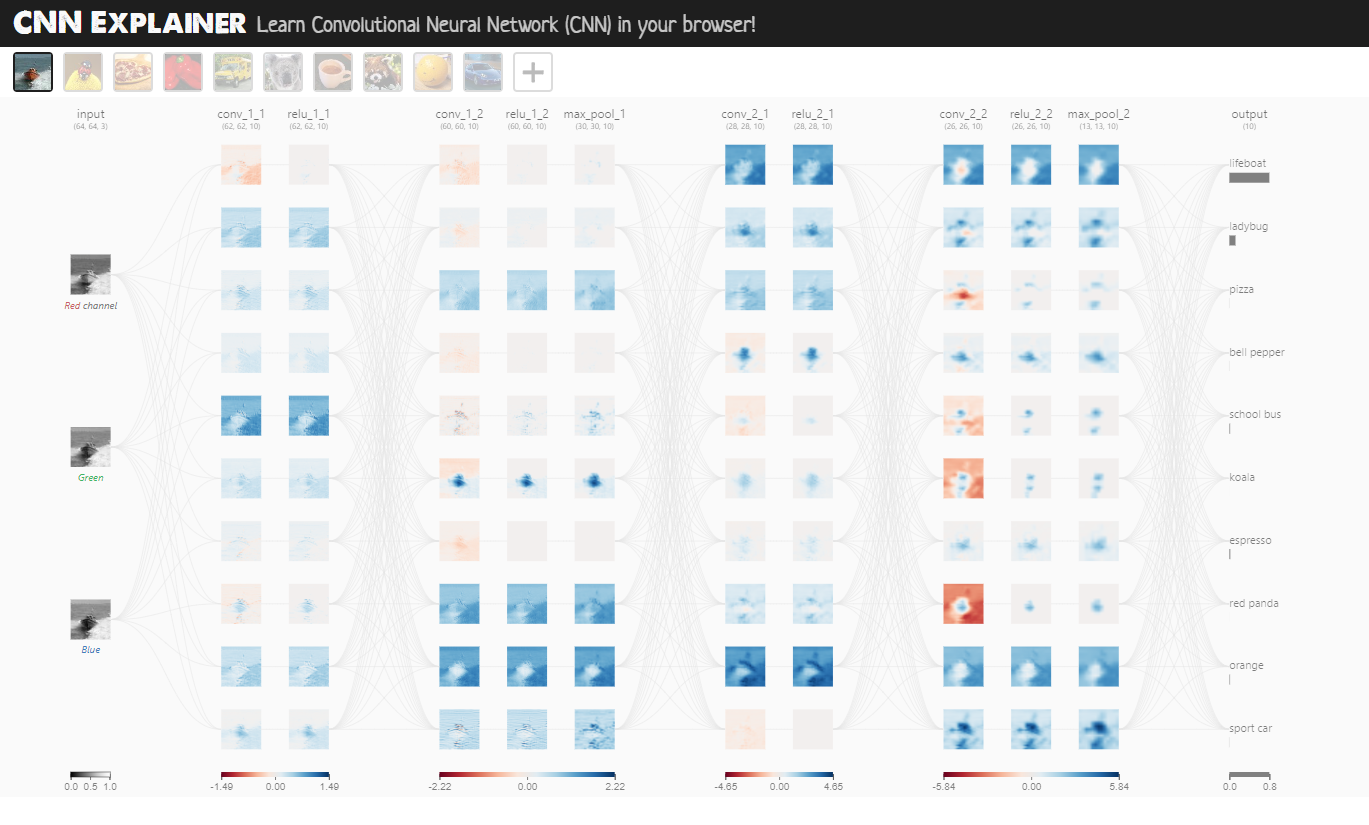
Il layer Conv2D si occupa di trovare e evidenziare le caratteristiche più importanti dell'immagine passata in input, mediante uno scaling dell'immagine stessa applicando dei pesi a ciascun tensore che associato al pixel dell'immagine.

[![image.png](https://cms.marcocucchi.it/uploads/images/gallery/2023-06/scaled-1680-/tVUO65TUR7BG3BfF-image.png)](https://poloclub.github.io/cnn-explainer/ "rete convulazionale")
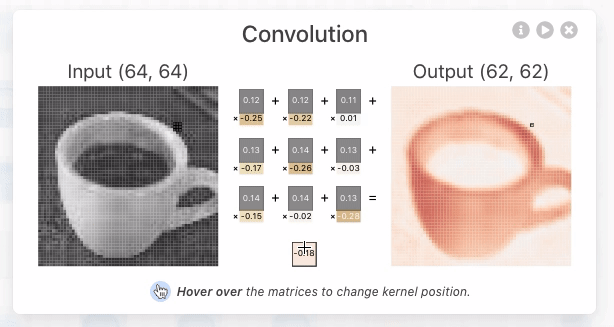
[![image.png](https://cms.marcocucchi.it/uploads/images/gallery/2023-06/scaled-1680-/ennEys0jJLIu7C76-image.png)](https://cms.marcocucchi.it/uploads/images/gallery/2023-06/ennEys0jJLIu7C76-image.png)
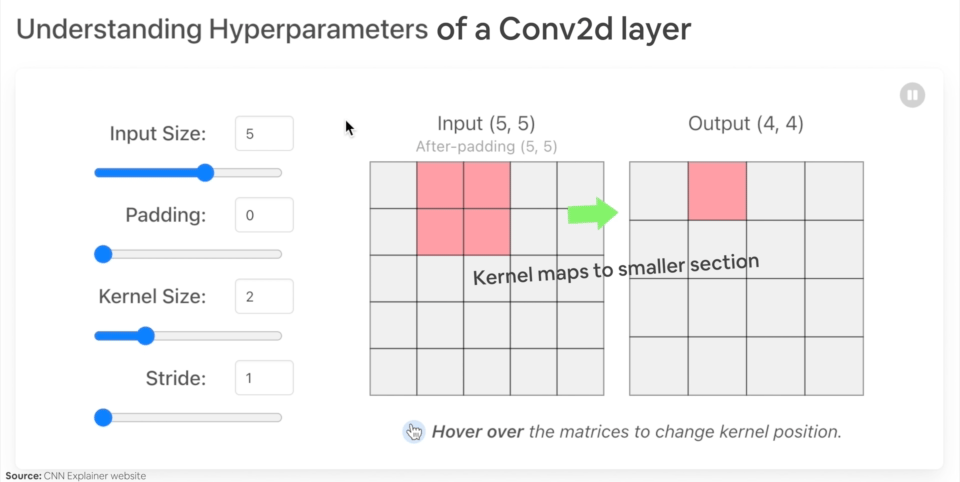
Il MaxPool2D invece scala l'imagine selezionando il tensore con valore maggiore all'interno dei un'area della matrice dei tensori.

Di seguito un esempio di rete convoluzionale in pytorch:

```python
import torch
from torch import nn
from torch.utils.data import DataLoader
import torchvision
from torchvision import datasets
from torchvision import transforms
from torchvision.transforms import ToTensor
# Import tqdm for progress bar
from tqdm.auto import tqdm
import matplotlib.pylab as plt
from src.formazione.utils.utilita import get_time

# carichiamo le immagini
train_data = datasets.FashionMNIST(root='data', # dove scaricare le immagini
                                   train=True, # si vogliono anche le immagini di training
                                   download=True, #si vogliono scaricare
                                   transform=torchvision.transforms.ToTensor(), # tvogliamo trasformare le immagini in tensori
                                   target_transform=None # le immagini di test non verranno convertite in tensori
                                   )

test_data = datasets.FashionMNIST(root='data', # dove scaricare le immagini
                                   train=False, # si vogliono anche le immagini di training
                                   download=True, #si vogliono scaricare
                                   transform=ToTensor(), # tvogliamo trasformare le immagini in tensori
                                   target_transform=None # le immagini di test non verranno convertite in tensori
                                   )

# nomi dei tipi di vestiti
class_names = train_data.classes

# Setup the batch size hyperparameter
BATCH_SIZE = 32

# Turn datasets into iterables (batches)
train_dataloader = DataLoader(train_data, # dataset to turn into iterable
    batch_size=BATCH_SIZE, # how many samples per batch?
    # num_workers =10,
    shuffle=True # shuffle data every epoch?
)

test_dataloader = DataLoader(test_data,
    batch_size=BATCH_SIZE,
    shuffle=False # don't necessarily have to shuffle the testing data
)

def accuracy_fn(y_true, y_pred):
    correct = torch.eq(y_true, y_pred).sum().item()  # torch.eq() calculates where two tensors are equal
    acc = (correct / len(y_pred)) * 100
    return acc


# Set the seed and start the timer
torch.manual_seed(42)


@get_time
def training_model_0(device):

    # creiamo il modello
    class FashionMNISTModelV0(nn.Module):
        def __init__(self, input_shape: int, hidden_units: int, output_shape: int):
            super().__init__()
            self.layer_stack = nn.Sequential(
                nn.Flatten(),  # neural networks like their inputs in vector form
                nn.Linear(in_features=input_shape, out_features=hidden_units),
                nn.ReLU(),
                # in_features = number of features in a data sample (784 pixels)
                nn.Linear(in_features=hidden_units, out_features=output_shape),
                nn.ReLU(),
            )

        def forward(self, x):
            return self.layer_stack(x)

    # Need to setup model with input parameters
    model_0 = FashionMNISTModelV0(input_shape=28 * 28,  # one for every pixel (28x28)
                                  hidden_units=10,  # how many units in the hiden layer
                                  output_shape=len(class_names)  # one for every class
                                  )
    model_0.to(device)  # keep model on CPU to begin with

    # Setup loss function and optimizer
    loss_fn = nn.CrossEntropyLoss()  # this is also called "criterion"/"cost function" in some places
    optimizer = torch.optim.SGD(params=model_0.parameters(), lr=0.1)

    # Set the number of epochs (we'll keep this small for faster training times)
    epochs = 3

    # Create training and testing loop
    for epoch in tqdm(range(epochs)):
        print(f"Epoch: {epoch}\n-------")
        ### Training
        train_loss = 0
        # Add a loop to loop through training batches
        for batch, (X, y) in enumerate(train_dataloader):
            model_0.train()

            y = y.to(device)
            X = X.to(device)

            # 1. Forward pass
            y_pred = model_0(X)

            # 2. Calculate loss (per batch)
            loss = loss_fn(y_pred, y)
            train_loss += loss  # accumulatively add up the loss per epoch

            # 3. Optimizer zero grad
            optimizer.zero_grad()

            # 4. Loss backward
            loss.backward()

            # 5. Optimizer step
            optimizer.step()

            # Print out how many samples have been seen
            # if batch % 400 == 0:
            #     print(f"Looked at {batch * len(X)}/{len(train_dataloader.dataset)} samples")

        # Divide total train loss by length of train dataloader (average loss per batch per epoch)
        train_loss /= len(train_dataloader)

        ### Testing
        # Setup variables for accumulatively adding up loss and accuracy
        test_loss, test_acc = 0, 0
        model_0.eval()
        with torch.inference_mode():
            for X, y in test_dataloader:
                y = y.to(device)
                X = X.to(device)

                # 1. Forward pass
                test_pred = model_0(X)

                # 2. Calculate loss (accumatively)
                test_loss += loss_fn(test_pred, y)  # accumulatively add up the loss per epoch

                # 3. Calculate accuracy (preds need to be same as y_true)
                test_acc += accuracy_fn(y_true=y, y_pred=test_pred.argmax(dim=1))

            # Calculations on test metrics need to happen inside torch.inference_mode()
            # Divide total test loss by length of test dataloader (per batch)
            test_loss /= len(test_dataloader)

            # Divide total accuracy by length of test dataloader (per batch)
            test_acc /= len(test_dataloader)

        ## Print out what's happening
        print(f"\nTrain loss: {train_loss:.5f} | Test loss: {test_loss:.5f}, Test acc: {test_acc:.2f}%\n")

    return model_0

@get_time
def training_model_2(device, epochs):

    # creiamo il modello
    class FashionMNISTModelV2(nn.Module):
        """
            Questo modello utilizza una rete convuluzionale
        """

        def __init__(self, input_shape: int, hidden_units: int, output_shape: int):
            super().__init__()

            padding = 1
            self.con_block1 = nn.Sequential(
                nn.Conv2d(in_channels=input_shape,out_channels=hidden_units, kernel_size=3, stride=1, padding=padding),
                nn.ReLU(),
                nn.Conv2d(in_channels=hidden_units, out_channels=hidden_units, kernel_size=3, stride=1, padding=padding),
                nn.ReLU(),
                nn.MaxPool2d(kernel_size=2) # prende il valore massimo dell'input portandolo in output, in pratica comprime l'input
            )

            self.con_block2 = nn.Sequential(
                nn.Conv2d(in_channels=hidden_units ,out_channels=hidden_units, kernel_size=3, stride=1, padding=padding),
                nn.ReLU(),
                nn.Conv2d(in_channels=hidden_units, out_channels=hidden_units, kernel_size=3, stride=1, padding=padding),
                nn.ReLU(),
                nn.MaxPool2d(kernel_size=2) # prende il valore massimo dell'input portandolo in output, in pratica comprime l'input
            )


            self.classifier = nn.Sequential(
                nn.Flatten(),  # neural networks like their inputs in vector form
                nn.Linear(in_features=hidden_units*7*7, out_features=hidden_units), # trucco per definire il numero di input features dopo un flatten è quello di visuallizare l'output del layer precedente
                # in_features = number of features in a data sample (784 pixels)
                nn.ReLU(),
                nn.Linear(in_features=hidden_units, out_features=output_shape),
            )

        def forward(self, x):
            x = self.con_block1(x)
            # print(x.shape)
            x = self.con_block2(x)
            # print(x.shape)
            x = self.classifier(x)
            return x

    # Need to setup model with input parameters
    model_2 = FashionMNISTModelV2(
                                  input_shape=1,
                                  hidden_units=10,  # how many units in the hiden layer
                                  output_shape=len(class_names)  # one for every class
                                  )
    model_2.to(device)  # keep model on CPU to begin with

    # Setup loss function and optimizer
    loss_fn = nn.CrossEntropyLoss()  # this is also called "criterion"/"cost function" in some places
    optimizer = torch.optim.SGD(params=model_2.parameters(), lr=0.1)

    # Create training and testing loop
    for epoch in tqdm(range(epochs)):
        # print(f"Epoch: {epoch}\n-------")
        ### Training
        train_loss = 0
        # Add a loop to loop through training batches
        for batch, (X, y) in enumerate(train_dataloader):
            model_2.train()

            y = y.to(device)
            X = X.to(device)

            # 1. Forward pass
            y_pred = model_2(X)

            # 2. Calculate loss (per batch)
            loss = loss_fn(y_pred, y)
            train_loss += loss  # accumulatively add up the loss per epoch

            # 3. Optimizer zero grad
            optimizer.zero_grad()

            # 4. Loss backward
            loss.backward()

            # 5. Optimizer step
            optimizer.step()

            # Print out how many samples have been seen
            # if batch % 400 == 0:
            #     print(f"Looked at {batch * len(X)}/{len(train_dataloader.dataset)} samples")

        # Divide total train loss by length of train dataloader (average loss per batch per epoch)
        train_loss /= len(train_dataloader)

        ### Testing
        # Setup variables for accumulatively adding up loss and accuracy
        test_loss, test_acc = 0, 0
        model_2.eval()
        with torch.inference_mode():
            for X, y in test_dataloader:
                y = y.to(device)
                X = X.to(device)

                # 1. Forward pass
                test_pred = model_2(X)

                # 2. Calculate loss (accumatively)
                test_loss += loss_fn(test_pred, y)  # accumulatively add up the loss per epoch

                # 3. Calculate accuracy (preds need to be same as y_true)
                test_acc += accuracy_fn(y_true=y, y_pred=test_pred.argmax(dim=1))

            # Calculations on test metrics need to happen inside torch.inference_mode()
            # Divide total test loss by length of test dataloader (per batch)
            test_loss /= len(test_dataloader)

            # Divide total accuracy by length of test dataloader (per batch)
            test_acc /= len(test_dataloader)

        ## Print out what's happening
        print(f"\nEpoch {epoch} Train loss: {train_loss:.5f} | Test loss: {test_loss:.5f}, Test acc: {test_acc:.2f}%\n")

    return model_2

if __name__ == '__main__':
    # training_model_0("cuda")
    training_model_2("cuda", epochs=20)
```

Confusion Matrix

```python
from torchmetrics import ConfusionMatrix
from mlxtend.plotting import plot_confusion_matrix

# 2. Setup confusion matrix instance and compare predictions to targets
confmat = ConfusionMatrix(num_classes=len(class_names), task='multiclass')
confmat_tensor = confmat(preds=y_pred_tensor,
                         target=test_data.targets)

# 3. Plot the confusion matrix
fig, ax = plot_confusion_matrix(
    conf_mat=confmat_tensor.numpy(), # matplotlib likes working with NumPy 
    class_names=class_names, # turn the row and column labels into class names
    figsize=(10, 7)
);
```

[![image.png](https://cms.marcocucchi.it/uploads/images/gallery/2023-06/scaled-1680-/x510sJWDunFBhbIc-image.png)](https://cms.marcocucchi.it/uploads/images/gallery/2023-06/x510sJWDunFBhbIc-image.png)
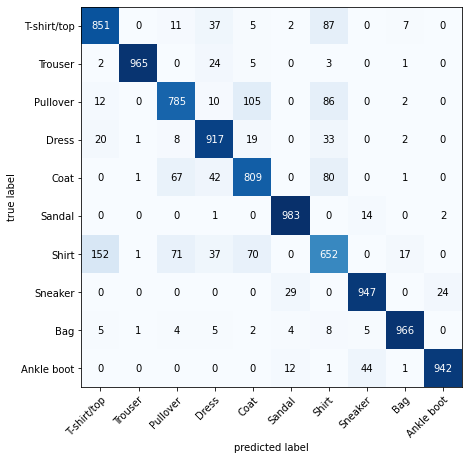
# Custom datasets

# 04. PyTorch Custom Datasets

In the last notebook, [notebook 03](https://www.learnpytorch.io/03_pytorch_computer_vision/), we looked at how to build computer vision models on an in-built dataset in PyTorch (FashionMNIST).

The steps we took are similar across many different problems in machine learning.

Find a dataset, turn the dataset into numbers, build a model (or find an existing model) to find patterns in those numbers that can be used for prediction.

PyTorch has many built-in datasets used for a wide number of machine learning benchmarks, however, you'll often want to use your own **custom dataset**.

## What is a custom dataset?

A **custom dataset** is a collection of data relating to a specific problem you're working on.

In essence, a **custom dataset** can be comprised of almost anything.

For example, if we were building a food image classification app like [Nutrify](https://nutrify.app/), our custom dataset might be images of food.

Or if we were trying to build a model to classify whether or not a text-based review on a website was positive or negative, our custom dataset might be examples of existing customer reviews and their ratings.

Or if we were trying to build a sound classification app, our custom dataset might be sound samples alongside their sample labels.

Or if we were trying to build a recommendation system for customers purchasing things on our website, our custom dataset might be examples of products other people have bought.

<div class="jp-Cell jp-MarkdownCell jp-Notebook-cell" id="bkmrk-"><div class="jp-Cell jp-MarkdownCell jp-Notebook-cell"><div class="jp-Cell-inputWrapper"><div class="jp-InputArea jp-Cell-inputArea"><div class="jp-RenderedHTMLCommon jp-RenderedMarkdown jp-MarkdownOutput">![different pytorch domain libraries can be used for specific PyTorch problems](https://raw.githubusercontent.com/mrdbourke/pytorch-deep-learning/main/images/04-pytorch-domain-libraries.png)</div></div></div></div></div>*PyTorch includes many existing functions to load in various custom datasets in the [`TorchVision`](https://pytorch.org/vision/stable/index.html), [`TorchText`](https://pytorch.org/text/stable/index.html), [`TorchAudio`](https://pytorch.org/audio/stable/index.html) and [`TorchRec`](https://pytorch.org/torchrec/) domain libraries.*

But sometimes these existing functions may not be enough.

In that case, we can always subclass `torch.utils.data.Dataset` and customize it to our liking.

## What we're going to cover

We're going to be applying the PyTorch Workflow we covered in [notebook 01](https://www.learnpytorch.io/01_pytorch_workflow/) and [notebook 02](https://www.learnpytorch.io/02_pytorch_classification/) to a computer vision problem.

But instead of using an in-built PyTorch dataset, we're going to be using our own dataset of pizza, steak and sushi images.

The goal will be to load these images and then build a model to train and predict on them.

<div class="jp-Cell jp-MarkdownCell jp-Notebook-cell" id="bkmrk--1"><div class="jp-Cell jp-MarkdownCell jp-Notebook-cell"><div class="jp-Cell-inputWrapper"><div class="jp-InputArea jp-Cell-inputArea"><div class="jp-RenderedHTMLCommon jp-RenderedMarkdown jp-MarkdownOutput">![building a pipeline to load in food images and then building a pytorch model to classify those food images](https://raw.githubusercontent.com/mrdbourke/pytorch-deep-learning/main/images/04-pytorch-food-vision-layout.png)</div></div></div></div></div>*What we're going to build. We'll use `torchvision.datasets` as well as our own custom `Dataset` class to load in images of food and then we'll build a PyTorch computer vision model to hopefully be able to classify them.*

Specifically, we're going to cover:

<div class="jp-Cell jp-MarkdownCell jp-Notebook-cell" id="bkmrk-topic-contents-0.-im"><div class="jp-Cell-inputWrapper"><div class="jp-InputArea jp-Cell-inputArea"><div class="jp-RenderedHTMLCommon jp-RenderedMarkdown jp-MarkdownOutput"><div class="md-typeset__scrollwrap"><div class="md-typeset__table"><table><thead><tr><th>**Topic**</th><th>**Contents**</th></tr></thead><tbody><tr><td>**0. Importing PyTorch and setting up device-agnostic code**</td><td>Let's get PyTorch loaded and then follow best practice to setup our code to be device-agnostic.</td></tr><tr><td>**1. Get data**</td><td>We're going to be using our own **custom dataset** of pizza, steak and sushi images.</td></tr><tr><td>**2. Become one with the data (data preparation)**</td><td>At the beginning of any new machine learning problem, it's paramount to understand the data you're working with. Here we'll take some steps to figure out what data we have.</td></tr><tr><td>**3. Transforming data**</td><td>Often, the data you get won't be 100% ready to use with a machine learning model, here we'll look at some steps we can take to *transform* our images so they're ready to be used with a model.</td></tr><tr><td>**4. Loading data with `ImageFolder` (option 1)**</td><td>PyTorch has many in-built data loading functions for common types of data. `ImageFolder` is helpful if our images are in standard image classification format.</td></tr><tr><td>**5. Loading image data with a custom `Dataset`**</td><td>What if PyTorch didn't have an in-built function to load data with? This is where we can build our own custom subclass of `torch.utils.data.Dataset`.</td></tr><tr><td>**6. Other forms of transforms (data augmentation)**</td><td>Data augmentation is a common technique for expanding the diversity of your training data. Here we'll explore some of `torchvision`'s in-built data augmentation functions.</td></tr><tr><td>**7. Model 0: TinyVGG without data augmentation**</td><td>By this stage, we'll have our data ready, let's build a model capable of fitting it. We'll also create some training and testing functions for training and evaluating our model.</td></tr><tr><td>**8. Exploring loss curves**</td><td>Loss curves are a great way to see how your model is training/improving over time. They're also a good way to see if your model is **underfitting** or **overfitting**.</td></tr><tr><td>**9. Model 1: TinyVGG with data augmentation**</td><td>By now, we've tried a model *without*, how about we try one *with* data augmentation?</td></tr><tr><td>**10. Compare model results**</td><td>Let's compare our different models' loss curves and see which performed better and discuss some options for improving performance.</td></tr><tr><td>**11. Making a prediction on a custom image**</td><td>Our model is trained to on a dataset of pizza, steak and sushi images. In this section we'll cover how to use our trained model to predict on an image *outside* of our existing dataset.</td></tr></tbody></table>

</div></div></div></div></div></div>## Where can can you get help?

All of the materials for this course [live on GitHub](https://github.com/mrdbourke/pytorch-deep-learning).

If you run into trouble, you can ask a question on the course [GitHub Discussions page](https://github.com/mrdbourke/pytorch-deep-learning/discussions) there too.

And of course, there's the [PyTorch documentation](https://pytorch.org/docs/stable/index.html) and [PyTorch developer forums](https://discuss.pytorch.org/), a very helpful place for all things PyTorch.

## 0. Importing PyTorch and setting up device-agnostic code

<div class="jp-Cell jp-CodeCell jp-Notebook-cell" id="bkmrk-in%C2%A0%5B1%5D%3A"><div class="jp-Cell jp-CodeCell jp-Notebook-cell"><div class="jp-Cell jp-CodeCell jp-Notebook-cell"><div class="jp-Cell-inputWrapper"><div class="jp-Collapser jp-InputCollapser jp-Cell-inputCollapser">  
</div><div class="jp-InputArea jp-Cell-inputArea"><div class="jp-InputPrompt jp-InputArea-prompt">In [1]:</div><div class="jp-CodeMirrorEditor jp-Editor jp-InputArea-editor"><div class="CodeMirror cm-s-jupyter"><div class="zeroclipboard-container"><div>  
</div></div><div class="highlight-ipynb hl-python"></div></div></div></div></div></div></div></div>```
import torch
from torch import nn

# Note: this notebook requires torch >= 1.10.0
torch.__version__
```

<div class="jp-Cell jp-CodeCell jp-Notebook-cell" id="bkmrk-out%5B1%5D%3A"><div class="jp-Cell jp-CodeCell jp-Notebook-cell"><div class="jp-Cell jp-CodeCell jp-Notebook-cell"><div class="jp-Cell-inputWrapper"><div class="jp-InputArea jp-Cell-inputArea"><div class="jp-CodeMirrorEditor jp-Editor jp-InputArea-editor"><div class="CodeMirror cm-s-jupyter"><div class="highlight-ipynb hl-python"></div></div></div></div></div><div class="jp-Cell-outputWrapper"><div class="jp-Collapser jp-OutputCollapser jp-Cell-outputCollapser">  
</div><div class="jp-OutputArea jp-Cell-outputArea"><div class="jp-OutputArea-child jp-OutputArea-executeResult"><div class="jp-OutputPrompt jp-OutputArea-prompt">Out[1]:</div><div class="jp-RenderedText jp-OutputArea-output jp-OutputArea-executeResult"></div></div></div></div></div></div></div>```
'1.12.1+cu113'
```

And now let's follow best practice and setup device-agnostic code.

> **Note:** If you're using Google Colab, and you don't have a GPU turned on yet, it's now time to turn one on via `Runtime -> Change runtime type -> Hardware accelerator -> GPU`. If you do this, your runtime will likely reset and you'll have to run all of the cells above by going `Runtime -> Run before`.

<div class="jp-Cell jp-CodeCell jp-Notebook-cell" id="bkmrk-in%C2%A0%5B2%5D%3A"><div class="jp-Cell jp-CodeCell jp-Notebook-cell"><div class="jp-Cell jp-CodeCell jp-Notebook-cell"><div class="jp-Cell-inputWrapper"><div class="jp-Collapser jp-InputCollapser jp-Cell-inputCollapser">  
</div><div class="jp-InputArea jp-Cell-inputArea"><div class="jp-InputPrompt jp-InputArea-prompt">In [2]:</div><div class="jp-CodeMirrorEditor jp-Editor jp-InputArea-editor"><div class="CodeMirror cm-s-jupyter"><div class="zeroclipboard-container"><div>  
</div></div><div class="highlight-ipynb hl-python"></div></div></div></div></div></div></div></div>```
# Setup device-agnostic code
device = "cuda" if torch.cuda.is_available() else "cpu"
device
```

<div class="jp-Cell jp-CodeCell jp-Notebook-cell" id="bkmrk-out%5B2%5D%3A"><div class="jp-Cell jp-CodeCell jp-Notebook-cell"><div class="jp-Cell jp-CodeCell jp-Notebook-cell"><div class="jp-Cell-inputWrapper"><div class="jp-InputArea jp-Cell-inputArea"><div class="jp-CodeMirrorEditor jp-Editor jp-InputArea-editor"><div class="CodeMirror cm-s-jupyter"><div class="highlight-ipynb hl-python"></div></div></div></div></div><div class="jp-Cell-outputWrapper"><div class="jp-Collapser jp-OutputCollapser jp-Cell-outputCollapser">  
</div><div class="jp-OutputArea jp-Cell-outputArea"><div class="jp-OutputArea-child jp-OutputArea-executeResult"><div class="jp-OutputPrompt jp-OutputArea-prompt">Out[2]:</div><div class="jp-RenderedText jp-OutputArea-output jp-OutputArea-executeResult"></div></div></div></div></div></div></div>```
'cuda'
```

## 1. Get data

First thing's first we need some data.

And like any good cooking show, some data has already been prepared for us.

We're going to start small.

Because we're not looking to train the biggest model or use the biggest dataset yet.

Machine learning is an iterative process, start small, get something working and increase when necessary.

The data we're going to be using is a subset of the [Food101 dataset](https://data.vision.ee.ethz.ch/cvl/datasets_extra/food-101/).

Food101 is popular computer vision benchmark as it contains 1000 images of 101 different kinds of foods, totaling 101,000 images (75,750 train and 25,250 test).

Can you think of 101 different foods?

Can you think of a computer program to classify 101 foods?

I can.

A machine learning model!

Specifically, a PyTorch computer vision model like we covered in [notebook 03](https://www.learnpytorch.io/03_pytorch_computer_vision/).

Instead of 101 food classes though, we're going to start with 3: pizza, steak and sushi.

And instead of 1,000 images per class, we're going to start with a random 10% (start small, increase when necessary).

If you'd like to see where the data came from you see the following resources:

<div class="jp-Cell jp-MarkdownCell jp-Notebook-cell" id="bkmrk-original%C2%A0food101-dat"><div class="jp-Cell jp-MarkdownCell jp-Notebook-cell"><div class="jp-Cell-inputWrapper"><div class="jp-InputArea jp-Cell-inputArea"><div class="jp-RenderedHTMLCommon jp-RenderedMarkdown jp-MarkdownOutput">- Original [Food101 dataset and paper website](https://data.vision.ee.ethz.ch/cvl/datasets_extra/food-101/).
- [`torchvision.datasets.Food101`](https://pytorch.org/vision/main/generated/torchvision.datasets.Food101.html) - the version of the data I downloaded for this notebook.
- [`extras/04_custom_data_creation.ipynb`](https://github.com/mrdbourke/pytorch-deep-learning/blob/main/extras/04_custom_data_creation.ipynb) - a notebook I used to format the Food101 dataset to use for this notebook.
- [`data/pizza_steak_sushi.zip`](https://github.com/mrdbourke/pytorch-deep-learning/blob/main/data/pizza_steak_sushi.zip) - the zip archive of pizza, steak and sushi images from Food101, created with the notebook linked above.

</div></div></div></div></div>Let's write some code to download the formatted data from GitHub.

> **Note:** The dataset we're about to use has been pre-formatted for what we'd like to use it for. However, you'll often have to format your own datasets for whatever problem you're working on. This is a regular practice in the machine learning world.

<div class="jp-Cell jp-CodeCell jp-Notebook-cell" id="bkmrk-in%C2%A0%5B3%5D%3A"><div class="jp-Cell jp-CodeCell jp-Notebook-cell"><div class="jp-Cell jp-CodeCell jp-Notebook-cell"><div class="jp-Cell-inputWrapper"><div class="jp-Collapser jp-InputCollapser jp-Cell-inputCollapser">  
</div><div class="jp-InputArea jp-Cell-inputArea"><div class="jp-InputPrompt jp-InputArea-prompt">In [3]:</div><div class="jp-CodeMirrorEditor jp-Editor jp-InputArea-editor"><div class="CodeMirror cm-s-jupyter"><div class="zeroclipboard-container"><div>  
</div></div><div class="highlight-ipynb hl-python"></div></div></div></div></div></div></div></div>```
import requests
import zipfile
from pathlib import Path

# Setup path to data folder
data_path = Path("data/")
image_path = data_path / "pizza_steak_sushi"

# If the image folder doesn't exist, download it and prepare it... 
if image_path.is_dir():
    print(f"{image_path} directory exists.")
else:
    print(f"Did not find {image_path} directory, creating one...")
    image_path.mkdir(parents=True, exist_ok=True)
    
    # Download pizza, steak, sushi data
    with open(data_path / "pizza_steak_sushi.zip", "wb") as f:
        request = requests.get("https://github.com/mrdbourke/pytorch-deep-learning/raw/main/data/pizza_steak_sushi.zip")
        print("Downloading pizza, steak, sushi data...")
        f.write(request.content)

    # Unzip pizza, steak, sushi data
    with zipfile.ZipFile(data_path / "pizza_steak_sushi.zip", "r") as zip_ref:
        print("Unzipping pizza, steak, sushi data...") 
        zip_ref.extractall(image_path)
```

<div class="jp-Cell jp-CodeCell jp-Notebook-cell" id="bkmrk--2"><div class="jp-Cell jp-CodeCell jp-Notebook-cell"><div class="jp-Cell jp-CodeCell jp-Notebook-cell"><div class="jp-Cell-inputWrapper"><div class="jp-InputArea jp-Cell-inputArea"><div class="jp-CodeMirrorEditor jp-Editor jp-InputArea-editor"><div class="CodeMirror cm-s-jupyter"><div class="highlight-ipynb hl-python"></div></div></div></div></div><div class="jp-Cell-outputWrapper"><div class="jp-Collapser jp-OutputCollapser jp-Cell-outputCollapser">  
</div><div class="jp-OutputArea jp-Cell-outputArea"><div class="jp-OutputArea-child"><div class="jp-OutputPrompt jp-OutputArea-prompt">  
</div><div class="jp-RenderedText jp-OutputArea-output"></div></div></div></div></div></div></div>```
data/pizza_steak_sushi directory exists.
```

## 2. Become one with the data (data preparation)

Dataset downloaded!

Time to become one with it.

This is another important step before building a model.

As Abraham Lossfunction said...

<div class="jp-Cell jp-MarkdownCell jp-Notebook-cell" id="bkmrk--3"><div class="jp-Cell jp-MarkdownCell jp-Notebook-cell"><div class="jp-Cell-inputWrapper"><div class="jp-InputArea jp-Cell-inputArea"><div class="jp-RenderedHTMLCommon jp-RenderedMarkdown jp-MarkdownOutput">![tweet by mrdbourke, if I had eight hours to build a machine learning model, I'd spend the first 6 hours preparing my dataset](https://raw.githubusercontent.com/mrdbourke/pytorch-deep-learning/main/images/04-abraham-lossfunction.png)</div></div></div></div></div>*Data preparation is paramount. Before building a model, become one with the data. Ask: What am I trying to do here? Source: [@mrdbourke Twitter](https://twitter.com/mrdbourke).*

What's inspecting the data and becoming one with it?

Before starting a project or building any kind of model, it's important to know what data you're working with.

In our case, we have images of pizza, steak and sushi in standard image classification format.

Image classification format contains separate classes of images in seperate directories titled with a particular class name.

For example, all images of `pizza` are contained in the `pizza/` directory.

This format is popular across many different image classification benchmarks, including [ImageNet](https://www.image-net.org/) (of the most popular computer vision benchmark datasets).

You can see an example of the storage format below, the images numbers are arbitrary.

```
pizza_steak_sushi/ <- overall dataset folder
    train/ <- training images
        pizza/ <- class name as folder name
            image01.jpeg
            image02.jpeg
            ...
        steak/
            image24.jpeg
            image25.jpeg
            ...
        sushi/
            image37.jpeg
            ...
    test/ <- testing images
        pizza/
            image101.jpeg
            image102.jpeg
            ...
        steak/
            image154.jpeg
            image155.jpeg
            ...
        sushi/
            image167.jpeg
            ...

```

The goal will be to **take this data storage structure and turn it into a dataset usable with PyTorch**.

> **Note:** The structure of the data you work with will vary depending on the problem you're working on. But the premise still remains: become one with the data, then find a way to best turn it into a dataset compatible with PyTorch.

We can inspect what's in our data directory by writing a small helper function to walk through each of the subdirectories and count the files present.

To do so, we'll use Python's in-built [`os.walk()`](https://docs.python.org/3/library/os.html#os.walk).

<div class="jp-Cell jp-CodeCell jp-Notebook-cell jp-mod-noOutputs" id="bkmrk-in%C2%A0%5B4%5D%3A"><div class="jp-Cell jp-CodeCell jp-Notebook-cell jp-mod-noOutputs"><div class="jp-Cell jp-CodeCell jp-Notebook-cell jp-mod-noOutputs"><div class="jp-Cell-inputWrapper"><div class="jp-Collapser jp-InputCollapser jp-Cell-inputCollapser">  
</div><div class="jp-InputArea jp-Cell-inputArea"><div class="jp-InputPrompt jp-InputArea-prompt">In [4]:</div><div class="jp-CodeMirrorEditor jp-Editor jp-InputArea-editor"><div class="CodeMirror cm-s-jupyter"><div class="zeroclipboard-container"><div>  
</div></div><div class="highlight-ipynb hl-python"></div></div></div></div></div></div></div></div>```
import os
def walk_through_dir(dir_path):
  """
  Walks through dir_path returning its contents.
  Args:
    dir_path (str or pathlib.Path): target directory
  
  Returns:
    A print out of:
      number of subdiretories in dir_path
      number of images (files) in each subdirectory
      name of each subdirectory
  """
  for dirpath, dirnames, filenames in os.walk(dir_path):
    print(f"There are {len(dirnames)} directories and {len(filenames)} images in '{dirpath}'.")
```

<div class="jp-Cell jp-CodeCell jp-Notebook-cell" id="bkmrk-in%C2%A0%5B5%5D%3A"><div class="jp-Cell jp-CodeCell jp-Notebook-cell"><div class="jp-Cell jp-CodeCell jp-Notebook-cell"><div class="jp-Cell-inputWrapper"><div class="jp-Collapser jp-InputCollapser jp-Cell-inputCollapser">  
</div><div class="jp-InputArea jp-Cell-inputArea"><div class="jp-InputPrompt jp-InputArea-prompt">In [5]:</div><div class="jp-CodeMirrorEditor jp-Editor jp-InputArea-editor"><div class="CodeMirror cm-s-jupyter"><div class="zeroclipboard-container"><div>  
</div></div><div class="highlight-ipynb hl-python"></div></div></div></div></div></div></div></div>```
walk_through_dir(image_path)
```

<div class="jp-Cell jp-CodeCell jp-Notebook-cell" id="bkmrk--4"><div class="jp-Cell jp-CodeCell jp-Notebook-cell"><div class="jp-Cell jp-CodeCell jp-Notebook-cell"><div class="jp-Cell-inputWrapper"><div class="jp-InputArea jp-Cell-inputArea"><div class="jp-CodeMirrorEditor jp-Editor jp-InputArea-editor"><div class="CodeMirror cm-s-jupyter"><div class="highlight-ipynb hl-python"></div></div></div></div></div><div class="jp-Cell-outputWrapper"><div class="jp-Collapser jp-OutputCollapser jp-Cell-outputCollapser">  
</div><div class="jp-OutputArea jp-Cell-outputArea"><div class="jp-OutputArea-child"><div class="jp-OutputPrompt jp-OutputArea-prompt">  
</div><div class="jp-RenderedText jp-OutputArea-output"></div></div></div></div></div></div></div>```
There are 2 directories and 1 images in 'data/pizza_steak_sushi'.
There are 3 directories and 0 images in 'data/pizza_steak_sushi/test'.
There are 0 directories and 19 images in 'data/pizza_steak_sushi/test/steak'.
There are 0 directories and 31 images in 'data/pizza_steak_sushi/test/sushi'.
There are 0 directories and 25 images in 'data/pizza_steak_sushi/test/pizza'.
There are 3 directories and 0 images in 'data/pizza_steak_sushi/train'.
There are 0 directories and 75 images in 'data/pizza_steak_sushi/train/steak'.
There are 0 directories and 72 images in 'data/pizza_steak_sushi/train/sushi'.
There are 0 directories and 78 images in 'data/pizza_steak_sushi/train/pizza'.
```

Excellent!

It looks like we've got about 75 images per training class and 25 images per testing class.

That should be enough to get started.

Remember, these images are subsets of the original Food101 dataset.

You can see how they were created in the [data creation notebook](https://github.com/mrdbourke/pytorch-deep-learning/blob/main/extras/04_custom_data_creation.ipynb).

While we're at it, let's setup our training and testing paths.

<div class="jp-Cell jp-CodeCell jp-Notebook-cell" id="bkmrk-in%C2%A0%5B6%5D%3A"><div class="jp-Cell jp-CodeCell jp-Notebook-cell"><div class="jp-Cell jp-CodeCell jp-Notebook-cell"><div class="jp-Cell-inputWrapper"><div class="jp-Collapser jp-InputCollapser jp-Cell-inputCollapser">  
</div><div class="jp-InputArea jp-Cell-inputArea"><div class="jp-InputPrompt jp-InputArea-prompt">In [6]:</div><div class="jp-CodeMirrorEditor jp-Editor jp-InputArea-editor"><div class="CodeMirror cm-s-jupyter"><div class="zeroclipboard-container"><div>  
</div></div><div class="highlight-ipynb hl-python"></div></div></div></div></div></div></div></div>```
# Setup train and testing paths
train_dir = image_path / "train"
test_dir = image_path / "test"

train_dir, test_dir
```

<div class="jp-Cell jp-CodeCell jp-Notebook-cell" id="bkmrk-out%5B6%5D%3A"><div class="jp-Cell jp-CodeCell jp-Notebook-cell"><div class="jp-Cell jp-CodeCell jp-Notebook-cell"><div class="jp-Cell-inputWrapper"><div class="jp-InputArea jp-Cell-inputArea"><div class="jp-CodeMirrorEditor jp-Editor jp-InputArea-editor"><div class="CodeMirror cm-s-jupyter"><div class="highlight-ipynb hl-python"></div></div></div></div></div><div class="jp-Cell-outputWrapper"><div class="jp-Collapser jp-OutputCollapser jp-Cell-outputCollapser">  
</div><div class="jp-OutputArea jp-Cell-outputArea"><div class="jp-OutputArea-child jp-OutputArea-executeResult"><div class="jp-OutputPrompt jp-OutputArea-prompt">Out[6]:</div><div class="jp-RenderedText jp-OutputArea-output jp-OutputArea-executeResult"></div></div></div></div></div></div></div>```
(PosixPath('data/pizza_steak_sushi/train'),
 PosixPath('data/pizza_steak_sushi/test'))
```

### 2.1 Visualize an image

Okay, we've seen how our directory structure is formatted.

Now in the spirit of the data explorer, it's time to *visualize, visualize, visualize!*

Let's write some code to:

<div class="jp-Cell jp-MarkdownCell jp-Notebook-cell" id="bkmrk-get-all-of-the-image"><div class="jp-Cell-inputWrapper"><div class="jp-InputArea jp-Cell-inputArea"><div class="jp-RenderedHTMLCommon jp-RenderedMarkdown jp-MarkdownOutput">1. Get all of the image paths using [`pathlib.Path.glob()`](https://docs.python.org/3/library/pathlib.html#pathlib.Path.glob) to find all of the files ending in `.jpg`.
2. Pick a random image path using Python's [`random.choice()`](https://docs.python.org/3/library/random.html#random.choice).
3. Get the image class name using [`pathlib.Path.parent.stem`](https://docs.python.org/3/library/pathlib.html#pathlib.PurePath.parent).
4. And since we're working with images, we'll open the random image path using [`PIL.Image.open()`](https://pillow.readthedocs.io/en/stable/reference/Image.html#PIL.Image.open) (PIL stands for Python Image Library).
5. We'll then show the image and print some metadata.

</div></div></div></div><div class="jp-Cell jp-CodeCell jp-Notebook-cell" id="bkmrk-in%C2%A0%5B7%5D%3A"><div class="jp-Cell jp-CodeCell jp-Notebook-cell"><div class="jp-Cell jp-CodeCell jp-Notebook-cell"><div class="jp-Cell-inputWrapper"><div class="jp-Collapser jp-InputCollapser jp-Cell-inputCollapser">  
</div><div class="jp-InputArea jp-Cell-inputArea"><div class="jp-InputPrompt jp-InputArea-prompt">In [7]:</div><div class="jp-CodeMirrorEditor jp-Editor jp-InputArea-editor"><div class="CodeMirror cm-s-jupyter"><div class="zeroclipboard-container"><div>  
</div></div><div class="highlight-ipynb hl-python"></div></div></div></div></div></div></div></div>```
import random
from PIL import Image

# Set seed
random.seed(42) # <- try changing this and see what happens

# 1. Get all image paths (* means "any combination")
image_path_list = list(image_path.glob("*/*/*.jpg"))

# 2. Get random image path
random_image_path = random.choice(image_path_list)

# 3. Get image class from path name (the image class is the name of the directory where the image is stored)
image_class = random_image_path.parent.stem

# 4. Open image
img = Image.open(random_image_path)

# 5. Print metadata
print(f"Random image path: {random_image_path}")
print(f"Image class: {image_class}")
print(f"Image height: {img.height}") 
print(f"Image width: {img.width}")
img
```

<div class="jp-Cell jp-CodeCell jp-Notebook-cell" id="bkmrk--5"><div class="jp-Cell jp-CodeCell jp-Notebook-cell"><div class="jp-Cell jp-CodeCell jp-Notebook-cell"><div class="jp-Cell-inputWrapper"><div class="jp-InputArea jp-Cell-inputArea"><div class="jp-CodeMirrorEditor jp-Editor jp-InputArea-editor"><div class="CodeMirror cm-s-jupyter"><div class="highlight-ipynb hl-python"></div></div></div></div></div><div class="jp-Cell-outputWrapper"><div class="jp-Collapser jp-OutputCollapser jp-Cell-outputCollapser">  
</div><div class="jp-OutputArea jp-Cell-outputArea"><div class="jp-OutputArea-child"><div class="jp-OutputPrompt jp-OutputArea-prompt">  
</div><div class="jp-RenderedText jp-OutputArea-output"></div></div></div></div></div></div></div>```
Random image path: data/pizza_steak_sushi/test/pizza/2124579.jpg
Image class: pizza
Image height: 384
Image width: 512
```

<div class="jp-Cell jp-CodeCell jp-Notebook-cell" id="bkmrk-out%5B7%5D%3A"><div class="jp-Cell jp-CodeCell jp-Notebook-cell"><div class="jp-Cell-outputWrapper"><div class="jp-OutputArea jp-Cell-outputArea"><div class="jp-OutputArea-child"><div class="jp-RenderedText jp-OutputArea-output"></div></div><div class="jp-OutputArea-child jp-OutputArea-executeResult"><div class="jp-OutputPrompt jp-OutputArea-prompt">Out[7]:</div><div class="jp-RenderedImage jp-OutputArea-output jp-OutputArea-executeResult">![XuSwjJD3rSZFukHv-embedded-image-2pgf0s9f.png](https://cms.marcocucchi.it/uploads/images/gallery/2023-06/XuSwjJD3rSZFukHv-embedded-image-2pgf0s9f.png)</div></div></div></div></div></div>We can do the same with [`matplotlib.pyplot.imshow()`](https://matplotlib.org/3.5.0/api/_as_gen/matplotlib.pyplot.imshow.html), except we have to convert the image to a NumPy array first.

<div class="jp-Cell jp-CodeCell jp-Notebook-cell" id="bkmrk-in%C2%A0%5B8%5D%3A"><div class="jp-Cell jp-CodeCell jp-Notebook-cell"><div class="jp-Cell jp-CodeCell jp-Notebook-cell"><div class="jp-Cell-inputWrapper"><div class="jp-Collapser jp-InputCollapser jp-Cell-inputCollapser">  
</div><div class="jp-InputArea jp-Cell-inputArea"><div class="jp-InputPrompt jp-InputArea-prompt">In [8]:</div><div class="jp-CodeMirrorEditor jp-Editor jp-InputArea-editor"><div class="CodeMirror cm-s-jupyter"><div class="zeroclipboard-container"><div>  
</div></div><div class="highlight-ipynb hl-python"></div></div></div></div></div></div></div></div>```
import numpy as np
import matplotlib.pyplot as plt

# Turn the image into an array
img_as_array = np.asarray(img)

# Plot the image with matplotlib
plt.figure(figsize=(10, 7))
plt.imshow(img_as_array)
plt.title(f"Image class: {image_class} | Image shape: {img_as_array.shape} -> [height, width, color_channels]")
plt.axis(False);
```

<div class="jp-Cell jp-CodeCell jp-Notebook-cell" id="bkmrk--6"><div class="jp-Cell jp-CodeCell jp-Notebook-cell"><div class="jp-Cell-inputWrapper"><div class="jp-InputArea jp-Cell-inputArea"><div class="jp-CodeMirrorEditor jp-Editor jp-InputArea-editor"><div class="CodeMirror cm-s-jupyter"><div class="highlight-ipynb hl-python"></div></div></div></div></div><div class="jp-Cell-outputWrapper"><div class="jp-Collapser jp-OutputCollapser jp-Cell-outputCollapser">  
</div><div class="jp-OutputArea jp-Cell-outputArea"><div class="jp-OutputArea-child"><div class="jp-OutputPrompt jp-OutputArea-prompt">  
</div><div class="jp-RenderedImage jp-OutputArea-output">![ballTgmZv6db504b-embedded-image-pwqt9v0v.png](https://cms.marcocucchi.it/uploads/images/gallery/2023-06/ballTgmZv6db504b-embedded-image-pwqt9v0v.png)</div></div></div></div></div></div>## 3. Transforming data

Now what if we wanted to load our image data into PyTorch?

Before we can use our image data with PyTorch we need to:

<div class="jp-Cell jp-MarkdownCell jp-Notebook-cell" id="bkmrk-turn-it-into-tensors"><div class="jp-Cell jp-MarkdownCell jp-Notebook-cell"><div class="jp-Cell-inputWrapper"><div class="jp-InputArea jp-Cell-inputArea"><div class="jp-RenderedHTMLCommon jp-RenderedMarkdown jp-MarkdownOutput">1. Turn it into tensors (numerical representations of our images).
2. Turn it into a `torch.utils.data.Dataset` and subsequently a `torch.utils.data.DataLoader`, we'll call these `Dataset` and `DataLoader` for short.

</div></div></div></div></div>There are several different kinds of pre-built datasets and dataset loaders for PyTorch, depending on the problem you're working on.

<div class="jp-Cell jp-MarkdownCell jp-Notebook-cell" id="bkmrk-problem-space-pre-bu"><div class="jp-Cell jp-MarkdownCell jp-Notebook-cell"><div class="jp-Cell-inputWrapper"><div class="jp-InputArea jp-Cell-inputArea"><div class="jp-RenderedHTMLCommon jp-RenderedMarkdown jp-MarkdownOutput"><div class="md-typeset__scrollwrap"><div class="md-typeset__table"><table><thead><tr><th>**Problem space**</th><th>**Pre-built Datasets and Functions**</th></tr></thead><tbody><tr><td>**Vision**</td><td>[`torchvision.datasets`](https://pytorch.org/vision/stable/datasets.html)</td></tr><tr><td>**Audio**</td><td>[`torchaudio.datasets`](https://pytorch.org/audio/stable/datasets.html)</td></tr><tr><td>**Text**</td><td>[`torchtext.datasets`](https://pytorch.org/text/stable/datasets.html)</td></tr><tr><td>**Recommendation system**</td><td>[`torchrec.datasets`](https://pytorch.org/torchrec/torchrec.datasets.html)</td></tr></tbody></table>

</div></div></div></div></div></div></div>Since we're working with a vision problem, we'll be looking at `torchvision.datasets` for our data loading functions as well as [`torchvision.transforms`](https://pytorch.org/vision/stable/transforms.html) for preparing our data.

Let's import some base libraries.

<div class="jp-Cell jp-CodeCell jp-Notebook-cell jp-mod-noOutputs" id="bkmrk-in%C2%A0%5B9%5D%3A"><div class="jp-Cell jp-CodeCell jp-Notebook-cell jp-mod-noOutputs"><div class="jp-Cell jp-CodeCell jp-Notebook-cell jp-mod-noOutputs"><div class="jp-Cell-inputWrapper"><div class="jp-Collapser jp-InputCollapser jp-Cell-inputCollapser">  
</div><div class="jp-InputArea jp-Cell-inputArea"><div class="jp-InputPrompt jp-InputArea-prompt">In [9]:</div><div class="jp-CodeMirrorEditor jp-Editor jp-InputArea-editor"><div class="CodeMirror cm-s-jupyter"><div class="zeroclipboard-container"><div>  
</div></div><div class="highlight-ipynb hl-python"></div></div></div></div></div></div></div></div>```
import torch
from torch.utils.data import DataLoader
from torchvision import datasets, transforms
```

### 3.1 Transforming data with `torchvision.transforms`

We've got folders of images but before we can use them with PyTorch, we need to convert them into tensors.

One of the ways we can do this is by using the `torchvision.transforms` module.

`torchvision.transforms` contains many pre-built methods for formatting images, turning them into tensors and even manipulating them for **data augmentation** (the practice of altering data to make it harder for a model to learn, we'll see this later on) purposes .

To get experience with `torchvision.transforms`, let's write a series of transform steps that:

<div class="jp-Cell jp-MarkdownCell jp-Notebook-cell" id="bkmrk-resize-the-images-us"><div class="jp-Cell jp-MarkdownCell jp-Notebook-cell"><div class="jp-Cell-inputWrapper"><div class="jp-InputArea jp-Cell-inputArea"><div class="jp-RenderedHTMLCommon jp-RenderedMarkdown jp-MarkdownOutput">1. Resize the images using [`transforms.Resize()`](https://pytorch.org/vision/stable/generated/torchvision.transforms.Resize.html#torchvision.transforms.Resize) (from about 512x512 to 64x64, the same shape as the images on the [CNN Explainer website](https://poloclub.github.io/cnn-explainer/)).
2. Flip our images randomly on the horizontal using [`transforms.RandomHorizontalFlip()`](https://pytorch.org/vision/stable/generated/torchvision.transforms.RandomHorizontalFlip.html#torchvision.transforms.RandomHorizontalFlip) (this could be considered a form of data augmentation because it will artificially change our image data).
3. Turn our images from a PIL image to a PyTorch tensor using [`transforms.ToTensor()`](https://pytorch.org/vision/stable/generated/torchvision.transforms.ToTensor.html#torchvision.transforms.ToTensor).

</div></div></div></div></div>We can compile all of these steps using [`torchvision.transforms.Compose()`](https://pytorch.org/vision/stable/generated/torchvision.transforms.Compose.html#torchvision.transforms.Compose).

<div class="jp-Cell jp-CodeCell jp-Notebook-cell jp-mod-noOutputs" id="bkmrk-in%C2%A0%5B10%5D%3A"><div class="jp-Cell jp-CodeCell jp-Notebook-cell jp-mod-noOutputs"><div class="jp-Cell jp-CodeCell jp-Notebook-cell jp-mod-noOutputs"><div class="jp-Cell-inputWrapper"><div class="jp-Collapser jp-InputCollapser jp-Cell-inputCollapser">  
</div><div class="jp-InputArea jp-Cell-inputArea"><div class="jp-InputPrompt jp-InputArea-prompt">In [10]:</div><div class="jp-CodeMirrorEditor jp-Editor jp-InputArea-editor"><div class="CodeMirror cm-s-jupyter"><div class="zeroclipboard-container"><div>  
</div></div><div class="highlight-ipynb hl-python"></div></div></div></div></div></div></div></div>```
# Write transform for image
data_transform = transforms.Compose([
    # Resize the images to 64x64
    transforms.Resize(size=(64, 64)),
    # Flip the images randomly on the horizontal
    transforms.RandomHorizontalFlip(p=0.5), # p = probability of flip, 0.5 = 50% chance
    # Turn the image into a torch.Tensor
    transforms.ToTensor() # this also converts all pixel values from 0 to 255 to be between 0.0 and 1.0 
])
```

Now we've got a composition of transforms, let's write a function to try them out on various images.

<div class="jp-Cell jp-CodeCell jp-Notebook-cell" id="bkmrk-in%C2%A0%5B11%5D%3A"><div class="jp-Cell jp-CodeCell jp-Notebook-cell"><div class="jp-Cell jp-CodeCell jp-Notebook-cell"><div class="jp-Cell-inputWrapper"><div class="jp-Collapser jp-InputCollapser jp-Cell-inputCollapser">  
</div><div class="jp-InputArea jp-Cell-inputArea"><div class="jp-InputPrompt jp-InputArea-prompt">In [11]:</div><div class="jp-CodeMirrorEditor jp-Editor jp-InputArea-editor"><div class="CodeMirror cm-s-jupyter"><div class="zeroclipboard-container"><div>  
</div></div><div class="highlight-ipynb hl-python"></div></div></div></div></div></div></div></div>```
def plot_transformed_images(image_paths, transform, n=3, seed=42):
    """Plots a series of random images from image_paths.

    Will open n image paths from image_paths, transform them
    with transform and plot them side by side.

    Args:
        image_paths (list): List of target image paths. 
        transform (PyTorch Transforms): Transforms to apply to images.
        n (int, optional): Number of images to plot. Defaults to 3.
        seed (int, optional): Random seed for the random generator. Defaults to 42.
    """
    random.seed(seed)
    random_image_paths = random.sample(image_paths, k=n)
    for image_path in random_image_paths:
        with Image.open(image_path) as f:
            fig, ax = plt.subplots(1, 2)
            ax[0].imshow(f) 
            ax[0].set_title(f"Original \nSize: {f.size}")
            ax[0].axis("off")

            # Transform and plot image
            # Note: permute() will change shape of image to suit matplotlib 
            # (PyTorch default is [C, H, W] but Matplotlib is [H, W, C])
            transformed_image = transform(f).permute(1, 2, 0) 
            ax[1].imshow(transformed_image) 
            ax[1].set_title(f"Transformed \nSize: {transformed_image.shape}")
            ax[1].axis("off")

            fig.suptitle(f"Class: {image_path.parent.stem}", fontsize=16)

plot_transformed_images(image_path_list, 
                        transform=data_transform, 
                        n=3)
```

<div class="jp-Cell jp-CodeCell jp-Notebook-cell" id="bkmrk--7"><div class="jp-Cell jp-CodeCell jp-Notebook-cell"><div class="jp-Cell-inputWrapper"><div class="jp-InputArea jp-Cell-inputArea"><div class="jp-CodeMirrorEditor jp-Editor jp-InputArea-editor"><div class="CodeMirror cm-s-jupyter"><div class="highlight-ipynb hl-python"></div></div></div></div></div><div class="jp-Cell-outputWrapper"><div class="jp-Collapser jp-OutputCollapser jp-Cell-outputCollapser">  
</div><div class="jp-OutputArea jp-Cell-outputArea"><div class="jp-OutputArea-child"><div class="jp-OutputPrompt jp-OutputArea-prompt">  
</div><div class="jp-RenderedImage jp-OutputArea-output">![jsKq90VEZ15B9ecR-embedded-image-j2opnny9.png](https://cms.marcocucchi.it/uploads/images/gallery/2023-06/jsKq90VEZ15B9ecR-embedded-image-j2opnny9.png)</div></div><div class="jp-OutputArea-child"><div class="jp-OutputPrompt jp-OutputArea-prompt">  
</div><div class="jp-RenderedImage jp-OutputArea-output">![hsCQdudSXy0PRrLG-embedded-image-nxfdzwnt.png](https://cms.marcocucchi.it/uploads/images/gallery/2023-06/hsCQdudSXy0PRrLG-embedded-image-nxfdzwnt.png)</div></div><div class="jp-OutputArea-child"><div class="jp-OutputPrompt jp-OutputArea-prompt">  
</div><div class="jp-RenderedImage jp-OutputArea-output">![WhbeuLmQbQ8Rezrv-embedded-image-giwhcvci.png](https://cms.marcocucchi.it/uploads/images/gallery/2023-06/WhbeuLmQbQ8Rezrv-embedded-image-giwhcvci.png)</div></div></div></div></div></div>Nice!

We've now got a way to convert our images to tensors using `torchvision.transforms`.

We also manipulate their size and orientation if needed (some models prefer images of different sizes and shapes).

Generally, the larger the shape of the image, the more information a model can recover.

For example, an image of size `[256, 256, 3]` will have 16x more pixels than an image of size `[64, 64, 3]` (`(256*256*3)/(64*64*3)=16`).

However, the tradeoff is that more pixels requires more computations.

> **Exercise:** Try commenting out one of the transforms in `data_transform` and running the plotting function `plot_transformed_images()` again, what happens?

## 4. Option 1: Loading Image Data Using [`ImageFolder`](https://pytorch.org/vision/stable/generated/torchvision.datasets.ImageFolder.html#torchvision.datasets.ImageFolder)

Alright, time to turn our image data into a `Dataset` capable of being used with PyTorch.

Since our data is in standard image classification format, we can use the class [`torchvision.datasets.ImageFolder`](https://pytorch.org/vision/stable/generated/torchvision.datasets.ImageFolder.html#torchvision.datasets.ImageFolder).

Where we can pass it the file path of a target image directory as well as a series of transforms we'd like to perform on our images.

Let's test it out on our data folders `train_dir` and `test_dir` passing in `transform=data_transform` to turn our images into tensors.

<div class="jp-Cell jp-CodeCell jp-Notebook-cell" id="bkmrk-in%C2%A0%5B12%5D%3A"><div class="jp-Cell jp-CodeCell jp-Notebook-cell"><div class="jp-Cell jp-CodeCell jp-Notebook-cell"><div class="jp-Cell-inputWrapper"><div class="jp-Collapser jp-InputCollapser jp-Cell-inputCollapser">  
</div><div class="jp-InputArea jp-Cell-inputArea"><div class="jp-InputPrompt jp-InputArea-prompt">In [12]:</div><div class="jp-CodeMirrorEditor jp-Editor jp-InputArea-editor"><div class="CodeMirror cm-s-jupyter"><div class="zeroclipboard-container"><div>  
</div></div><div class="highlight-ipynb hl-python"></div></div></div></div></div></div></div></div>```
# Use ImageFolder to create dataset(s)
from torchvision import datasets
train_data = datasets.ImageFolder(root=train_dir, # target folder of images
                                  transform=data_transform, # transforms to perform on data (images)
                                  target_transform=None) # transforms to perform on labels (if necessary)

test_data = datasets.ImageFolder(root=test_dir, 
                                 transform=data_transform)

print(f"Train data:\n{train_data}\nTest data:\n{test_data}")
```

<div class="jp-Cell jp-CodeCell jp-Notebook-cell" id="bkmrk--8"><div class="jp-Cell jp-CodeCell jp-Notebook-cell"><div class="jp-Cell jp-CodeCell jp-Notebook-cell"><div class="jp-Cell-inputWrapper"><div class="jp-InputArea jp-Cell-inputArea"><div class="jp-CodeMirrorEditor jp-Editor jp-InputArea-editor"><div class="CodeMirror cm-s-jupyter"><div class="highlight-ipynb hl-python"></div></div></div></div></div><div class="jp-Cell-outputWrapper"><div class="jp-Collapser jp-OutputCollapser jp-Cell-outputCollapser">  
</div><div class="jp-OutputArea jp-Cell-outputArea"><div class="jp-OutputArea-child"><div class="jp-OutputPrompt jp-OutputArea-prompt">  
</div><div class="jp-RenderedText jp-OutputArea-output"></div></div></div></div></div></div></div>```
Train data:
Dataset ImageFolder
    Number of datapoints: 225
    Root location: data/pizza_steak_sushi/train
    StandardTransform
Transform: Compose(
               Resize(size=(64, 64), interpolation=bilinear, max_size=None, antialias=None)
               RandomHorizontalFlip(p=0.5)
               ToTensor()
           )
Test data:
Dataset ImageFolder
    Number of datapoints: 75
    Root location: data/pizza_steak_sushi/test
    StandardTransform
Transform: Compose(
               Resize(size=(64, 64), interpolation=bilinear, max_size=None, antialias=None)
               RandomHorizontalFlip(p=0.5)
               ToTensor()
           )
```

Beautiful!

It looks like PyTorch has registered our `Dataset`'s.

Let's inspect them by checking out the `classes` and `class_to_idx` attributes as well as the lengths of our training and test sets.

<div class="jp-Cell jp-CodeCell jp-Notebook-cell" id="bkmrk-in%C2%A0%5B13%5D%3A"><div class="jp-Cell jp-CodeCell jp-Notebook-cell"><div class="jp-Cell jp-CodeCell jp-Notebook-cell"><div class="jp-Cell-inputWrapper"><div class="jp-Collapser jp-InputCollapser jp-Cell-inputCollapser">  
</div><div class="jp-InputArea jp-Cell-inputArea"><div class="jp-InputPrompt jp-InputArea-prompt">In [13]:</div><div class="jp-CodeMirrorEditor jp-Editor jp-InputArea-editor"><div class="CodeMirror cm-s-jupyter"><div class="zeroclipboard-container"><div>  
</div></div><div class="highlight-ipynb hl-python"></div></div></div></div></div></div></div></div>```
# Get class names as a list
class_names = train_data.classes
class_names
```

<div class="jp-Cell jp-CodeCell jp-Notebook-cell" id="bkmrk-out%5B13%5D%3A"><div class="jp-Cell jp-CodeCell jp-Notebook-cell"><div class="jp-Cell jp-CodeCell jp-Notebook-cell"><div class="jp-Cell-inputWrapper"><div class="jp-InputArea jp-Cell-inputArea"><div class="jp-CodeMirrorEditor jp-Editor jp-InputArea-editor"><div class="CodeMirror cm-s-jupyter"><div class="highlight-ipynb hl-python"></div></div></div></div></div><div class="jp-Cell-outputWrapper"><div class="jp-Collapser jp-OutputCollapser jp-Cell-outputCollapser">  
</div><div class="jp-OutputArea jp-Cell-outputArea"><div class="jp-OutputArea-child jp-OutputArea-executeResult"><div class="jp-OutputPrompt jp-OutputArea-prompt">Out[13]:</div><div class="jp-RenderedText jp-OutputArea-output jp-OutputArea-executeResult"></div></div></div></div></div></div></div>```
['pizza', 'steak', 'sushi']
```

<div class="jp-Cell jp-CodeCell jp-Notebook-cell" id="bkmrk-in%C2%A0%5B14%5D%3A"><div class="jp-Cell jp-CodeCell jp-Notebook-cell"><div class="jp-Cell jp-CodeCell jp-Notebook-cell"><div class="jp-Cell-inputWrapper"><div class="jp-Collapser jp-InputCollapser jp-Cell-inputCollapser">  
</div><div class="jp-InputArea jp-Cell-inputArea"><div class="jp-InputPrompt jp-InputArea-prompt">In [14]:</div><div class="jp-CodeMirrorEditor jp-Editor jp-InputArea-editor"><div class="CodeMirror cm-s-jupyter"><div class="zeroclipboard-container"><div>  
</div></div><div class="highlight-ipynb hl-python"></div></div></div></div></div></div></div></div>```
# Can also get class names as a dict
class_dict = train_data.class_to_idx
class_dict
```

<div class="jp-Cell jp-CodeCell jp-Notebook-cell" id="bkmrk-out%5B14%5D%3A"><div class="jp-Cell jp-CodeCell jp-Notebook-cell"><div class="jp-Cell jp-CodeCell jp-Notebook-cell"><div class="jp-Cell-inputWrapper"><div class="jp-InputArea jp-Cell-inputArea"><div class="jp-CodeMirrorEditor jp-Editor jp-InputArea-editor"><div class="CodeMirror cm-s-jupyter"><div class="highlight-ipynb hl-python"></div></div></div></div></div><div class="jp-Cell-outputWrapper"><div class="jp-Collapser jp-OutputCollapser jp-Cell-outputCollapser">  
</div><div class="jp-OutputArea jp-Cell-outputArea"><div class="jp-OutputArea-child jp-OutputArea-executeResult"><div class="jp-OutputPrompt jp-OutputArea-prompt">Out[14]:</div><div class="jp-RenderedText jp-OutputArea-output jp-OutputArea-executeResult"></div></div></div></div></div></div></div>```
{'pizza': 0, 'steak': 1, 'sushi': 2}
```

<div class="jp-Cell jp-CodeCell jp-Notebook-cell" id="bkmrk-in%C2%A0%5B15%5D%3A"><div class="jp-Cell jp-CodeCell jp-Notebook-cell"><div class="jp-Cell jp-CodeCell jp-Notebook-cell"><div class="jp-Cell-inputWrapper"><div class="jp-Collapser jp-InputCollapser jp-Cell-inputCollapser">  
</div><div class="jp-InputArea jp-Cell-inputArea"><div class="jp-InputPrompt jp-InputArea-prompt">In [15]:</div><div class="jp-CodeMirrorEditor jp-Editor jp-InputArea-editor"><div class="CodeMirror cm-s-jupyter"><div class="zeroclipboard-container"><div>  
</div></div><div class="highlight-ipynb hl-python"></div></div></div></div></div></div></div></div>```
# Check the lengths
len(train_data), len(test_data)
```

<div class="jp-Cell jp-CodeCell jp-Notebook-cell" id="bkmrk-out%5B15%5D%3A"><div class="jp-Cell jp-CodeCell jp-Notebook-cell"><div class="jp-Cell jp-CodeCell jp-Notebook-cell"><div class="jp-Cell-inputWrapper"><div class="jp-InputArea jp-Cell-inputArea"><div class="jp-CodeMirrorEditor jp-Editor jp-InputArea-editor"><div class="CodeMirror cm-s-jupyter"><div class="highlight-ipynb hl-python"></div></div></div></div></div><div class="jp-Cell-outputWrapper"><div class="jp-Collapser jp-OutputCollapser jp-Cell-outputCollapser">  
</div><div class="jp-OutputArea jp-Cell-outputArea"><div class="jp-OutputArea-child jp-OutputArea-executeResult"><div class="jp-OutputPrompt jp-OutputArea-prompt">Out[15]:</div><div class="jp-RenderedText jp-OutputArea-output jp-OutputArea-executeResult"></div></div></div></div></div></div></div>```
(225, 75)
```

Nice! Looks like we'll be able to use these to reference for later.

How about our images and labels?

How do they look?

We can index on our `train_data` and `test_data` `Dataset`'s to find samples and their target labels.

<div class="jp-Cell jp-CodeCell jp-Notebook-cell" id="bkmrk-in%C2%A0%5B16%5D%3A"><div class="jp-Cell jp-CodeCell jp-Notebook-cell"><div class="jp-Cell jp-CodeCell jp-Notebook-cell"><div class="jp-Cell-inputWrapper"><div class="jp-Collapser jp-InputCollapser jp-Cell-inputCollapser">  
</div><div class="jp-InputArea jp-Cell-inputArea"><div class="jp-InputPrompt jp-InputArea-prompt">In [16]:</div><div class="jp-CodeMirrorEditor jp-Editor jp-InputArea-editor"><div class="CodeMirror cm-s-jupyter"><div class="zeroclipboard-container"><div>  
</div></div><div class="highlight-ipynb hl-python"></div></div></div></div></div></div></div></div>```
img, label = train_data[0][0], train_data[0][1]
print(f"Image tensor:\n{img}")
print(f"Image shape: {img.shape}")
print(f"Image datatype: {img.dtype}")
print(f"Image label: {label}")
print(f"Label datatype: {type(label)}")
```

<div class="jp-Cell jp-CodeCell jp-Notebook-cell" id="bkmrk--9"><div class="jp-Cell jp-CodeCell jp-Notebook-cell"><div class="jp-Cell jp-CodeCell jp-Notebook-cell"><div class="jp-Cell-inputWrapper"><div class="jp-InputArea jp-Cell-inputArea"><div class="jp-CodeMirrorEditor jp-Editor jp-InputArea-editor"><div class="CodeMirror cm-s-jupyter"><div class="highlight-ipynb hl-python"></div></div></div></div></div><div class="jp-Cell-outputWrapper"><div class="jp-Collapser jp-OutputCollapser jp-Cell-outputCollapser">  
</div><div class="jp-OutputArea jp-Cell-outputArea"><div class="jp-OutputArea-child"><div class="jp-OutputPrompt jp-OutputArea-prompt">  
</div><div class="jp-RenderedText jp-OutputArea-output"></div></div></div></div></div></div></div>```
Image tensor:
tensor([[[0.1137, 0.1020, 0.0980,  ..., 0.1255, 0.1216, 0.1176],
         [0.1059, 0.0980, 0.0980,  ..., 0.1294, 0.1294, 0.1294],
         [0.1020, 0.0980, 0.0941,  ..., 0.1333, 0.1333, 0.1333],
         ...,
         [0.1098, 0.1098, 0.1255,  ..., 0.1686, 0.1647, 0.1686],
         [0.0863, 0.0941, 0.1098,  ..., 0.1686, 0.1647, 0.1686],
         [0.0863, 0.0863, 0.0980,  ..., 0.1686, 0.1647, 0.1647]],

        [[0.0745, 0.0706, 0.0745,  ..., 0.0588, 0.0588, 0.0588],
         [0.0706, 0.0706, 0.0745,  ..., 0.0627, 0.0627, 0.0627],
         [0.0706, 0.0745, 0.0745,  ..., 0.0706, 0.0706, 0.0706],
         ...,
         [0.1255, 0.1333, 0.1373,  ..., 0.2510, 0.2392, 0.2392],
         [0.1098, 0.1176, 0.1255,  ..., 0.2510, 0.2392, 0.2314],
         [0.1020, 0.1059, 0.1137,  ..., 0.2431, 0.2353, 0.2275]],

        [[0.0941, 0.0902, 0.0902,  ..., 0.0196, 0.0196, 0.0196],
         [0.0902, 0.0863, 0.0902,  ..., 0.0196, 0.0157, 0.0196],
         [0.0902, 0.0902, 0.0902,  ..., 0.0157, 0.0157, 0.0196],
         ...,
         [0.1294, 0.1333, 0.1490,  ..., 0.1961, 0.1882, 0.1804],
         [0.1098, 0.1137, 0.1255,  ..., 0.1922, 0.1843, 0.1804],
         [0.1059, 0.1020, 0.1059,  ..., 0.1843, 0.1804, 0.1765]]])
Image shape: torch.Size([3, 64, 64])
Image datatype: torch.float32
Image label: 0
Label datatype: <class 'int'>
```

Our images are now in the form of a tensor (with shape `[3, 64, 64]`) and the labels are in the form of an integer relating to a specific class (as referenced by the `class_to_idx` attribute).

How about we plot a single image tensor using `matplotlib`?

We'll first have to to permute (rearrange the order of its dimensions) so it's compatible.

Right now our image dimensions are in the format `CHW` (color channels, height, width) but `matplotlib` prefers `HWC` (height, width, color channels).

<div class="jp-Cell jp-CodeCell jp-Notebook-cell" id="bkmrk-in%C2%A0%5B17%5D%3A"><div class="jp-Cell jp-CodeCell jp-Notebook-cell"><div class="jp-Cell jp-CodeCell jp-Notebook-cell"><div class="jp-Cell-inputWrapper"><div class="jp-Collapser jp-InputCollapser jp-Cell-inputCollapser">  
</div><div class="jp-InputArea jp-Cell-inputArea"><div class="jp-InputPrompt jp-InputArea-prompt">In [17]:</div><div class="jp-CodeMirrorEditor jp-Editor jp-InputArea-editor"><div class="CodeMirror cm-s-jupyter"><div class="zeroclipboard-container"><div>  
</div></div><div class="highlight-ipynb hl-python"></div></div></div></div></div></div></div></div>```
# Rearrange the order of dimensions
img_permute = img.permute(1, 2, 0)

# Print out different shapes (before and after permute)
print(f"Original shape: {img.shape} -> [color_channels, height, width]")
print(f"Image permute shape: {img_permute.shape} -> [height, width, color_channels]")

# Plot the image
plt.figure(figsize=(10, 7))
plt.imshow(img.permute(1, 2, 0))
plt.axis("off")
plt.title(class_names[label], fontsize=14);
```

<div class="jp-Cell jp-CodeCell jp-Notebook-cell" id="bkmrk--10"><div class="jp-Cell jp-CodeCell jp-Notebook-cell"><div class="jp-Cell jp-CodeCell jp-Notebook-cell"><div class="jp-Cell-inputWrapper"><div class="jp-InputArea jp-Cell-inputArea"><div class="jp-CodeMirrorEditor jp-Editor jp-InputArea-editor"><div class="CodeMirror cm-s-jupyter"><div class="highlight-ipynb hl-python"></div></div></div></div></div><div class="jp-Cell-outputWrapper"><div class="jp-Collapser jp-OutputCollapser jp-Cell-outputCollapser">  
</div><div class="jp-OutputArea jp-Cell-outputArea"><div class="jp-OutputArea-child"><div class="jp-OutputPrompt jp-OutputArea-prompt">  
</div><div class="jp-RenderedText jp-OutputArea-output"></div></div></div></div></div></div></div>```
Original shape: torch.Size([3, 64, 64]) -> [color_channels, height, width]
Image permute shape: torch.Size([64, 64, 3]) -> [height, width, color_channels]
```

<div class="jp-Cell jp-CodeCell jp-Notebook-cell" id="bkmrk--11"><div class="jp-Cell jp-CodeCell jp-Notebook-cell"><div class="jp-Cell-outputWrapper"><div class="jp-OutputArea jp-Cell-outputArea"><div class="jp-OutputArea-child"><div class="jp-RenderedText jp-OutputArea-output"></div></div><div class="jp-OutputArea-child"><div class="jp-OutputPrompt jp-OutputArea-prompt">  
</div><div class="jp-RenderedImage jp-OutputArea-output">![q7GzPwJj0vsCONT2-embedded-image-kolijdzl.png](https://cms.marcocucchi.it/uploads/images/gallery/2023-06/q7GzPwJj0vsCONT2-embedded-image-kolijdzl.png)</div></div></div></div></div></div>Notice the image is now more pixelated (less quality).

This is due to it being resized from `512x512` to `64x64` pixels.

The intuition here is that if you think the image is harder to recognize what's going on, chances are a model will find it harder to understand too.

### 4.1 Turn loaded images into `DataLoader`'s

We've got our images as PyTorch `Dataset`'s but now let's turn them into `DataLoader`'s.

We'll do so using [`torch.utils.data.DataLoader`](https://pytorch.org/docs/stable/data.html#torch.utils.data.DataLoader).

Turning our `Dataset`'s into `DataLoader`'s makes them iterable so a model can go through learn the relationships between samples and targets (features and labels).

To keep things simple, we'll use a `batch_size=1` and `num_workers=1`.

What's `num_workers`?

Good question.

It defines how many subprocesses will be created to load your data.

Think of it like this, the higher value `num_workers` is set to, the more compute power PyTorch will use to load your data.

Personally, I usually set it to the total number of CPUs on my machine via Python's [`os.cpu_count()`](https://docs.python.org/3/library/os.html#os.cpu_count).

This ensures the `DataLoader` recruits as many cores as possible to load data.

> **Note:** There are more parameters you can get familiar with using `torch.utils.data.DataLoader` in the [PyTorch documentation](https://pytorch.org/docs/stable/data.html#torch.utils.data.DataLoader).

<div class="jp-Cell jp-CodeCell jp-Notebook-cell" id="bkmrk-in%C2%A0%5B18%5D%3A"><div class="jp-Cell jp-CodeCell jp-Notebook-cell"><div class="jp-Cell jp-CodeCell jp-Notebook-cell"><div class="jp-Cell-inputWrapper"><div class="jp-Collapser jp-InputCollapser jp-Cell-inputCollapser">  
</div><div class="jp-InputArea jp-Cell-inputArea"><div class="jp-InputPrompt jp-InputArea-prompt">In [18]:</div><div class="jp-CodeMirrorEditor jp-Editor jp-InputArea-editor"><div class="CodeMirror cm-s-jupyter"><div class="zeroclipboard-container"><div>  
</div></div><div class="highlight-ipynb hl-python"></div></div></div></div></div></div></div></div>```
# Turn train and test Datasets into DataLoaders
from torch.utils.data import DataLoader
train_dataloader = DataLoader(dataset=train_data, 
                              batch_size=1, # how many samples per batch?
                              num_workers=1, # how many subprocesses to use for data loading? (higher = more)
                              shuffle=True) # shuffle the data?

test_dataloader = DataLoader(dataset=test_data, 
                             batch_size=1, 
                             num_workers=1, 
                             shuffle=False) # don't usually need to shuffle testing data

train_dataloader, test_dataloader
```

<div class="jp-Cell jp-CodeCell jp-Notebook-cell" id="bkmrk-out%5B18%5D%3A"><div class="jp-Cell jp-CodeCell jp-Notebook-cell"><div class="jp-Cell jp-CodeCell jp-Notebook-cell"><div class="jp-Cell-inputWrapper"><div class="jp-InputArea jp-Cell-inputArea"><div class="jp-CodeMirrorEditor jp-Editor jp-InputArea-editor"><div class="CodeMirror cm-s-jupyter"><div class="highlight-ipynb hl-python"></div></div></div></div></div><div class="jp-Cell-outputWrapper"><div class="jp-Collapser jp-OutputCollapser jp-Cell-outputCollapser">  
</div><div class="jp-OutputArea jp-Cell-outputArea"><div class="jp-OutputArea-child jp-OutputArea-executeResult"><div class="jp-OutputPrompt jp-OutputArea-prompt">Out[18]:</div><div class="jp-RenderedText jp-OutputArea-output jp-OutputArea-executeResult"></div></div></div></div></div></div></div>```
(<torch.utils.data.dataloader.DataLoader at 0x7f53c0b9dca0>,
 <torch.utils.data.dataloader.DataLoader at 0x7f53c0b9de50>)
```

Wonderful!

Now our data is iterable.

Let's try it out and check the shapes.

<div class="jp-Cell jp-CodeCell jp-Notebook-cell" id="bkmrk-in%C2%A0%5B19%5D%3A"><div class="jp-Cell jp-CodeCell jp-Notebook-cell"><div class="jp-Cell jp-CodeCell jp-Notebook-cell"><div class="jp-Cell-inputWrapper"><div class="jp-Collapser jp-InputCollapser jp-Cell-inputCollapser">  
</div><div class="jp-InputArea jp-Cell-inputArea"><div class="jp-InputPrompt jp-InputArea-prompt">In [19]:</div><div class="jp-CodeMirrorEditor jp-Editor jp-InputArea-editor"><div class="CodeMirror cm-s-jupyter"><div class="zeroclipboard-container"><div>  
</div></div><div class="highlight-ipynb hl-python"></div></div></div></div></div></div></div></div>```
img, label = next(iter(train_dataloader))

# Batch size will now be 1, try changing the batch_size parameter above and see what happens
print(f"Image shape: {img.shape} -> [batch_size, color_channels, height, width]")
print(f"Label shape: {label.shape}")
```

<div class="jp-Cell jp-CodeCell jp-Notebook-cell" id="bkmrk--12"><div class="jp-Cell jp-CodeCell jp-Notebook-cell"><div class="jp-Cell jp-CodeCell jp-Notebook-cell"><div class="jp-Cell-inputWrapper"><div class="jp-InputArea jp-Cell-inputArea"><div class="jp-CodeMirrorEditor jp-Editor jp-InputArea-editor"><div class="CodeMirror cm-s-jupyter"><div class="highlight-ipynb hl-python"></div></div></div></div></div><div class="jp-Cell-outputWrapper"><div class="jp-Collapser jp-OutputCollapser jp-Cell-outputCollapser">  
</div><div class="jp-OutputArea jp-Cell-outputArea"><div class="jp-OutputArea-child"><div class="jp-OutputPrompt jp-OutputArea-prompt">  
</div><div class="jp-RenderedText jp-OutputArea-output"></div></div></div></div></div></div></div>```
Image shape: torch.Size([1, 3, 64, 64]) -> [batch_size, color_channels, height, width]
Label shape: torch.Size([1])
```

We could now use these `DataLoader`'s with a training and testing loop to train a model.

But before we do, let's look at another option to load images (or almost any other kind of data).

## 5. Option 2: Loading Image Data with a Custom `Dataset`

What if a pre-built `Dataset` creator like [`torchvision.datasets.ImageFolder()`](https://pytorch.org/vision/stable/datasets.html#torchvision.datasets.ImageFolder) didn't exist?

Or one for your specific problem didn't exist?

Well, you could build your own.

But wait, what are the pros and cons of creating your own custom way to load `Dataset`'s?

<div class="jp-Cell jp-MarkdownCell jp-Notebook-cell" id="bkmrk-pros-of-creating-a-c"><div class="jp-Cell jp-MarkdownCell jp-Notebook-cell"><div class="jp-Cell-inputWrapper"><div class="jp-InputArea jp-Cell-inputArea"><div class="jp-RenderedHTMLCommon jp-RenderedMarkdown jp-MarkdownOutput"><div class="md-typeset__scrollwrap"><div class="md-typeset__table"><table><thead><tr><th>Pros of creating a custom `Dataset`</th><th>Cons of creating a custom `Dataset`</th></tr></thead><tbody><tr><td>Can create a `Dataset` out of almost anything.</td><td>Even though you *could* create a `Dataset` out of almost anything, it doesn't mean it will work.</td></tr><tr><td>Not limited to PyTorch pre-built `Dataset` functions.</td><td>Using a custom `Dataset` often results in writing more code, which could be prone to errors or performance issues.</td></tr></tbody></table>

</div></div></div></div></div></div></div>To see this in action, let's work towards replicating `torchvision.datasets.ImageFolder()` by subclassing `torch.utils.data.Dataset` (the base class for all `Dataset`'s in PyTorch).

We'll start by importing the modules we need:

<div class="jp-Cell jp-MarkdownCell jp-Notebook-cell" id="bkmrk-python%27s%C2%A0os%C2%A0for-deal"><div class="jp-Cell jp-MarkdownCell jp-Notebook-cell"><div class="jp-Cell-inputWrapper"><div class="jp-InputArea jp-Cell-inputArea"><div class="jp-RenderedHTMLCommon jp-RenderedMarkdown jp-MarkdownOutput">- Python's `os` for dealing with directories (our data is stored in directories).
- Python's `pathlib` for dealing with filepaths (each of our images has a unique filepath).
- `torch` for all things PyTorch.
- PIL's `Image` class for loading images.
- `torch.utils.data.Dataset` to subclass and create our own custom `Dataset`.
- `torchvision.transforms` to turn our images into tensors.
- Various types from Python's `typing` module to add type hints to our code.

</div></div></div></div></div>> **Note:** You can customize the following steps for your own dataset. The premise remains: write code to load your data in the format you'd like it.

<div class="jp-Cell jp-CodeCell jp-Notebook-cell jp-mod-noOutputs" id="bkmrk-in%C2%A0%5B20%5D%3A"><div class="jp-Cell jp-CodeCell jp-Notebook-cell jp-mod-noOutputs"><div class="jp-Cell jp-CodeCell jp-Notebook-cell jp-mod-noOutputs"><div class="jp-Cell-inputWrapper"><div class="jp-Collapser jp-InputCollapser jp-Cell-inputCollapser">  
</div><div class="jp-InputArea jp-Cell-inputArea"><div class="jp-InputPrompt jp-InputArea-prompt">In [20]:</div><div class="jp-CodeMirrorEditor jp-Editor jp-InputArea-editor"><div class="CodeMirror cm-s-jupyter"><div class="zeroclipboard-container"><div>  
</div></div><div class="highlight-ipynb hl-python"></div></div></div></div></div></div></div></div>```
import os
import pathlib
import torch

from PIL import Image
from torch.utils.data import Dataset
from torchvision import transforms
from typing import Tuple, Dict, List
```

Remember how our instances of `torchvision.datasets.ImageFolder()` allowed us to use the `classes` and `class_to_idx` attributes?

<div class="jp-Cell jp-CodeCell jp-Notebook-cell" id="bkmrk-in%C2%A0%5B21%5D%3A"><div class="jp-Cell jp-CodeCell jp-Notebook-cell"><div class="jp-Cell jp-CodeCell jp-Notebook-cell"><div class="jp-Cell-inputWrapper"><div class="jp-Collapser jp-InputCollapser jp-Cell-inputCollapser">  
</div><div class="jp-InputArea jp-Cell-inputArea"><div class="jp-InputPrompt jp-InputArea-prompt">In [21]:</div><div class="jp-CodeMirrorEditor jp-Editor jp-InputArea-editor"><div class="CodeMirror cm-s-jupyter"><div class="zeroclipboard-container"><div>  
</div></div><div class="highlight-ipynb hl-python"></div></div></div></div></div></div></div></div>```
# Instance of torchvision.datasets.ImageFolder()
train_data.classes, train_data.class_to_idx
```

<div class="jp-Cell jp-CodeCell jp-Notebook-cell" id="bkmrk-out%5B21%5D%3A"><div class="jp-Cell jp-CodeCell jp-Notebook-cell"><div class="jp-Cell jp-CodeCell jp-Notebook-cell"><div class="jp-Cell-inputWrapper"><div class="jp-InputArea jp-Cell-inputArea"><div class="jp-CodeMirrorEditor jp-Editor jp-InputArea-editor"><div class="CodeMirror cm-s-jupyter"><div class="highlight-ipynb hl-python"></div></div></div></div></div><div class="jp-Cell-outputWrapper"><div class="jp-Collapser jp-OutputCollapser jp-Cell-outputCollapser">  
</div><div class="jp-OutputArea jp-Cell-outputArea"><div class="jp-OutputArea-child jp-OutputArea-executeResult"><div class="jp-OutputPrompt jp-OutputArea-prompt">Out[21]:</div><div class="jp-RenderedText jp-OutputArea-output jp-OutputArea-executeResult"></div></div></div></div></div></div></div>```
(['pizza', 'steak', 'sushi'], {'pizza': 0, 'steak': 1, 'sushi': 2})
```

### 5.1 Creating a helper function to get class names

Let's write a helper function capable of creating a list of class names and a dictionary of class names and their indexes given a directory path.

To do so, we'll:

<div class="jp-Cell jp-MarkdownCell jp-Notebook-cell" id="bkmrk-get-the-class-names-"><div class="jp-Cell jp-MarkdownCell jp-Notebook-cell"><div class="jp-Cell-inputWrapper"><div class="jp-InputArea jp-Cell-inputArea"><div class="jp-RenderedHTMLCommon jp-RenderedMarkdown jp-MarkdownOutput">1. Get the class names using `os.scandir()` to traverse a target directory (ideally the directory is in standard image classification format).
2. Raise an error if the class names aren't found (if this happens, there might be something wrong with the directory structure).
3. Turn the class names into a dictionary of numerical labels, one for each class.

</div></div></div></div></div>Let's see a small example of step 1 before we write the full function.

<div class="jp-Cell jp-CodeCell jp-Notebook-cell" id="bkmrk-in%C2%A0%5B22%5D%3A"><div class="jp-Cell jp-CodeCell jp-Notebook-cell"><div class="jp-Cell jp-CodeCell jp-Notebook-cell"><div class="jp-Cell-inputWrapper"><div class="jp-Collapser jp-InputCollapser jp-Cell-inputCollapser">  
</div><div class="jp-InputArea jp-Cell-inputArea"><div class="jp-InputPrompt jp-InputArea-prompt">In [22]:</div><div class="jp-CodeMirrorEditor jp-Editor jp-InputArea-editor"><div class="CodeMirror cm-s-jupyter"><div class="zeroclipboard-container"><div>  
</div></div><div class="highlight-ipynb hl-python"></div></div></div></div></div></div></div></div>```
# Setup path for target directory
target_directory = train_dir
print(f"Target directory: {target_directory}")

# Get the class names from the target directory
class_names_found = sorted([entry.name for entry in list(os.scandir(image_path / "train"))])
print(f"Class names found: {class_names_found}")
```

<div class="jp-Cell jp-CodeCell jp-Notebook-cell" id="bkmrk--13"><div class="jp-Cell jp-CodeCell jp-Notebook-cell"><div class="jp-Cell jp-CodeCell jp-Notebook-cell"><div class="jp-Cell-inputWrapper"><div class="jp-InputArea jp-Cell-inputArea"><div class="jp-CodeMirrorEditor jp-Editor jp-InputArea-editor"><div class="CodeMirror cm-s-jupyter"><div class="highlight-ipynb hl-python"></div></div></div></div></div><div class="jp-Cell-outputWrapper"><div class="jp-Collapser jp-OutputCollapser jp-Cell-outputCollapser">  
</div><div class="jp-OutputArea jp-Cell-outputArea"><div class="jp-OutputArea-child"><div class="jp-OutputPrompt jp-OutputArea-prompt">  
</div><div class="jp-RenderedText jp-OutputArea-output"></div></div></div></div></div></div></div>```
Target directory: data/pizza_steak_sushi/train
Class names found: ['pizza', 'steak', 'sushi']
```

Excellent!

How about we turn it into a full function?

<div class="jp-Cell jp-CodeCell jp-Notebook-cell jp-mod-noOutputs" id="bkmrk-in%C2%A0%5B23%5D%3A"><div class="jp-Cell jp-CodeCell jp-Notebook-cell jp-mod-noOutputs"><div class="jp-Cell jp-CodeCell jp-Notebook-cell jp-mod-noOutputs"><div class="jp-Cell-inputWrapper"><div class="jp-Collapser jp-InputCollapser jp-Cell-inputCollapser">  
</div><div class="jp-InputArea jp-Cell-inputArea"><div class="jp-InputPrompt jp-InputArea-prompt">In [23]:</div><div class="jp-CodeMirrorEditor jp-Editor jp-InputArea-editor"><div class="CodeMirror cm-s-jupyter"><div class="zeroclipboard-container"><div>  
</div></div><div class="highlight-ipynb hl-python"></div></div></div></div></div></div></div></div>```
# Make function to find classes in target directory
def find_classes(directory: str) -> Tuple[List[str], Dict[str, int]]:
    """Finds the class folder names in a target directory.
    
    Assumes target directory is in standard image classification format.

    Args:
        directory (str): target directory to load classnames from.

    Returns:
        Tuple[List[str], Dict[str, int]]: (list_of_class_names, dict(class_name: idx...))
    
    Example:
        find_classes("food_images/train")
        >>> (["class_1", "class_2"], {"class_1": 0, ...})
    """
    # 1. Get the class names by scanning the target directory
    classes = sorted(entry.name for entry in os.scandir(directory) if entry.is_dir())
    
    # 2. Raise an error if class names not found
    if not classes:
        raise FileNotFoundError(f"Couldn't find any classes in {directory}.")
        
    # 3. Crearte a dictionary of index labels (computers prefer numerical rather than string labels)
    class_to_idx = {cls_name: i for i, cls_name in enumerate(classes)}
    return classes, class_to_idx
```

Looking good!

Now let's test out our `find_classes()` function.

<div class="jp-Cell jp-CodeCell jp-Notebook-cell" id="bkmrk-in%C2%A0%5B24%5D%3A"><div class="jp-Cell jp-CodeCell jp-Notebook-cell"><div class="jp-Cell jp-CodeCell jp-Notebook-cell"><div class="jp-Cell-inputWrapper"><div class="jp-Collapser jp-InputCollapser jp-Cell-inputCollapser">  
</div><div class="jp-InputArea jp-Cell-inputArea"><div class="jp-InputPrompt jp-InputArea-prompt">In [24]:</div><div class="jp-CodeMirrorEditor jp-Editor jp-InputArea-editor"><div class="CodeMirror cm-s-jupyter"><div class="zeroclipboard-container"><div>  
</div></div><div class="highlight-ipynb hl-python"></div></div></div></div></div></div></div></div>```
find_classes(train_dir)
```

<div class="jp-Cell jp-CodeCell jp-Notebook-cell" id="bkmrk-out%5B24%5D%3A"><div class="jp-Cell jp-CodeCell jp-Notebook-cell"><div class="jp-Cell jp-CodeCell jp-Notebook-cell"><div class="jp-Cell-inputWrapper"><div class="jp-InputArea jp-Cell-inputArea"><div class="jp-CodeMirrorEditor jp-Editor jp-InputArea-editor"><div class="CodeMirror cm-s-jupyter"><div class="highlight-ipynb hl-python"></div></div></div></div></div><div class="jp-Cell-outputWrapper"><div class="jp-Collapser jp-OutputCollapser jp-Cell-outputCollapser">  
</div><div class="jp-OutputArea jp-Cell-outputArea"><div class="jp-OutputArea-child jp-OutputArea-executeResult"><div class="jp-OutputPrompt jp-OutputArea-prompt">Out[24]:</div><div class="jp-RenderedText jp-OutputArea-output jp-OutputArea-executeResult"></div></div></div></div></div></div></div>```
(['pizza', 'steak', 'sushi'], {'pizza': 0, 'steak': 1, 'sushi': 2})
```

Woohoo! Looking good!

### 5.2 Create a custom `Dataset` to replicate `ImageFolder`

Now we're ready to build our own custom `Dataset`.

We'll build one to replicate the functionality of `torchvision.datasets.ImageFolder()`.

This will be good practice, plus, it'll reveal a few of the required steps to make your own custom `Dataset`.

It'll be a fair bit of a code... but nothing we can't handle!

Let's break it down:

<div class="jp-Cell jp-MarkdownCell jp-Notebook-cell" id="bkmrk-subclass%C2%A0torch.utils"><div class="jp-Cell jp-MarkdownCell jp-Notebook-cell"><div class="jp-Cell-inputWrapper"><div class="jp-InputArea jp-Cell-inputArea"><div class="jp-RenderedHTMLCommon jp-RenderedMarkdown jp-MarkdownOutput">1. Subclass `torch.utils.data.Dataset`.
2. Initialize our subclass with a `targ_dir` parameter (the target data directory) and `transform` parameter (so we have the option to transform our data if needed).
3. Create several attributes for `paths` (the paths of our target images), `transform` (the transforms we might like to use, this can be `None`), `classes` and `class_to_idx` (from our `find_classes()` function).
4. Create a function to load images from file and return them, this could be using `PIL` or [`torchvision.io`](https://pytorch.org/vision/stable/io.html#image) (for input/output of vision data).
5. Overwrite the `__len__` method of `torch.utils.data.Dataset` to return the number of samples in the `Dataset`, this is recommended but not required. This is so you can call `len(Dataset)`.
6. Overwrite the `__getitem__` method of `torch.utils.data.Dataset` to return a single sample from the `Dataset`, this is required.

</div></div></div></div></div>Let's do it!

<div class="jp-Cell jp-CodeCell jp-Notebook-cell jp-mod-noOutputs" id="bkmrk-in%C2%A0%5B25%5D%3A"><div class="jp-Cell jp-CodeCell jp-Notebook-cell jp-mod-noOutputs"><div class="jp-Cell jp-CodeCell jp-Notebook-cell jp-mod-noOutputs"><div class="jp-Cell-inputWrapper"><div class="jp-Collapser jp-InputCollapser jp-Cell-inputCollapser">  
</div><div class="jp-InputArea jp-Cell-inputArea"><div class="jp-InputPrompt jp-InputArea-prompt">In [25]:</div><div class="jp-CodeMirrorEditor jp-Editor jp-InputArea-editor"><div class="CodeMirror cm-s-jupyter"><div class="zeroclipboard-container"><div>  
</div></div><div class="highlight-ipynb hl-python"></div></div></div></div></div></div></div></div>```
# Write a custom dataset class (inherits from torch.utils.data.Dataset)
from torch.utils.data import Dataset

# 1. Subclass torch.utils.data.Dataset
class ImageFolderCustom(Dataset):
    
    # 2. Initialize with a targ_dir and transform (optional) parameter
    def __init__(self, targ_dir: str, transform=None) -> None:
        
        # 3. Create class attributes
        # Get all image paths
        self.paths = list(pathlib.Path(targ_dir).glob("*/*.jpg")) # note: you'd have to update this if you've got .png's or .jpeg's
        # Setup transforms
        self.transform = transform
        # Create classes and class_to_idx attributes
        self.classes, self.class_to_idx = find_classes(targ_dir)

    # 4. Make function to load images
    def load_image(self, index: int) -> Image.Image:
        "Opens an image via a path and returns it."
        image_path = self.paths[index]
        return Image.open(image_path) 
    
    # 5. Overwrite the __len__() method (optional but recommended for subclasses of torch.utils.data.Dataset)
    def __len__(self) -> int:
        "Returns the total number of samples."
        return len(self.paths)
    
    # 6. Overwrite the __getitem__() method (required for subclasses of torch.utils.data.Dataset)
    def __getitem__(self, index: int) -> Tuple[torch.Tensor, int]:
        "Returns one sample of data, data and label (X, y)."
        img = self.load_image(index)
        class_name  = self.paths[index].parent.name # expects path in data_folder/class_name/image.jpeg
        class_idx = self.class_to_idx[class_name]

        # Transform if necessary
        if self.transform:
            return self.transform(img), class_idx # return data, label (X, y)
        else:
            return img, class_idx # return data, label (X, y)
```

Woah! A whole bunch of code to load in our images.

This is one of the downsides of creating your own custom `Dataset`'s.

However, now we've written it once, we could move it into a `.py` file such as `data_loader.py` along with some other helpful data functions and reuse it later on.

Before we test out our new `ImageFolderCustom` class, let's create some transforms to prepare our images.

<div class="jp-Cell jp-CodeCell jp-Notebook-cell jp-mod-noOutputs" id="bkmrk-in%C2%A0%5B26%5D%3A"><div class="jp-Cell jp-CodeCell jp-Notebook-cell jp-mod-noOutputs"><div class="jp-Cell jp-CodeCell jp-Notebook-cell jp-mod-noOutputs"><div class="jp-Cell-inputWrapper"><div class="jp-Collapser jp-InputCollapser jp-Cell-inputCollapser">  
</div><div class="jp-InputArea jp-Cell-inputArea"><div class="jp-InputPrompt jp-InputArea-prompt">In [26]:</div><div class="jp-CodeMirrorEditor jp-Editor jp-InputArea-editor"><div class="CodeMirror cm-s-jupyter"><div class="zeroclipboard-container"><div>  
</div></div><div class="highlight-ipynb hl-python"></div></div></div></div></div></div></div></div>```
# Augment train data
train_transforms = transforms.Compose([
    transforms.Resize((64, 64)),
    transforms.RandomHorizontalFlip(p=0.5),
    transforms.ToTensor()
])

# Don't augment test data, only reshape
test_transforms = transforms.Compose([
    transforms.Resize((64, 64)),
    transforms.ToTensor()
])
```

Now comes the moment of truth!

Let's turn our training images (contained in `train_dir`) and our testing images (contained in `test_dir`) into `Dataset`'s using our own `ImageFolderCustom` class.

<div class="jp-Cell jp-CodeCell jp-Notebook-cell" id="bkmrk-in%C2%A0%5B27%5D%3A"><div class="jp-Cell jp-CodeCell jp-Notebook-cell"><div class="jp-Cell jp-CodeCell jp-Notebook-cell"><div class="jp-Cell-inputWrapper"><div class="jp-Collapser jp-InputCollapser jp-Cell-inputCollapser">  
</div><div class="jp-InputArea jp-Cell-inputArea"><div class="jp-InputPrompt jp-InputArea-prompt">In [27]:</div><div class="jp-CodeMirrorEditor jp-Editor jp-InputArea-editor"><div class="CodeMirror cm-s-jupyter"><div class="zeroclipboard-container"><div>  
</div></div><div class="highlight-ipynb hl-python"></div></div></div></div></div></div></div></div>```
train_data_custom = ImageFolderCustom(targ_dir=train_dir, 
                                      transform=train_transforms)
test_data_custom = ImageFolderCustom(targ_dir=test_dir, 
                                     transform=test_transforms)
train_data_custom, test_data_custom
```

<div class="jp-Cell jp-CodeCell jp-Notebook-cell" id="bkmrk-out%5B27%5D%3A"><div class="jp-Cell jp-CodeCell jp-Notebook-cell"><div class="jp-Cell jp-CodeCell jp-Notebook-cell"><div class="jp-Cell-inputWrapper"><div class="jp-InputArea jp-Cell-inputArea"><div class="jp-CodeMirrorEditor jp-Editor jp-InputArea-editor"><div class="CodeMirror cm-s-jupyter"><div class="highlight-ipynb hl-python"></div></div></div></div></div><div class="jp-Cell-outputWrapper"><div class="jp-Collapser jp-OutputCollapser jp-Cell-outputCollapser">  
</div><div class="jp-OutputArea jp-Cell-outputArea"><div class="jp-OutputArea-child jp-OutputArea-executeResult"><div class="jp-OutputPrompt jp-OutputArea-prompt">Out[27]:</div><div class="jp-RenderedText jp-OutputArea-output jp-OutputArea-executeResult"></div></div></div></div></div></div></div>```
(<__main__.ImageFolderCustom at 0x7f5461f70c70>,
 <__main__.ImageFolderCustom at 0x7f5461f70c40>)
```

Hmm... no errors, did it work?

Let's try calling `len()` on our new `Dataset`'s and find the `classes` and `class_to_idx` attributes.

<div class="jp-Cell jp-CodeCell jp-Notebook-cell" id="bkmrk-in%C2%A0%5B28%5D%3A"><div class="jp-Cell jp-CodeCell jp-Notebook-cell"><div class="jp-Cell jp-CodeCell jp-Notebook-cell"><div class="jp-Cell-inputWrapper"><div class="jp-Collapser jp-InputCollapser jp-Cell-inputCollapser">  
</div><div class="jp-InputArea jp-Cell-inputArea"><div class="jp-InputPrompt jp-InputArea-prompt">In [28]:</div><div class="jp-CodeMirrorEditor jp-Editor jp-InputArea-editor"><div class="CodeMirror cm-s-jupyter"><div class="zeroclipboard-container"><div>  
</div></div><div class="highlight-ipynb hl-python"></div></div></div></div></div></div></div></div>```
len(train_data_custom), len(test_data_custom)
```

<div class="jp-Cell jp-CodeCell jp-Notebook-cell" id="bkmrk-out%5B28%5D%3A"><div class="jp-Cell jp-CodeCell jp-Notebook-cell"><div class="jp-Cell jp-CodeCell jp-Notebook-cell"><div class="jp-Cell-inputWrapper"><div class="jp-InputArea jp-Cell-inputArea"><div class="jp-CodeMirrorEditor jp-Editor jp-InputArea-editor"><div class="CodeMirror cm-s-jupyter"><div class="highlight-ipynb hl-python"></div></div></div></div></div><div class="jp-Cell-outputWrapper"><div class="jp-Collapser jp-OutputCollapser jp-Cell-outputCollapser">  
</div><div class="jp-OutputArea jp-Cell-outputArea"><div class="jp-OutputArea-child jp-OutputArea-executeResult"><div class="jp-OutputPrompt jp-OutputArea-prompt">Out[28]:</div><div class="jp-RenderedText jp-OutputArea-output jp-OutputArea-executeResult"></div></div></div></div></div></div></div>```
(225, 75)
```

<div class="jp-Cell jp-CodeCell jp-Notebook-cell" id="bkmrk-in%C2%A0%5B29%5D%3A"><div class="jp-Cell jp-CodeCell jp-Notebook-cell"><div class="jp-Cell jp-CodeCell jp-Notebook-cell"><div class="jp-Cell-inputWrapper"><div class="jp-Collapser jp-InputCollapser jp-Cell-inputCollapser">  
</div><div class="jp-InputArea jp-Cell-inputArea"><div class="jp-InputPrompt jp-InputArea-prompt">In [29]:</div><div class="jp-CodeMirrorEditor jp-Editor jp-InputArea-editor"><div class="CodeMirror cm-s-jupyter"><div class="zeroclipboard-container"><div>  
</div></div><div class="highlight-ipynb hl-python"></div></div></div></div></div></div></div></div>```
train_data_custom.classes
```

<div class="jp-Cell jp-CodeCell jp-Notebook-cell" id="bkmrk-out%5B29%5D%3A"><div class="jp-Cell jp-CodeCell jp-Notebook-cell"><div class="jp-Cell jp-CodeCell jp-Notebook-cell"><div class="jp-Cell-inputWrapper"><div class="jp-InputArea jp-Cell-inputArea"><div class="jp-CodeMirrorEditor jp-Editor jp-InputArea-editor"><div class="CodeMirror cm-s-jupyter"><div class="highlight-ipynb hl-python"></div></div></div></div></div><div class="jp-Cell-outputWrapper"><div class="jp-Collapser jp-OutputCollapser jp-Cell-outputCollapser">  
</div><div class="jp-OutputArea jp-Cell-outputArea"><div class="jp-OutputArea-child jp-OutputArea-executeResult"><div class="jp-OutputPrompt jp-OutputArea-prompt">Out[29]:</div><div class="jp-RenderedText jp-OutputArea-output jp-OutputArea-executeResult"></div></div></div></div></div></div></div>```
['pizza', 'steak', 'sushi']
```

<div class="jp-Cell jp-CodeCell jp-Notebook-cell" id="bkmrk-in%C2%A0%5B30%5D%3A"><div class="jp-Cell jp-CodeCell jp-Notebook-cell"><div class="jp-Cell jp-CodeCell jp-Notebook-cell"><div class="jp-Cell-inputWrapper"><div class="jp-Collapser jp-InputCollapser jp-Cell-inputCollapser">  
</div><div class="jp-InputArea jp-Cell-inputArea"><div class="jp-InputPrompt jp-InputArea-prompt">In [30]:</div><div class="jp-CodeMirrorEditor jp-Editor jp-InputArea-editor"><div class="CodeMirror cm-s-jupyter"><div class="zeroclipboard-container"><div>  
</div></div><div class="highlight-ipynb hl-python"></div></div></div></div></div></div></div></div>```
train_data_custom.class_to_idx
```

<div class="jp-Cell jp-CodeCell jp-Notebook-cell" id="bkmrk-out%5B30%5D%3A"><div class="jp-Cell jp-CodeCell jp-Notebook-cell"><div class="jp-Cell jp-CodeCell jp-Notebook-cell"><div class="jp-Cell-inputWrapper"><div class="jp-InputArea jp-Cell-inputArea"><div class="jp-CodeMirrorEditor jp-Editor jp-InputArea-editor"><div class="CodeMirror cm-s-jupyter"><div class="highlight-ipynb hl-python"></div></div></div></div></div><div class="jp-Cell-outputWrapper"><div class="jp-Collapser jp-OutputCollapser jp-Cell-outputCollapser">  
</div><div class="jp-OutputArea jp-Cell-outputArea"><div class="jp-OutputArea-child jp-OutputArea-executeResult"><div class="jp-OutputPrompt jp-OutputArea-prompt">Out[30]:</div><div class="jp-RenderedText jp-OutputArea-output jp-OutputArea-executeResult"></div></div></div></div></div></div></div>```
{'pizza': 0, 'steak': 1, 'sushi': 2}
```

`len(test_data_custom) == len(test_data)` and `len(test_data_custom) == len(test_data)` Yes!!!

It looks like it worked.

We could check for equality with the `Dataset`'s made by the `torchvision.datasets.ImageFolder()` class too.

<div class="jp-Cell jp-CodeCell jp-Notebook-cell" id="bkmrk-in%C2%A0%5B31%5D%3A"><div class="jp-Cell jp-CodeCell jp-Notebook-cell"><div class="jp-Cell jp-CodeCell jp-Notebook-cell"><div class="jp-Cell-inputWrapper"><div class="jp-Collapser jp-InputCollapser jp-Cell-inputCollapser">  
</div><div class="jp-InputArea jp-Cell-inputArea"><div class="jp-InputPrompt jp-InputArea-prompt">In [31]:</div><div class="jp-CodeMirrorEditor jp-Editor jp-InputArea-editor"><div class="CodeMirror cm-s-jupyter"><div class="zeroclipboard-container"><div>  
</div></div><div class="highlight-ipynb hl-python"></div></div></div></div></div></div></div></div>```
# Check for equality amongst our custom Dataset and ImageFolder Dataset
print((len(train_data_custom) == len(train_data)) & (len(test_data_custom) == len(test_data)))
print(train_data_custom.classes == train_data.classes)
print(train_data_custom.class_to_idx == train_data.class_to_idx)
```

<div class="jp-Cell jp-CodeCell jp-Notebook-cell" id="bkmrk--14"><div class="jp-Cell jp-CodeCell jp-Notebook-cell"><div class="jp-Cell jp-CodeCell jp-Notebook-cell"><div class="jp-Cell-inputWrapper"><div class="jp-InputArea jp-Cell-inputArea"><div class="jp-CodeMirrorEditor jp-Editor jp-InputArea-editor"><div class="CodeMirror cm-s-jupyter"><div class="highlight-ipynb hl-python"></div></div></div></div></div><div class="jp-Cell-outputWrapper"><div class="jp-Collapser jp-OutputCollapser jp-Cell-outputCollapser">  
</div><div class="jp-OutputArea jp-Cell-outputArea"><div class="jp-OutputArea-child"><div class="jp-OutputPrompt jp-OutputArea-prompt">  
</div><div class="jp-RenderedText jp-OutputArea-output"></div></div></div></div></div></div></div>```
True
True
True
```

Ho ho!

Look at us go!

Three `True`'s!

You can't get much better than that.

How about we take it up a notch and plot some random images to test our `__getitem__` override?

### 5.3 Create a function to display random images

You know what time it is!

Time to put on our data explorer's hat and *visualize, visualize, visualize!*

Let's create a helper function called `display_random_images()` that helps us visualize images in our `Dataset'`s.

Specifically, it'll:

<div class="jp-Cell jp-MarkdownCell jp-Notebook-cell" id="bkmrk-take-in-a%C2%A0dataset%C2%A0an"><div class="jp-Cell-inputWrapper"><div class="jp-InputArea jp-Cell-inputArea"><div class="jp-RenderedHTMLCommon jp-RenderedMarkdown jp-MarkdownOutput">1. Take in a `Dataset` and a number of other parameters such as `classes` (the names of our target classes), the number of images to display (`n`) and a random seed.
2. To prevent the display getting out of hand, we'll cap `n` at 10 images.
3. Set the random seed for reproducible plots (if `seed` is set).
4. Get a list of random sample indexes (we can use Python's `random.sample()` for this) to plot.
5. Setup a `matplotlib` plot.
6. Loop through the random sample indexes found in step 4 and plot them with `matplotlib`.
7. Make sure the sample images are of shape `HWC` (height, width, color channels) so we can plot them.

</div></div></div></div><div class="jp-Cell jp-CodeCell jp-Notebook-cell jp-mod-noOutputs" id="bkmrk-in%C2%A0%5B32%5D%3A"><div class="jp-Cell jp-CodeCell jp-Notebook-cell jp-mod-noOutputs"><div class="jp-Cell jp-CodeCell jp-Notebook-cell jp-mod-noOutputs"><div class="jp-Cell-inputWrapper"><div class="jp-Collapser jp-InputCollapser jp-Cell-inputCollapser">  
</div><div class="jp-InputArea jp-Cell-inputArea"><div class="jp-InputPrompt jp-InputArea-prompt">In [32]:</div><div class="jp-CodeMirrorEditor jp-Editor jp-InputArea-editor"><div class="CodeMirror cm-s-jupyter"><div class="zeroclipboard-container"><div>  
</div></div><div class="highlight-ipynb hl-python"></div></div></div></div></div></div></div></div>```
# 1. Take in a Dataset as well as a list of class names
def display_random_images(dataset: torch.utils.data.dataset.Dataset,
                          classes: List[str] = None,
                          n: int = 10,
                          display_shape: bool = True,
                          seed: int = None):
    
    # 2. Adjust display if n too high
    if n > 10:
        n = 10
        display_shape = False
        print(f"For display purposes, n shouldn't be larger than 10, setting to 10 and removing shape display.")
    
    # 3. Set random seed
    if seed:
        random.seed(seed)

    # 4. Get random sample indexes
    random_samples_idx = random.sample(range(len(dataset)), k=n)

    # 5. Setup plot
    plt.figure(figsize=(16, 8))

    # 6. Loop through samples and display random samples 
    for i, targ_sample in enumerate(random_samples_idx):
        targ_image, targ_label = dataset[targ_sample][0], dataset[targ_sample][1]

        # 7. Adjust image tensor shape for plotting: [color_channels, height, width] -> [color_channels, height, width]
        targ_image_adjust = targ_image.permute(1, 2, 0)

        # Plot adjusted samples
        plt.subplot(1, n, i+1)
        plt.imshow(targ_image_adjust)
        plt.axis("off")
        if classes:
            title = f"class: {classes[targ_label]}"
            if display_shape:
                title = title + f"\nshape: {targ_image_adjust.shape}"
        plt.title(title)
```

What a good looking function!

Let's test it out first with the `Dataset` we created with `torchvision.datasets.ImageFolder()`.

<div class="jp-Cell jp-CodeCell jp-Notebook-cell" id="bkmrk-in%C2%A0%5B33%5D%3A"><div class="jp-Cell jp-CodeCell jp-Notebook-cell"><div class="jp-Cell jp-CodeCell jp-Notebook-cell"><div class="jp-Cell-inputWrapper"><div class="jp-Collapser jp-InputCollapser jp-Cell-inputCollapser">  
</div><div class="jp-InputArea jp-Cell-inputArea"><div class="jp-InputPrompt jp-InputArea-prompt">In [33]:</div><div class="jp-CodeMirrorEditor jp-Editor jp-InputArea-editor"><div class="CodeMirror cm-s-jupyter"><div class="zeroclipboard-container"><div>  
</div></div><div class="highlight-ipynb hl-python"></div></div></div></div></div></div></div></div>```
# Display random images from ImageFolder created Dataset
display_random_images(train_data, 
                      n=5, 
                      classes=class_names,
                      seed=None)
```

<div class="jp-Cell jp-CodeCell jp-Notebook-cell" id="bkmrk--15"><div class="jp-Cell jp-CodeCell jp-Notebook-cell"><div class="jp-Cell-inputWrapper"><div class="jp-InputArea jp-Cell-inputArea"><div class="jp-CodeMirrorEditor jp-Editor jp-InputArea-editor"><div class="CodeMirror cm-s-jupyter"><div class="highlight-ipynb hl-python"></div></div></div></div></div><div class="jp-Cell-outputWrapper"><div class="jp-Collapser jp-OutputCollapser jp-Cell-outputCollapser">  
</div><div class="jp-OutputArea jp-Cell-outputArea"><div class="jp-OutputArea-child"><div class="jp-OutputPrompt jp-OutputArea-prompt">  
</div><div class="jp-RenderedImage jp-OutputArea-output">![V2I3hth9VUvz7z5j-embedded-image-orcoy8jn.png](https://cms.marcocucchi.it/uploads/images/gallery/2023-06/V2I3hth9VUvz7z5j-embedded-image-orcoy8jn.png)</div></div></div></div></div></div>And now with the `Dataset` we created with our own `ImageFolderCustom`.

<div class="jp-Cell jp-CodeCell jp-Notebook-cell" id="bkmrk-in%C2%A0%5B34%5D%3A"><div class="jp-Cell jp-CodeCell jp-Notebook-cell"><div class="jp-Cell jp-CodeCell jp-Notebook-cell"><div class="jp-Cell-inputWrapper"><div class="jp-Collapser jp-InputCollapser jp-Cell-inputCollapser">  
</div><div class="jp-InputArea jp-Cell-inputArea"><div class="jp-InputPrompt jp-InputArea-prompt">In [34]:</div><div class="jp-CodeMirrorEditor jp-Editor jp-InputArea-editor"><div class="CodeMirror cm-s-jupyter"><div class="zeroclipboard-container"><div>  
</div></div><div class="highlight-ipynb hl-python"></div></div></div></div></div></div></div></div>```
# Display random images from ImageFolderCustom Dataset
display_random_images(train_data_custom, 
                      n=12, 
                      classes=class_names,
                      seed=None) # Try setting the seed for reproducible images
```

<div class="jp-Cell jp-CodeCell jp-Notebook-cell" id="bkmrk--16"><div class="jp-Cell jp-CodeCell jp-Notebook-cell"><div class="jp-Cell jp-CodeCell jp-Notebook-cell"><div class="jp-Cell-inputWrapper"><div class="jp-InputArea jp-Cell-inputArea"><div class="jp-CodeMirrorEditor jp-Editor jp-InputArea-editor"><div class="CodeMirror cm-s-jupyter"><div class="highlight-ipynb hl-python"></div></div></div></div></div><div class="jp-Cell-outputWrapper"><div class="jp-Collapser jp-OutputCollapser jp-Cell-outputCollapser">  
</div><div class="jp-OutputArea jp-Cell-outputArea"><div class="jp-OutputArea-child"><div class="jp-OutputPrompt jp-OutputArea-prompt">  
</div><div class="jp-RenderedText jp-OutputArea-output"></div></div></div></div></div></div></div>```
For display purposes, n shouldn't be larger than 10, setting to 10 and removing shape display.
```

<div class="jp-Cell jp-CodeCell jp-Notebook-cell" id="bkmrk--17"><div class="jp-Cell jp-CodeCell jp-Notebook-cell"><div class="jp-Cell-outputWrapper"><div class="jp-OutputArea jp-Cell-outputArea"><div class="jp-OutputArea-child"><div class="jp-RenderedText jp-OutputArea-output"></div></div><div class="jp-OutputArea-child"><div class="jp-OutputPrompt jp-OutputArea-prompt">  
</div><div class="jp-RenderedImage jp-OutputArea-output">![fs6WFQL6wZUpQr7p-embedded-image-ax1ku93m.png](https://cms.marcocucchi.it/uploads/images/gallery/2023-06/fs6WFQL6wZUpQr7p-embedded-image-ax1ku93m.png)</div></div></div></div></div></div>Nice!!!

Looks like our `ImageFolderCustom` is working just as we'd like it to.

### 5.4 Turn custom loaded images into `DataLoader`'s

We've got a way to turn our raw images into `Dataset`'s (features mapped to labels or `X`'s mapped to `y`'s) through our `ImageFolderCustom` class.

Now how could we turn our custom `Dataset`'s into `DataLoader`'s?

If you guessed by using `torch.utils.data.DataLoader()`, you'd be right!

Because our custom `Dataset`'s subclass `torch.utils.data.Dataset`, we can use them directly with `torch.utils.data.DataLoader()`.

And we can do using very similar steps to before except this time we'll be using our custom created `Dataset`'s.

<div class="jp-Cell jp-CodeCell jp-Notebook-cell" id="bkmrk-in%C2%A0%5B35%5D%3A"><div class="jp-Cell jp-CodeCell jp-Notebook-cell"><div class="jp-Cell jp-CodeCell jp-Notebook-cell"><div class="jp-Cell-inputWrapper"><div class="jp-Collapser jp-InputCollapser jp-Cell-inputCollapser">  
</div><div class="jp-InputArea jp-Cell-inputArea"><div class="jp-InputPrompt jp-InputArea-prompt">In [35]:</div><div class="jp-CodeMirrorEditor jp-Editor jp-InputArea-editor"><div class="CodeMirror cm-s-jupyter"><div class="zeroclipboard-container"><div>  
</div></div><div class="highlight-ipynb hl-python"></div></div></div></div></div></div></div></div>```
# Turn train and test custom Dataset's into DataLoader's
from torch.utils.data import DataLoader
train_dataloader_custom = DataLoader(dataset=train_data_custom, # use custom created train Dataset
                                     batch_size=1, # how many samples per batch?
                                     num_workers=0, # how many subprocesses to use for data loading? (higher = more)
                                     shuffle=True) # shuffle the data?

test_dataloader_custom = DataLoader(dataset=test_data_custom, # use custom created test Dataset
                                    batch_size=1, 
                                    num_workers=0, 
                                    shuffle=False) # don't usually need to shuffle testing data

train_dataloader_custom, test_dataloader_custom
```

<div class="jp-Cell jp-CodeCell jp-Notebook-cell" id="bkmrk-out%5B35%5D%3A"><div class="jp-Cell jp-CodeCell jp-Notebook-cell"><div class="jp-Cell jp-CodeCell jp-Notebook-cell"><div class="jp-Cell-inputWrapper"><div class="jp-InputArea jp-Cell-inputArea"><div class="jp-CodeMirrorEditor jp-Editor jp-InputArea-editor"><div class="CodeMirror cm-s-jupyter"><div class="highlight-ipynb hl-python"></div></div></div></div></div><div class="jp-Cell-outputWrapper"><div class="jp-Collapser jp-OutputCollapser jp-Cell-outputCollapser">  
</div><div class="jp-OutputArea jp-Cell-outputArea"><div class="jp-OutputArea-child jp-OutputArea-executeResult"><div class="jp-OutputPrompt jp-OutputArea-prompt">Out[35]:</div><div class="jp-RenderedText jp-OutputArea-output jp-OutputArea-executeResult"></div></div></div></div></div></div></div>```
(<torch.utils.data.dataloader.DataLoader at 0x7f5460ab8400>,
 <torch.utils.data.dataloader.DataLoader at 0x7f5460ab8490>)
```

Do the shapes of the samples look the same?

<div class="jp-Cell jp-CodeCell jp-Notebook-cell" id="bkmrk-in%C2%A0%5B36%5D%3A"><div class="jp-Cell jp-CodeCell jp-Notebook-cell"><div class="jp-Cell jp-CodeCell jp-Notebook-cell"><div class="jp-Cell-inputWrapper"><div class="jp-Collapser jp-InputCollapser jp-Cell-inputCollapser">  
</div><div class="jp-InputArea jp-Cell-inputArea"><div class="jp-InputPrompt jp-InputArea-prompt">In [36]:</div><div class="jp-CodeMirrorEditor jp-Editor jp-InputArea-editor"><div class="CodeMirror cm-s-jupyter"><div class="zeroclipboard-container"><div>  
</div></div><div class="highlight-ipynb hl-python"></div></div></div></div></div></div></div></div>```
# Get image and label from custom DataLoader
img_custom, label_custom = next(iter(train_dataloader_custom))

# Batch size will now be 1, try changing the batch_size parameter above and see what happens
print(f"Image shape: {img_custom.shape} -> [batch_size, color_channels, height, width]")
print(f"Label shape: {label_custom.shape}")
```

<div class="jp-Cell jp-CodeCell jp-Notebook-cell" id="bkmrk--18"><div class="jp-Cell jp-CodeCell jp-Notebook-cell"><div class="jp-Cell jp-CodeCell jp-Notebook-cell"><div class="jp-Cell-inputWrapper"><div class="jp-InputArea jp-Cell-inputArea"><div class="jp-CodeMirrorEditor jp-Editor jp-InputArea-editor"><div class="CodeMirror cm-s-jupyter"><div class="highlight-ipynb hl-python"></div></div></div></div></div><div class="jp-Cell-outputWrapper"><div class="jp-Collapser jp-OutputCollapser jp-Cell-outputCollapser">  
</div><div class="jp-OutputArea jp-Cell-outputArea"><div class="jp-OutputArea-child"><div class="jp-OutputPrompt jp-OutputArea-prompt">  
</div><div class="jp-RenderedText jp-OutputArea-output"></div></div></div></div></div></div></div>```
Image shape: torch.Size([1, 3, 64, 64]) -> [batch_size, color_channels, height, width]
Label shape: torch.Size([1])
```

They sure do!

Let's now take a lot at some other forms of data transforms.

## 6. Other forms of transforms (data augmentation)

We've seen a couple of transforms on our data already but there's plenty more.

You can see them all in the [`torchvision.transforms` documentation](https://pytorch.org/vision/stable/transforms.html).

The purpose of tranforms is to alter your images in some way.

That may be turning your images into a tensor (as we've seen before).

Or cropping it or randomly erasing a portion or randomly rotating them.

Doing this kinds of transforms is often referred to as **data augmentation**.

**Data augmentation** is the process of altering your data in such a way that you *artificially* increase the diversity of your training set.

Training a model on this *artificially* altered dataset hopefully results in a model that is capable of better *generalization* (the patterns it learns are more robust to future unseen examples).

You can see many different examples of data augmentation performed on images using `torchvision.transforms` in PyTorch's [Illustration of Transforms example](https://pytorch.org/vision/stable/auto_examples/plot_transforms.html#illustration-of-transforms).

But let's try one out ourselves.

Machine learning is all about harnessing the power of randomness and research shows that random transforms (like [`transforms.RandAugment()`](https://pytorch.org/vision/stable/auto_examples/plot_transforms.html#randaugment) and [`transforms.TrivialAugmentWide()`](https://pytorch.org/vision/stable/auto_examples/plot_transforms.html#trivialaugmentwide)) generally perform better than hand-picked transforms.

The idea behind [TrivialAugment](https://arxiv.org/abs/2103.10158) is... well, trivial.

You have a set of transforms and you randomly pick a number of them to perform on an image and at a random magnitude between a given range (a higher magnitude means more instense).

The PyTorch team even [used TrivialAugment it to train their latest state-of-the-art vision models](https://pytorch.org/blog/how-to-train-state-of-the-art-models-using-torchvision-latest-primitives/#break-down-of-key-accuracy-improvements).

![trivial augment data augmentation being used for PyTorch state of the art training](https://raw.githubusercontent.com/mrdbourke/pytorch-deep-learning/main/images/04-trivial-augment-being-using-in-PyTorch-resize.png)

*TrivialAugment was one of the ingredients used in a recent state of the art training upgrade to various PyTorch vision models.*

How about we test it out on some of our own images?

The main parameter to pay attention to in `transforms.TrivialAugmentWide()` is `num_magnitude_bins=31`.

It defines how much of a range an intensity value will be picked to apply a certain transform, `0` being no range and `31` being maximum range (highest chance for highest intensity).

We can incorporate `transforms.TrivialAugmentWide()` into `transforms.Compose()`.

<div class="jp-Cell jp-CodeCell jp-Notebook-cell jp-mod-noOutputs" id="bkmrk-in%C2%A0%5B37%5D%3A"><div class="jp-Cell jp-CodeCell jp-Notebook-cell jp-mod-noOutputs"><div class="jp-Cell jp-CodeCell jp-Notebook-cell jp-mod-noOutputs"><div class="jp-Cell-inputWrapper"><div class="jp-Collapser jp-InputCollapser jp-Cell-inputCollapser">  
</div><div class="jp-InputArea jp-Cell-inputArea"><div class="jp-InputPrompt jp-InputArea-prompt">In [37]:</div><div class="jp-CodeMirrorEditor jp-Editor jp-InputArea-editor"><div class="CodeMirror cm-s-jupyter"><div class="zeroclipboard-container"><div>  
</div></div><div class="highlight-ipynb hl-python"></div></div></div></div></div></div></div></div>```
from torchvision import transforms

train_transforms = transforms.Compose([
    transforms.Resize((224, 224)),
    transforms.TrivialAugmentWide(num_magnitude_bins=31), # how intense 
    transforms.ToTensor() # use ToTensor() last to get everything between 0 & 1
])

# Don't need to perform augmentation on the test data
test_transforms = transforms.Compose([
    transforms.Resize((224, 224)), 
    transforms.ToTensor()
])
```

> **Note:** You usually don't perform data augmentation on the test set. The idea of data augmentation is to to *artificially* increase the diversity of the training set to better predict on the testing set.
> 
> However, you do need to make sure your test set images are transformed to tensors. We size the test images to the same size as our training images too, however, inference can be done on different size images if necessary (though this may alter performance).

Beautiful, now we've got a training transform (with data augmentation) and test transform (without data augmentation).

Let's test our data augmentation out!

<div class="jp-Cell jp-CodeCell jp-Notebook-cell" id="bkmrk-in%C2%A0%5B38%5D%3A"><div class="jp-Cell jp-CodeCell jp-Notebook-cell"><div class="jp-Cell jp-CodeCell jp-Notebook-cell"><div class="jp-Cell-inputWrapper"><div class="jp-Collapser jp-InputCollapser jp-Cell-inputCollapser">  
</div><div class="jp-InputArea jp-Cell-inputArea"><div class="jp-InputPrompt jp-InputArea-prompt">In [38]:</div><div class="jp-CodeMirrorEditor jp-Editor jp-InputArea-editor"><div class="CodeMirror cm-s-jupyter"><div class="zeroclipboard-container"><div>  
</div></div><div class="highlight-ipynb hl-python"></div></div></div></div></div></div></div></div>```
# Get all image paths
image_path_list = list(image_path.glob("*/*/*.jpg"))

# Plot random images
plot_transformed_images(
    image_paths=image_path_list,
    transform=train_transforms,
    n=3,
    seed=None
)
```

<div class="jp-Cell jp-CodeCell jp-Notebook-cell" id="bkmrk--20"><div class="jp-Cell jp-CodeCell jp-Notebook-cell"><div class="jp-Cell-inputWrapper"><div class="jp-InputArea jp-Cell-inputArea"><div class="jp-CodeMirrorEditor jp-Editor jp-InputArea-editor"><div class="CodeMirror cm-s-jupyter"><div class="highlight-ipynb hl-python"></div></div></div></div></div><div class="jp-Cell-outputWrapper"><div class="jp-Collapser jp-OutputCollapser jp-Cell-outputCollapser">  
</div><div class="jp-OutputArea jp-Cell-outputArea"><div class="jp-OutputArea-child"><div class="jp-OutputPrompt jp-OutputArea-prompt">  
</div><div class="jp-RenderedImage jp-OutputArea-output">![x7MD4fpB3DB2K9ZH-embedded-image-bmzf4a8z.png](https://cms.marcocucchi.it/uploads/images/gallery/2023-06/x7MD4fpB3DB2K9ZH-embedded-image-bmzf4a8z.png)</div></div><div class="jp-OutputArea-child"><div class="jp-OutputPrompt jp-OutputArea-prompt">  
</div><div class="jp-RenderedImage jp-OutputArea-output">![GogrMtFfcQe39YTW-embedded-image-rftzvjt2.png](https://cms.marcocucchi.it/uploads/images/gallery/2023-06/GogrMtFfcQe39YTW-embedded-image-rftzvjt2.png)</div></div><div class="jp-OutputArea-child"><div class="jp-OutputPrompt jp-OutputArea-prompt">  
</div><div class="jp-RenderedImage jp-OutputArea-output">![wLt6TsIpScoFVyqy-embedded-image-zcrukomf.png](https://cms.marcocucchi.it/uploads/images/gallery/2023-06/wLt6TsIpScoFVyqy-embedded-image-zcrukomf.png)</div></div></div></div></div></div>Try running the cell above a few times and seeing how the original image changes as it goes through the transform.

## 7. Model 0: TinyVGG without data augmentation

Alright, we've seen how to turn our data from images in folders to transformed tensors.

Now let's construct a computer vision model to see if we can classify if an image is of pizza, steak or sushi.

To begin, we'll start with a simple transform, only resizing the images to `(64, 64)` and turning them into tensors.

### 7.1 Creating transforms and loading data for Model 0

<div class="jp-Cell jp-CodeCell jp-Notebook-cell jp-mod-noOutputs" id="bkmrk-in%C2%A0%5B39%5D%3A"><div class="jp-Cell jp-CodeCell jp-Notebook-cell jp-mod-noOutputs"><div class="jp-Cell jp-CodeCell jp-Notebook-cell jp-mod-noOutputs"><div class="jp-Cell-inputWrapper"><div class="jp-Collapser jp-InputCollapser jp-Cell-inputCollapser">  
</div><div class="jp-InputArea jp-Cell-inputArea"><div class="jp-InputPrompt jp-InputArea-prompt">In [39]:</div><div class="jp-CodeMirrorEditor jp-Editor jp-InputArea-editor"><div class="CodeMirror cm-s-jupyter"><div class="zeroclipboard-container"><div>  
</div></div><div class="highlight-ipynb hl-python"></div></div></div></div></div></div></div></div>```
# Create simple transform
simple_transform = transforms.Compose([ 
    transforms.Resize((64, 64)),
    transforms.ToTensor(),
])
```

Excellent, now we've got a simple transform, let's:

<div class="jp-Cell jp-MarkdownCell jp-Notebook-cell" id="bkmrk-load-the-data%2C-turni"><div class="jp-Cell-inputWrapper"><div class="jp-InputArea jp-Cell-inputArea"><div class="jp-RenderedHTMLCommon jp-RenderedMarkdown jp-MarkdownOutput">1. Load the data, turning each of our training and test folders first into a `Dataset` with `torchvision.datasets.ImageFolder()`
2. Then into a `DataLoader` using `torch.utils.data.DataLoader()`. 
    - We'll set the `batch_size=32` and `num_workers` to as many CPUs on our machine (this will depend on what machine you're using).

</div></div></div></div><div class="jp-Cell jp-CodeCell jp-Notebook-cell" id="bkmrk-in%C2%A0%5B40%5D%3A"><div class="jp-Cell jp-CodeCell jp-Notebook-cell"><div class="jp-Cell jp-CodeCell jp-Notebook-cell"><div class="jp-Cell-inputWrapper"><div class="jp-Collapser jp-InputCollapser jp-Cell-inputCollapser">  
</div><div class="jp-InputArea jp-Cell-inputArea"><div class="jp-InputPrompt jp-InputArea-prompt">In [40]:</div><div class="jp-CodeMirrorEditor jp-Editor jp-InputArea-editor"><div class="CodeMirror cm-s-jupyter"><div class="zeroclipboard-container"><div>  
</div></div><div class="highlight-ipynb hl-python"></div></div></div></div></div></div></div></div>```
# 1. Load and transform data
from torchvision import datasets
train_data_simple = datasets.ImageFolder(root=train_dir, transform=simple_transform)
test_data_simple = datasets.ImageFolder(root=test_dir, transform=simple_transform)

# 2. Turn data into DataLoaders
import os
from torch.utils.data import DataLoader

# Setup batch size and number of workers 
BATCH_SIZE = 32
NUM_WORKERS = os.cpu_count()
print(f"Creating DataLoader's with batch size {BATCH_SIZE} and {NUM_WORKERS} workers.")

# Create DataLoader's
train_dataloader_simple = DataLoader(train_data_simple, 
                                     batch_size=BATCH_SIZE, 
                                     shuffle=True, 
                                     num_workers=NUM_WORKERS)

test_dataloader_simple = DataLoader(test_data_simple, 
                                    batch_size=BATCH_SIZE, 
                                    shuffle=False, 
                                    num_workers=NUM_WORKERS)

train_dataloader_simple, test_dataloader_simple
```

<div class="jp-Cell jp-CodeCell jp-Notebook-cell" id="bkmrk--21"><div class="jp-Cell jp-CodeCell jp-Notebook-cell"><div class="jp-Cell jp-CodeCell jp-Notebook-cell"><div class="jp-Cell-inputWrapper"><div class="jp-InputArea jp-Cell-inputArea"><div class="jp-CodeMirrorEditor jp-Editor jp-InputArea-editor"><div class="CodeMirror cm-s-jupyter"><div class="highlight-ipynb hl-python"></div></div></div></div></div><div class="jp-Cell-outputWrapper"><div class="jp-Collapser jp-OutputCollapser jp-Cell-outputCollapser">  
</div><div class="jp-OutputArea jp-Cell-outputArea"><div class="jp-OutputArea-child"><div class="jp-OutputPrompt jp-OutputArea-prompt">  
</div><div class="jp-RenderedText jp-OutputArea-output"></div></div></div></div></div></div></div>```
Creating DataLoader's with batch size 32 and 16 workers.
```

<div class="jp-Cell jp-CodeCell jp-Notebook-cell" id="bkmrk-out%5B40%5D%3A"><div class="jp-Cell jp-CodeCell jp-Notebook-cell"><div class="jp-Cell jp-CodeCell jp-Notebook-cell"><div class="jp-Cell-outputWrapper"><div class="jp-OutputArea jp-Cell-outputArea"><div class="jp-OutputArea-child"><div class="jp-RenderedText jp-OutputArea-output"></div></div><div class="jp-OutputArea-child jp-OutputArea-executeResult"><div class="jp-OutputPrompt jp-OutputArea-prompt">Out[40]:</div><div class="jp-RenderedText jp-OutputArea-output jp-OutputArea-executeResult"></div></div></div></div></div></div></div>```
(<torch.utils.data.dataloader.DataLoader at 0x7f5460ad2f70>,
 <torch.utils.data.dataloader.DataLoader at 0x7f5460ad23d0>)
```

`DataLoader`'s created!

Let's build a model.

### 7.2 Create TinyVGG model class

In [notebook 03](https://www.learnpytorch.io/03_pytorch_computer_vision/#7-model-2-building-a-convolutional-neural-network-cnn), we used the TinyVGG model from the [CNN Explainer website](https://poloclub.github.io/cnn-explainer/).

Let's recreate the same model, except this time we'll be using color images instead of grayscale (`in_channels=3` instead of `in_channels=1` for RGB pixels).

<div class="jp-Cell jp-CodeCell jp-Notebook-cell" id="bkmrk-in%C2%A0%5B41%5D%3A"><div class="jp-Cell jp-CodeCell jp-Notebook-cell"><div class="jp-Cell jp-CodeCell jp-Notebook-cell"><div class="jp-Cell-inputWrapper"><div class="jp-Collapser jp-InputCollapser jp-Cell-inputCollapser">  
</div><div class="jp-InputArea jp-Cell-inputArea"><div class="jp-InputPrompt jp-InputArea-prompt">In [41]:</div><div class="jp-CodeMirrorEditor jp-Editor jp-InputArea-editor"><div class="CodeMirror cm-s-jupyter"><div class="zeroclipboard-container"><div>  
</div></div><div class="highlight-ipynb hl-python"></div></div></div></div></div></div></div></div>```
class TinyVGG(nn.Module):
    """
    Model architecture copying TinyVGG from: 
    https://poloclub.github.io/cnn-explainer/
    """
    def __init__(self, input_shape: int, hidden_units: int, output_shape: int) -> None:
        super().__init__()
        self.conv_block_1 = nn.Sequential(
            nn.Conv2d(in_channels=input_shape, 
                      out_channels=hidden_units, 
                      kernel_size=3, # how big is the square that's going over the image?
                      stride=1, # default
                      padding=1), # options = "valid" (no padding) or "same" (output has same shape as input) or int for specific number 
            nn.ReLU(),
            nn.Conv2d(in_channels=hidden_units, 
                      out_channels=hidden_units,
                      kernel_size=3,
                      stride=1,
                      padding=1),
            nn.ReLU(),
            nn.MaxPool2d(kernel_size=2,
                         stride=2) # default stride value is same as kernel_size
        )
        self.conv_block_2 = nn.Sequential(
            nn.Conv2d(hidden_units, hidden_units, kernel_size=3, padding=1),
            nn.ReLU(),
            nn.Conv2d(hidden_units, hidden_units, kernel_size=3, padding=1),
            nn.ReLU(),
            nn.MaxPool2d(2)
        )
        self.classifier = nn.Sequential(
            nn.Flatten(),
            # Where did this in_features shape come from? 
            # It's because each layer of our network compresses and changes the shape of our inputs data.
            nn.Linear(in_features=hidden_units*16*16,
                      out_features=output_shape)
        )
    
    def forward(self, x: torch.Tensor):
        x = self.conv_block_1(x)
        # print(x.shape)
        x = self.conv_block_2(x)
        # print(x.shape)
        x = self.classifier(x)
        # print(x.shape)
        return x
        # return self.classifier(self.conv_block_2(self.conv_block_1(x))) # <- leverage the benefits of operator fusion

torch.manual_seed(42)
model_0 = TinyVGG(input_shape=3, # number of color channels (3 for RGB) 
                  hidden_units=10, 
                  output_shape=len(train_data.classes)).to(device)
model_0
```

<div class="jp-Cell jp-CodeCell jp-Notebook-cell" id="bkmrk-out%5B41%5D%3A"><div class="jp-Cell jp-CodeCell jp-Notebook-cell"><div class="jp-Cell jp-CodeCell jp-Notebook-cell"><div class="jp-Cell-inputWrapper"><div class="jp-InputArea jp-Cell-inputArea"><div class="jp-CodeMirrorEditor jp-Editor jp-InputArea-editor"><div class="CodeMirror cm-s-jupyter"><div class="highlight-ipynb hl-python"></div></div></div></div></div><div class="jp-Cell-outputWrapper"><div class="jp-Collapser jp-OutputCollapser jp-Cell-outputCollapser">  
</div><div class="jp-OutputArea jp-Cell-outputArea"><div class="jp-OutputArea-child jp-OutputArea-executeResult"><div class="jp-OutputPrompt jp-OutputArea-prompt">Out[41]:</div><div class="jp-RenderedText jp-OutputArea-output jp-OutputArea-executeResult"></div></div></div></div></div></div></div>```
TinyVGG(
  (conv_block_1): Sequential(
    (0): Conv2d(3, 10, kernel_size=(3, 3), stride=(1, 1), padding=(1, 1))
    (1): ReLU()
    (2): Conv2d(10, 10, kernel_size=(3, 3), stride=(1, 1), padding=(1, 1))
    (3): ReLU()
    (4): MaxPool2d(kernel_size=2, stride=2, padding=0, dilation=1, ceil_mode=False)
  )
  (conv_block_2): Sequential(
    (0): Conv2d(10, 10, kernel_size=(3, 3), stride=(1, 1), padding=(1, 1))
    (1): ReLU()
    (2): Conv2d(10, 10, kernel_size=(3, 3), stride=(1, 1), padding=(1, 1))
    (3): ReLU()
    (4): MaxPool2d(kernel_size=2, stride=2, padding=0, dilation=1, ceil_mode=False)
  )
  (classifier): Sequential(
    (0): Flatten(start_dim=1, end_dim=-1)
    (1): Linear(in_features=2560, out_features=3, bias=True)
  )
)
```

> **Note:** One of the ways to speed up deep learning models computing on a GPU is to leverage **operator fusion**.
> 
> This means in the `forward()` method in our model above, instead of calling a layer block and reassigning `x` every time, we call each block in succession (see the final line of the `forward()` method in the model above for an example).
> 
> This saves the time spent reassigning `x` (memory heavy) and focuses on only computing on `x`.
> 
> See [*Making Deep Learning Go Brrrr From First Principles*](https://horace.io/brrr_intro.html) by Horace He for more ways on how to speed up machine learning models.

Now that's a nice looking model!

How about we test it out with a forward pass on a single image?

### 7.3 Try a forward pass on a single image (to test the model)

A good way to test a model is to do a forward pass on a single piece of data.

It's also handy way to test the input and output shapes of our different layers.

To do a forward pass on a single image, let's:

<div class="jp-Cell jp-MarkdownCell jp-Notebook-cell" id="bkmrk-get-a-batch-of-image"><div class="jp-Cell-inputWrapper"><div class="jp-InputArea jp-Cell-inputArea"><div class="jp-RenderedHTMLCommon jp-RenderedMarkdown jp-MarkdownOutput">1. Get a batch of images and labels from the `DataLoader`.
2. Get a single image from the batch and `unsqueeze()` the image so it has a batch size of `1` (so its shape fits the model).
3. Perform inference on a single image (making sure to send the image to the target `device`).
4. Print out what's happening and convert the model's raw output logits to prediction probabilities with `torch.softmax()` (since we're working with multi-class data) and convert the prediction probabilities to prediction labels with `torch.argmax()`.

</div></div></div></div><div class="jp-Cell jp-CodeCell jp-Notebook-cell" id="bkmrk-in%C2%A0%5B42%5D%3A"><div class="jp-Cell jp-CodeCell jp-Notebook-cell"><div class="jp-Cell jp-CodeCell jp-Notebook-cell"><div class="jp-Cell-inputWrapper"><div class="jp-Collapser jp-InputCollapser jp-Cell-inputCollapser">  
</div><div class="jp-InputArea jp-Cell-inputArea"><div class="jp-InputPrompt jp-InputArea-prompt">In [42]:</div><div class="jp-CodeMirrorEditor jp-Editor jp-InputArea-editor"><div class="CodeMirror cm-s-jupyter"><div class="zeroclipboard-container"><div>  
</div></div><div class="highlight-ipynb hl-python"></div></div></div></div></div></div></div></div>```
# 1. Get a batch of images and labels from the DataLoader
img_batch, label_batch = next(iter(train_dataloader_simple))

# 2. Get a single image from the batch and unsqueeze the image so its shape fits the model
img_single, label_single = img_batch[0].unsqueeze(dim=0), label_batch[0]
print(f"Single image shape: {img_single.shape}\n")

# 3. Perform a forward pass on a single image
model_0.eval()
with torch.inference_mode():
    pred = model_0(img_single.to(device))
    
# 4. Print out what's happening and convert model logits -> pred probs -> pred label
print(f"Output logits:\n{pred}\n")
print(f"Output prediction probabilities:\n{torch.softmax(pred, dim=1)}\n")
print(f"Output prediction label:\n{torch.argmax(torch.softmax(pred, dim=1), dim=1)}\n")
print(f"Actual label:\n{label_single}")
```

<div class="jp-Cell jp-CodeCell jp-Notebook-cell" id="bkmrk--22"><div class="jp-Cell jp-CodeCell jp-Notebook-cell"><div class="jp-Cell jp-CodeCell jp-Notebook-cell"><div class="jp-Cell-inputWrapper"><div class="jp-InputArea jp-Cell-inputArea"><div class="jp-CodeMirrorEditor jp-Editor jp-InputArea-editor"><div class="CodeMirror cm-s-jupyter"><div class="highlight-ipynb hl-python"></div></div></div></div></div><div class="jp-Cell-outputWrapper"><div class="jp-Collapser jp-OutputCollapser jp-Cell-outputCollapser">  
</div><div class="jp-OutputArea jp-Cell-outputArea"><div class="jp-OutputArea-child"><div class="jp-OutputPrompt jp-OutputArea-prompt">  
</div><div class="jp-RenderedText jp-OutputArea-output"></div></div></div></div></div></div></div>```
Single image shape: torch.Size([1, 3, 64, 64])

Output logits:
tensor([[0.0578, 0.0634, 0.0352]], device='cuda:0')

Output prediction probabilities:
tensor([[0.3352, 0.3371, 0.3277]], device='cuda:0')

Output prediction label:
tensor([1], device='cuda:0')

Actual label:
2
```

Wonderful, it looks like our model is outputting what we'd expect it to output.

You can run the cell above a few times and each time have a different image be predicted on.

And you'll probably notice the predictions are often wrong.

This is to be expected because the model hasn't been trained yet and it's essentially guessing using random weights.

### 7.4 Use `torchinfo` to get an idea of the shapes going through our model

Printing out our model with `print(model)` gives us an idea of what's going on with our model.

And we can print out the shapes of our data throughout the `forward()` method.

However, a helpful way to get information from our model is to use [`torchinfo`](https://github.com/TylerYep/torchinfo).

`torchinfo` comes with a `summary()` method that takes a PyTorch model as well as an `input_shape` and returns what happens as a tensor moves through your model.

> **Note:** If you're using Google Colab, you'll need to install `torchinfo`.

<div class="jp-Cell jp-CodeCell jp-Notebook-cell" id="bkmrk-in%C2%A0%5B43%5D%3A"><div class="jp-Cell jp-CodeCell jp-Notebook-cell"><div class="jp-Cell jp-CodeCell jp-Notebook-cell"><div class="jp-Cell-inputWrapper"><div class="jp-Collapser jp-InputCollapser jp-Cell-inputCollapser">  
</div><div class="jp-InputArea jp-Cell-inputArea"><div class="jp-InputPrompt jp-InputArea-prompt">In [43]:</div><div class="jp-CodeMirrorEditor jp-Editor jp-InputArea-editor"><div class="CodeMirror cm-s-jupyter"><div class="zeroclipboard-container"><div>  
</div></div><div class="highlight-ipynb hl-python"></div></div></div></div></div></div></div></div>```
# Install torchinfo if it's not available, import it if it is
try: 
    import torchinfo
except:
    !pip install torchinfo
    import torchinfo
    
from torchinfo import summary
summary(model_0, input_size=[1, 3, 64, 64]) # do a test pass through of an example input size
```

<div class="jp-Cell jp-CodeCell jp-Notebook-cell" id="bkmrk-out%5B43%5D%3A"><div class="jp-Cell jp-CodeCell jp-Notebook-cell"><div class="jp-Cell jp-CodeCell jp-Notebook-cell"><div class="jp-Cell-inputWrapper"><div class="jp-InputArea jp-Cell-inputArea"><div class="jp-CodeMirrorEditor jp-Editor jp-InputArea-editor"><div class="CodeMirror cm-s-jupyter"><div class="highlight-ipynb hl-python"></div></div></div></div></div><div class="jp-Cell-outputWrapper"><div class="jp-Collapser jp-OutputCollapser jp-Cell-outputCollapser">  
</div><div class="jp-OutputArea jp-Cell-outputArea"><div class="jp-OutputArea-child jp-OutputArea-executeResult"><div class="jp-OutputPrompt jp-OutputArea-prompt">Out[43]:</div><div class="jp-RenderedText jp-OutputArea-output jp-OutputArea-executeResult"></div></div></div></div></div></div></div>```
==========================================================================================
Layer (type:depth-idx)                   Output Shape              Param #
==========================================================================================
TinyVGG                                  [1, 3]                    --
├─Sequential: 1-1                        [1, 10, 32, 32]           --
│    └─Conv2d: 2-1                       [1, 10, 64, 64]           280
│    └─ReLU: 2-2                         [1, 10, 64, 64]           --
│    └─Conv2d: 2-3                       [1, 10, 64, 64]           910
│    └─ReLU: 2-4                         [1, 10, 64, 64]           --
│    └─MaxPool2d: 2-5                    [1, 10, 32, 32]           --
├─Sequential: 1-2                        [1, 10, 16, 16]           --
│    └─Conv2d: 2-6                       [1, 10, 32, 32]           910
│    └─ReLU: 2-7                         [1, 10, 32, 32]           --
│    └─Conv2d: 2-8                       [1, 10, 32, 32]           910
│    └─ReLU: 2-9                         [1, 10, 32, 32]           --
│    └─MaxPool2d: 2-10                   [1, 10, 16, 16]           --
├─Sequential: 1-3                        [1, 3]                    --
│    └─Flatten: 2-11                     [1, 2560]                 --
│    └─Linear: 2-12                      [1, 3]                    7,683
==========================================================================================
Total params: 10,693
Trainable params: 10,693
Non-trainable params: 0
Total mult-adds (M): 6.75
==========================================================================================
Input size (MB): 0.05
Forward/backward pass size (MB): 0.82
Params size (MB): 0.04
Estimated Total Size (MB): 0.91
==========================================================================================
```

Nice!

The output of `torchinfo.summary()` gives us a whole bunch of information about our model.

Such as `Total params`, the total number of parameters in our model, the `Estimated Total Size (MB)` which is the size of our model.

You can also see the change in input and output shapes as data of a certain `input_size` moves through our model.

Right now, our parameter numbers and total model size is low.

This because we're starting with a small model.

And if we need to increase its size later, we can.

### 7.5 Create train &amp; test loop functions

We've got data and we've got a model.

Now let's make some training and test loop functions to train our model on the training data and evaluate our model on the testing data.

And to make sure we can use these the training and testing loops again, we'll functionize them.

Specifically, we're going to make three functions:

<div class="jp-Cell jp-MarkdownCell jp-Notebook-cell" id="bkmrk-train_step%28%29%C2%A0--takes"><div class="jp-Cell jp-MarkdownCell jp-Notebook-cell"><div class="jp-Cell-inputWrapper"><div class="jp-InputArea jp-Cell-inputArea"><div class="jp-RenderedHTMLCommon jp-RenderedMarkdown jp-MarkdownOutput">1. `train_step()` - takes in a model, a `DataLoader`, a loss function and an optimizer and trains the model on the `DataLoader`.
2. `test_step()` - takes in a model, a `DataLoader` and a loss function and evaluates the model on the `DataLoader`.
3. `train()` - performs 1. and 2. together for a given number of epochs and returns a results dictionary.

</div></div></div></div></div>> **Note:** We covered the steps in a PyTorch opimization loop in [notebook 01](https://www.learnpytorch.io/01_pytorch_workflow/#creating-an-optimization-loop-in-pytorch), as well as the[ Unofficial PyTorch Optimization Loop Song](https://youtu.be/Nutpusq_AFw) and we've built similar functions in [notebook 03](https://www.learnpytorch.io/03_pytorch_computer_vision/#62-functionizing-training-and-test-loops).

Let's start by building `train_step()`.

Because we're dealing with batches in the `DataLoader`'s, we'll accumulate the model loss and accuracy values during training (by adding them up for each batch) and then adjust them at the end before we return them.

<div class="jp-Cell jp-CodeCell jp-Notebook-cell jp-mod-noOutputs" id="bkmrk-in%C2%A0%5B44%5D%3A"><div class="jp-Cell jp-CodeCell jp-Notebook-cell jp-mod-noOutputs"><div class="jp-Cell jp-CodeCell jp-Notebook-cell jp-mod-noOutputs"><div class="jp-Cell-inputWrapper"><div class="jp-Collapser jp-InputCollapser jp-Cell-inputCollapser">  
</div><div class="jp-InputArea jp-Cell-inputArea"><div class="jp-InputPrompt jp-InputArea-prompt">In [44]:</div><div class="jp-CodeMirrorEditor jp-Editor jp-InputArea-editor"><div class="CodeMirror cm-s-jupyter"><div class="zeroclipboard-container"><div>  
</div></div><div class="highlight-ipynb hl-python"></div></div></div></div></div></div></div></div>```
def train_step(model: torch.nn.Module, 
               dataloader: torch.utils.data.DataLoader, 
               loss_fn: torch.nn.Module, 
               optimizer: torch.optim.Optimizer):
    # Put model in train mode
    model.train()
    
    # Setup train loss and train accuracy values
    train_loss, train_acc = 0, 0
    
    # Loop through data loader data batches
    for batch, (X, y) in enumerate(dataloader):
        # Send data to target device
        X, y = X.to(device), y.to(device)

        # 1. Forward pass
        y_pred = model(X)

        # 2. Calculate  and accumulate loss
        loss = loss_fn(y_pred, y)
        train_loss += loss.item() 

        # 3. Optimizer zero grad
        optimizer.zero_grad()

        # 4. Loss backward
        loss.backward()

        # 5. Optimizer step
        optimizer.step()

        # Calculate and accumulate accuracy metric across all batches
        y_pred_class = torch.argmax(torch.softmax(y_pred, dim=1), dim=1)
        train_acc += (y_pred_class == y).sum().item()/len(y_pred)

    # Adjust metrics to get average loss and accuracy per batch 
    train_loss = train_loss / len(dataloader)
    train_acc = train_acc / len(dataloader)
    return train_loss, train_acc
```

Woohoo! `train_step()` function done.

Now let's do the same for the `test_step()` function.

The main difference here will be the `test_step()` won't take in an optimizer and therefore won't perform gradient descent.

But since we'll be doing inference, we'll make sure to turn on the `torch.inference_mode()` context manager for making predictions.

<div class="jp-Cell jp-CodeCell jp-Notebook-cell jp-mod-noOutputs" id="bkmrk-in%C2%A0%5B45%5D%3A"><div class="jp-Cell jp-CodeCell jp-Notebook-cell jp-mod-noOutputs"><div class="jp-Cell jp-CodeCell jp-Notebook-cell jp-mod-noOutputs"><div class="jp-Cell-inputWrapper"><div class="jp-Collapser jp-InputCollapser jp-Cell-inputCollapser">  
</div><div class="jp-InputArea jp-Cell-inputArea"><div class="jp-InputPrompt jp-InputArea-prompt">In [45]:</div><div class="jp-CodeMirrorEditor jp-Editor jp-InputArea-editor"><div class="CodeMirror cm-s-jupyter"><div class="zeroclipboard-container"><div>  
</div></div><div class="highlight-ipynb hl-python"></div></div></div></div></div></div></div></div>```
def test_step(model: torch.nn.Module, 
              dataloader: torch.utils.data.DataLoader, 
              loss_fn: torch.nn.Module):
    # Put model in eval mode
    model.eval() 
    
    # Setup test loss and test accuracy values
    test_loss, test_acc = 0, 0
    
    # Turn on inference context manager
    with torch.inference_mode():
        # Loop through DataLoader batches
        for batch, (X, y) in enumerate(dataloader):
            # Send data to target device
            X, y = X.to(device), y.to(device)
    
            # 1. Forward pass
            test_pred_logits = model(X)

            # 2. Calculate and accumulate loss
            loss = loss_fn(test_pred_logits, y)
            test_loss += loss.item()
            
            # Calculate and accumulate accuracy
            test_pred_labels = test_pred_logits.argmax(dim=1)
            test_acc += ((test_pred_labels == y).sum().item()/len(test_pred_labels))
            
    # Adjust metrics to get average loss and accuracy per batch 
    test_loss = test_loss / len(dataloader)
    test_acc = test_acc / len(dataloader)
    return test_loss, test_acc
```

Excellent!

### 7.6 Creating a `train()` function to combine `train_step()` and `test_step()`

Now we need a way to put our `train_step()` and `test_step()` functions together.

To do so, we'll package them up in a `train()` function.

This function will train the model as well as evaluate it.

Specificially, it'll:

<div class="jp-Cell jp-MarkdownCell jp-Notebook-cell" id="bkmrk-take-in-a-model%2C-a%C2%A0d"><div class="jp-Cell jp-MarkdownCell jp-Notebook-cell"><div class="jp-Cell-inputWrapper"><div class="jp-InputArea jp-Cell-inputArea"><div class="jp-RenderedHTMLCommon jp-RenderedMarkdown jp-MarkdownOutput">1. Take in a model, a `DataLoader` for training and test sets, an optimizer, a loss function and how many epochs to perform each train and test step for.
2. Create an empty results dictionary for `train_loss`, `train_acc`, `test_loss` and `test_acc` values (we can fill this up as training goes on).
3. Loop through the training and test step functions for a number of epochs.
4. Print out what's happening at the end of each epoch.
5. Update the empty results dictionary with the updated metrics each epoch.
6. Return the filled

</div></div></div></div></div>To keep track of the number of epochs we've been through, let's import `tqdm` from `tqdm.auto` ([`tqdm`](https://github.com/tqdm/tqdm) is one of the most popular progress bar libraries for Python and `tqdm.auto` automatically decides what kind of progress bar is best for your computing environment, e.g. Jupyter Notebook vs. Python script).

<div class="jp-Cell jp-CodeCell jp-Notebook-cell jp-mod-noOutputs" id="bkmrk-in%C2%A0%5B46%5D%3A"><div class="jp-Cell jp-CodeCell jp-Notebook-cell jp-mod-noOutputs"><div class="jp-Cell jp-CodeCell jp-Notebook-cell jp-mod-noOutputs"><div class="jp-Cell-inputWrapper"><div class="jp-Collapser jp-InputCollapser jp-Cell-inputCollapser">  
</div><div class="jp-InputArea jp-Cell-inputArea"><div class="jp-InputPrompt jp-InputArea-prompt">In [46]:</div><div class="jp-CodeMirrorEditor jp-Editor jp-InputArea-editor"><div class="CodeMirror cm-s-jupyter"><div class="zeroclipboard-container"><div>  
</div></div><div class="highlight-ipynb hl-python"></div></div></div></div></div></div></div></div>```
from tqdm.auto import tqdm

# 1. Take in various parameters required for training and test steps
def train(model: torch.nn.Module, 
          train_dataloader: torch.utils.data.DataLoader, 
          test_dataloader: torch.utils.data.DataLoader, 
          optimizer: torch.optim.Optimizer,
          loss_fn: torch.nn.Module = nn.CrossEntropyLoss(),
          epochs: int = 5):
    
    # 2. Create empty results dictionary
    results = {"train_loss": [],
        "train_acc": [],
        "test_loss": [],
        "test_acc": []
    }
    
    # 3. Loop through training and testing steps for a number of epochs
    for epoch in tqdm(range(epochs)):
        train_loss, train_acc = train_step(model=model,
                                           dataloader=train_dataloader,
                                           loss_fn=loss_fn,
                                           optimizer=optimizer)
        test_loss, test_acc = test_step(model=model,
            dataloader=test_dataloader,
            loss_fn=loss_fn)
        
        # 4. Print out what's happening
        print(
            f"Epoch: {epoch+1} | "
            f"train_loss: {train_loss:.4f} | "
            f"train_acc: {train_acc:.4f} | "
            f"test_loss: {test_loss:.4f} | "
            f"test_acc: {test_acc:.4f}"
        )

        # 5. Update results dictionary
        results["train_loss"].append(train_loss)
        results["train_acc"].append(train_acc)
        results["test_loss"].append(test_loss)
        results["test_acc"].append(test_acc)

    # 6. Return the filled results at the end of the epochs
    return results
```

### 7.7 Train and Evaluate Model 0

Alright, alright, alright we've got all of the ingredients we need to train and evaluate our model.

Time to put our `TinyVGG` model, `DataLoader`'s and `train()` function together to see if we can build a model capable of discerning between pizza, steak and sushi!

Let's recreate `model_0` (we don't need to but we will for completeness) then call our `train()` function passing in the necessary parameters.

To keep our experiments quick, we'll train our model for **5 epochs** (though you could increase this if you want).

As for an **optimizer** and **loss function**, we'll use `torch.nn.CrossEntropyLoss()` (since we're working with multi-class classification data) and `torch.optim.Adam()` with a learning rate of `1e-3` respecitvely.

To see how long things take, we'll import Python's [`timeit.default_timer()`](https://docs.python.org/3/library/timeit.html#timeit.default_timer) method to calculate the training time.

<div class="jp-Cell jp-CodeCell jp-Notebook-cell" id="bkmrk-in%C2%A0%5B47%5D%3A"><div class="jp-Cell jp-CodeCell jp-Notebook-cell"><div class="jp-Cell jp-CodeCell jp-Notebook-cell"><div class="jp-Cell-inputWrapper"><div class="jp-Collapser jp-InputCollapser jp-Cell-inputCollapser">  
</div><div class="jp-InputArea jp-Cell-inputArea"><div class="jp-InputPrompt jp-InputArea-prompt">In [47]:</div><div class="jp-CodeMirrorEditor jp-Editor jp-InputArea-editor"><div class="CodeMirror cm-s-jupyter"><div class="zeroclipboard-container"><div>  
</div></div><div class="highlight-ipynb hl-python"></div></div></div></div></div></div></div></div>```
# Set random seeds
torch.manual_seed(42) 
torch.cuda.manual_seed(42)

# Set number of epochs
NUM_EPOCHS = 5

# Recreate an instance of TinyVGG
model_0 = TinyVGG(input_shape=3, # number of color channels (3 for RGB) 
                  hidden_units=10, 
                  output_shape=len(train_data.classes)).to(device)

# Setup loss function and optimizer
loss_fn = nn.CrossEntropyLoss()
optimizer = torch.optim.Adam(params=model_0.parameters(), lr=0.001)

# Start the timer
from timeit import default_timer as timer 
start_time = timer()

# Train model_0 
model_0_results = train(model=model_0, 
                        train_dataloader=train_dataloader_simple,
                        test_dataloader=test_dataloader_simple,
                        optimizer=optimizer,
                        loss_fn=loss_fn, 
                        epochs=NUM_EPOCHS)

# End the timer and print out how long it took
end_time = timer()
print(f"Total training time: {end_time-start_time:.3f} seconds")
```

<div class="jp-Cell jp-CodeCell jp-Notebook-cell" id="bkmrk--23"><div class="jp-Cell jp-CodeCell jp-Notebook-cell"><div class="jp-Cell jp-CodeCell jp-Notebook-cell"><div class="jp-Cell-inputWrapper"><div class="jp-InputArea jp-Cell-inputArea"><div class="jp-CodeMirrorEditor jp-Editor jp-InputArea-editor"><div class="CodeMirror cm-s-jupyter"><div class="highlight-ipynb hl-python"></div></div></div></div></div><div class="jp-Cell-outputWrapper"><div class="jp-Collapser jp-OutputCollapser jp-Cell-outputCollapser">  
</div><div class="jp-OutputArea jp-Cell-outputArea"><div class="jp-OutputArea-child"><div class="jp-OutputPrompt jp-OutputArea-prompt">  
</div><div class="jp-RenderedText jp-OutputArea-output"></div></div></div></div></div></div></div>```
  0%|          | 0/5 [00:00<?, ?it/s]
```

<div class="jp-Cell jp-CodeCell jp-Notebook-cell" id="bkmrk--24"><div class="jp-Cell jp-CodeCell jp-Notebook-cell"><div class="jp-Cell jp-CodeCell jp-Notebook-cell"><div class="jp-Cell-outputWrapper"><div class="jp-OutputArea jp-Cell-outputArea"><div class="jp-OutputArea-child"><div class="jp-RenderedText jp-OutputArea-output"></div></div><div class="jp-OutputArea-child"><div class="jp-OutputPrompt jp-OutputArea-prompt">  
</div><div class="jp-RenderedText jp-OutputArea-output"></div></div></div></div></div></div></div>```
Epoch: 1 | train_loss: 1.1078 | train_acc: 0.2578 | test_loss: 1.1360 | test_acc: 0.2604
Epoch: 2 | train_loss: 1.0847 | train_acc: 0.4258 | test_loss: 1.1620 | test_acc: 0.1979
Epoch: 3 | train_loss: 1.1157 | train_acc: 0.2930 | test_loss: 1.1697 | test_acc: 0.1979
Epoch: 4 | train_loss: 1.0956 | train_acc: 0.4141 | test_loss: 1.1384 | test_acc: 0.1979
Epoch: 5 | train_loss: 1.0985 | train_acc: 0.2930 | test_loss: 1.1426 | test_acc: 0.1979
Total training time: 4.935 seconds
```

Hmm...

It looks like our model performed pretty poorly.

But that's okay for now, we'll keep persevering.

What are some ways you could potentially improve it?

> **Note:** Check out the [*Improving a model (from a model perspective)* section in notebook 02](https://www.learnpytorch.io/02_pytorch_classification/#5-improving-a-model-from-a-model-perspective) for ideas on improving our TinyVGG model.

### 7.8 Plot the loss curves of Model 0

From the print outs of our `model_0` training, it didn't look like it did too well.

But we can further evaluate it by plotting the model's **loss curves**.

**Loss curves** show the model's results over time.

And they're a great way to see how your model performs on different datasets (e.g. training and test).

Let's create a function to plot the values in our `model_0_results` dictionary.

<div class="jp-Cell jp-CodeCell jp-Notebook-cell" id="bkmrk-in%C2%A0%5B48%5D%3A"><div class="jp-Cell jp-CodeCell jp-Notebook-cell"><div class="jp-Cell jp-CodeCell jp-Notebook-cell"><div class="jp-Cell-inputWrapper"><div class="jp-Collapser jp-InputCollapser jp-Cell-inputCollapser">  
</div><div class="jp-InputArea jp-Cell-inputArea"><div class="jp-InputPrompt jp-InputArea-prompt">In [48]:</div><div class="jp-CodeMirrorEditor jp-Editor jp-InputArea-editor"><div class="CodeMirror cm-s-jupyter"><div class="zeroclipboard-container"><div>  
</div></div><div class="highlight-ipynb hl-python"></div></div></div></div></div></div></div></div>```
# Check the model_0_results keys
model_0_results.keys()
```

<div class="jp-Cell jp-CodeCell jp-Notebook-cell" id="bkmrk-out%5B48%5D%3A"><div class="jp-Cell jp-CodeCell jp-Notebook-cell"><div class="jp-Cell jp-CodeCell jp-Notebook-cell"><div class="jp-Cell-inputWrapper"><div class="jp-InputArea jp-Cell-inputArea"><div class="jp-CodeMirrorEditor jp-Editor jp-InputArea-editor"><div class="CodeMirror cm-s-jupyter"><div class="highlight-ipynb hl-python"></div></div></div></div></div><div class="jp-Cell-outputWrapper"><div class="jp-Collapser jp-OutputCollapser jp-Cell-outputCollapser">  
</div><div class="jp-OutputArea jp-Cell-outputArea"><div class="jp-OutputArea-child jp-OutputArea-executeResult"><div class="jp-OutputPrompt jp-OutputArea-prompt">Out[48]:</div><div class="jp-RenderedText jp-OutputArea-output jp-OutputArea-executeResult"></div></div></div></div></div></div></div>```
dict_keys(['train_loss', 'train_acc', 'test_loss', 'test_acc'])
```

We'll need to extract each of these keys and turn them into a plot.

<div class="jp-Cell jp-CodeCell jp-Notebook-cell jp-mod-noOutputs" id="bkmrk-in%C2%A0%5B49%5D%3A"><div class="jp-Cell jp-CodeCell jp-Notebook-cell jp-mod-noOutputs"><div class="jp-Cell jp-CodeCell jp-Notebook-cell jp-mod-noOutputs"><div class="jp-Cell-inputWrapper"><div class="jp-Collapser jp-InputCollapser jp-Cell-inputCollapser">  
</div><div class="jp-InputArea jp-Cell-inputArea"><div class="jp-InputPrompt jp-InputArea-prompt">In [49]:</div><div class="jp-CodeMirrorEditor jp-Editor jp-InputArea-editor"><div class="CodeMirror cm-s-jupyter"><div class="zeroclipboard-container"><div>  
</div></div><div class="highlight-ipynb hl-python"></div></div></div></div></div></div></div></div>```
def plot_loss_curves(results: Dict[str, List[float]]):
    """Plots training curves of a results dictionary.

    Args:
        results (dict): dictionary containing list of values, e.g.
            {"train_loss": [...],
             "train_acc": [...],
             "test_loss": [...],
             "test_acc": [...]}
    """
    
    # Get the loss values of the results dictionary (training and test)
    loss = results['train_loss']
    test_loss = results['test_loss']

    # Get the accuracy values of the results dictionary (training and test)
    accuracy = results['train_acc']
    test_accuracy = results['test_acc']

    # Figure out how many epochs there were
    epochs = range(len(results['train_loss']))

    # Setup a plot 
    plt.figure(figsize=(15, 7))

    # Plot loss
    plt.subplot(1, 2, 1)
    plt.plot(epochs, loss, label='train_loss')
    plt.plot(epochs, test_loss, label='test_loss')
    plt.title('Loss')
    plt.xlabel('Epochs')
    plt.legend()

    # Plot accuracy
    plt.subplot(1, 2, 2)
    plt.plot(epochs, accuracy, label='train_accuracy')
    plt.plot(epochs, test_accuracy, label='test_accuracy')
    plt.title('Accuracy')
    plt.xlabel('Epochs')
    plt.legend();
```

Okay, let's test our `plot_loss_curves()` function out.

<div class="jp-Cell jp-CodeCell jp-Notebook-cell" id="bkmrk-in%C2%A0%5B50%5D%3A"><div class="jp-Cell jp-CodeCell jp-Notebook-cell"><div class="jp-Cell jp-CodeCell jp-Notebook-cell"><div class="jp-Cell-inputWrapper"><div class="jp-Collapser jp-InputCollapser jp-Cell-inputCollapser">  
</div><div class="jp-InputArea jp-Cell-inputArea"><div class="jp-InputPrompt jp-InputArea-prompt">In [50]:</div><div class="jp-CodeMirrorEditor jp-Editor jp-InputArea-editor"><div class="CodeMirror cm-s-jupyter"><div class="zeroclipboard-container"><div>  
</div></div><div class="highlight-ipynb hl-python"></div></div></div></div></div></div></div></div>```
plot_loss_curves(model_0_results)
```

<div class="jp-Cell jp-CodeCell jp-Notebook-cell" id="bkmrk--25"><div class="jp-Cell jp-CodeCell jp-Notebook-cell"><div class="jp-Cell-inputWrapper"><div class="jp-InputArea jp-Cell-inputArea"><div class="jp-CodeMirrorEditor jp-Editor jp-InputArea-editor"><div class="CodeMirror cm-s-jupyter"><div class="highlight-ipynb hl-python"></div></div></div></div></div><div class="jp-Cell-outputWrapper"><div class="jp-Collapser jp-OutputCollapser jp-Cell-outputCollapser">  
</div><div class="jp-OutputArea jp-Cell-outputArea"><div class="jp-OutputArea-child"><div class="jp-OutputPrompt jp-OutputArea-prompt">  
</div><div class="jp-RenderedImage jp-OutputArea-output">![KyKY5sH2VOoCjP63-embedded-image-put6cfzm.png](https://cms.marcocucchi.it/uploads/images/gallery/2023-06/KyKY5sH2VOoCjP63-embedded-image-put6cfzm.png)</div></div></div></div></div></div>Woah.

Looks like things are all over the place...

But we kind of knew that because our model's print out results during training didn't show much promise.

You could try training the model for longer and see what happens when you plot a loss curve over a longer time horizon.

## 8. What should an ideal loss curve look like?

Looking at training and test loss curves is a great way to see if your model is **overfitting**.

An overfitting model is one that performs better (often by a considerable margin) on the training set than the validation/test set.

If your training loss is far lower than your test loss, your model is **overfitting**.

As in, it's learning the patterns in the training too well and those patterns aren't generalizing to the test data.

The other side is when your training and test loss are not as low as you'd like, this is considered **underfitting**.

The ideal position for a training and test loss curve is for them to line up closely with each other.

<div class="jp-Cell jp-MarkdownCell jp-Notebook-cell" id="bkmrk--26"><div class="jp-Cell jp-MarkdownCell jp-Notebook-cell"><div class="jp-Cell-inputWrapper"><div class="jp-InputArea jp-Cell-inputArea"><div class="jp-RenderedHTMLCommon jp-RenderedMarkdown jp-MarkdownOutput">![different training and test loss curves illustrating overfitting, underfitting and the ideal loss curves](https://raw.githubusercontent.com/mrdbourke/pytorch-deep-learning/main/images/04-loss-curves-overfitting-underfitting-ideal.jpg)</div></div></div></div></div>*Left: If your training and test loss curves aren't as low as you'd like, this is considered underfitting.* Middle:\* When your test/validation loss is higher than your training loss this is considered **overfitting**. *Right:* The ideal scenario is when your training and test loss curves line up over time. This means your model is generalizing well. There are more combinations and different things loss curves can do, for more on these, see Google's [Interpreting Loss Curves guide](https://developers.google.com/machine-learning/testing-debugging/metrics/interpretic).\*

### 8.1 How to deal with overfitting

Since the main problem with overfitting is that you're model is fitting the training data *too well*, you'll want to use techniques to "reign it in".

A common technique of preventing overfitting is known as [**regularization**](https://ml-cheatsheet.readthedocs.io/en/latest/regularization.html).

I like to think of this as "making our models more regular", as in, capable of fitting *more* kinds of data.

Let's discuss a few methods to prevent overfitting.

<div class="jp-Cell jp-MarkdownCell jp-Notebook-cell" id="bkmrk-method-to-prevent-ov"><div class="jp-Cell jp-MarkdownCell jp-Notebook-cell"><div class="jp-Cell-inputWrapper"><div class="jp-InputArea jp-Cell-inputArea"><div class="jp-RenderedHTMLCommon jp-RenderedMarkdown jp-MarkdownOutput"><div class="md-typeset__scrollwrap"><div class="md-typeset__table"><table><thead><tr><th>**Method to prevent overfitting**</th><th>**What is it?**</th></tr></thead><tbody><tr><td>**Get more data**</td><td>Having more data gives the model more opportunities to learn patterns, patterns which may be more generalizable to new examples.</td></tr><tr><td>**Simplify your model**</td><td>If the current model is already overfitting the training data, it may be too complicated of a model. This means it's learning the patterns of the data too well and isn't able to generalize well to unseen data. One way to simplify a model is to reduce the number of layers it uses or to reduce the number of hidden units in each layer.</td></tr><tr><td>**Use data augmentation**</td><td>[**Data augmentation**](https://developers.google.com/machine-learning/glossary#data-augmentation) manipulates the training data in a way so that's harder for the model to learn as it artificially adds more variety to the data. If a model is able to learn patterns in augmented data, the model may be able to generalize better to unseen data.</td></tr><tr><td>**Use transfer learning**</td><td>[**Transfer learning**](https://developers.google.com/machine-learning/glossary#transfer-learning) involves leveraging the patterns (also called pretrained weights) one model has learned to use as the foundation for your own task. In our case, we could use one computer vision model pretrained on a large variety of images and then tweak it slightly to be more specialized for food images.</td></tr><tr><td>**Use dropout layers**</td><td>Dropout layers randomly remove connections between hidden layers in neural networks, effectively simplifying a model but also making the remaining connections better. See [`torch.nn.Dropout()`](https://pytorch.org/docs/stable/generated/torch.nn.Dropout.html) for more.</td></tr><tr><td>**Use learning rate decay**</td><td>The idea here is to slowly decrease the learning rate as a model trains. This is akin to reaching for a coin at the back of a couch. The closer you get, the smaller your steps. The same with the learning rate, the closer you get to [**convergence**](https://developers.google.com/machine-learning/glossary#convergence), the smaller you'll want your weight updates to be.</td></tr><tr><td>**Use early stopping**</td><td>[**Early stopping**](https://developers.google.com/machine-learning/glossary#early_stopping) stops model training *before* it begins to overfit. As in, say the model's loss has stopped decreasing for the past 10 epochs (this number is arbitrary), you may want to stop the model training here and go with the model weights that had the lowest loss (10 epochs prior).</td></tr></tbody></table>

</div></div></div></div></div></div></div>There are more methods for dealing with overfitting but these are some of the main ones.

As you start to build more and more deep models, you'll find because deep learnings are *so good* at learning patterns in data, dealing with overfitting is one of the primary problems of deep learning.

### 8.2 How to deal with underfitting

When a model is [**underfitting**](https://developers.google.com/machine-learning/glossary#underfitting) it is considered to have poor predictive power on the training and test sets.

In essence, an underfitting model will fail to reduce the loss values to a desired level.

Right now, looking at our current loss curves, I'd considered our `TinyVGG` model, `model_0`, to be underfitting the data.

The main idea behind dealing with underfitting is to *increase* your model's predictive power.

There are several ways to do this.

<div class="jp-Cell jp-MarkdownCell jp-Notebook-cell" id="bkmrk-method-to-prevent-un"><div class="jp-Cell-inputWrapper"><div class="jp-InputArea jp-Cell-inputArea"><div class="jp-RenderedHTMLCommon jp-RenderedMarkdown jp-MarkdownOutput"><div class="md-typeset__scrollwrap"><div class="md-typeset__table"><table><thead><tr><th>**Method to prevent underfitting**</th><th>**What is it?**</th></tr></thead><tbody><tr><td>**Add more layers/units to your model**</td><td>If your model is underfitting, it may not have enough capability to *learn* the required patterns/weights/representations of the data to be predictive. One way to add more predictive power to your model is to increase the number of hidden layers/units within those layers.</td></tr><tr><td>**Tweak the learning rate**</td><td>Perhaps your model's learning rate is too high to begin with. And it's trying to update its weights each epoch too much, in turn not learning anything. In this case, you might lower the learning rate and see what happens.</td></tr><tr><td>**Use transfer learning**</td><td>Transfer learning is capable of preventing overfitting and underfitting. It involves using the patterns from a previously working model and adjusting them to your own problem.</td></tr><tr><td>**Train for longer**</td><td>Sometimes a model just needs more time to learn representations of data. If you find in your smaller experiments your model isn't learning anything, perhaps leaving it train for a more epochs may result in better performance.</td></tr><tr><td>**Use less regularization**</td><td>Perhaps your model is underfitting because you're trying to prevent overfitting too much. Holding back on regularization techniques can help your model fit the data better.</td></tr></tbody></table>

</div></div></div></div></div></div>### 8.3 The balance between overfitting and underfitting

None of the methods discussed above are silver bullets, meaning, they don't always work.

And preventing overfitting and underfitting is possibly the most active area of machine learning research.

Since everone wants their models to fit better (less underfitting) but not so good they don't generalize well and perform in the real world (less overfitting).

There's a fine line between overfitting and underfitting.

Because too much of each can cause the other.

Transfer learning is perhaps one of the most powerful techniques when it comes to dealing with both overfitting and underfitting on your own problems.

Rather than handcraft different overfitting and underfitting techniques, transfer learning enables you to take an already working model in a similar problem space to yours (say one from [paperswithcode.com/sota](https://paperswithcode.com/sota) or [Hugging Face models](https://huggingface.co/models)) and apply it to your own dataset.

We'll see the power of transfer learning in a later notebook.

## 9. Model 1: TinyVGG with Data Augmentation

Time to try out another model!

This time, let's load in the data and use **data augmentation** to see if it improves our results in anyway.

First, we'll compose a training transform to include `transforms.TrivialAugmentWide()` as well as resize and turn our images into tensors.

We'll do the same for a testing transform except without the data augmentation.

### 9.1 Create transform with data augmentation

<div class="jp-Cell jp-CodeCell jp-Notebook-cell jp-mod-noOutputs" id="bkmrk-in%C2%A0%5B51%5D%3A"><div class="jp-Cell jp-CodeCell jp-Notebook-cell jp-mod-noOutputs"><div class="jp-Cell jp-CodeCell jp-Notebook-cell jp-mod-noOutputs"><div class="jp-Cell-inputWrapper"><div class="jp-Collapser jp-InputCollapser jp-Cell-inputCollapser">  
</div><div class="jp-InputArea jp-Cell-inputArea"><div class="jp-InputPrompt jp-InputArea-prompt">In [51]:</div><div class="jp-CodeMirrorEditor jp-Editor jp-InputArea-editor"><div class="CodeMirror cm-s-jupyter"><div class="zeroclipboard-container"><div>  
</div></div><div class="highlight-ipynb hl-python"></div></div></div></div></div></div></div></div>```
# Create training transform with TrivialAugment
train_transform_trivial_augment = transforms.Compose([
    transforms.Resize((64, 64)),
    transforms.TrivialAugmentWide(num_magnitude_bins=31),
    transforms.ToTensor() 
])

# Create testing transform (no data augmentation)
test_transform = transforms.Compose([
    transforms.Resize((64, 64)),
    transforms.ToTensor()
])
```

Wonderful!

Now let's turn our images into `Dataset`'s using `torchvision.datasets.ImageFolder()` and then into `DataLoader`'s with `torch.utils.data.DataLoader()`.

### 9.2 Create train and test `Dataset`'s and `DataLoader`'s

We'll make sure the train `Dataset` uses the `train_transform_trivial_augment` and the test `Dataset` uses the `test_transform`.

<div class="jp-Cell jp-CodeCell jp-Notebook-cell" id="bkmrk-in%C2%A0%5B52%5D%3A"><div class="jp-Cell jp-CodeCell jp-Notebook-cell"><div class="jp-Cell jp-CodeCell jp-Notebook-cell"><div class="jp-Cell-inputWrapper"><div class="jp-Collapser jp-InputCollapser jp-Cell-inputCollapser">  
</div><div class="jp-InputArea jp-Cell-inputArea"><div class="jp-InputPrompt jp-InputArea-prompt">In [52]:</div><div class="jp-CodeMirrorEditor jp-Editor jp-InputArea-editor"><div class="CodeMirror cm-s-jupyter"><div class="zeroclipboard-container"><div>  
</div></div><div class="highlight-ipynb hl-python"></div></div></div></div></div></div></div></div>```
# Turn image folders into Datasets
train_data_augmented = datasets.ImageFolder(train_dir, transform=train_transform_trivial_augment)
test_data_simple = datasets.ImageFolder(test_dir, transform=test_transform)

train_data_augmented, test_data_simple
```

<div class="jp-Cell jp-CodeCell jp-Notebook-cell" id="bkmrk-out%5B52%5D%3A"><div class="jp-Cell jp-CodeCell jp-Notebook-cell"><div class="jp-Cell jp-CodeCell jp-Notebook-cell"><div class="jp-Cell-inputWrapper"><div class="jp-InputArea jp-Cell-inputArea"><div class="jp-CodeMirrorEditor jp-Editor jp-InputArea-editor"><div class="CodeMirror cm-s-jupyter"><div class="highlight-ipynb hl-python"></div></div></div></div></div><div class="jp-Cell-outputWrapper"><div class="jp-Collapser jp-OutputCollapser jp-Cell-outputCollapser">  
</div><div class="jp-OutputArea jp-Cell-outputArea"><div class="jp-OutputArea-child jp-OutputArea-executeResult"><div class="jp-OutputPrompt jp-OutputArea-prompt">Out[52]:</div><div class="jp-RenderedText jp-OutputArea-output jp-OutputArea-executeResult"></div></div></div></div></div></div></div>```
(Dataset ImageFolder
     Number of datapoints: 225
     Root location: data/pizza_steak_sushi/train
     StandardTransform
 Transform: Compose(
                Resize(size=(64, 64), interpolation=bilinear, max_size=None, antialias=None)
                TrivialAugmentWide(num_magnitude_bins=31, interpolation=InterpolationMode.NEAREST, fill=None)
                ToTensor()
            ),
 Dataset ImageFolder
     Number of datapoints: 75
     Root location: data/pizza_steak_sushi/test
     StandardTransform
 Transform: Compose(
                Resize(size=(64, 64), interpolation=bilinear, max_size=None, antialias=None)
                ToTensor()
            ))
```

And we'll make `DataLoader`'s with a `batch_size=32` and with `num_workers` set to the number of CPUs available on our machine (we can get this using Python's `os.cpu_count()`).

<div class="jp-Cell jp-CodeCell jp-Notebook-cell" id="bkmrk-in%C2%A0%5B53%5D%3A"><div class="jp-Cell jp-CodeCell jp-Notebook-cell"><div class="jp-Cell jp-CodeCell jp-Notebook-cell"><div class="jp-Cell-inputWrapper"><div class="jp-Collapser jp-InputCollapser jp-Cell-inputCollapser">  
</div><div class="jp-InputArea jp-Cell-inputArea"><div class="jp-InputPrompt jp-InputArea-prompt">In [53]:</div><div class="jp-CodeMirrorEditor jp-Editor jp-InputArea-editor"><div class="CodeMirror cm-s-jupyter"><div class="zeroclipboard-container"><div>  
</div></div><div class="highlight-ipynb hl-python"></div></div></div></div></div></div></div></div>```
# Turn Datasets into DataLoader's
import os
BATCH_SIZE = 32
NUM_WORKERS = os.cpu_count()

torch.manual_seed(42)
train_dataloader_augmented = DataLoader(train_data_augmented, 
                                        batch_size=BATCH_SIZE, 
                                        shuffle=True,
                                        num_workers=NUM_WORKERS)

test_dataloader_simple = DataLoader(test_data_simple, 
                                    batch_size=BATCH_SIZE, 
                                    shuffle=False, 
                                    num_workers=NUM_WORKERS)

train_dataloader_augmented, test_dataloader
```

<div class="jp-Cell jp-CodeCell jp-Notebook-cell" id="bkmrk-out%5B53%5D%3A"><div class="jp-Cell jp-CodeCell jp-Notebook-cell"><div class="jp-Cell jp-CodeCell jp-Notebook-cell"><div class="jp-Cell-inputWrapper"><div class="jp-InputArea jp-Cell-inputArea"><div class="jp-CodeMirrorEditor jp-Editor jp-InputArea-editor"><div class="CodeMirror cm-s-jupyter"><div class="highlight-ipynb hl-python"></div></div></div></div></div><div class="jp-Cell-outputWrapper"><div class="jp-Collapser jp-OutputCollapser jp-Cell-outputCollapser">  
</div><div class="jp-OutputArea jp-Cell-outputArea"><div class="jp-OutputArea-child jp-OutputArea-executeResult"><div class="jp-OutputPrompt jp-OutputArea-prompt">Out[53]:</div><div class="jp-RenderedText jp-OutputArea-output jp-OutputArea-executeResult"></div></div></div></div></div></div></div>```
(<torch.utils.data.dataloader.DataLoader at 0x7f53c6d64040>,
 <torch.utils.data.dataloader.DataLoader at 0x7f53c0b9de50>)
```

### 9.3 Construct and train Model 1

Data loaded!

Now to build our next model, `model_1`, we can reuse our `TinyVGG` class from before.

We'll make sure to send it to the target device.

<div class="jp-Cell jp-CodeCell jp-Notebook-cell" id="bkmrk-in%C2%A0%5B54%5D%3A"><div class="jp-Cell jp-CodeCell jp-Notebook-cell"><div class="jp-Cell jp-CodeCell jp-Notebook-cell"><div class="jp-Cell-inputWrapper"><div class="jp-Collapser jp-InputCollapser jp-Cell-inputCollapser">  
</div><div class="jp-InputArea jp-Cell-inputArea"><div class="jp-InputPrompt jp-InputArea-prompt">In [54]:</div><div class="jp-CodeMirrorEditor jp-Editor jp-InputArea-editor"><div class="CodeMirror cm-s-jupyter"><div class="zeroclipboard-container"><div>  
</div></div><div class="highlight-ipynb hl-python"></div></div></div></div></div></div></div></div>```
# Create model_1 and send it to the target device
torch.manual_seed(42)
model_1 = TinyVGG(
    input_shape=3,
    hidden_units=10,
    output_shape=len(train_data_augmented.classes)).to(device)
model_1
```

<div class="jp-Cell jp-CodeCell jp-Notebook-cell" id="bkmrk-out%5B54%5D%3A"><div class="jp-Cell jp-CodeCell jp-Notebook-cell"><div class="jp-Cell jp-CodeCell jp-Notebook-cell"><div class="jp-Cell-inputWrapper"><div class="jp-InputArea jp-Cell-inputArea"><div class="jp-CodeMirrorEditor jp-Editor jp-InputArea-editor"><div class="CodeMirror cm-s-jupyter"><div class="highlight-ipynb hl-python"></div></div></div></div></div><div class="jp-Cell-outputWrapper"><div class="jp-Collapser jp-OutputCollapser jp-Cell-outputCollapser">  
</div><div class="jp-OutputArea jp-Cell-outputArea"><div class="jp-OutputArea-child jp-OutputArea-executeResult"><div class="jp-OutputPrompt jp-OutputArea-prompt">Out[54]:</div><div class="jp-RenderedText jp-OutputArea-output jp-OutputArea-executeResult"></div></div></div></div></div></div></div>```
TinyVGG(
  (conv_block_1): Sequential(
    (0): Conv2d(3, 10, kernel_size=(3, 3), stride=(1, 1), padding=(1, 1))
    (1): ReLU()
    (2): Conv2d(10, 10, kernel_size=(3, 3), stride=(1, 1), padding=(1, 1))
    (3): ReLU()
    (4): MaxPool2d(kernel_size=2, stride=2, padding=0, dilation=1, ceil_mode=False)
  )
  (conv_block_2): Sequential(
    (0): Conv2d(10, 10, kernel_size=(3, 3), stride=(1, 1), padding=(1, 1))
    (1): ReLU()
    (2): Conv2d(10, 10, kernel_size=(3, 3), stride=(1, 1), padding=(1, 1))
    (3): ReLU()
    (4): MaxPool2d(kernel_size=2, stride=2, padding=0, dilation=1, ceil_mode=False)
  )
  (classifier): Sequential(
    (0): Flatten(start_dim=1, end_dim=-1)
    (1): Linear(in_features=2560, out_features=3, bias=True)
  )
)
```

Model ready!

Time to train!

Since we've already got functions for the training loop (`train_step()`) and testing loop (`test_step()`) and a function to put them together in `train()`, let's reuse those.

We'll use the same setup as `model_0` with only the `train_dataloader` parameter varying:

<div class="jp-Cell jp-MarkdownCell jp-Notebook-cell" id="bkmrk-train-for-5-epochs.-"><div class="jp-Cell-inputWrapper"><div class="jp-InputArea jp-Cell-inputArea"><div class="jp-RenderedHTMLCommon jp-RenderedMarkdown jp-MarkdownOutput">- Train for 5 epochs.
- Use `train_dataloader=train_dataloader_augmented` as the training data in `train()`.
- Use `torch.nn.CrossEntropyLoss()` as the loss function (since we're working with multi-class classification).
- Use `torch.optim.Adam()` with `lr=0.001` as the learning rate as the optimizer.

</div></div></div></div><div class="jp-Cell jp-CodeCell jp-Notebook-cell" id="bkmrk-in%C2%A0%5B55%5D%3A"><div class="jp-Cell jp-CodeCell jp-Notebook-cell"><div class="jp-Cell jp-CodeCell jp-Notebook-cell"><div class="jp-Cell-inputWrapper"><div class="jp-Collapser jp-InputCollapser jp-Cell-inputCollapser">  
</div><div class="jp-InputArea jp-Cell-inputArea"><div class="jp-InputPrompt jp-InputArea-prompt">In [55]:</div><div class="jp-CodeMirrorEditor jp-Editor jp-InputArea-editor"><div class="CodeMirror cm-s-jupyter"><div class="zeroclipboard-container"><div>  
</div></div><div class="highlight-ipynb hl-python"></div></div></div></div></div></div></div></div>```
# Set random seeds
torch.manual_seed(42) 
torch.cuda.manual_seed(42)

# Set number of epochs
NUM_EPOCHS = 5

# Setup loss function and optimizer
loss_fn = nn.CrossEntropyLoss()
optimizer = torch.optim.Adam(params=model_1.parameters(), lr=0.001)

# Start the timer
from timeit import default_timer as timer 
start_time = timer()

# Train model_1
model_1_results = train(model=model_1, 
                        train_dataloader=train_dataloader_augmented,
                        test_dataloader=test_dataloader_simple,
                        optimizer=optimizer,
                        loss_fn=loss_fn, 
                        epochs=NUM_EPOCHS)

# End the timer and print out how long it took
end_time = timer()
print(f"Total training time: {end_time-start_time:.3f} seconds")
```

<div class="jp-Cell jp-CodeCell jp-Notebook-cell" id="bkmrk--27"><div class="jp-Cell jp-CodeCell jp-Notebook-cell"><div class="jp-Cell jp-CodeCell jp-Notebook-cell"><div class="jp-Cell-inputWrapper"><div class="jp-InputArea jp-Cell-inputArea"><div class="jp-CodeMirrorEditor jp-Editor jp-InputArea-editor"><div class="CodeMirror cm-s-jupyter"><div class="highlight-ipynb hl-python"></div></div></div></div></div><div class="jp-Cell-outputWrapper"><div class="jp-Collapser jp-OutputCollapser jp-Cell-outputCollapser">  
</div><div class="jp-OutputArea jp-Cell-outputArea"><div class="jp-OutputArea-child"><div class="jp-OutputPrompt jp-OutputArea-prompt">  
</div><div class="jp-RenderedText jp-OutputArea-output"></div></div></div></div></div></div></div>```
  0%|          | 0/5 [00:00<?, ?it/s]
```

<div class="jp-Cell jp-CodeCell jp-Notebook-cell" id="bkmrk--28"><div class="jp-Cell jp-CodeCell jp-Notebook-cell"><div class="jp-Cell jp-CodeCell jp-Notebook-cell"><div class="jp-Cell-outputWrapper"><div class="jp-OutputArea jp-Cell-outputArea"><div class="jp-OutputArea-child"><div class="jp-RenderedText jp-OutputArea-output"></div></div><div class="jp-OutputArea-child"><div class="jp-OutputPrompt jp-OutputArea-prompt">  
</div><div class="jp-RenderedText jp-OutputArea-output"></div></div></div></div></div></div></div>```
Epoch: 1 | train_loss: 1.1074 | train_acc: 0.2500 | test_loss: 1.1058 | test_acc: 0.2604
Epoch: 2 | train_loss: 1.0791 | train_acc: 0.4258 | test_loss: 1.1382 | test_acc: 0.2604
Epoch: 3 | train_loss: 1.0803 | train_acc: 0.4258 | test_loss: 1.1685 | test_acc: 0.2604
Epoch: 4 | train_loss: 1.1285 | train_acc: 0.3047 | test_loss: 1.1623 | test_acc: 0.2604
Epoch: 5 | train_loss: 1.0880 | train_acc: 0.4258 | test_loss: 1.1472 | test_acc: 0.2604
Total training time: 4.924 seconds
```

Hmm...

It doesn't look like our model performed very well again.

Let's check out its loss curves.

### 9.4 Plot the loss curves of Model 1

Since we've got the results of `model_1` saved in a results dictionary, `model_1_results`, we can plot them using `plot_loss_curves()`.

<div class="jp-Cell jp-CodeCell jp-Notebook-cell" id="bkmrk-in%C2%A0%5B56%5D%3A"><div class="jp-Cell jp-CodeCell jp-Notebook-cell"><div class="jp-Cell jp-CodeCell jp-Notebook-cell"><div class="jp-Cell-inputWrapper"><div class="jp-Collapser jp-InputCollapser jp-Cell-inputCollapser">  
</div><div class="jp-InputArea jp-Cell-inputArea"><div class="jp-InputPrompt jp-InputArea-prompt">In [56]:</div><div class="jp-CodeMirrorEditor jp-Editor jp-InputArea-editor"><div class="CodeMirror cm-s-jupyter"><div class="zeroclipboard-container"><div>  
</div></div><div class="highlight-ipynb hl-python"></div></div></div></div></div></div></div></div>```
plot_loss_curves(model_1_results)
```

<div class="jp-Cell jp-CodeCell jp-Notebook-cell" id="bkmrk--29"><div class="jp-Cell jp-CodeCell jp-Notebook-cell"><div class="jp-Cell-inputWrapper"><div class="jp-InputArea jp-Cell-inputArea"><div class="jp-CodeMirrorEditor jp-Editor jp-InputArea-editor"><div class="CodeMirror cm-s-jupyter"><div class="highlight-ipynb hl-python"></div></div></div></div></div><div class="jp-Cell-outputWrapper"><div class="jp-Collapser jp-OutputCollapser jp-Cell-outputCollapser">  
</div><div class="jp-OutputArea jp-Cell-outputArea"><div class="jp-OutputArea-child"><div class="jp-OutputPrompt jp-OutputArea-prompt">  
</div><div class="jp-RenderedImage jp-OutputArea-output">![OlLYDv1FHMdKjfkn-embedded-image-o9crvu1v.png](https://cms.marcocucchi.it/uploads/images/gallery/2023-06/OlLYDv1FHMdKjfkn-embedded-image-o9crvu1v.png)</div></div></div></div></div></div>Wow...

These don't look very good either...

Is our model **underfitting** or **overfitting**?

Or both?

Ideally we'd like it have higher accuracy and lower loss right?

What are some methods you could try to use to achieve these?

## 10. Compare model results

Even though our models our performing quite poorly, we can still write code to compare them.

Let's first turn our model results in pandas DataFrames.

<div class="jp-Cell jp-CodeCell jp-Notebook-cell" id="bkmrk-in%C2%A0%5B57%5D%3A"><div class="jp-Cell jp-CodeCell jp-Notebook-cell"><div class="jp-Cell jp-CodeCell jp-Notebook-cell"><div class="jp-Cell-inputWrapper"><div class="jp-Collapser jp-InputCollapser jp-Cell-inputCollapser">  
</div><div class="jp-InputArea jp-Cell-inputArea"><div class="jp-InputPrompt jp-InputArea-prompt">In [57]:</div><div class="jp-CodeMirrorEditor jp-Editor jp-InputArea-editor"><div class="CodeMirror cm-s-jupyter"><div class="zeroclipboard-container"><div>  
</div></div><div class="highlight-ipynb hl-python"></div></div></div></div></div></div></div></div>```
import pandas as pd
model_0_df = pd.DataFrame(model_0_results)
model_1_df = pd.DataFrame(model_1_results)
model_0_df
```

<div class="jp-Cell jp-CodeCell jp-Notebook-cell" id="bkmrk-out%5B57%5D%3A-%C2%A0-train_los"><div class="jp-Cell jp-CodeCell jp-Notebook-cell"><div class="jp-Cell-inputWrapper"><div class="jp-InputArea jp-Cell-inputArea"><div class="jp-CodeMirrorEditor jp-Editor jp-InputArea-editor"><div class="CodeMirror cm-s-jupyter"><div class="highlight-ipynb hl-python"></div></div></div></div></div><div class="jp-Cell-outputWrapper"><div class="jp-Collapser jp-OutputCollapser jp-Cell-outputCollapser">  
</div><div class="jp-OutputArea jp-Cell-outputArea"><div class="jp-OutputArea-child jp-OutputArea-executeResult"><div class="jp-OutputPrompt jp-OutputArea-prompt">Out[57]:</div><div class="jp-RenderedHTMLCommon jp-RenderedHTML jp-OutputArea-output jp-OutputArea-executeResult"><div><table class="dataframe"><thead><tr><th> </th><th>train\_loss</th><th>train\_acc</th><th>test\_loss</th><th>test\_acc</th></tr></thead><tbody><tr><th>0</th><td>1.107833</td><td>0.257812</td><td>1.136041</td><td>0.260417</td></tr><tr><th>1</th><td>1.084713</td><td>0.425781</td><td>1.162014</td><td>0.197917</td></tr><tr><th>2</th><td>1.115697</td><td>0.292969</td><td>1.169704</td><td>0.197917</td></tr><tr><th>3</th><td>1.095564</td><td>0.414062</td><td>1.138373</td><td>0.197917</td></tr><tr><th>4</th><td>1.098520</td><td>0.292969</td><td>1.142631</td><td>0.197917</td></tr></tbody></table>

</div></div></div></div></div></div></div>And now we can write some plotting code using `matplotlib` to visualize the results of `model_0` and `model_1` together.

<div class="jp-Cell jp-CodeCell jp-Notebook-cell" id="bkmrk-in%C2%A0%5B58%5D%3A"><div class="jp-Cell jp-CodeCell jp-Notebook-cell"><div class="jp-Cell jp-CodeCell jp-Notebook-cell"><div class="jp-Cell-inputWrapper"><div class="jp-Collapser jp-InputCollapser jp-Cell-inputCollapser">  
</div><div class="jp-InputArea jp-Cell-inputArea"><div class="jp-InputPrompt jp-InputArea-prompt">In [58]:</div><div class="jp-CodeMirrorEditor jp-Editor jp-InputArea-editor"><div class="CodeMirror cm-s-jupyter"><div class="zeroclipboard-container"><div>  
</div></div><div class="highlight-ipynb hl-python"></div></div></div></div></div></div></div></div>```
# Setup a plot 
plt.figure(figsize=(15, 10))

# Get number of epochs
epochs = range(len(model_0_df))

# Plot train loss
plt.subplot(2, 2, 1)
plt.plot(epochs, model_0_df["train_loss"], label="Model 0")
plt.plot(epochs, model_1_df["train_loss"], label="Model 1")
plt.title("Train Loss")
plt.xlabel("Epochs")
plt.legend()

# Plot test loss
plt.subplot(2, 2, 2)
plt.plot(epochs, model_0_df["test_loss"], label="Model 0")
plt.plot(epochs, model_1_df["test_loss"], label="Model 1")
plt.title("Test Loss")
plt.xlabel("Epochs")
plt.legend()

# Plot train accuracy
plt.subplot(2, 2, 3)
plt.plot(epochs, model_0_df["train_acc"], label="Model 0")
plt.plot(epochs, model_1_df["train_acc"], label="Model 1")
plt.title("Train Accuracy")
plt.xlabel("Epochs")
plt.legend()

# Plot test accuracy
plt.subplot(2, 2, 4)
plt.plot(epochs, model_0_df["test_acc"], label="Model 0")
plt.plot(epochs, model_1_df["test_acc"], label="Model 1")
plt.title("Test Accuracy")
plt.xlabel("Epochs")
plt.legend();
```

<div class="jp-Cell jp-CodeCell jp-Notebook-cell" id="bkmrk--30"><div class="jp-Cell jp-CodeCell jp-Notebook-cell"><div class="jp-Cell-inputWrapper"><div class="jp-InputArea jp-Cell-inputArea"><div class="jp-CodeMirrorEditor jp-Editor jp-InputArea-editor"><div class="CodeMirror cm-s-jupyter"><div class="highlight-ipynb hl-python"></div></div></div></div></div><div class="jp-Cell-outputWrapper"><div class="jp-Collapser jp-OutputCollapser jp-Cell-outputCollapser">  
</div><div class="jp-OutputArea jp-Cell-outputArea"><div class="jp-OutputArea-child"><div class="jp-OutputPrompt jp-OutputArea-prompt">  
</div><div class="jp-RenderedImage jp-OutputArea-output">![VFoqpQKOzV2tuYdI-embedded-image-hhxaz2ri.png](https://cms.marcocucchi.it/uploads/images/gallery/2023-06/VFoqpQKOzV2tuYdI-embedded-image-hhxaz2ri.png)</div></div></div></div></div></div>It looks like our models both performed equally poorly and were kind of sporadic (the metrics go up and down sharply).

If you built `model_2`, what would you do differently to try and improve performance?

## 11. Make a prediction on a custom image

If you've trained a model on a certain dataset, chances are you'd like to make a prediction on on your own custom data.

In our case, since we've trained a model on pizza, steak and sushi images, how could we use our model to make a prediction on one of our own images?

To do so, we can load an image and then **preprocess it in a way that matches the type of data our model was trained on**.

In other words, we'll have to convert our own custom image to a tensor and make sure it's in the right datatype before passing it to our model.

Let's start by downloading a custom image.

Since our model predicts whether an image contains pizza, steak or sushi, let's download a photo of [my Dad giving two thumbs up to a big pizza from the Learn PyTorch for Deep Learning GitHub](https://github.com/mrdbourke/pytorch-deep-learning/blob/main/images/04-pizza-dad.jpeg).

We download the image using Python's `requests` module.

> **Note:** If you're using Google Colab, you can also upload an image to the current session by going to the left hand side menu -&gt; Files -&gt; Upload to session storage. Beware though, this image will delete when your Google Colab session ends.

<div class="jp-Cell jp-CodeCell jp-Notebook-cell" id="bkmrk-in%C2%A0%5B59%5D%3A"><div class="jp-Cell jp-CodeCell jp-Notebook-cell"><div class="jp-Cell jp-CodeCell jp-Notebook-cell"><div class="jp-Cell-inputWrapper"><div class="jp-Collapser jp-InputCollapser jp-Cell-inputCollapser">  
</div><div class="jp-InputArea jp-Cell-inputArea"><div class="jp-InputPrompt jp-InputArea-prompt">In [59]:</div><div class="jp-CodeMirrorEditor jp-Editor jp-InputArea-editor"><div class="CodeMirror cm-s-jupyter"><div class="zeroclipboard-container"><div>  
</div></div><div class="highlight-ipynb hl-python"></div></div></div></div></div></div></div></div>```
# Download custom image
import requests

# Setup custom image path
custom_image_path = data_path / "04-pizza-dad.jpeg"

# Download the image if it doesn't already exist
if not custom_image_path.is_file():
    with open(custom_image_path, "wb") as f:
        # When downloading from GitHub, need to use the "raw" file link
        request = requests.get("https://raw.githubusercontent.com/mrdbourke/pytorch-deep-learning/main/images/04-pizza-dad.jpeg")
        print(f"Downloading {custom_image_path}...")
        f.write(request.content)
else:
    print(f"{custom_image_path} already exists, skipping download.")
```

<div class="jp-Cell jp-CodeCell jp-Notebook-cell" id="bkmrk--31"><div class="jp-Cell jp-CodeCell jp-Notebook-cell"><div class="jp-Cell jp-CodeCell jp-Notebook-cell"><div class="jp-Cell-inputWrapper"><div class="jp-InputArea jp-Cell-inputArea"><div class="jp-CodeMirrorEditor jp-Editor jp-InputArea-editor"><div class="CodeMirror cm-s-jupyter"><div class="highlight-ipynb hl-python"></div></div></div></div></div><div class="jp-Cell-outputWrapper"><div class="jp-Collapser jp-OutputCollapser jp-Cell-outputCollapser">  
</div><div class="jp-OutputArea jp-Cell-outputArea"><div class="jp-OutputArea-child"><div class="jp-OutputPrompt jp-OutputArea-prompt">  
</div><div class="jp-RenderedText jp-OutputArea-output"></div></div></div></div></div></div></div>```
data/04-pizza-dad.jpeg already exists, skipping download.
```

### 11.1 Loading in a custom image with PyTorch

Excellent!

Looks like we've got a custom image downloaded and ready to go at `data/04-pizza-dad.jpeg`.

Time to load it in.

PyTorch's `torchvision` has several input and output ("IO" or "io" for short) methods for reading and writing images and video in [`torchvision.io`](https://pytorch.org/vision/stable/io.html).

Since we want to load in an image, we'll use [`torchvision.io.read_image()`](https://pytorch.org/vision/stable/generated/torchvision.io.read_image.html#torchvision.io.read_image).

This method will read a JPEG or PNG image and turn it into a 3 dimensional RGB or grayscale `torch.Tensor` with values of datatype `uint8` in range `[0, 255]`.

Let's try it out.

<div class="jp-Cell jp-CodeCell jp-Notebook-cell" id="bkmrk-in%C2%A0%5B60%5D%3A"><div class="jp-Cell jp-CodeCell jp-Notebook-cell"><div class="jp-Cell jp-CodeCell jp-Notebook-cell"><div class="jp-Cell-inputWrapper"><div class="jp-Collapser jp-InputCollapser jp-Cell-inputCollapser">  
</div><div class="jp-InputArea jp-Cell-inputArea"><div class="jp-InputPrompt jp-InputArea-prompt">In [60]:</div><div class="jp-CodeMirrorEditor jp-Editor jp-InputArea-editor"><div class="CodeMirror cm-s-jupyter"><div class="zeroclipboard-container"><div>  
</div></div><div class="highlight-ipynb hl-python"></div></div></div></div></div></div></div></div>```
import torchvision

# Read in custom image
custom_image_uint8 = torchvision.io.read_image(str(custom_image_path))

# Print out image data
print(f"Custom image tensor:\n{custom_image_uint8}\n")
print(f"Custom image shape: {custom_image_uint8.shape}\n")
print(f"Custom image dtype: {custom_image_uint8.dtype}")
```

<div class="jp-Cell jp-CodeCell jp-Notebook-cell" id="bkmrk--32"><div class="jp-Cell jp-CodeCell jp-Notebook-cell"><div class="jp-Cell jp-CodeCell jp-Notebook-cell"><div class="jp-Cell-inputWrapper"><div class="jp-InputArea jp-Cell-inputArea"><div class="jp-CodeMirrorEditor jp-Editor jp-InputArea-editor"><div class="CodeMirror cm-s-jupyter"><div class="highlight-ipynb hl-python"></div></div></div></div></div><div class="jp-Cell-outputWrapper"><div class="jp-Collapser jp-OutputCollapser jp-Cell-outputCollapser">  
</div><div class="jp-OutputArea jp-Cell-outputArea"><div class="jp-OutputArea-child"><div class="jp-OutputPrompt jp-OutputArea-prompt">  
</div><div class="jp-RenderedText jp-OutputArea-output"></div></div></div></div></div></div></div>```
Custom image tensor:
tensor([[[154, 173, 181,  ...,  21,  18,  14],
         [146, 165, 181,  ...,  21,  18,  15],
         [124, 146, 172,  ...,  18,  17,  15],
         ...,
         [ 72,  59,  45,  ..., 152, 150, 148],
         [ 64,  55,  41,  ..., 150, 147, 144],
         [ 64,  60,  46,  ..., 149, 146, 143]],

        [[171, 190, 193,  ...,  22,  19,  15],
         [163, 182, 193,  ...,  22,  19,  16],
         [141, 163, 184,  ...,  19,  18,  16],
         ...,
         [ 55,  42,  28,  ..., 107, 104, 103],
         [ 47,  38,  24,  ..., 108, 104, 102],
         [ 47,  43,  29,  ..., 107, 104, 101]],

        [[119, 138, 147,  ...,  17,  14,  10],
         [111, 130, 145,  ...,  17,  14,  11],
         [ 87, 111, 136,  ...,  14,  13,  11],
         ...,
         [ 35,  22,   8,  ...,  52,  52,  48],
         [ 27,  18,   4,  ...,  50,  49,  44],
         [ 27,  23,   9,  ...,  49,  46,  43]]], dtype=torch.uint8)

Custom image shape: torch.Size([3, 4032, 3024])

Custom image dtype: torch.uint8
```

Nice! Looks like our image is in tensor format, however, is this image format compatible with our model?

Our `custom_image` tensor is of datatype `torch.uint8` and its values are between `[0, 255]`.

But our model takes image tensors of datatype `torch.float32` and with values between `[0, 1]`.

So before we use our custom image with our model, **we'll need to convert it to the same format as the data our model is trained on**.

If we don't do this, our model will error.

<div class="jp-Cell jp-CodeCell jp-Notebook-cell" id="bkmrk-in%C2%A0%5B61%5D%3A"><div class="jp-Cell jp-CodeCell jp-Notebook-cell"><div class="jp-Cell jp-CodeCell jp-Notebook-cell"><div class="jp-Cell-inputWrapper"><div class="jp-Collapser jp-InputCollapser jp-Cell-inputCollapser">  
</div><div class="jp-InputArea jp-Cell-inputArea"><div class="jp-InputPrompt jp-InputArea-prompt">In [61]:</div><div class="jp-CodeMirrorEditor jp-Editor jp-InputArea-editor"><div class="CodeMirror cm-s-jupyter"><div class="zeroclipboard-container"><div>  
</div></div><div class="highlight-ipynb hl-python"></div></div></div></div></div></div></div></div>```
# Try to make a prediction on image in uint8 format (this will error)
model_1.eval()
with torch.inference_mode():
    model_1(custom_image_uint8.to(device))
```

<div class="jp-Cell jp-CodeCell jp-Notebook-cell" id="bkmrk--33"><div class="jp-Cell jp-CodeCell jp-Notebook-cell"><div class="jp-Cell jp-CodeCell jp-Notebook-cell"><div class="jp-Cell-inputWrapper"><div class="jp-InputArea jp-Cell-inputArea"><div class="jp-CodeMirrorEditor jp-Editor jp-InputArea-editor"><div class="CodeMirror cm-s-jupyter"><div class="highlight-ipynb hl-python"></div></div></div></div></div><div class="jp-Cell-outputWrapper"><div class="jp-Collapser jp-OutputCollapser jp-Cell-outputCollapser">  
</div><div class="jp-OutputArea jp-Cell-outputArea"><div class="jp-OutputArea-child"><div class="jp-OutputPrompt jp-OutputArea-prompt">  
</div><div class="jp-RenderedText jp-OutputArea-output"></div></div></div></div></div></div></div>```
---------------------------------------------------------------------------
RuntimeError                              Traceback (most recent call last)
Input In [61], in <cell line: 3>()
      2 model_1.eval()
      3 with torch.inference_mode():
----> 4     model_1(custom_image_uint8.to(device))

File ~/code/pytorch/env/lib/python3.8/site-packages/torch/nn/modules/module.py:1130, in Module._call_impl(self, *input, **kwargs)
   1126 # If we don't have any hooks, we want to skip the rest of the logic in
   1127 # this function, and just call forward.
   1128 if not (self._backward_hooks or self._forward_hooks or self._forward_pre_hooks or _global_backward_hooks
   1129         or _global_forward_hooks or _global_forward_pre_hooks):
-> 1130     return forward_call(*input, **kwargs)
   1131 # Do not call functions when jit is used
   1132 full_backward_hooks, non_full_backward_hooks = [], []

Input In [41], in TinyVGG.forward(self, x)
     39 def forward(self, x: torch.Tensor):
---> 40     x = self.conv_block_1(x)
     41     # print(x.shape)
     42     x = self.conv_block_2(x)

File ~/code/pytorch/env/lib/python3.8/site-packages/torch/nn/modules/module.py:1130, in Module._call_impl(self, *input, **kwargs)
   1126 # If we don't have any hooks, we want to skip the rest of the logic in
   1127 # this function, and just call forward.
   1128 if not (self._backward_hooks or self._forward_hooks or self._forward_pre_hooks or _global_backward_hooks
   1129         or _global_forward_hooks or _global_forward_pre_hooks):
-> 1130     return forward_call(*input, **kwargs)
   1131 # Do not call functions when jit is used
   1132 full_backward_hooks, non_full_backward_hooks = [], []

File ~/code/pytorch/env/lib/python3.8/site-packages/torch/nn/modules/container.py:139, in Sequential.forward(self, input)
    137 def forward(self, input):
    138     for module in self:
--> 139         input = module(input)
    140     return input

File ~/code/pytorch/env/lib/python3.8/site-packages/torch/nn/modules/module.py:1130, in Module._call_impl(self, *input, **kwargs)
   1126 # If we don't have any hooks, we want to skip the rest of the logic in
   1127 # this function, and just call forward.
   1128 if not (self._backward_hooks or self._forward_hooks or self._forward_pre_hooks or _global_backward_hooks
   1129         or _global_forward_hooks or _global_forward_pre_hooks):
-> 1130     return forward_call(*input, **kwargs)
   1131 # Do not call functions when jit is used
   1132 full_backward_hooks, non_full_backward_hooks = [], []

File ~/code/pytorch/env/lib/python3.8/site-packages/torch/nn/modules/conv.py:457, in Conv2d.forward(self, input)
    456 def forward(self, input: Tensor) -> Tensor:
--> 457     return self._conv_forward(input, self.weight, self.bias)

File ~/code/pytorch/env/lib/python3.8/site-packages/torch/nn/modules/conv.py:453, in Conv2d._conv_forward(self, input, weight, bias)
    449 if self.padding_mode != 'zeros':
    450     return F.conv2d(F.pad(input, self._reversed_padding_repeated_twice, mode=self.padding_mode),
    451                     weight, bias, self.stride,
    452                     _pair(0), self.dilation, self.groups)
--> 453 return F.conv2d(input, weight, bias, self.stride,
    454                 self.padding, self.dilation, self.groups)

RuntimeError: Input type (torch.cuda.ByteTensor) and weight type (torch.cuda.FloatTensor) should be the same
```

If we try to make a prediction on an image in a different datatype to what our model was trained on, we get an error like the following:

> `RuntimeError: Input type (torch.cuda.ByteTensor) and weight type (torch.cuda.FloatTensor) should be the same`

Let's fix this by converting our custom image to the same datatype as what our model was trained on (`torch.float32`).

<div class="jp-Cell jp-CodeCell jp-Notebook-cell" id="bkmrk-in%C2%A0%5B62%5D%3A"><div class="jp-Cell jp-CodeCell jp-Notebook-cell"><div class="jp-Cell jp-CodeCell jp-Notebook-cell"><div class="jp-Cell-inputWrapper"><div class="jp-Collapser jp-InputCollapser jp-Cell-inputCollapser">  
</div><div class="jp-InputArea jp-Cell-inputArea"><div class="jp-InputPrompt jp-InputArea-prompt">In [62]:</div><div class="jp-CodeMirrorEditor jp-Editor jp-InputArea-editor"><div class="CodeMirror cm-s-jupyter"><div class="zeroclipboard-container"><div>  
</div></div><div class="highlight-ipynb hl-python"></div></div></div></div></div></div></div></div>```
# Load in custom image and convert the tensor values to float32
custom_image = torchvision.io.read_image(str(custom_image_path)).type(torch.float32)

# Divide the image pixel values by 255 to get them between [0, 1]
custom_image = custom_image / 255. 

# Print out image data
print(f"Custom image tensor:\n{custom_image}\n")
print(f"Custom image shape: {custom_image.shape}\n")
print(f"Custom image dtype: {custom_image.dtype}")
```

<div class="jp-Cell jp-CodeCell jp-Notebook-cell" id="bkmrk--34"><div class="jp-Cell jp-CodeCell jp-Notebook-cell"><div class="jp-Cell jp-CodeCell jp-Notebook-cell"><div class="jp-Cell-inputWrapper"><div class="jp-InputArea jp-Cell-inputArea"><div class="jp-CodeMirrorEditor jp-Editor jp-InputArea-editor"><div class="CodeMirror cm-s-jupyter"><div class="highlight-ipynb hl-python"></div></div></div></div></div><div class="jp-Cell-outputWrapper"><div class="jp-Collapser jp-OutputCollapser jp-Cell-outputCollapser">  
</div><div class="jp-OutputArea jp-Cell-outputArea"><div class="jp-OutputArea-child"><div class="jp-OutputPrompt jp-OutputArea-prompt">  
</div><div class="jp-RenderedText jp-OutputArea-output"></div></div></div></div></div></div></div>```
Custom image tensor:
tensor([[[0.6039, 0.6784, 0.7098,  ..., 0.0824, 0.0706, 0.0549],
         [0.5725, 0.6471, 0.7098,  ..., 0.0824, 0.0706, 0.0588],
         [0.4863, 0.5725, 0.6745,  ..., 0.0706, 0.0667, 0.0588],
         ...,
         [0.2824, 0.2314, 0.1765,  ..., 0.5961, 0.5882, 0.5804],
         [0.2510, 0.2157, 0.1608,  ..., 0.5882, 0.5765, 0.5647],
         [0.2510, 0.2353, 0.1804,  ..., 0.5843, 0.5725, 0.5608]],

        [[0.6706, 0.7451, 0.7569,  ..., 0.0863, 0.0745, 0.0588],
         [0.6392, 0.7137, 0.7569,  ..., 0.0863, 0.0745, 0.0627],
         [0.5529, 0.6392, 0.7216,  ..., 0.0745, 0.0706, 0.0627],
         ...,
         [0.2157, 0.1647, 0.1098,  ..., 0.4196, 0.4078, 0.4039],
         [0.1843, 0.1490, 0.0941,  ..., 0.4235, 0.4078, 0.4000],
         [0.1843, 0.1686, 0.1137,  ..., 0.4196, 0.4078, 0.3961]],

        [[0.4667, 0.5412, 0.5765,  ..., 0.0667, 0.0549, 0.0392],
         [0.4353, 0.5098, 0.5686,  ..., 0.0667, 0.0549, 0.0431],
         [0.3412, 0.4353, 0.5333,  ..., 0.0549, 0.0510, 0.0431],
         ...,
         [0.1373, 0.0863, 0.0314,  ..., 0.2039, 0.2039, 0.1882],
         [0.1059, 0.0706, 0.0157,  ..., 0.1961, 0.1922, 0.1725],
         [0.1059, 0.0902, 0.0353,  ..., 0.1922, 0.1804, 0.1686]]])

Custom image shape: torch.Size([3, 4032, 3024])

Custom image dtype: torch.float32
```

### 11.2 Predicting on custom images with a trained PyTorch model

Beautiful, it looks like our image data is now in the same format our model was trained on.

Except for one thing...

It's `shape`.

Our model was trained on images with shape `[3, 64, 64]`, whereas our custom image is currently `[3, 4032, 3024]`.

How could we make sure our custom image is the same shape as the images our model was trained on?

Are there any `torchvision.transforms` that could help?

Before we answer that question, let's plot the image with `matplotlib` to make sure it looks okay, remember we'll have to permute the dimensions from `CHW` to `HWC` to suit `matplotlib`'s requirements.

<div class="jp-Cell jp-CodeCell jp-Notebook-cell" id="bkmrk-in%C2%A0%5B63%5D%3A"><div class="jp-Cell jp-CodeCell jp-Notebook-cell"><div class="jp-Cell jp-CodeCell jp-Notebook-cell"><div class="jp-Cell-inputWrapper"><div class="jp-Collapser jp-InputCollapser jp-Cell-inputCollapser">  
</div><div class="jp-InputArea jp-Cell-inputArea"><div class="jp-InputPrompt jp-InputArea-prompt">In [63]:</div><div class="jp-CodeMirrorEditor jp-Editor jp-InputArea-editor"><div class="CodeMirror cm-s-jupyter"><div class="zeroclipboard-container"><div>  
</div></div><div class="highlight-ipynb hl-python"></div></div></div></div></div></div></div></div>```
# Plot custom image
plt.imshow(custom_image.permute(1, 2, 0)) # need to permute image dimensions from CHW -> HWC otherwise matplotlib will error
plt.title(f"Image shape: {custom_image.shape}")
plt.axis(False);
```

<div class="jp-Cell jp-CodeCell jp-Notebook-cell" id="bkmrk--35"><div class="jp-Cell jp-CodeCell jp-Notebook-cell"><div class="jp-Cell-inputWrapper"><div class="jp-InputArea jp-Cell-inputArea"><div class="jp-CodeMirrorEditor jp-Editor jp-InputArea-editor"><div class="CodeMirror cm-s-jupyter"><div class="highlight-ipynb hl-python"></div></div></div></div></div><div class="jp-Cell-outputWrapper"><div class="jp-Collapser jp-OutputCollapser jp-Cell-outputCollapser">  
</div><div class="jp-OutputArea jp-Cell-outputArea"><div class="jp-OutputArea-child"><div class="jp-OutputPrompt jp-OutputArea-prompt">  
</div><div class="jp-RenderedImage jp-OutputArea-output">![HeJsbishfBWMWVnF-embedded-image-wtdfovmx.png](https://cms.marcocucchi.it/uploads/images/gallery/2023-06/HeJsbishfBWMWVnF-embedded-image-wtdfovmx.png)</div></div></div></div></div></div>Two thumbs up!

Now how could we get our image to be the same size as the images our model was trained on?

One way to do so is with `torchvision.transforms.Resize()`.

Let's compose a transform pipeline to do so.

<div class="jp-Cell jp-CodeCell jp-Notebook-cell" id="bkmrk-in%C2%A0%5B64%5D%3A"><div class="jp-Cell jp-CodeCell jp-Notebook-cell"><div class="jp-Cell jp-CodeCell jp-Notebook-cell"><div class="jp-Cell-inputWrapper"><div class="jp-Collapser jp-InputCollapser jp-Cell-inputCollapser">  
</div><div class="jp-InputArea jp-Cell-inputArea"><div class="jp-InputPrompt jp-InputArea-prompt">In [64]:</div><div class="jp-CodeMirrorEditor jp-Editor jp-InputArea-editor"><div class="CodeMirror cm-s-jupyter"><div class="zeroclipboard-container"><div>  
</div></div><div class="highlight-ipynb hl-python"></div></div></div></div></div></div></div></div>```
# Create transform pipleine to resize image
custom_image_transform = transforms.Compose([
    transforms.Resize((64, 64)),
])

# Transform target image
custom_image_transformed = custom_image_transform(custom_image)

# Print out original shape and new shape
print(f"Original shape: {custom_image.shape}")
print(f"New shape: {custom_image_transformed.shape}")
```

<div class="jp-Cell jp-CodeCell jp-Notebook-cell" id="bkmrk--36"><div class="jp-Cell jp-CodeCell jp-Notebook-cell"><div class="jp-Cell jp-CodeCell jp-Notebook-cell"><div class="jp-Cell-inputWrapper"><div class="jp-InputArea jp-Cell-inputArea"><div class="jp-CodeMirrorEditor jp-Editor jp-InputArea-editor"><div class="CodeMirror cm-s-jupyter"><div class="highlight-ipynb hl-python"></div></div></div></div></div><div class="jp-Cell-outputWrapper"><div class="jp-Collapser jp-OutputCollapser jp-Cell-outputCollapser">  
</div><div class="jp-OutputArea jp-Cell-outputArea"><div class="jp-OutputArea-child"><div class="jp-OutputPrompt jp-OutputArea-prompt">  
</div><div class="jp-RenderedText jp-OutputArea-output"></div></div></div></div></div></div></div>```
Original shape: torch.Size([3, 4032, 3024])
New shape: torch.Size([3, 64, 64])
```

Woohoo!

Let's finally make a prediction on our own custom image.

<div class="jp-Cell jp-CodeCell jp-Notebook-cell" id="bkmrk-in%C2%A0%5B65%5D%3A"><div class="jp-Cell jp-CodeCell jp-Notebook-cell"><div class="jp-Cell jp-CodeCell jp-Notebook-cell"><div class="jp-Cell-inputWrapper"><div class="jp-Collapser jp-InputCollapser jp-Cell-inputCollapser">  
</div><div class="jp-InputArea jp-Cell-inputArea"><div class="jp-InputPrompt jp-InputArea-prompt">In [65]:</div><div class="jp-CodeMirrorEditor jp-Editor jp-InputArea-editor"><div class="CodeMirror cm-s-jupyter"><div class="zeroclipboard-container"><div>  
</div></div><div class="highlight-ipynb hl-python"></div></div></div></div></div></div></div></div>```
model_1.eval()
with torch.inference_mode():
    custom_image_pred = model_1(custom_image_transformed)
```

<div class="jp-Cell jp-CodeCell jp-Notebook-cell" id="bkmrk--37"><div class="jp-Cell jp-CodeCell jp-Notebook-cell"><div class="jp-Cell jp-CodeCell jp-Notebook-cell"><div class="jp-Cell-inputWrapper"><div class="jp-InputArea jp-Cell-inputArea"><div class="jp-CodeMirrorEditor jp-Editor jp-InputArea-editor"><div class="CodeMirror cm-s-jupyter"><div class="highlight-ipynb hl-python"></div></div></div></div></div><div class="jp-Cell-outputWrapper"><div class="jp-Collapser jp-OutputCollapser jp-Cell-outputCollapser">  
</div><div class="jp-OutputArea jp-Cell-outputArea"><div class="jp-OutputArea-child"><div class="jp-OutputPrompt jp-OutputArea-prompt">  
</div><div class="jp-RenderedText jp-OutputArea-output"></div></div></div></div></div></div></div>```
---------------------------------------------------------------------------
RuntimeError                              Traceback (most recent call last)
Input In [65], in <cell line: 2>()
      1 model_1.eval()
      2 with torch.inference_mode():
----> 3     custom_image_pred = model_1(custom_image_transformed)

File ~/code/pytorch/env/lib/python3.8/site-packages/torch/nn/modules/module.py:1130, in Module._call_impl(self, *input, **kwargs)
   1126 # If we don't have any hooks, we want to skip the rest of the logic in
   1127 # this function, and just call forward.
   1128 if not (self._backward_hooks or self._forward_hooks or self._forward_pre_hooks or _global_backward_hooks
   1129         or _global_forward_hooks or _global_forward_pre_hooks):
-> 1130     return forward_call(*input, **kwargs)
   1131 # Do not call functions when jit is used
   1132 full_backward_hooks, non_full_backward_hooks = [], []

Input In [41], in TinyVGG.forward(self, x)
     39 def forward(self, x: torch.Tensor):
---> 40     x = self.conv_block_1(x)
     41     # print(x.shape)
     42     x = self.conv_block_2(x)

File ~/code/pytorch/env/lib/python3.8/site-packages/torch/nn/modules/module.py:1130, in Module._call_impl(self, *input, **kwargs)
   1126 # If we don't have any hooks, we want to skip the rest of the logic in
   1127 # this function, and just call forward.
   1128 if not (self._backward_hooks or self._forward_hooks or self._forward_pre_hooks or _global_backward_hooks
   1129         or _global_forward_hooks or _global_forward_pre_hooks):
-> 1130     return forward_call(*input, **kwargs)
   1131 # Do not call functions when jit is used
   1132 full_backward_hooks, non_full_backward_hooks = [], []

File ~/code/pytorch/env/lib/python3.8/site-packages/torch/nn/modules/container.py:139, in Sequential.forward(self, input)
    137 def forward(self, input):
    138     for module in self:
--> 139         input = module(input)
    140     return input

File ~/code/pytorch/env/lib/python3.8/site-packages/torch/nn/modules/module.py:1130, in Module._call_impl(self, *input, **kwargs)
   1126 # If we don't have any hooks, we want to skip the rest of the logic in
   1127 # this function, and just call forward.
   1128 if not (self._backward_hooks or self._forward_hooks or self._forward_pre_hooks or _global_backward_hooks
   1129         or _global_forward_hooks or _global_forward_pre_hooks):
-> 1130     return forward_call(*input, **kwargs)
   1131 # Do not call functions when jit is used
   1132 full_backward_hooks, non_full_backward_hooks = [], []

File ~/code/pytorch/env/lib/python3.8/site-packages/torch/nn/modules/conv.py:457, in Conv2d.forward(self, input)
    456 def forward(self, input: Tensor) -> Tensor:
--> 457     return self._conv_forward(input, self.weight, self.bias)

File ~/code/pytorch/env/lib/python3.8/site-packages/torch/nn/modules/conv.py:453, in Conv2d._conv_forward(self, input, weight, bias)
    449 if self.padding_mode != 'zeros':
    450     return F.conv2d(F.pad(input, self._reversed_padding_repeated_twice, mode=self.padding_mode),
    451                     weight, bias, self.stride,
    452                     _pair(0), self.dilation, self.groups)
--> 453 return F.conv2d(input, weight, bias, self.stride,
    454                 self.padding, self.dilation, self.groups)

RuntimeError: Expected all tensors to be on the same device, but found at least two devices, cpu and cuda:0! (when checking argument for argument weight in method wrapper___slow_conv2d_forward)
```

Oh my goodness...

Despite our preparations our custom image and model are on different devices.

And we get the error:

> `RuntimeError: Expected all tensors to be on the same device, but found at least two devices, cpu and cuda:0! (when checking argument for argument weight in method wrapper___slow_conv2d_forward)`

Let's fix that by putting our `custom_image_transformed` on the target device.

<div class="jp-Cell jp-CodeCell jp-Notebook-cell" id="bkmrk-in%C2%A0%5B66%5D%3A"><div class="jp-Cell jp-CodeCell jp-Notebook-cell"><div class="jp-Cell jp-CodeCell jp-Notebook-cell"><div class="jp-Cell-inputWrapper"><div class="jp-Collapser jp-InputCollapser jp-Cell-inputCollapser">  
</div><div class="jp-InputArea jp-Cell-inputArea"><div class="jp-InputPrompt jp-InputArea-prompt">In [66]:</div><div class="jp-CodeMirrorEditor jp-Editor jp-InputArea-editor"><div class="CodeMirror cm-s-jupyter"><div class="zeroclipboard-container"><div>  
</div></div><div class="highlight-ipynb hl-python"></div></div></div></div></div></div></div></div>```
model_1.eval()
with torch.inference_mode():
    custom_image_pred = model_1(custom_image_transformed.to(device))
```

<div class="jp-Cell jp-CodeCell jp-Notebook-cell" id="bkmrk--38"><div class="jp-Cell jp-CodeCell jp-Notebook-cell"><div class="jp-Cell jp-CodeCell jp-Notebook-cell"><div class="jp-Cell-inputWrapper"><div class="jp-InputArea jp-Cell-inputArea"><div class="jp-CodeMirrorEditor jp-Editor jp-InputArea-editor"><div class="CodeMirror cm-s-jupyter"><div class="highlight-ipynb hl-python"></div></div></div></div></div><div class="jp-Cell-outputWrapper"><div class="jp-Collapser jp-OutputCollapser jp-Cell-outputCollapser">  
</div><div class="jp-OutputArea jp-Cell-outputArea"><div class="jp-OutputArea-child"><div class="jp-OutputPrompt jp-OutputArea-prompt">  
</div><div class="jp-RenderedText jp-OutputArea-output"></div></div></div></div></div></div></div>```
---------------------------------------------------------------------------
RuntimeError                              Traceback (most recent call last)
Input In [66], in <cell line: 2>()
      1 model_1.eval()
      2 with torch.inference_mode():
----> 3     custom_image_pred = model_1(custom_image_transformed.to(device))

File ~/code/pytorch/env/lib/python3.8/site-packages/torch/nn/modules/module.py:1130, in Module._call_impl(self, *input, **kwargs)
   1126 # If we don't have any hooks, we want to skip the rest of the logic in
   1127 # this function, and just call forward.
   1128 if not (self._backward_hooks or self._forward_hooks or self._forward_pre_hooks or _global_backward_hooks
   1129         or _global_forward_hooks or _global_forward_pre_hooks):
-> 1130     return forward_call(*input, **kwargs)
   1131 # Do not call functions when jit is used
   1132 full_backward_hooks, non_full_backward_hooks = [], []

Input In [41], in TinyVGG.forward(self, x)
     42 x = self.conv_block_2(x)
     43 # print(x.shape)
---> 44 x = self.classifier(x)
     45 # print(x.shape)
     46 return x

File ~/code/pytorch/env/lib/python3.8/site-packages/torch/nn/modules/module.py:1130, in Module._call_impl(self, *input, **kwargs)
   1126 # If we don't have any hooks, we want to skip the rest of the logic in
   1127 # this function, and just call forward.
   1128 if not (self._backward_hooks or self._forward_hooks or self._forward_pre_hooks or _global_backward_hooks
   1129         or _global_forward_hooks or _global_forward_pre_hooks):
-> 1130     return forward_call(*input, **kwargs)
   1131 # Do not call functions when jit is used
   1132 full_backward_hooks, non_full_backward_hooks = [], []

File ~/code/pytorch/env/lib/python3.8/site-packages/torch/nn/modules/container.py:139, in Sequential.forward(self, input)
    137 def forward(self, input):
    138     for module in self:
--> 139         input = module(input)
    140     return input

File ~/code/pytorch/env/lib/python3.8/site-packages/torch/nn/modules/module.py:1130, in Module._call_impl(self, *input, **kwargs)
   1126 # If we don't have any hooks, we want to skip the rest of the logic in
   1127 # this function, and just call forward.
   1128 if not (self._backward_hooks or self._forward_hooks or self._forward_pre_hooks or _global_backward_hooks
   1129         or _global_forward_hooks or _global_forward_pre_hooks):
-> 1130     return forward_call(*input, **kwargs)
   1131 # Do not call functions when jit is used
   1132 full_backward_hooks, non_full_backward_hooks = [], []

File ~/code/pytorch/env/lib/python3.8/site-packages/torch/nn/modules/linear.py:114, in Linear.forward(self, input)
    113 def forward(self, input: Tensor) -> Tensor:
--> 114     return F.linear(input, self.weight, self.bias)

RuntimeError: mat1 and mat2 shapes cannot be multiplied (10x256 and 2560x3)
```

What now?

It looks like we're getting a shape error.

Why might this be?

We converted our custom image to be the same size as the images our model was trained on...

Oh wait...

There's one dimension we forgot about.

The batch size.

Our model expects image tensors with a batch size dimension at the start (`NCHW` where `N` is the batch size).

Except our custom image is currently only `CHW`.

We can add a batch size dimension using `torch.unsqueeze(dim=0)` to add an extra dimension our image and *finally* make a prediction.

Essentially we'll be telling our model to predict on a single image (an image with a `batch_size` of 1).

<div class="jp-Cell jp-CodeCell jp-Notebook-cell" id="bkmrk-in%C2%A0%5B67%5D%3A"><div class="jp-Cell jp-CodeCell jp-Notebook-cell"><div class="jp-Cell jp-CodeCell jp-Notebook-cell"><div class="jp-Cell-inputWrapper"><div class="jp-Collapser jp-InputCollapser jp-Cell-inputCollapser">  
</div><div class="jp-InputArea jp-Cell-inputArea"><div class="jp-InputPrompt jp-InputArea-prompt">In [67]:</div><div class="jp-CodeMirrorEditor jp-Editor jp-InputArea-editor"><div class="CodeMirror cm-s-jupyter"><div class="zeroclipboard-container"><div>  
</div></div><div class="highlight-ipynb hl-python"></div></div></div></div></div></div></div></div>```
model_1.eval()
with torch.inference_mode():
    # Add an extra dimension to image
    custom_image_transformed_with_batch_size = custom_image_transformed.unsqueeze(dim=0)
    
    # Print out different shapes
    print(f"Custom image transformed shape: {custom_image_transformed.shape}")
    print(f"Unsqueezed custom image shape: {custom_image_transformed_with_batch_size.shape}")
    
    # Make a prediction on image with an extra dimension
    custom_image_pred = model_1(custom_image_transformed.unsqueeze(dim=0).to(device))
```

<div class="jp-Cell jp-CodeCell jp-Notebook-cell" id="bkmrk--39"><div class="jp-Cell jp-CodeCell jp-Notebook-cell"><div class="jp-Cell jp-CodeCell jp-Notebook-cell"><div class="jp-Cell-inputWrapper"><div class="jp-InputArea jp-Cell-inputArea"><div class="jp-CodeMirrorEditor jp-Editor jp-InputArea-editor"><div class="CodeMirror cm-s-jupyter"><div class="highlight-ipynb hl-python"></div></div></div></div></div><div class="jp-Cell-outputWrapper"><div class="jp-Collapser jp-OutputCollapser jp-Cell-outputCollapser">  
</div><div class="jp-OutputArea jp-Cell-outputArea"><div class="jp-OutputArea-child"><div class="jp-OutputPrompt jp-OutputArea-prompt">  
</div><div class="jp-RenderedText jp-OutputArea-output"></div></div></div></div></div></div></div>```
Custom image transformed shape: torch.Size([3, 64, 64])
Unsqueezed custom image shape: torch.Size([1, 3, 64, 64])
```

Yes!!!

It looks like it worked!

> **Note:** What we've just gone through are three of the classical and most common deep learning and PyTorch issues:
> 
> 1. **Wrong datatypes** - our model expects `torch.float32` where our original custom image was `uint8`.
> 2. **Wrong device** - our model was on the target `device` (in our case, the GPU) whereas our target data hadn't been moved to the target `device` yet.
> 3. **Wrong shapes** - our model expected an input image of shape `[N, C, H, W]` or `[batch_size, color_channels, height, width]` whereas our custom image tensor was of shape `[color_channels, height, width]`.
> 
> Keep in mind, these errors aren't just for predicting on custom images.
> 
> They will be present with almost every kind of data type (text, audio, structured data) and problem you work with.

Now let's take a look at our model's predictions.

<div class="jp-Cell jp-CodeCell jp-Notebook-cell" id="bkmrk-in%C2%A0%5B68%5D%3A"><div class="jp-Cell jp-CodeCell jp-Notebook-cell"><div class="jp-Cell jp-CodeCell jp-Notebook-cell"><div class="jp-Cell-inputWrapper"><div class="jp-Collapser jp-InputCollapser jp-Cell-inputCollapser">  
</div><div class="jp-InputArea jp-Cell-inputArea"><div class="jp-InputPrompt jp-InputArea-prompt">In [68]:</div><div class="jp-CodeMirrorEditor jp-Editor jp-InputArea-editor"><div class="CodeMirror cm-s-jupyter"><div class="zeroclipboard-container"><div>  
</div></div><div class="highlight-ipynb hl-python"></div></div></div></div></div></div></div></div>```
custom_image_pred
```

<div class="jp-Cell jp-CodeCell jp-Notebook-cell" id="bkmrk-out%5B68%5D%3A"><div class="jp-Cell jp-CodeCell jp-Notebook-cell"><div class="jp-Cell jp-CodeCell jp-Notebook-cell"><div class="jp-Cell-inputWrapper"><div class="jp-InputArea jp-Cell-inputArea"><div class="jp-CodeMirrorEditor jp-Editor jp-InputArea-editor"><div class="CodeMirror cm-s-jupyter"><div class="highlight-ipynb hl-python"></div></div></div></div></div><div class="jp-Cell-outputWrapper"><div class="jp-Collapser jp-OutputCollapser jp-Cell-outputCollapser">  
</div><div class="jp-OutputArea jp-Cell-outputArea"><div class="jp-OutputArea-child jp-OutputArea-executeResult"><div class="jp-OutputPrompt jp-OutputArea-prompt">Out[68]:</div><div class="jp-RenderedText jp-OutputArea-output jp-OutputArea-executeResult"></div></div></div></div></div></div></div>```
tensor([[ 0.1172,  0.0160, -0.1425]], device='cuda:0')
```

Alright, these are still in *logit form* (the raw outputs of a model are called logits).

Let's convert them from logits -&gt; prediction probabilities -&gt; prediction labels.

<div class="jp-Cell jp-CodeCell jp-Notebook-cell" id="bkmrk-in%C2%A0%5B69%5D%3A"><div class="jp-Cell jp-CodeCell jp-Notebook-cell"><div class="jp-Cell jp-CodeCell jp-Notebook-cell"><div class="jp-Cell-inputWrapper"><div class="jp-Collapser jp-InputCollapser jp-Cell-inputCollapser">  
</div><div class="jp-InputArea jp-Cell-inputArea"><div class="jp-InputPrompt jp-InputArea-prompt">In [69]:</div><div class="jp-CodeMirrorEditor jp-Editor jp-InputArea-editor"><div class="CodeMirror cm-s-jupyter"><div class="zeroclipboard-container"><div>  
</div></div><div class="highlight-ipynb hl-python"></div></div></div></div></div></div></div></div>```
# Print out prediction logits
print(f"Prediction logits: {custom_image_pred}")

# Convert logits -> prediction probabilities (using torch.softmax() for multi-class classification)
custom_image_pred_probs = torch.softmax(custom_image_pred, dim=1)
print(f"Prediction probabilities: {custom_image_pred_probs}")

# Convert prediction probabilities -> prediction labels
custom_image_pred_label = torch.argmax(custom_image_pred_probs, dim=1)
print(f"Prediction label: {custom_image_pred_label}")
```

<div class="jp-Cell jp-CodeCell jp-Notebook-cell" id="bkmrk--40"><div class="jp-Cell jp-CodeCell jp-Notebook-cell"><div class="jp-Cell jp-CodeCell jp-Notebook-cell"><div class="jp-Cell-inputWrapper"><div class="jp-InputArea jp-Cell-inputArea"><div class="jp-CodeMirrorEditor jp-Editor jp-InputArea-editor"><div class="CodeMirror cm-s-jupyter"><div class="highlight-ipynb hl-python"></div></div></div></div></div><div class="jp-Cell-outputWrapper"><div class="jp-Collapser jp-OutputCollapser jp-Cell-outputCollapser">  
</div><div class="jp-OutputArea jp-Cell-outputArea"><div class="jp-OutputArea-child"><div class="jp-OutputPrompt jp-OutputArea-prompt">  
</div><div class="jp-RenderedText jp-OutputArea-output"></div></div></div></div></div></div></div>```
Prediction logits: tensor([[ 0.1172,  0.0160, -0.1425]], device='cuda:0')
Prediction probabilities: tensor([[0.3738, 0.3378, 0.2883]], device='cuda:0')
Prediction label: tensor([0], device='cuda:0')
```

Alright!

Looking good.

But of course our prediction label is still in index/tensor form.

We can convert it to a string class name prediction by indexing on the `class_names` list.

<div class="jp-Cell jp-CodeCell jp-Notebook-cell" id="bkmrk-in%C2%A0%5B70%5D%3A"><div class="jp-Cell jp-CodeCell jp-Notebook-cell"><div class="jp-Cell jp-CodeCell jp-Notebook-cell"><div class="jp-Cell-inputWrapper"><div class="jp-Collapser jp-InputCollapser jp-Cell-inputCollapser">  
</div><div class="jp-InputArea jp-Cell-inputArea"><div class="jp-InputPrompt jp-InputArea-prompt">In [70]:</div><div class="jp-CodeMirrorEditor jp-Editor jp-InputArea-editor"><div class="CodeMirror cm-s-jupyter"><div class="zeroclipboard-container"><div>  
</div></div><div class="highlight-ipynb hl-python"></div></div></div></div></div></div></div></div>```
# Find the predicted label
custom_image_pred_class = class_names[custom_image_pred_label.cpu()] # put pred label to CPU, otherwise will error
custom_image_pred_class
```

<div class="jp-Cell jp-CodeCell jp-Notebook-cell" id="bkmrk-out%5B70%5D%3A"><div class="jp-Cell jp-CodeCell jp-Notebook-cell"><div class="jp-Cell jp-CodeCell jp-Notebook-cell"><div class="jp-Cell-inputWrapper"><div class="jp-InputArea jp-Cell-inputArea"><div class="jp-CodeMirrorEditor jp-Editor jp-InputArea-editor"><div class="CodeMirror cm-s-jupyter"><div class="highlight-ipynb hl-python"></div></div></div></div></div><div class="jp-Cell-outputWrapper"><div class="jp-Collapser jp-OutputCollapser jp-Cell-outputCollapser">  
</div><div class="jp-OutputArea jp-Cell-outputArea"><div class="jp-OutputArea-child jp-OutputArea-executeResult"><div class="jp-OutputPrompt jp-OutputArea-prompt">Out[70]:</div><div class="jp-RenderedText jp-OutputArea-output jp-OutputArea-executeResult"></div></div></div></div></div></div></div>```
'pizza'
```

Wow.

It looks like the model gets the prediction right, even though it was performing poorly based on our evaluation metrics.

> **Note:** The model in its current form will predict "pizza", "steak" or "sushi" no matter what image it's given. If you wanted your model to predict on a different class, you'd have to train it to do so.

But if we check the `custom_image_pred_probs`, we'll notice that the model gives almost equal weight (the values are similar) to every class.

<div class="jp-Cell jp-CodeCell jp-Notebook-cell" id="bkmrk-in%C2%A0%5B71%5D%3A"><div class="jp-Cell jp-CodeCell jp-Notebook-cell"><div class="jp-Cell jp-CodeCell jp-Notebook-cell"><div class="jp-Cell-inputWrapper"><div class="jp-Collapser jp-InputCollapser jp-Cell-inputCollapser">  
</div><div class="jp-InputArea jp-Cell-inputArea"><div class="jp-InputPrompt jp-InputArea-prompt">In [71]:</div><div class="jp-CodeMirrorEditor jp-Editor jp-InputArea-editor"><div class="CodeMirror cm-s-jupyter"><div class="zeroclipboard-container"><div>  
</div></div><div class="highlight-ipynb hl-python"></div></div></div></div></div></div></div></div>```
# The values of the prediction probabilities are quite similar
custom_image_pred_probs
```

<div class="jp-Cell jp-CodeCell jp-Notebook-cell" id="bkmrk-out%5B71%5D%3A"><div class="jp-Cell jp-CodeCell jp-Notebook-cell"><div class="jp-Cell jp-CodeCell jp-Notebook-cell"><div class="jp-Cell-inputWrapper"><div class="jp-InputArea jp-Cell-inputArea"><div class="jp-CodeMirrorEditor jp-Editor jp-InputArea-editor"><div class="CodeMirror cm-s-jupyter"><div class="highlight-ipynb hl-python"></div></div></div></div></div><div class="jp-Cell-outputWrapper"><div class="jp-Collapser jp-OutputCollapser jp-Cell-outputCollapser">  
</div><div class="jp-OutputArea jp-Cell-outputArea"><div class="jp-OutputArea-child jp-OutputArea-executeResult"><div class="jp-OutputPrompt jp-OutputArea-prompt">Out[71]:</div><div class="jp-RenderedText jp-OutputArea-output jp-OutputArea-executeResult"></div></div></div></div></div></div></div>```
tensor([[0.3738, 0.3378, 0.2883]], device='cuda:0')
```

Having prediction probabilities this similar could mean a couple of things:

<div class="jp-Cell jp-MarkdownCell jp-Notebook-cell" id="bkmrk-the-model-is-trying-"><div class="jp-Cell jp-MarkdownCell jp-Notebook-cell"><div class="jp-Cell-inputWrapper"><div class="jp-InputArea jp-Cell-inputArea"><div class="jp-RenderedHTMLCommon jp-RenderedMarkdown jp-MarkdownOutput">1. The model is trying to predict all three classes at the same time (there may be an image containing pizza, steak and sushi).
2. The model doesn't really know what it wants to predict and is in turn just assigning similar values to each of the classes.

</div></div></div></div></div>Our case is number 2, since our model is poorly trained, it is basically *guessing* the prediction.

### 11.3 Putting custom image prediction together: building a function

Doing all of the above steps every time you'd like to make a prediction on a custom image would quickly become tedious.

So let's put them all together in a function we can easily use over and over again.

Specifically, let's make a function that:

<div class="jp-Cell jp-MarkdownCell jp-Notebook-cell" id="bkmrk-takes-in-a-target-im"><div class="jp-Cell jp-MarkdownCell jp-Notebook-cell"><div class="jp-Cell-inputWrapper"><div class="jp-InputArea jp-Cell-inputArea"><div class="jp-RenderedHTMLCommon jp-RenderedMarkdown jp-MarkdownOutput">1. Takes in a target image path and converts to the right datatype for our model (`torch.float32`).
2. Makes sure the target image pixel values are in the range `[0, 1]`.
3. Transforms the target image if necessary.
4. Makes sure the model is on the target device.
5. Makes a prediction on the target image with a trained model (ensuring the image is the right size and on the same device as the model).
6. Converts the model's output logits to prediction probabilities.
7. Converts the prediction probabilities to prediction labels.
8. Plots the target image alongside the model prediction and prediction probability.

</div></div></div></div></div>A fair few steps but we've got this!

<div class="jp-Cell jp-CodeCell jp-Notebook-cell jp-mod-noOutputs" id="bkmrk-in%C2%A0%5B72%5D%3A"><div class="jp-Cell jp-CodeCell jp-Notebook-cell jp-mod-noOutputs"><div class="jp-Cell jp-CodeCell jp-Notebook-cell jp-mod-noOutputs"><div class="jp-Cell-inputWrapper"><div class="jp-Collapser jp-InputCollapser jp-Cell-inputCollapser">  
</div><div class="jp-InputArea jp-Cell-inputArea"><div class="jp-InputPrompt jp-InputArea-prompt">In [72]:</div><div class="jp-CodeMirrorEditor jp-Editor jp-InputArea-editor"><div class="CodeMirror cm-s-jupyter"><div class="zeroclipboard-container"><div>  
</div></div><div class="highlight-ipynb hl-python"></div></div></div></div></div></div></div></div>```
def pred_and_plot_image(model: torch.nn.Module, 
                        image_path: str, 
                        class_names: List[str] = None, 
                        transform=None,
                        device: torch.device = device):
    """Makes a prediction on a target image and plots the image with its prediction."""
    
    # 1. Load in image and convert the tensor values to float32
    target_image = torchvision.io.read_image(str(image_path)).type(torch.float32)
    
    # 2. Divide the image pixel values by 255 to get them between [0, 1]
    target_image = target_image / 255. 
    
    # 3. Transform if necessary
    if transform:
        target_image = transform(target_image)
    
    # 4. Make sure the model is on the target device
    model.to(device)
    
    # 5. Turn on model evaluation mode and inference mode
    model.eval()
    with torch.inference_mode():
        # Add an extra dimension to the image
        target_image = target_image.unsqueeze(dim=0)
    
        # Make a prediction on image with an extra dimension and send it to the target device
        target_image_pred = model(target_image.to(device))
        
    # 6. Convert logits -> prediction probabilities (using torch.softmax() for multi-class classification)
    target_image_pred_probs = torch.softmax(target_image_pred, dim=1)

    # 7. Convert prediction probabilities -> prediction labels
    target_image_pred_label = torch.argmax(target_image_pred_probs, dim=1)
    
    # 8. Plot the image alongside the prediction and prediction probability
    plt.imshow(target_image.squeeze().permute(1, 2, 0)) # make sure it's the right size for matplotlib
    if class_names:
        title = f"Pred: {class_names[target_image_pred_label.cpu()]} | Prob: {target_image_pred_probs.max().cpu():.3f}"
    else: 
        title = f"Pred: {target_image_pred_label} | Prob: {target_image_pred_probs.max().cpu():.3f}"
    plt.title(title)
    plt.axis(False);
```

What a nice looking function, let's test it out.

<div class="jp-Cell jp-CodeCell jp-Notebook-cell" id="bkmrk-in%C2%A0%5B73%5D%3A"><div class="jp-Cell jp-CodeCell jp-Notebook-cell"><div class="jp-Cell jp-CodeCell jp-Notebook-cell"><div class="jp-Cell-inputWrapper"><div class="jp-Collapser jp-InputCollapser jp-Cell-inputCollapser">  
</div><div class="jp-InputArea jp-Cell-inputArea"><div class="jp-InputPrompt jp-InputArea-prompt">In [73]:</div><div class="jp-CodeMirrorEditor jp-Editor jp-InputArea-editor"><div class="CodeMirror cm-s-jupyter"><div class="zeroclipboard-container"><div>  
</div></div><div class="highlight-ipynb hl-python"></div></div></div></div></div></div></div></div>```
# Pred on our custom image
pred_and_plot_image(model=model_1,
                    image_path=custom_image_path,
                    class_names=class_names,
                    transform=custom_image_transform,
                    device=device)
```
<div class="jp-Cell jp-CodeCell jp-Notebook-cell" id="bkmrk--41"><div class="jp-Cell jp-CodeCell jp-Notebook-cell"><div class="jp-Cell-inputWrapper"><div class="jp-InputArea jp-Cell-inputArea"><div class="jp-CodeMirrorEditor jp-Editor jp-InputArea-editor"><div class="CodeMirror cm-s-jupyter"><div class="highlight-ipynb hl-python"></div></div></div></div></div><div class="jp-Cell-outputWrapper"><div class="jp-Collapser jp-OutputCollapser jp-Cell-outputCollapser">  
</div><div class="jp-OutputArea jp-Cell-outputArea"><div class="jp-OutputArea-child"><div class="jp-OutputPrompt jp-OutputArea-prompt">  
</div><div class="jp-RenderedImage jp-OutputArea-output">![4hms4JMUb2OaFUXu-embedded-image-z343sizu.png](https://cms.marcocucchi.it/uploads/images/gallery/2023-06/4hms4JMUb2OaFUXu-embedded-image-z343sizu.png)</div></div></div></div></div></div>Two thumbs up again!

Looks like our model got the prediction right just by guessing.

This won't always be the case with other images though...

The image is pixelated too because we resized it to `[64, 64]` using `custom_image_transform`.

> **Exercise:** Try making a prediction with one of your own images of pizza, steak or sushi and see what happens.

## Main takeaways

We've covered a fair bit in this module.

Let's summarise it with a few dot points.

<div class="jp-Cell jp-MarkdownCell jp-Notebook-cell" id="bkmrk-pytorch-has-many-in-"><div class="jp-Cell-inputWrapper"><div class="jp-InputArea jp-Cell-inputArea"><div class="jp-RenderedHTMLCommon jp-RenderedMarkdown jp-MarkdownOutput">- PyTorch has many in-built functions to deal with all kinds of data, from vision to text to audio to recommendation systems.
- If PyTorch's built-in data loading functions don't suit your requirements, you can write code to create your own custom datasets by subclassing `torch.utils.data.Dataset`.
- `torch.utils.data.DataLoader`'s in PyTorch help turn your `Dataset`'s into iterables that can be used when training and testing a model.
- A lot of machine learning is dealing with the balance between **overfitting** and **underfitting** (we discussed different methods for each above, so a good exercise would be to research more and writing code to try out the different techniques).
- Predicting on your own custom data with a trained model is possible, as long as you format the data into a similar format to what the model was trained on. Make sure you take care of the three big PyTorch and deep learning errors: 
    1. **Wrong datatypes** - Your model expected `torch.float32` when your data is `torch.uint8`.
    2. **Wrong data shapes** - Your model expected `[batch_size, color_channels, height, width]` when your data is `[color_channels, height, width]`.
    3. **Wrong devices** - Your model is on the GPU but your data is on the CPU.

</div></div></div></div>## Exercises

All of the exercises are focused on practicing the code in the sections above.

You should be able to complete them by referencing each section or by following the resource(s) linked.

All exercises should be completed using [device-agnostic code](https://pytorch.org/docs/stable/notes/cuda.html#device-agnostic-code).

**Resources:**

<div class="jp-Cell jp-MarkdownCell jp-Notebook-cell" id="bkmrk-exercise-template-no"><div class="jp-Cell-inputWrapper"><div class="jp-InputArea jp-Cell-inputArea"><div class="jp-RenderedHTMLCommon jp-RenderedMarkdown jp-MarkdownOutput">- [Exercise template notebook for 04](https://github.com/mrdbourke/pytorch-deep-learning/blob/main/extras/exercises/04_pytorch_custom_datasets_exercises.ipynb)
- [Example solutions notebook for 04](https://github.com/mrdbourke/pytorch-deep-learning/blob/main/extras/solutions/04_pytorch_custom_datasets_exercise_solutions.ipynb) (try the exercises *before* looking at this)

1. Our models are underperforming (not fitting the data well). What are 3 methods for preventing underfitting? Write them down and explain each with a sentence.
2. Recreate the data loading functions we built in sections 1, 2, 3 and 4. You should have train and test `DataLoader`'s ready to use.
3. Recreate `model_0` we built in section 7.
4. Create training and testing functions for `model_0`.
5. Try training the model you made in exercise 3 for 5, 20 and 50 epochs, what happens to the results? 
    - Use `torch.optim.Adam()` with a learning rate of 0.001 as the optimizer.
6. Double the number of hidden units in your model and train it for 20 epochs, what happens to the results?
7. Double the data you're using with your model and train it for 20 epochs, what happens to the results? 
    - **Note:** You can use the [custom data creation notebook](https://github.com/mrdbourke/pytorch-deep-learning/blob/main/extras/04_custom_data_creation.ipynb) to scale up your Food101 dataset.
    - You can also find the [already formatted double data (20% instead of 10% subset) dataset on GitHub](https://github.com/mrdbourke/pytorch-deep-learning/blob/main/data/pizza_steak_sushi_20_percent.zip), you will need to write download code like in exercise 2 to get it into this notebook.
8. Make a prediction on your own custom image of pizza/steak/sushi (you could even download one from the internet) and share your prediction. 
    - Does the model you trained in exercise 7 get it right?
    - If not, what do you think you could do to improve it?

</div></div></div></div>

# Menarello

##### Capitolo 144


##### ENV  


conda activate pytorch

cd C:\\lavori\\pytorch

jupyter notebook

##### Online reference

[https://www.learnpytorch.io/](https://www.learnpytorch.io/)

##### Simulatore

[https://playground.tensorflow.org/](https://playground.tensorflow.org "playground.tensorflow.org")

##### Discussion group (corso)  


[https://github.com/mrdbourke/pytorch-deep-learning/discussions](https://github.com/mrdbourke/pytorch-deep-learning/discussions)

##### Pytorch official discussion group

[https://discuss.pytorch.org/](https://discuss.pytorch.org/)